

Bucket ACL
The bucket ACL controls who can see the file list of a bucket (names, sizes, dates) and who can upload, overwrite and delete files in it. It does not control downloads — each file has its own object ACL. For how the two fit together, see Access control.
Where to find it
Open the bucket, select Bucket Settings, and expand Access Control.
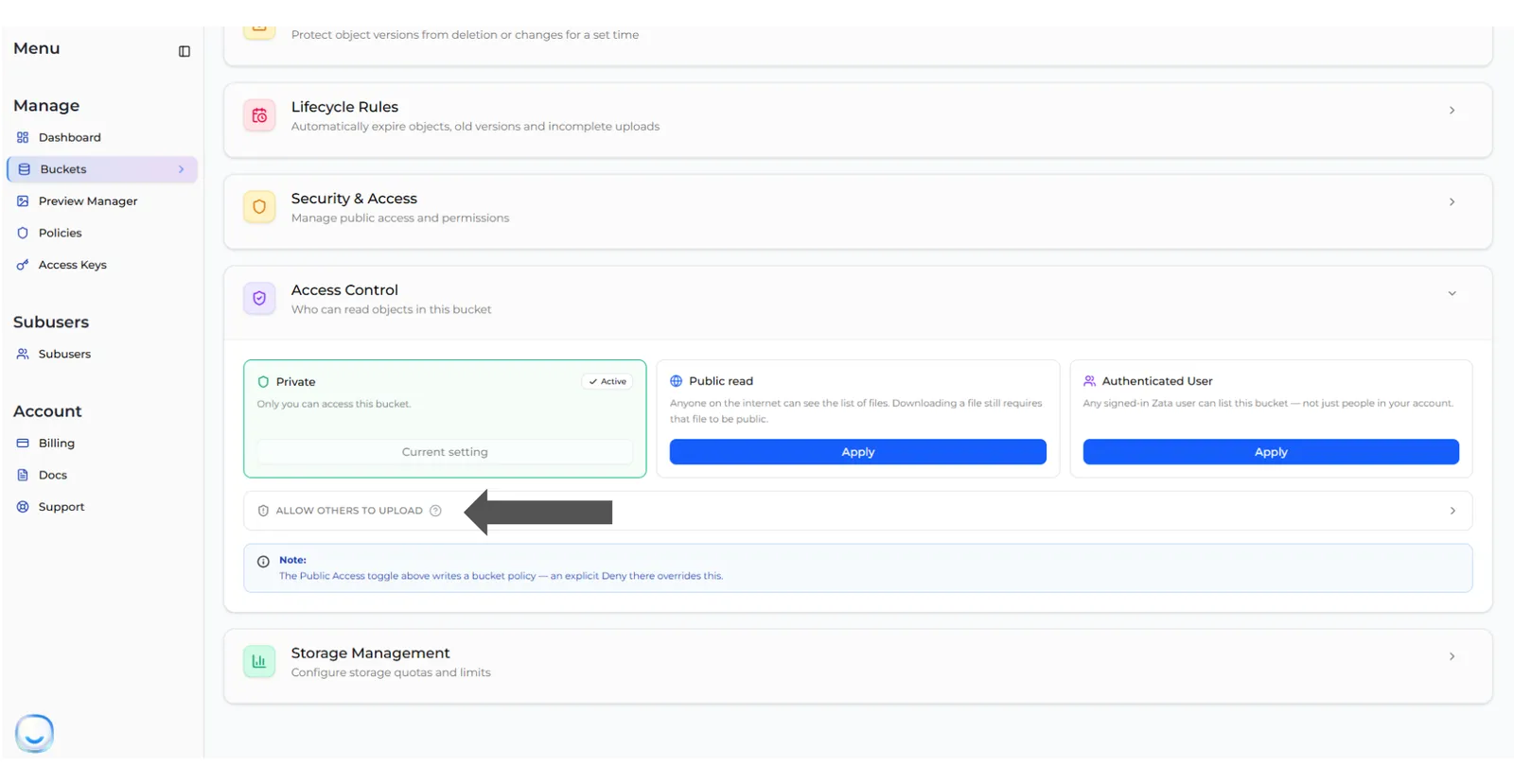
The five settings
A bucket uses one setting at a time. The current one is marked Active and its button reads Current setting.
Authenticated User is not “my team”. It includes every Zata account, even people who signed up on their own. To share with specific people, use sub-users.
Change the setting
Choose a setting
In Access Control, select Apply on the Private, Public read or Authenticated User card. For the write settings, see Let others upload.
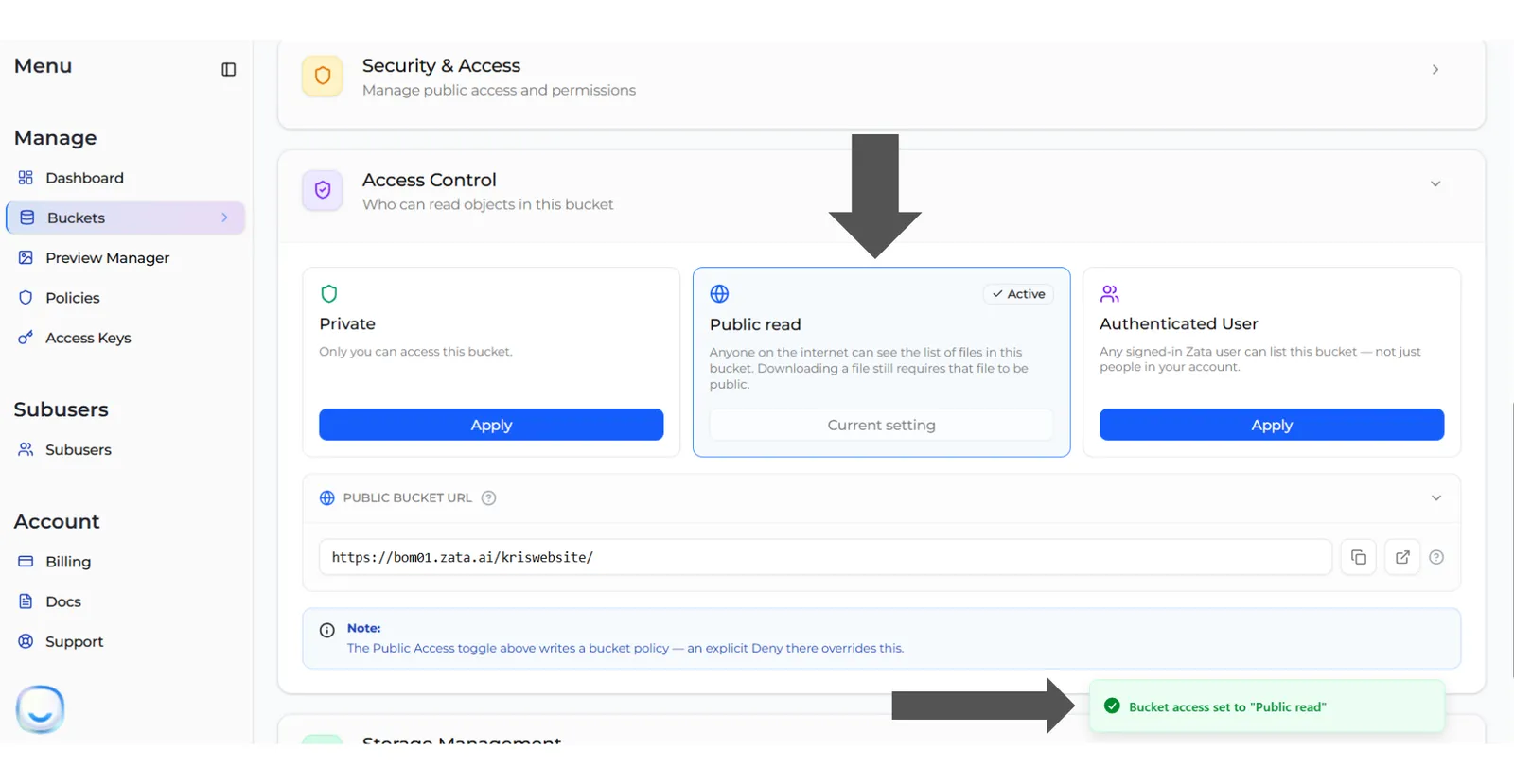
Public bucket URL
With Public read or Public read + write, a Public bucket URL row appears with buttons to copy or open the link:
Use idr01 instead of bom01 for a bucket in Indore. The URL returns the file list. A single file’s URL (https://bom01.zata.ai/my-bucket/myfile.txt) works only after you make that file public.
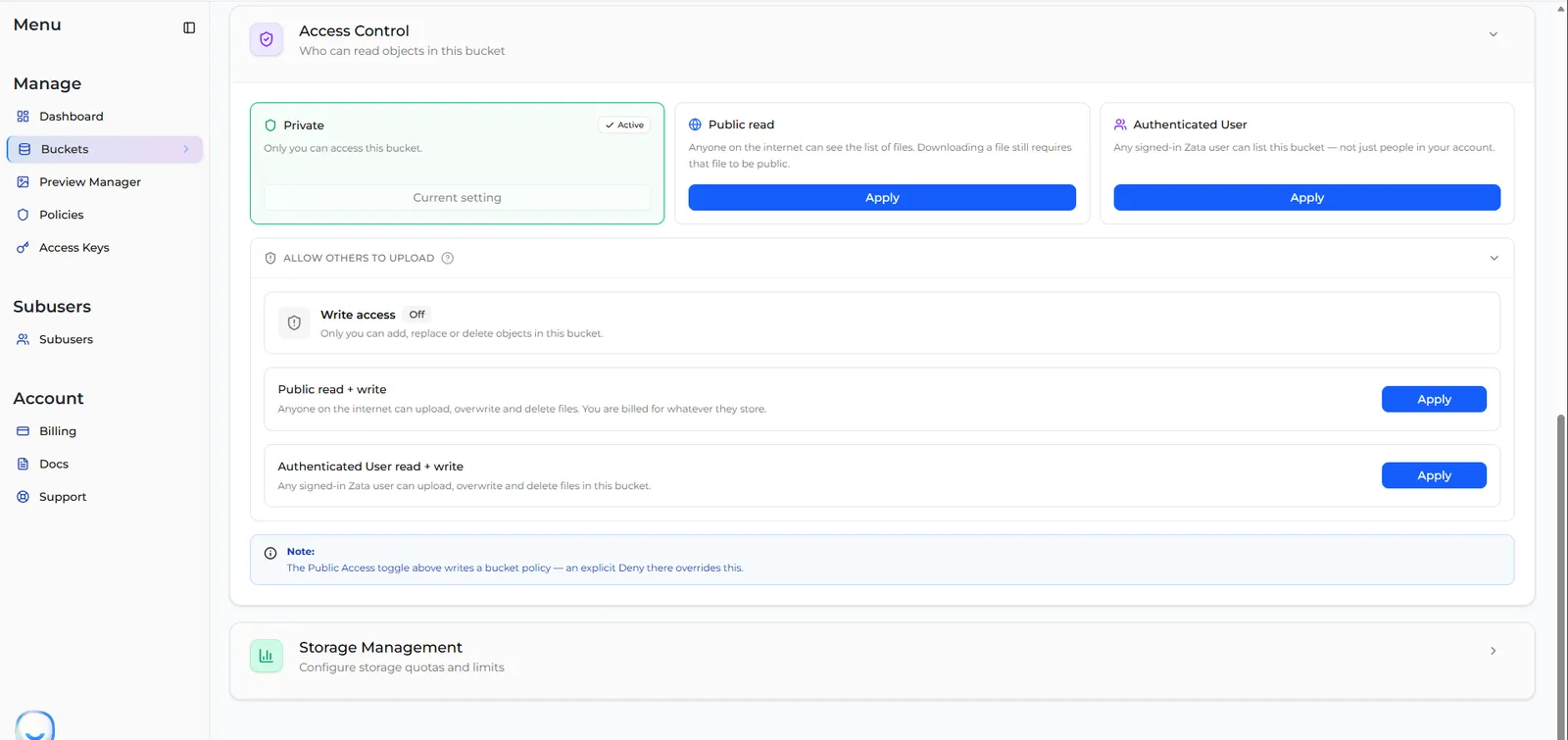
Let others upload
The two write settings sit inside the collapsed Allow others to upload row, below the cards. The Write access line shows Off (only you can add, replace or delete files) or On (and who else can).
Upload, overwrite and delete are one S3 permission — there is no upload-only ACL. Anyone you let upload can also replace and permanently delete your files, and you pay for what they store and download. Turn on versioning first if you need to recover overwritten files. To allow uploads without deletes, use a bucket policy or a sub-user instead.
To turn write access on:
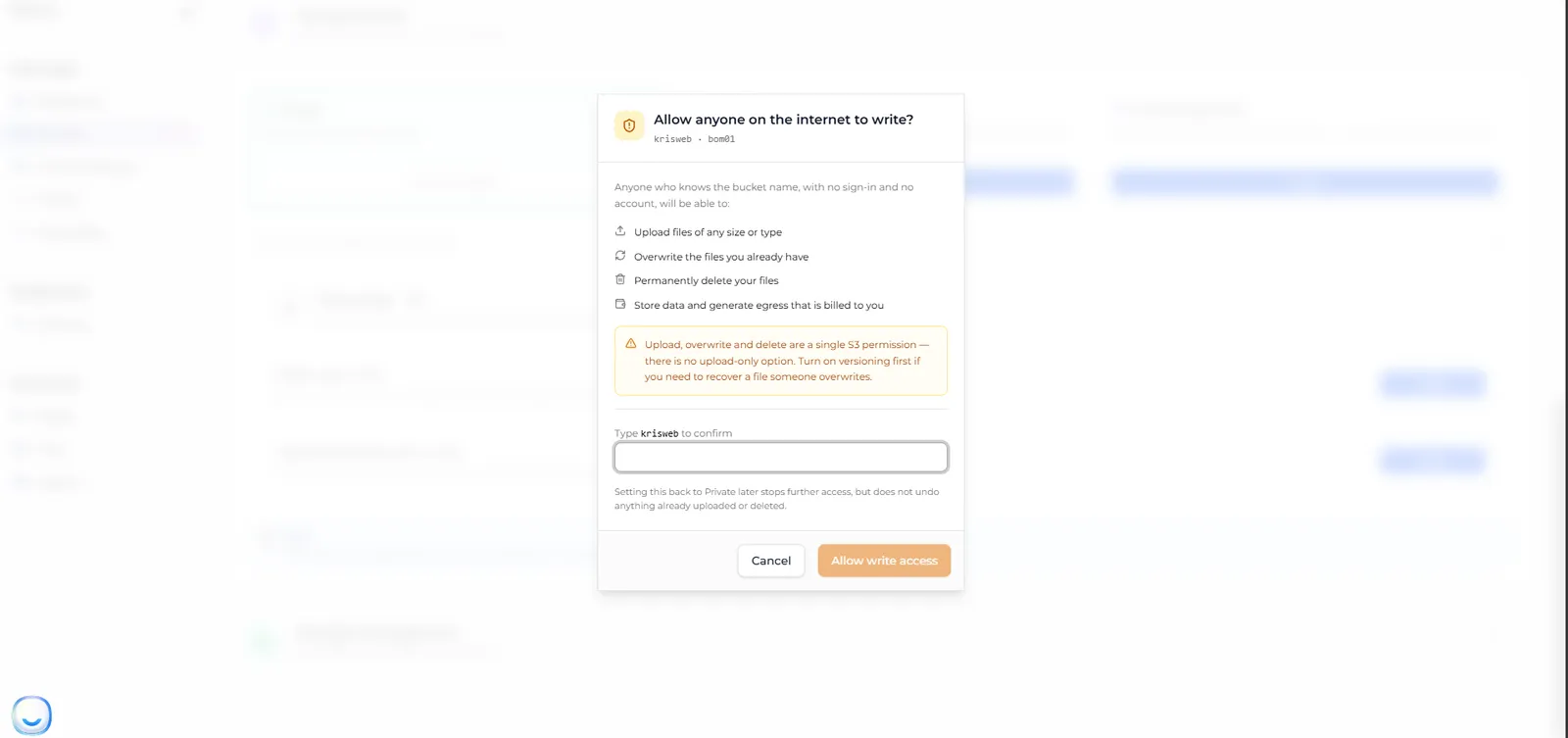
Write access now shows On, and the row explains who can write.
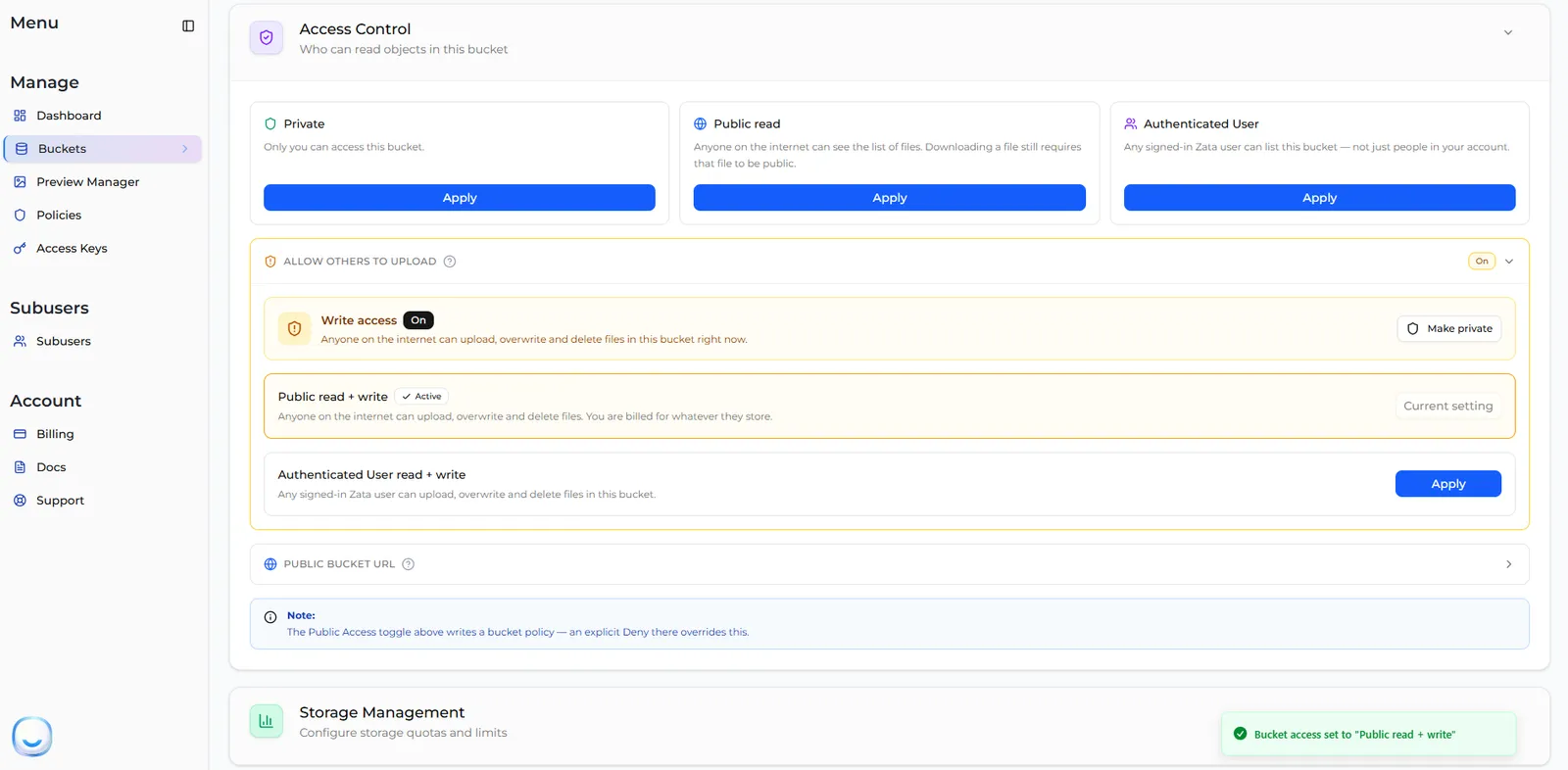
To turn it off, select Make private on the Write access line. This sets the whole bucket back to Private — both listing and writing. Apply Public read again afterwards if you still want a public file list.
Good to know
- Changing the bucket ACL never changes your files’ own settings. A file you made public stays public until you make it private.
- New uploads are always private, even in a Public read bucket.
- If the bucket has custom grants that none of the five settings describe, the console warns you. Applying a setting replaces those grants.
- A Deny rule in a bucket policy overrides the ACL. See ACLs and bucket policies.
- Turning a setting off stops further access, but does not undo anything already uploaded or deleted.