

Bucket policies
Allow or deny chosen actions on a bucket or folder, for the public or a sub-user.
A bucket policy is a set of rules that says who can do which actions on a bucket or on some of its folders. On the Policies page you build these rules with a short wizard — Zata writes the policy for you. Use it to give a sub-user exactly the access it needs, or to open part of a bucket to the public.
If you prefer to write the policy JSON yourself with an S3 tool, see What bucket policies support.
Create a policy
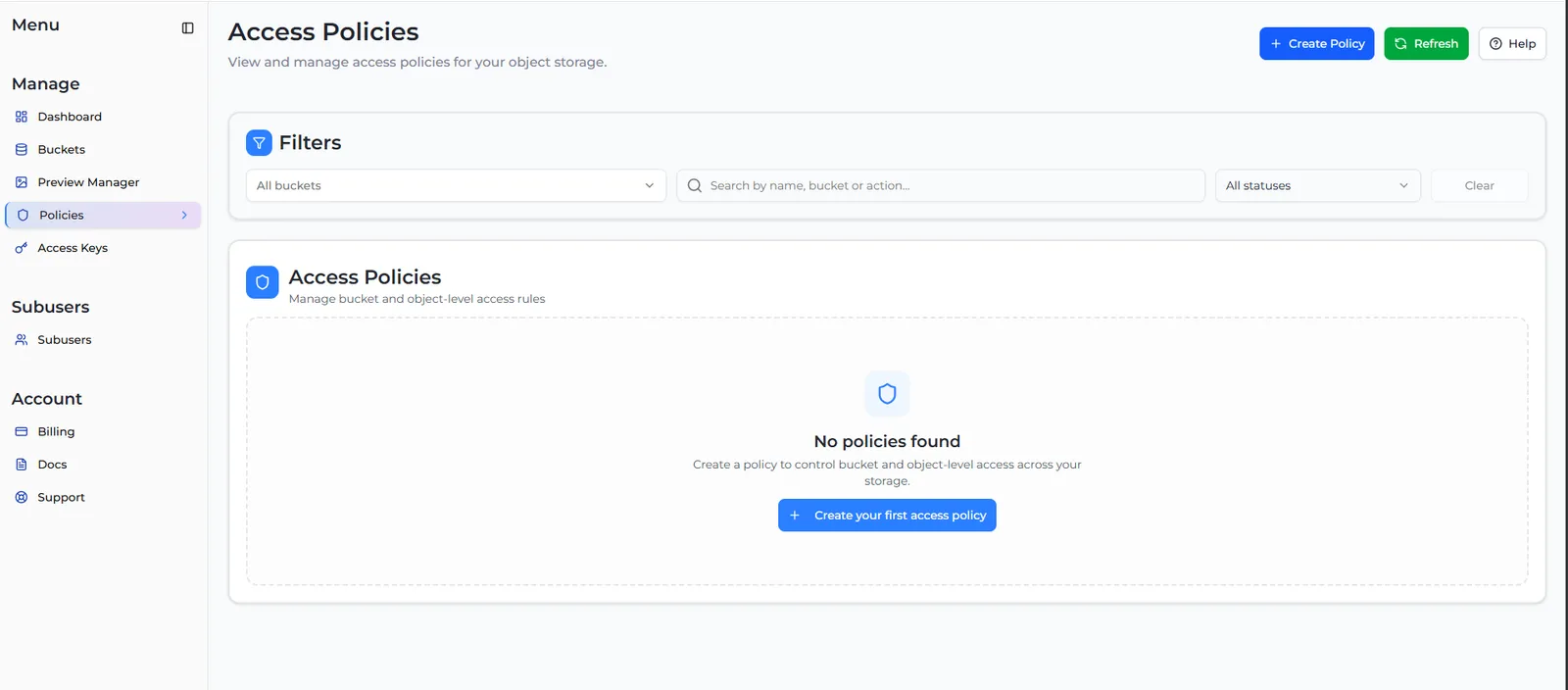
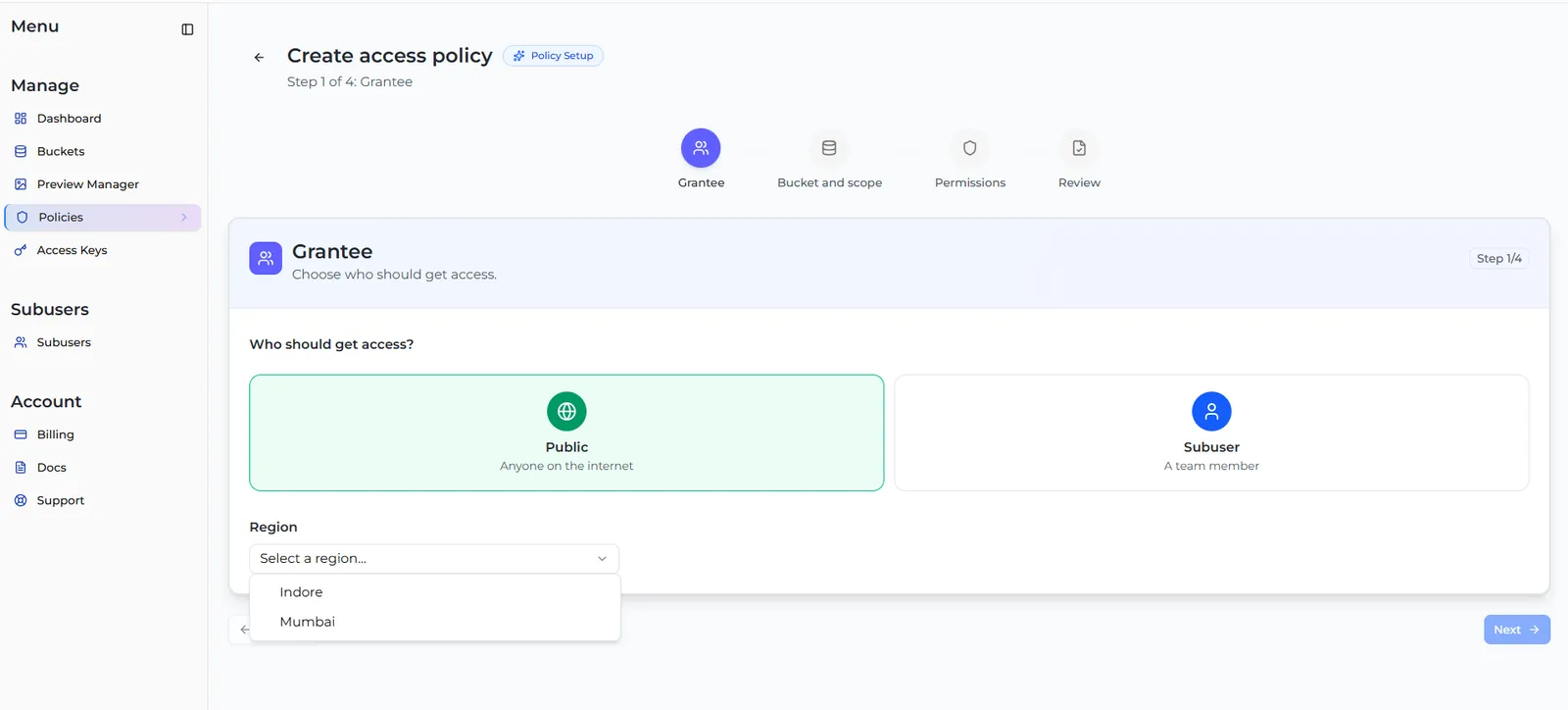
Grantee: choose who gets access
Under Who should get access?, choose:
- Public — anyone on the internet, with no sign-in. Then choose the Region of the bucket.
- Subuser — one of your sub-users. Choose it under Select subuser. Only active sub-users are listed, and you can only pick buckets in the sub-user’s own regions.
Select Next.
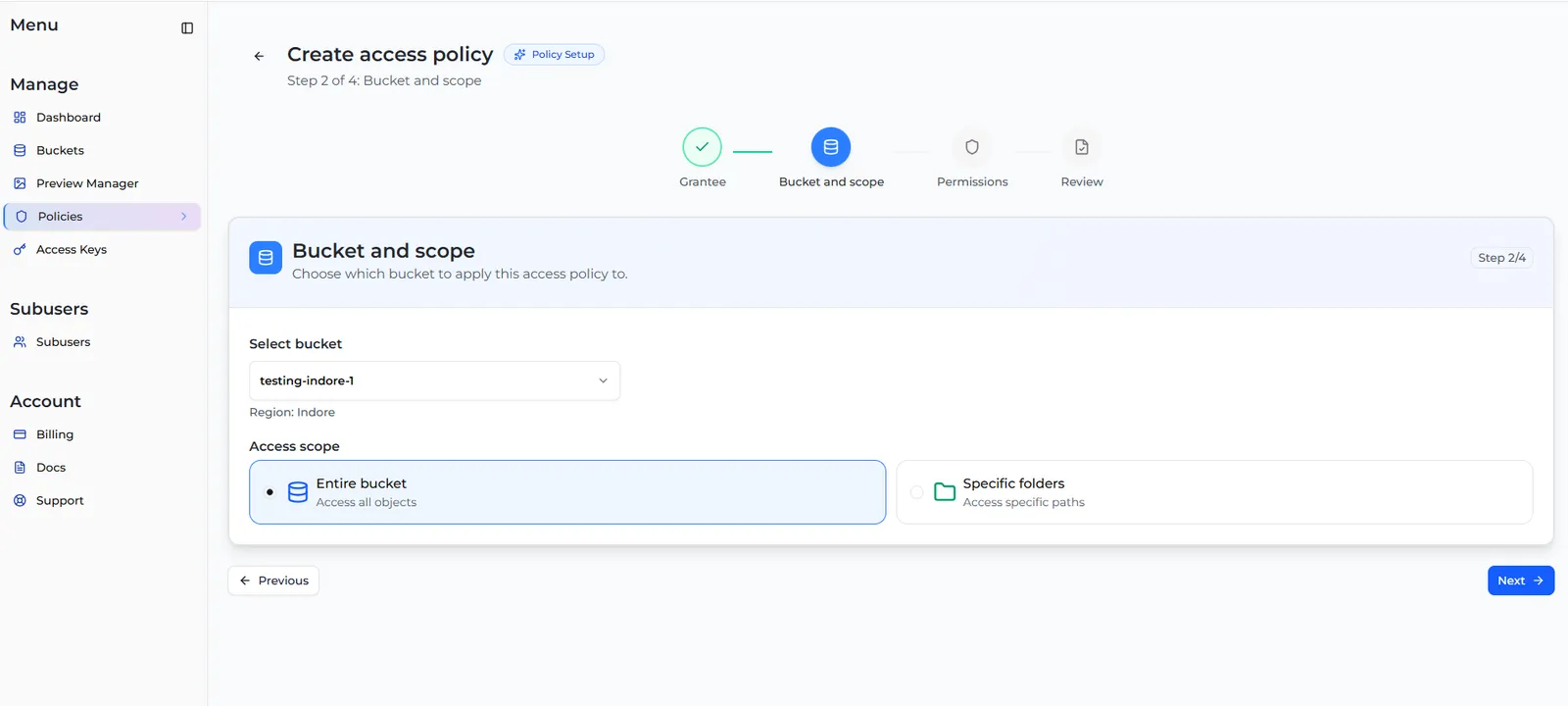
Bucket and scope: choose where it applies
Under Select bucket, pick the bucket. Under Access scope, choose:
- Entire bucket — the rule covers every file.
- Specific folders — type a folder path (end it with
/, for examplereports/2026/) and select Add. Add as many folders as you need. If a folder does not exist yet, Zata offers to create it.
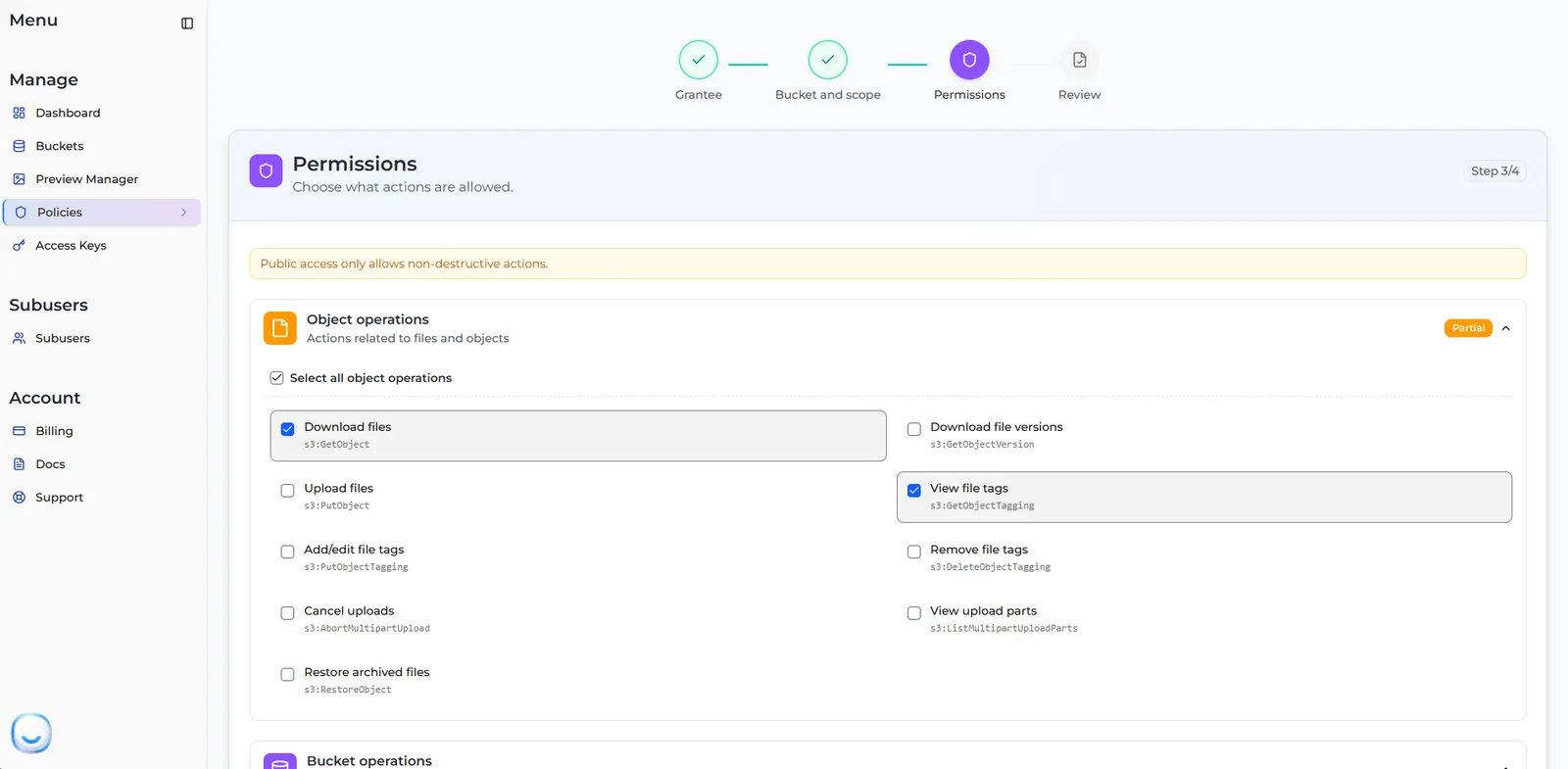
Permissions: choose the actions
Tick the actions to include, under Object operations and Bucket operations. The full list is in Actions you can choose.
Review and create
Check the bucket, region, grantee and actions. Choose the Effect:
- Allow grants the selected actions.
- Deny blocks them, even if something else (such as an ACL) allows them.
Enter a Policy name (up to 120 characters). A name is required when your actions do not match one of the ready-made sets. Then select Create access policy.
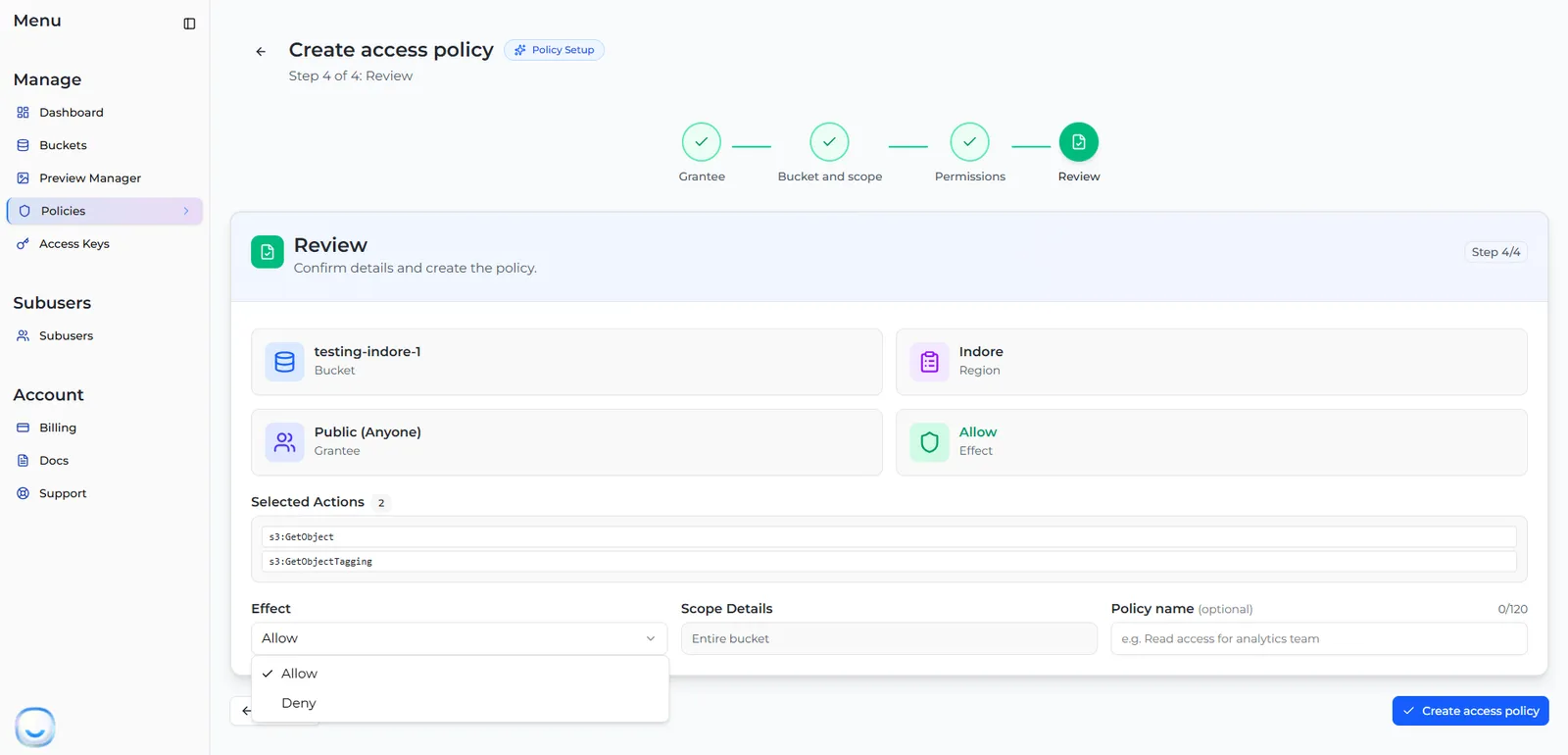
If a policy already exists for the same bucket and grantee, the wizard ticks its current actions for you, and the button changes to Update existing policy — so you edit that policy instead of creating a duplicate.
Actions you can choose
- Public policies only offer non-destructive actions: no delete and no permission changes.
- Sub-users can never get Change file permissions, Add/edit file tags, Change versioning or Manage bucket tags.
- With Specific folders, the bucket-wide settings (View versioning status, Change versioning, View bucket tags, Manage bucket tags) are not offered, and the listing actions only list inside the chosen folders.
Upload files for Public lets anyone on the internet add and overwrite files in that bucket or folder, and you pay for what they store. Use it only when you really mean it.
Manage policies
Your policies appear as cards on the Policies page, grouped by bucket. Use the filters to find one by bucket, name or action, or by status (Active, Suspended, Expired).
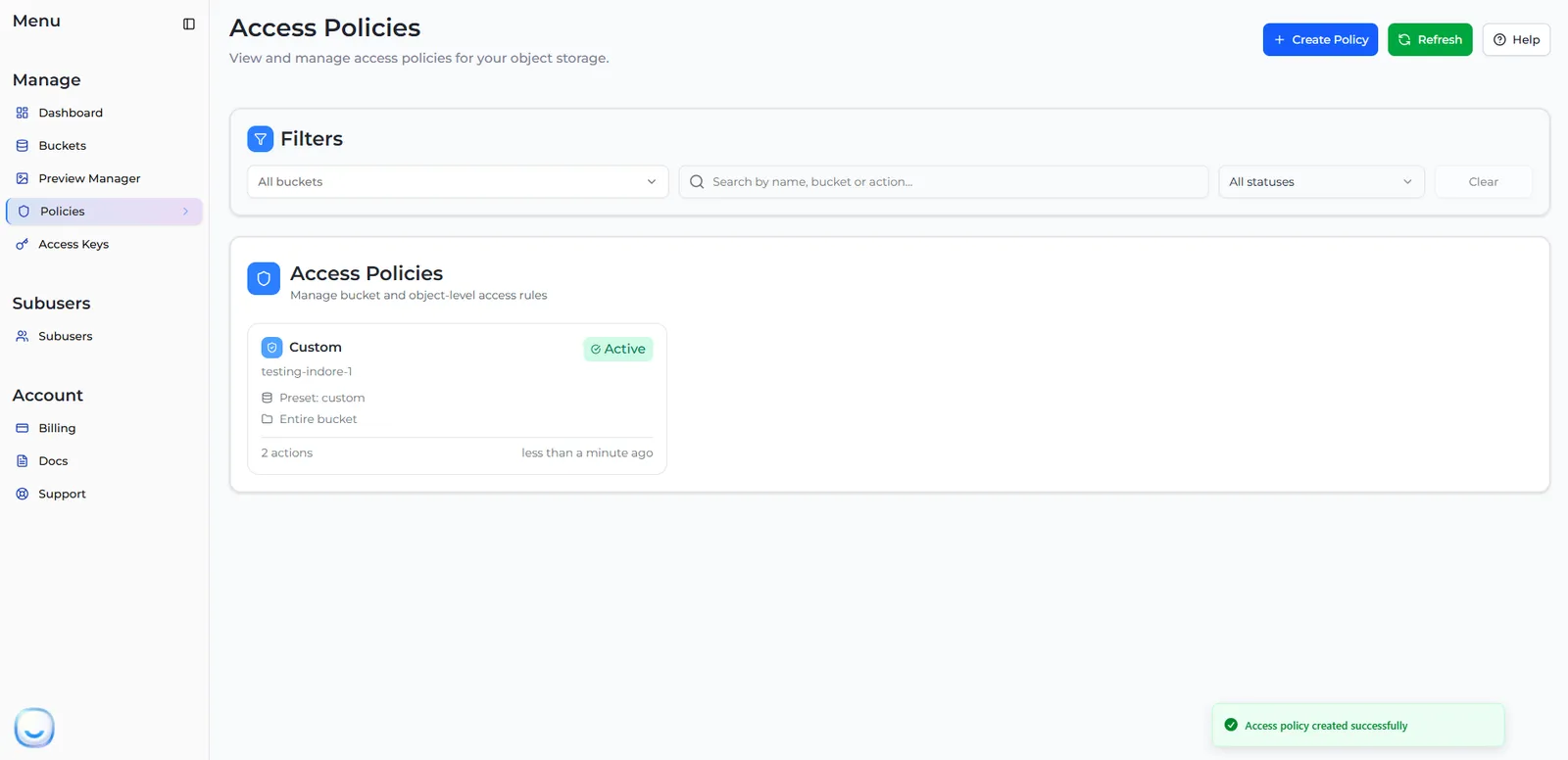
Select a card to see its effect, scope, grantee, folders and actions. From there you can:
- Edit — change the scope, effect, actions or name, then Save changes.
- Suspend — turn the policy off for now without deleting it. Resume turns it back on.
- Delete — remove the policy for good.
Sub-users can ask you for more actions on a policy they already have. Their requests appear under Policy Requests on the Policies page — see Sub-user policies and requests.
Next steps
- What bucket policies support — write a policy yourself with the S3 API
- Access control (ACL) — public buckets and files