Skip to navigation

Arq Backup

Automatic, encrypted backups from your computer to Zata with Arq.

Arq backs up your computer automatically and encrypts the backups with your own password. It stores them in a Zata bucket that you add as an S3-Compatible Server storage location.

Before you start

  • A bucket for the backups. See Create a bucket.
  • An access key from the same region as the bucket. See Access keys.
  • Arq installed (Windows or macOS).

Connection settings

SettingValue
Server URLhttps://idr01.zata.ai for Indore, https://bom01.zata.ai for Mumbai
Regionus-east-1 (Zata does not check the region name)
Access Key ID / Secret Access KeyFrom Access Keys in the Zata console. The key must be from the same region as the bucket.
Bucket NameYour bucket name, for example my-bucket

Set up Arq

1

Create a backup plan

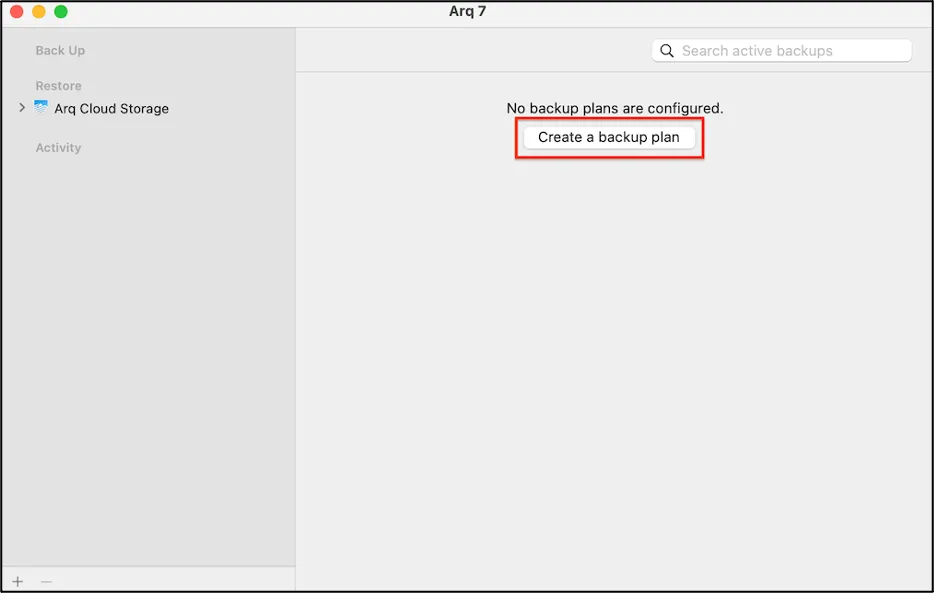
Open Arq and click Create a backup plan.

Arq main window with the Create a backup plan button
2

Add a storage location

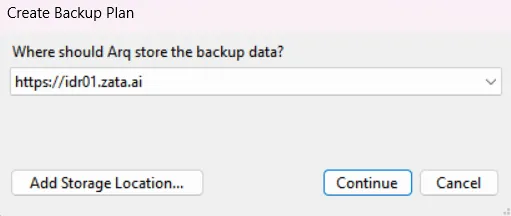
When Arq asks Where should Arq store the backup data?, click Add Storage Location…. Select S3-Compatible Server and click Continue.
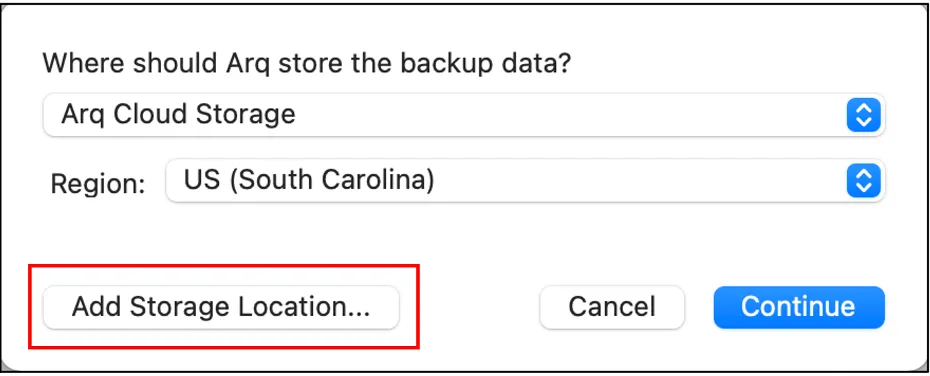
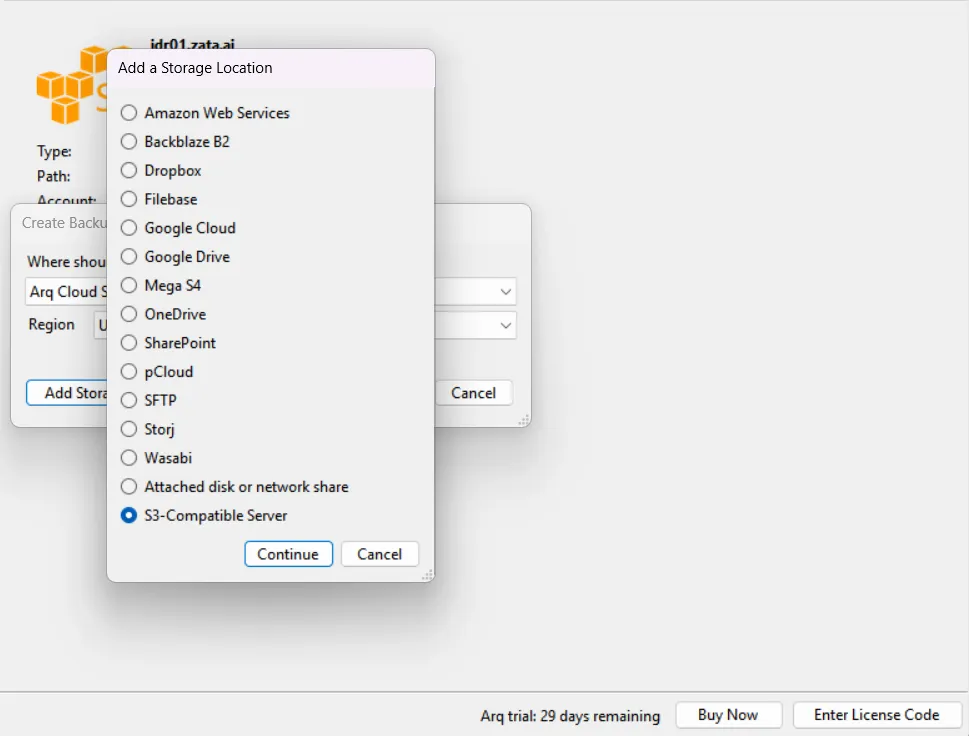
Where should Arq store the backup data dialog with the Add Storage Location button
Add a Storage Location dialog with S3-Compatible Server selected
3

Enter the Zata details

Fill in the fields from the table above and click Save.
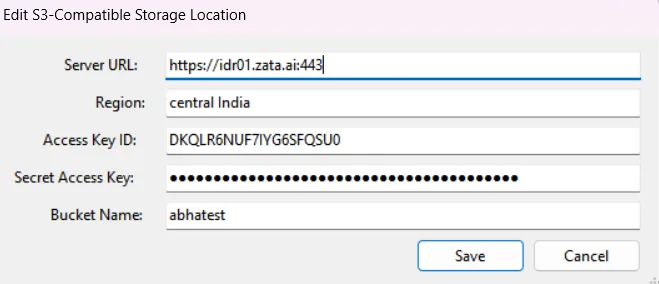
S3-Compatible Storage Location dialog with server URL, region, access key ID, secret access key and bucket name
Any region name works. We recommend us-east-1.
4

Confirm the storage location

Check that the Zata endpoint is selected and click Continue.

Create Backup Plan dialog with https://idr01.zata.ai selected as the storage location
5

Set the encryption password

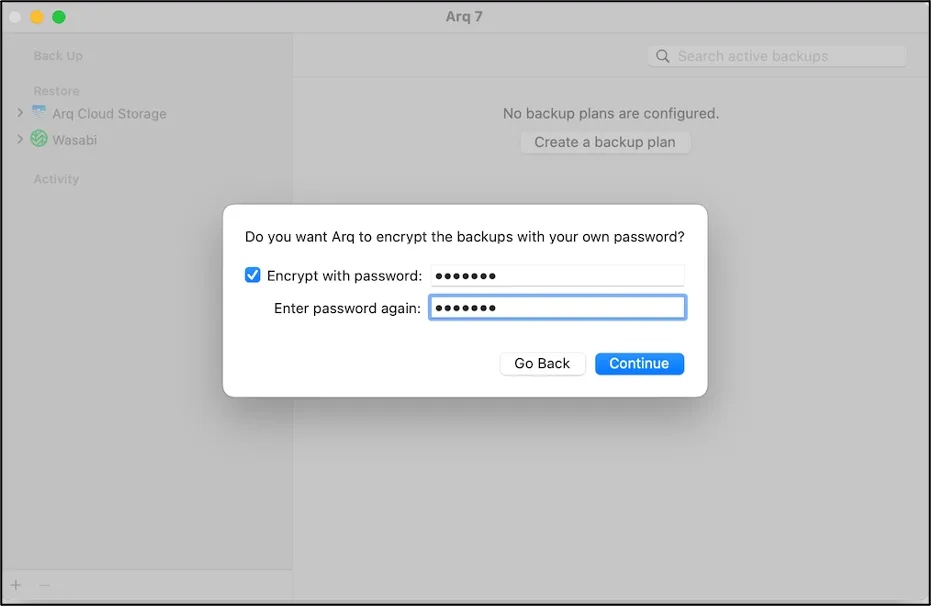
Tick Encrypt with password, enter a strong password twice, and click Continue. Keep the password safe: without it the backups cannot be restored, and Zata cannot recover it.

Arq dialog asking for an encryption password
6

Choose what to back up

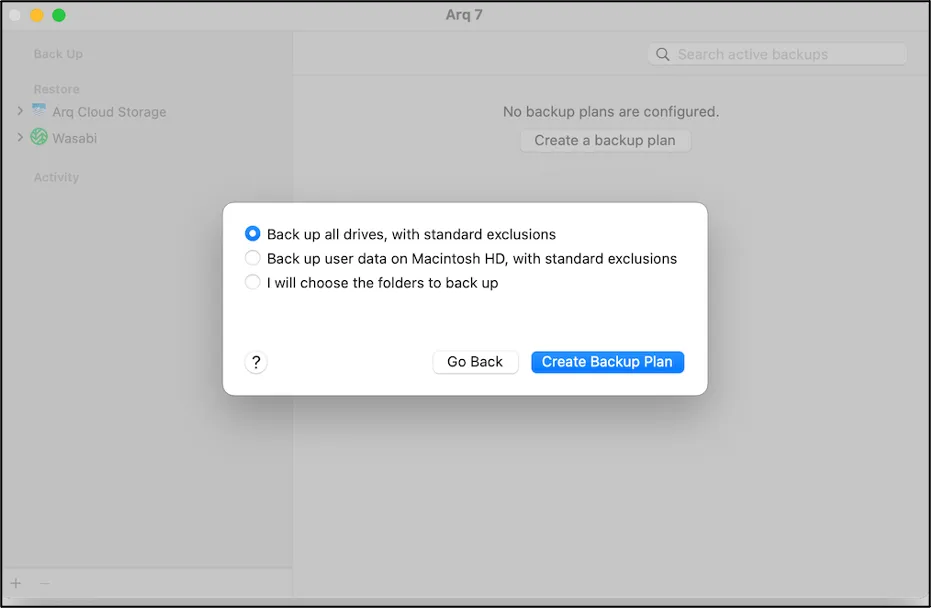
Choose to back up all drives, your user data, or folders you pick, and click Create Backup Plan.

Options to back up all drives, user data, or chosen folders, with the Create Backup Plan button

Test it

Back up a small folder, check that new files appear in your bucket in the Zata console, then restore one file with Arq to confirm it can be recovered.

Troubleshooting

ProblemFix
Arq cannot connectCheck that Server URL starts with https:// and matches the bucket’s region.
Access denied or invalid credentialsCopy the keys again from Access Keys and check that the key can use the bucket.

For other errors, see Signature errors and Endpoint and region.