

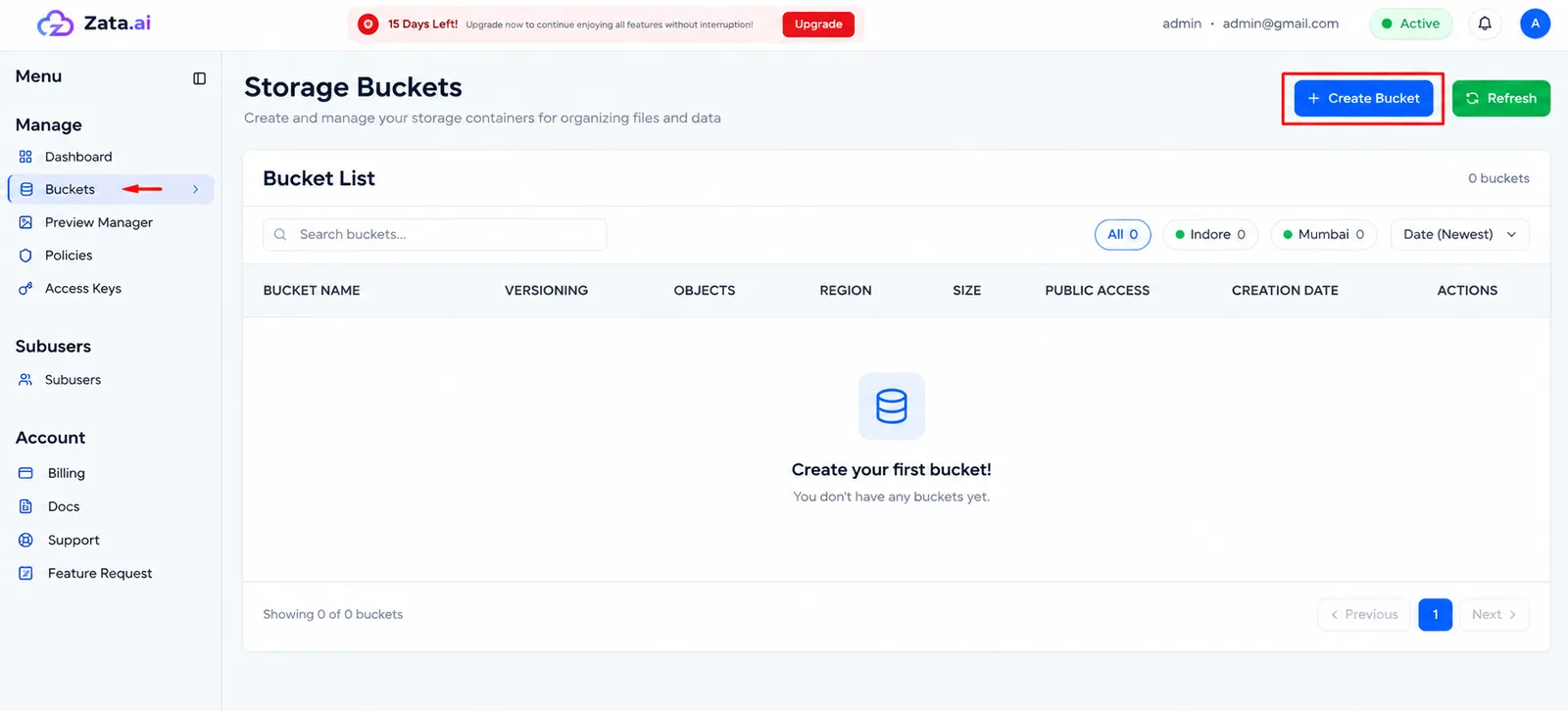
Create a bucket
A bucket holds your files. Each bucket lives in one region, Indore or Mumbai, and you reach it with an access key from that same region.
Only the account owner can create buckets. Sub-users work in the buckets the owner assigns to them.
Create a bucket
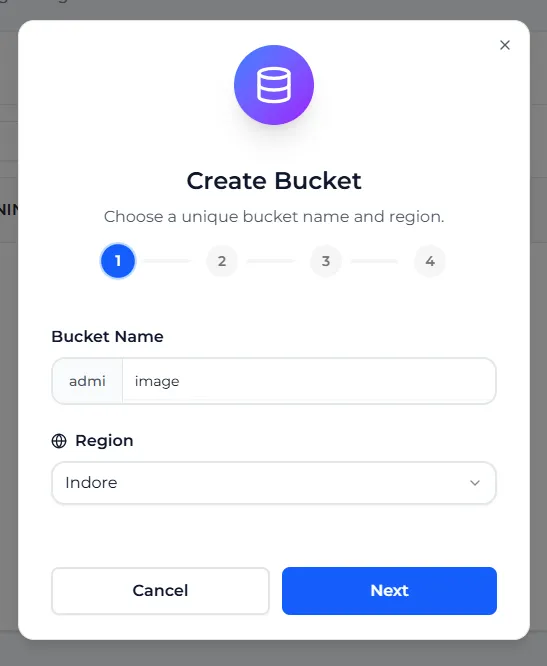
Name the bucket and pick a region
Type a name in Bucket Name and choose a Region, then select Next. The console checks that the name is still free.
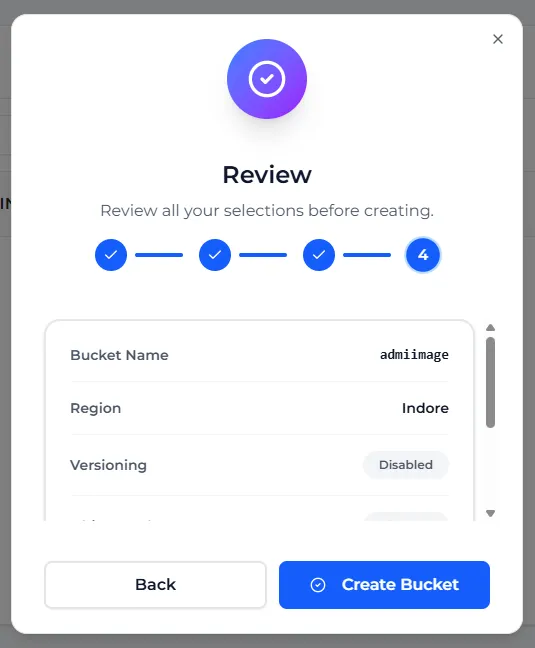
The console adds a short prefix in front of your name: the first four letters of your username. The Review step shows the full name.
Your plan, or the free trial, covers both regions, so you can pick Indore or Mumbai.
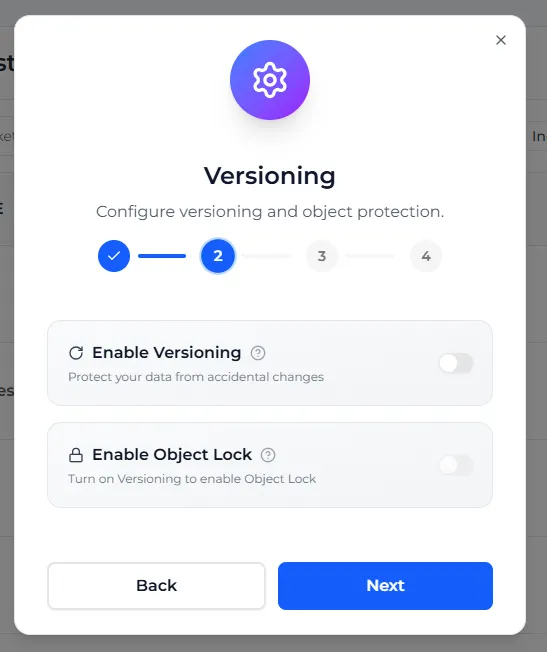
Choose versioning and Object Lock
Turn on Enable Versioning if you want to keep old versions of files. Turn on Enable Object Lock if files must not be deleted or changed for a set time. Object Lock needs versioning, so turn that on first. Both settings are explained below.
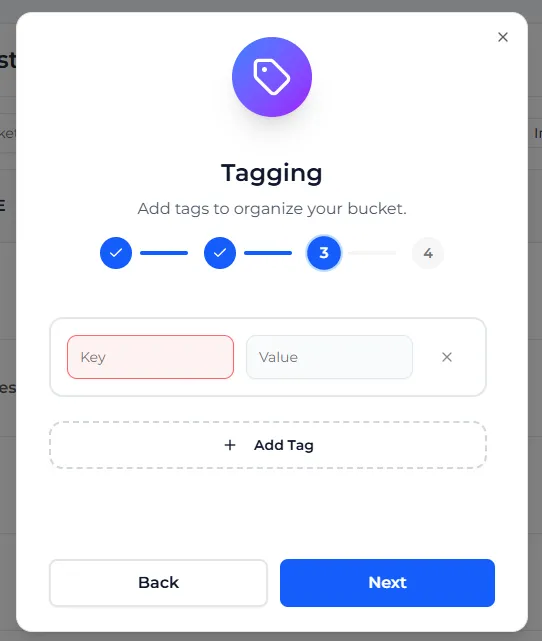
Add tags (optional)
Enter a Key and a Value, and select Add Tag for more. You can add up to 10 tags. See Tags for the rules. To skip, leave the row empty. Select Next.
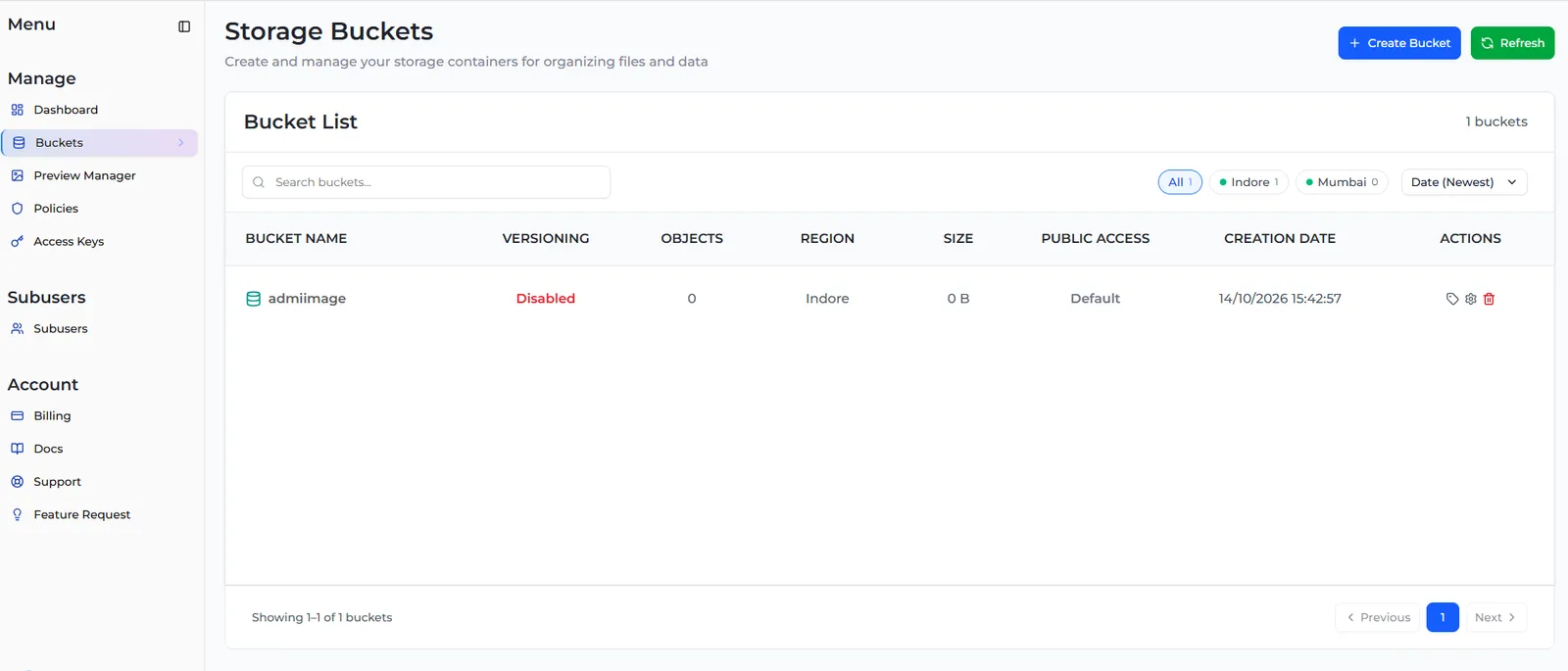
The new bucket appears in the Bucket List. Select its name to upload files. The icons under ACTIONS open Tags, Bucket settings and Delete a bucket.
Bucket name rules
Keep the whole name, prefix included, within 63 characters, and use hyphens instead of dots. Names with dots fail the HTTPS certificate check in virtual-host style URLs.
You cannot rename a bucket or move it to the other region later. To move data, create a new bucket and copy the files.
Versioning and Object Lock
The Review step also lists Encryption as SSE-S3 (Default). There is no encryption setting to choose. In S3 tools, leave server-side encryption options turned off: Zata rejects SSE requests.
Next steps
- Upload and manage files
- Create an access key to connect S3 tools
- Endpoints and regions