

S3 Browser with a sub-user key
Open one bucket in S3 Browser with a sub-user’s key.
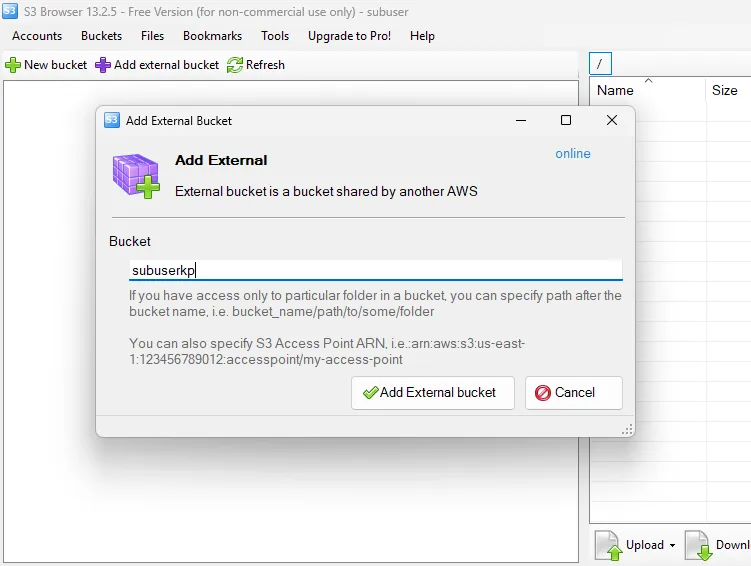
A sub-user’s key only works on the buckets the account owner assigned to it. S3 Browser normally lists your buckets, but for a sub-user that list is always empty. So you connect as usual and then add the bucket by its exact name.
Before you start
- The sub-user’s credentials file. Zata downloads it when the owner creates the sub-user or adds a region to it. For each region it lists the Service URL, Access Key and Secret Key. The secret key cannot be shown again — if the file is lost, the owner makes a new key, see New keys for a sub-user.
- The exact name of a bucket assigned to the sub-user. The owner sees it in the Zata console under Subusers, in the Assigned Buckets column. To give access, see Assign a bucket.
- S3 Browser installed — download S3 Browser.
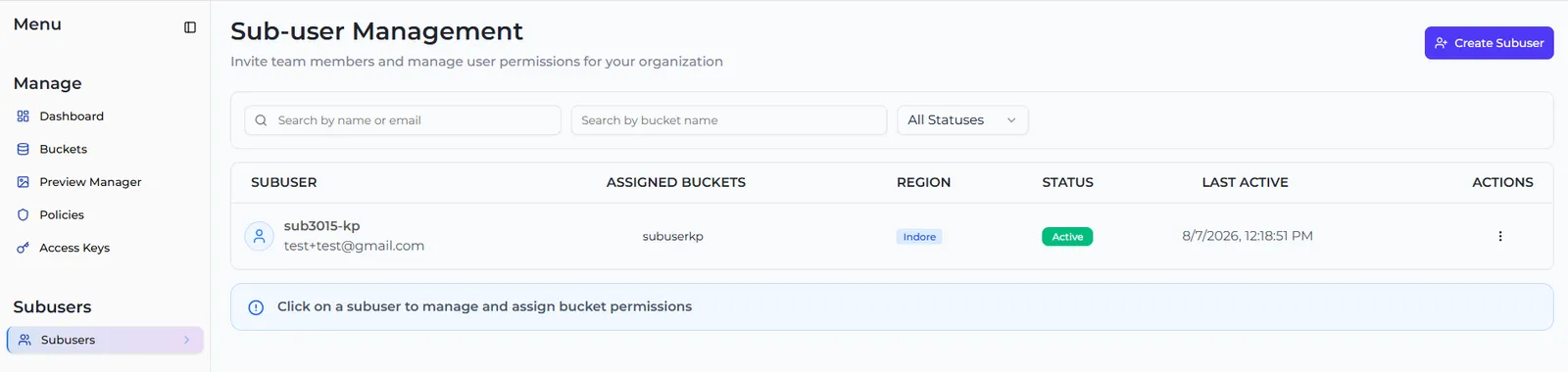
Connection settings
Set up S3 Browser
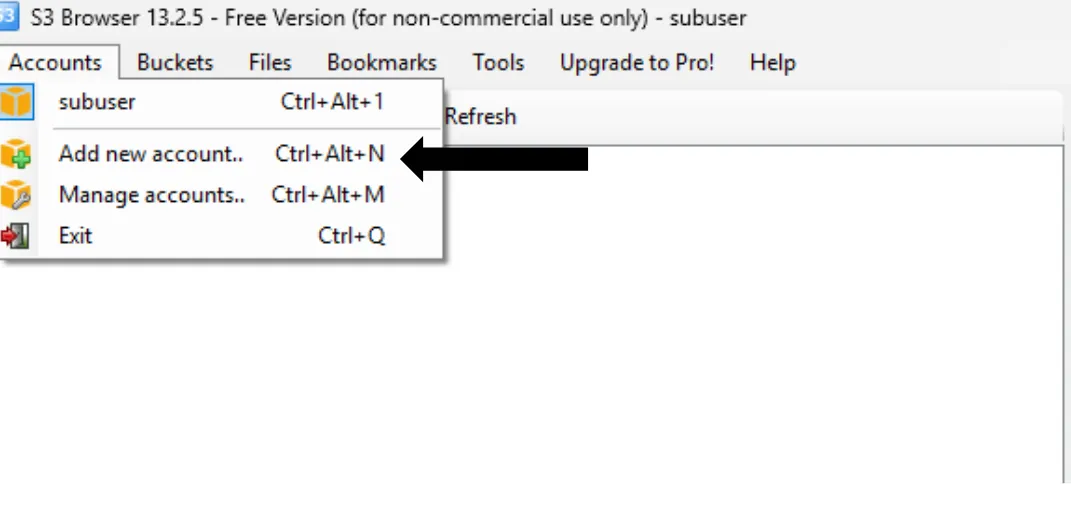
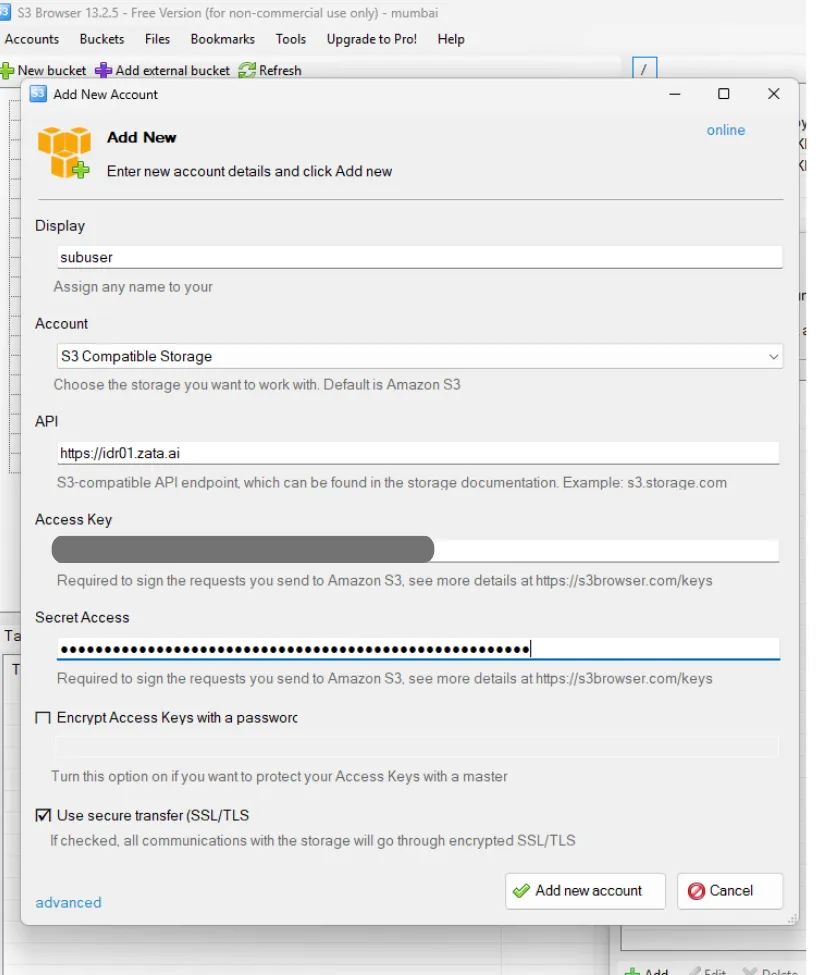
Enter the sub-user's key
Enter a Display name, set Account type to S3 Compatible Storage, and enter the REST Endpoint and the sub-user’s keys. Keep Use secure transfer (SSL/TLS) ticked. Under advanced settings, choose Signature V4 and Path style (screenshot on the S3 Browser page). Then select Add new account.
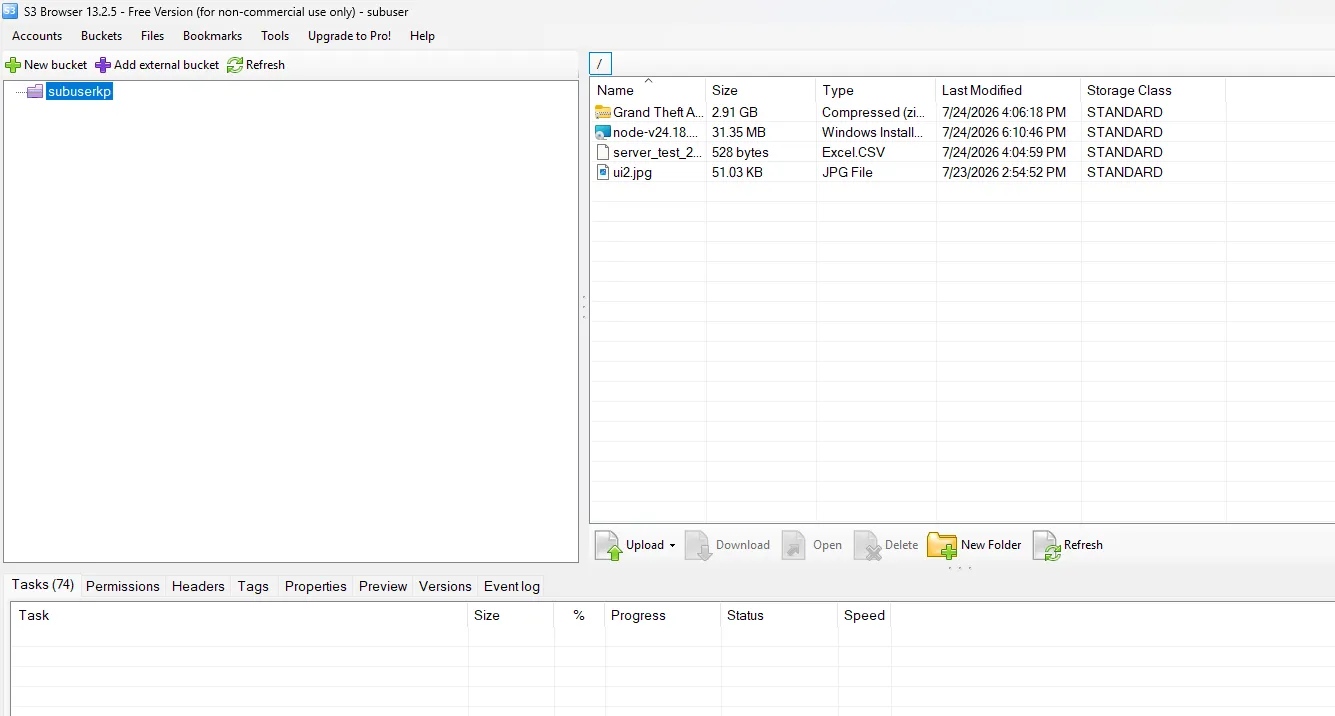
The bucket list stays empty. That is normal for a sub-user.
What the sub-user can do
The owner sets one of these permissions for each bucket (or folder):
Sub-users cannot create buckets — New bucket always gives Access Denied. Ask the account owner to create the bucket and assign it to you.
Troubleshooting
See also Access denied and Sub-users overview.