

NetDrive 3
NetDrive 3 mounts a Zata bucket as a drive on Windows and macOS, so you can open and save files from File Explorer, Finder and your other apps. It connects with its S3 storage type.
Before you start
- A bucket — see Create a bucket.
- An access key from the same region as the bucket — see Access keys.
- NetDrive 3 installed — download NetDrive. On Windows, allow NetDrive through the firewall for private networks if asked.
- The correct time on your computer. A clock that is more than about 15 minutes off breaks sign-in.
Connection settings
Set up NetDrive
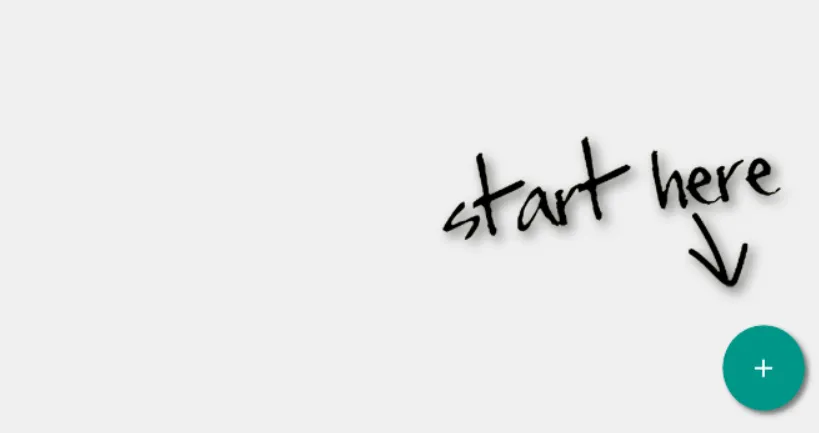
Choose the S3 storage type
On Add a Personal Drive, enter a LABEL such as Zata, set STORAGE TYPE to S3, and select CONNECT.
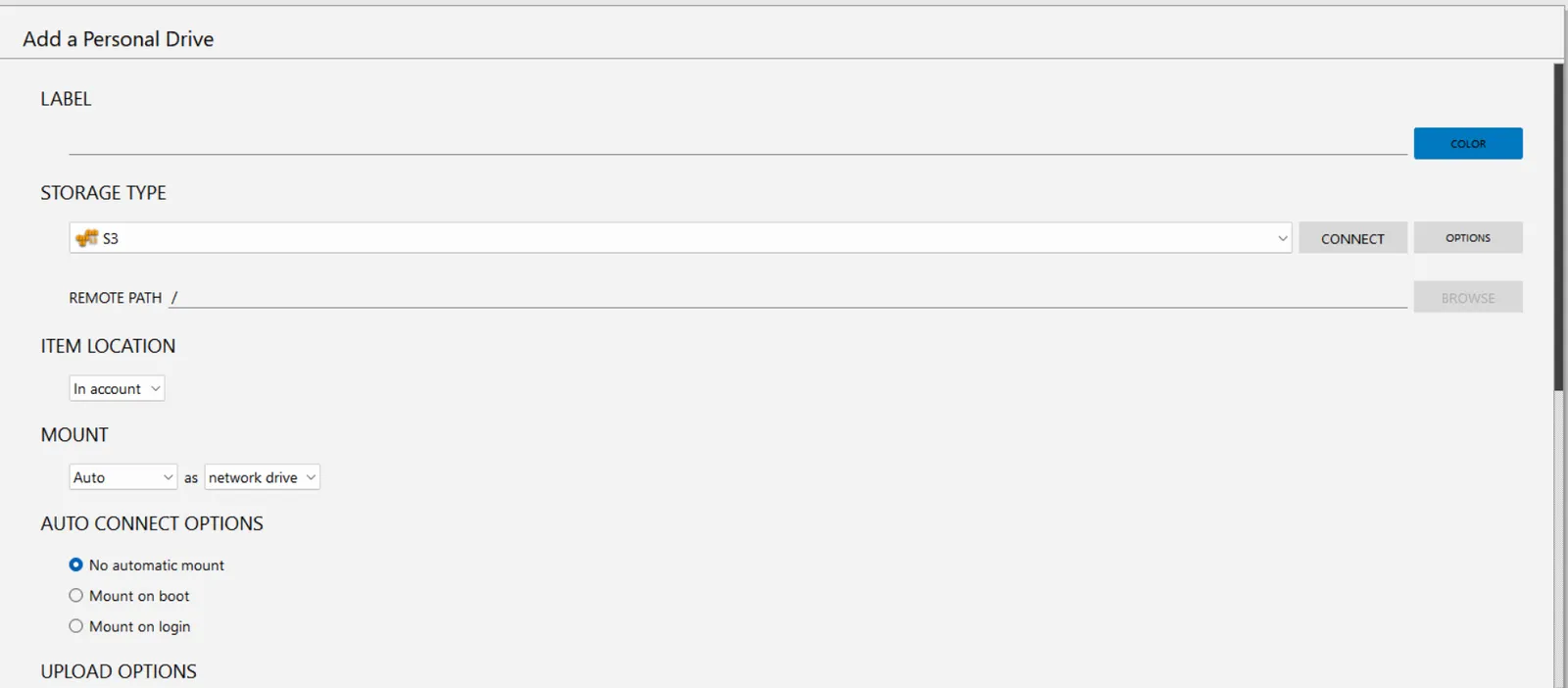
Enter the Zata details
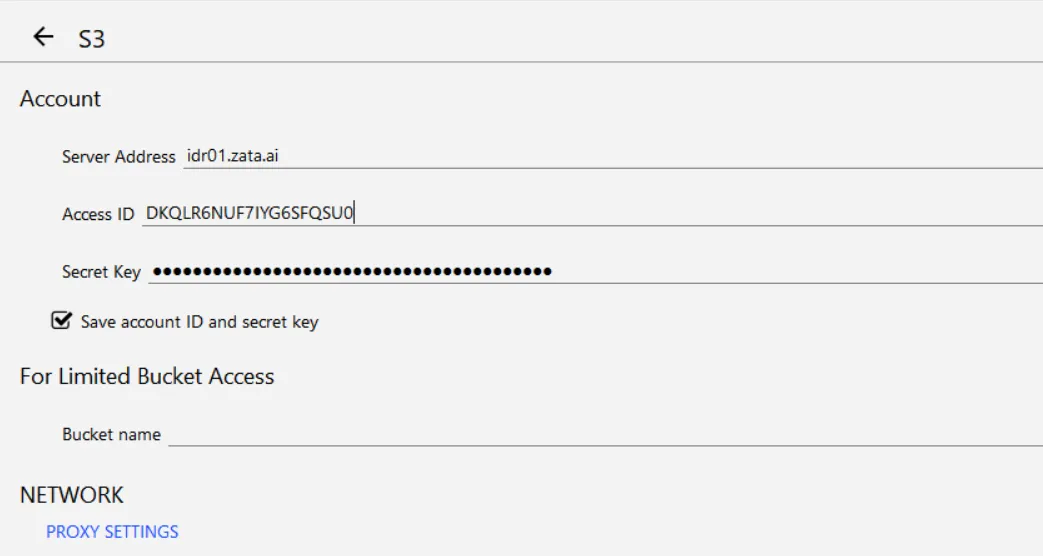
Enter the Server Address, Access ID and Secret Key. Tick Save account ID and secret key so NetDrive can reconnect. If your key cannot list buckets, enter your bucket in Bucket name under For Limited Bucket Access. Use PROXY SETTINGS only if your network needs a proxy.
Choose how the drive mounts
Back on Add a Personal Drive, choose the drive letter under MOUNT. Under AUTO CONNECT OPTIONS, choose Mount on boot or Mount on login if you want the drive to come back by itself. Then save the drive and connect it.
On Windows the bucket gets a drive letter. On macOS it appears in Finder.
Test it
Open the new drive and create a folder, for example netdrive-test. Copy a small file into it. Check that the folder and file appear in the bucket in the Zata console under Buckets. Then copy the file back to your computer to check that downloads work.
Troubleshooting
For other errors, see Signature errors and Access denied.