Skip to navigation

Veeam

Add a Zata bucket as an object storage repository in Veeam Backup & Replication.

Veeam Backup & Replication can store backups in a Zata bucket. You add the bucket as an S3 Compatible object storage repository, then use it as the target of your backup jobs.

Before you start

Connection settings

SettingValue
Service pointhttps://idr01.zata.ai for Indore, https://bom01.zata.ai for Mumbai
Regionus-east-1 (Zata does not check the region name)
CredentialsAccess key and secret key from Access Keys in the Zata console. The key must be from the same region as the bucket.
BucketYour bucket name, for example my-bucket

Set up Veeam

1

Open Backup Repositories

In the Veeam console, open Backup Infrastructure. Right-click Backup Repositories and select Add Backup Repository.
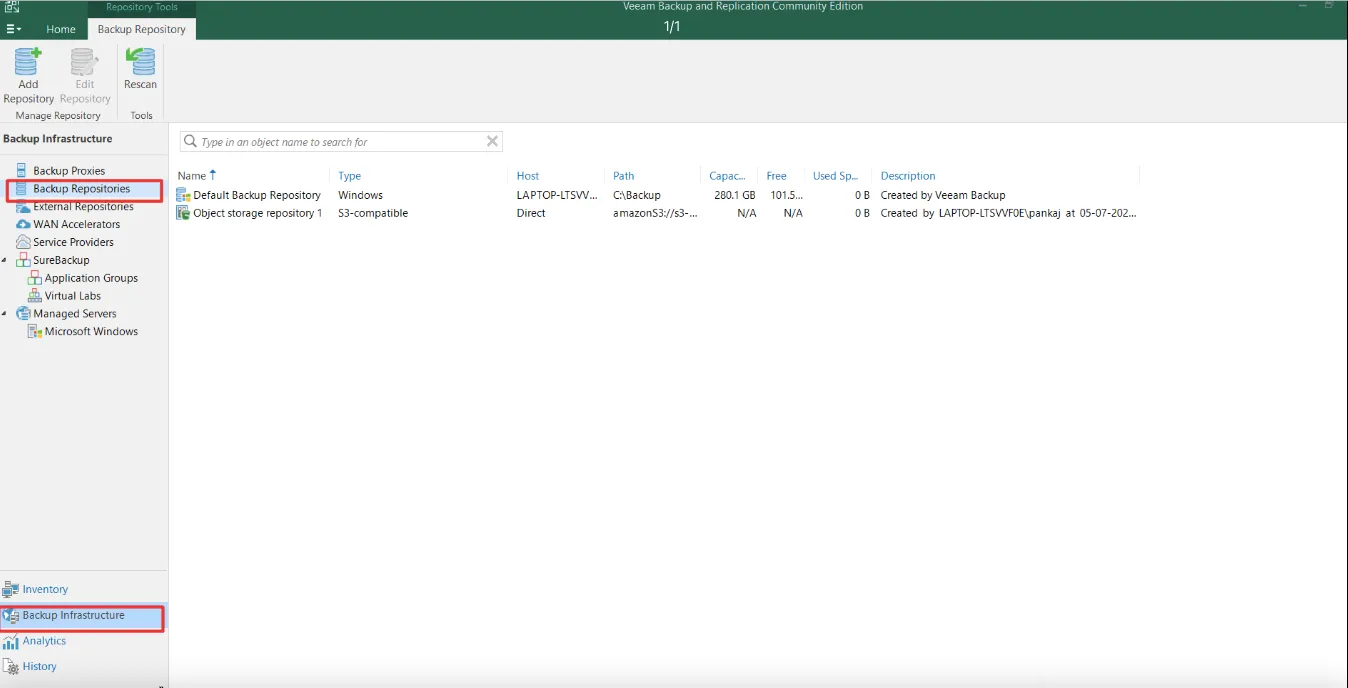
Backup Repositories under Backup Infrastructure in the Veeam console
2

Choose S3 Compatible

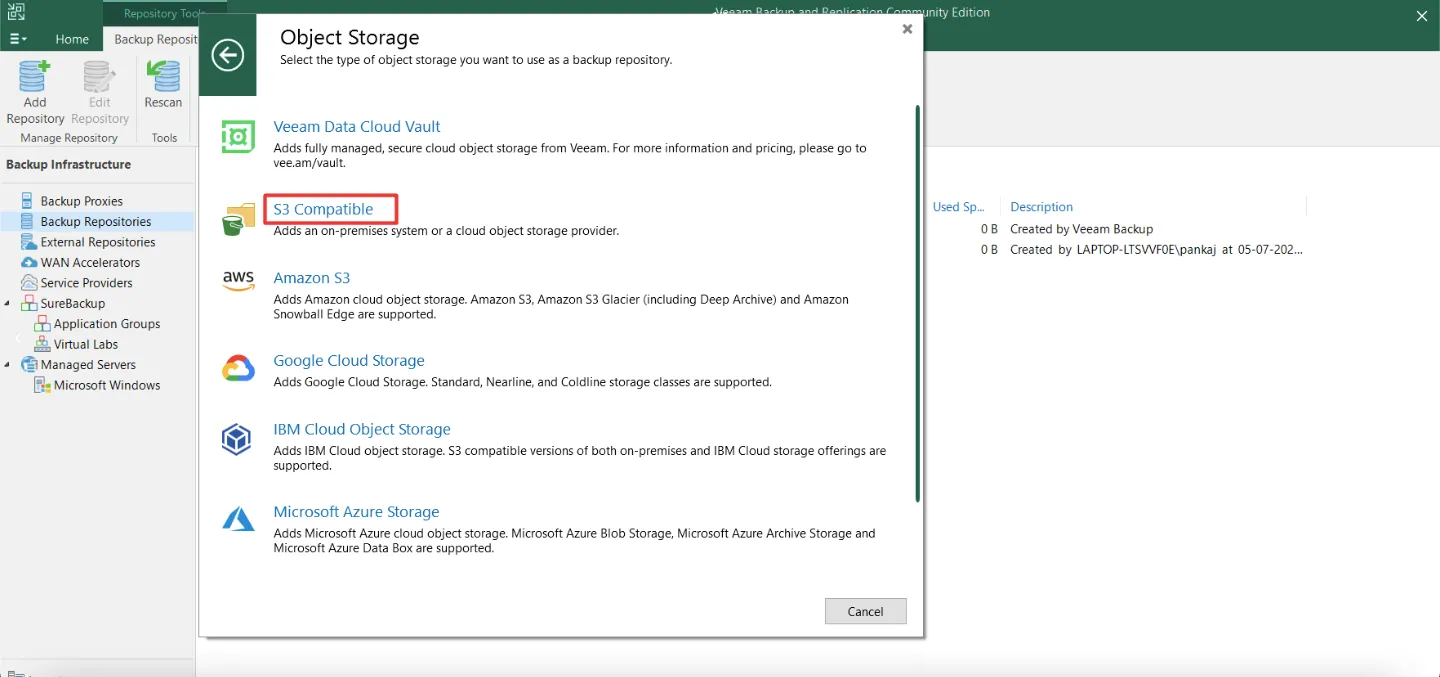
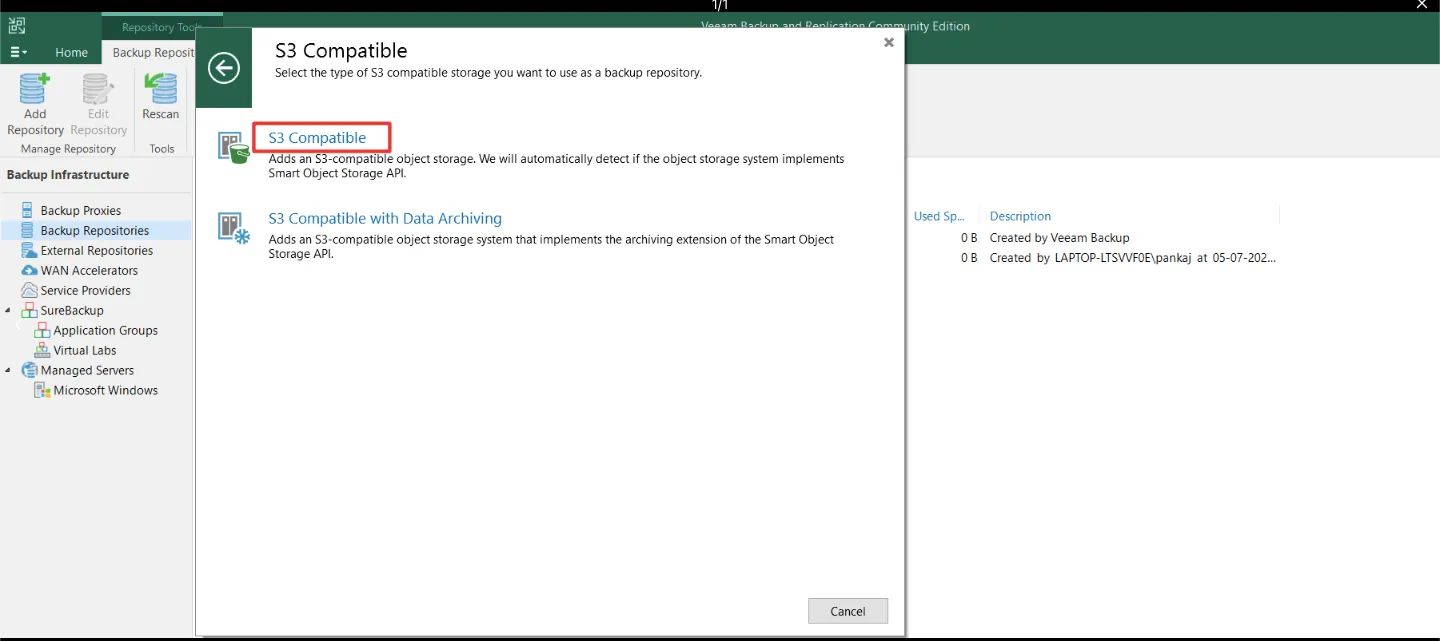
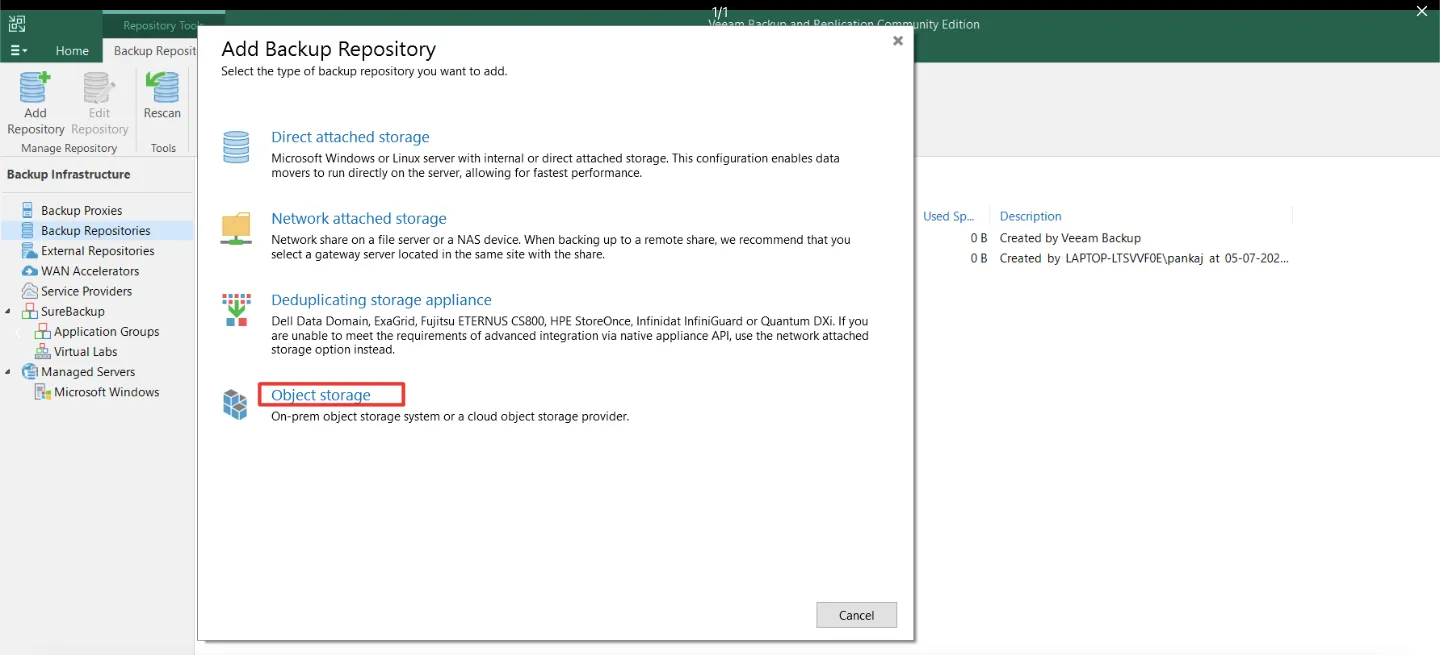
Select Object storage, then S3 Compatible, then S3 Compatible again.

Add Backup Repository window with Object storage highlighted
Object Storage window with S3 Compatible highlighted
S3 Compatible window with the S3 Compatible option highlighted
3

Name the repository

Enter a name, for example Zata, and click Next.

4

Enter the account details

Enter the Service point and Region from the table above. Next to Credentials, click Add…, enter your access key and secret key, and click OK. Click Next.
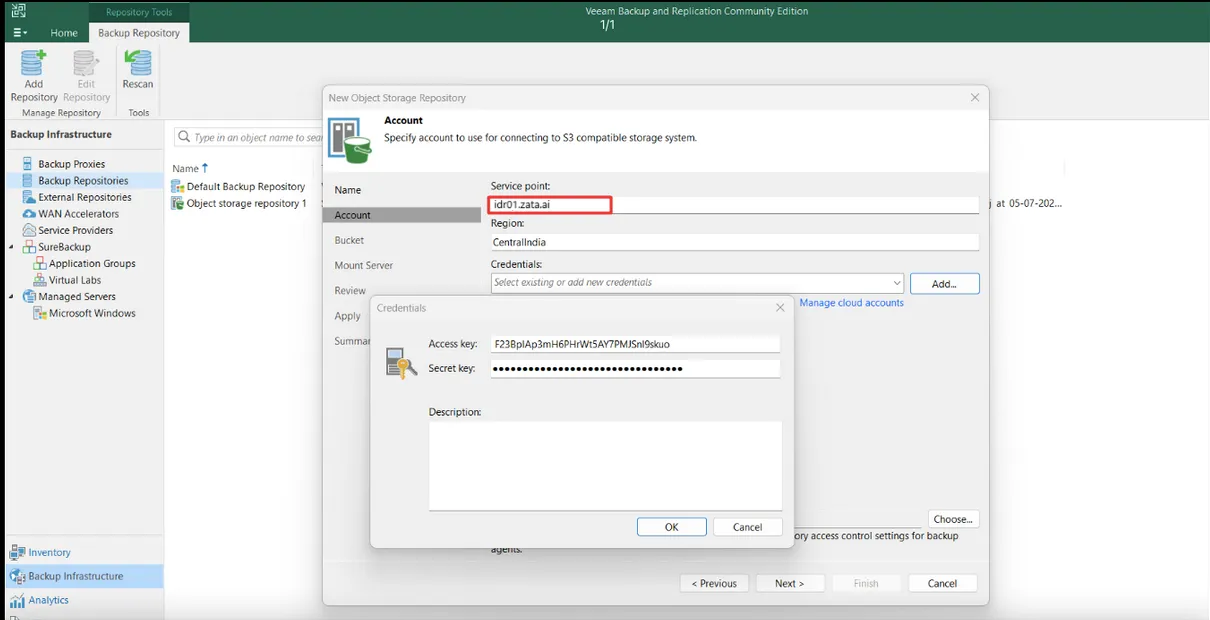
Account step with the Service point field and the Credentials window for the access key and secret key
Any region name works. We recommend us-east-1.
5

Choose the bucket and folder

Enter your bucket name (or click Browse…). Next to Folder, click Browse… and select a folder, or create one with New Folder. Click Next.
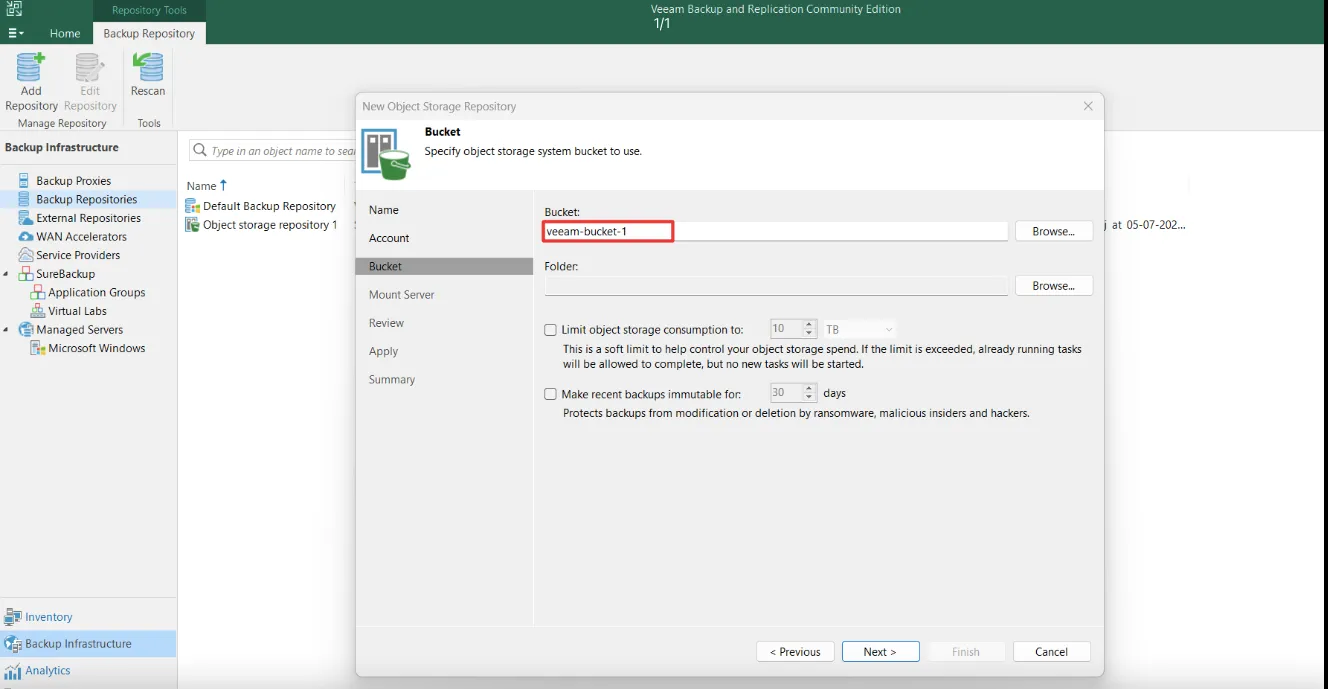
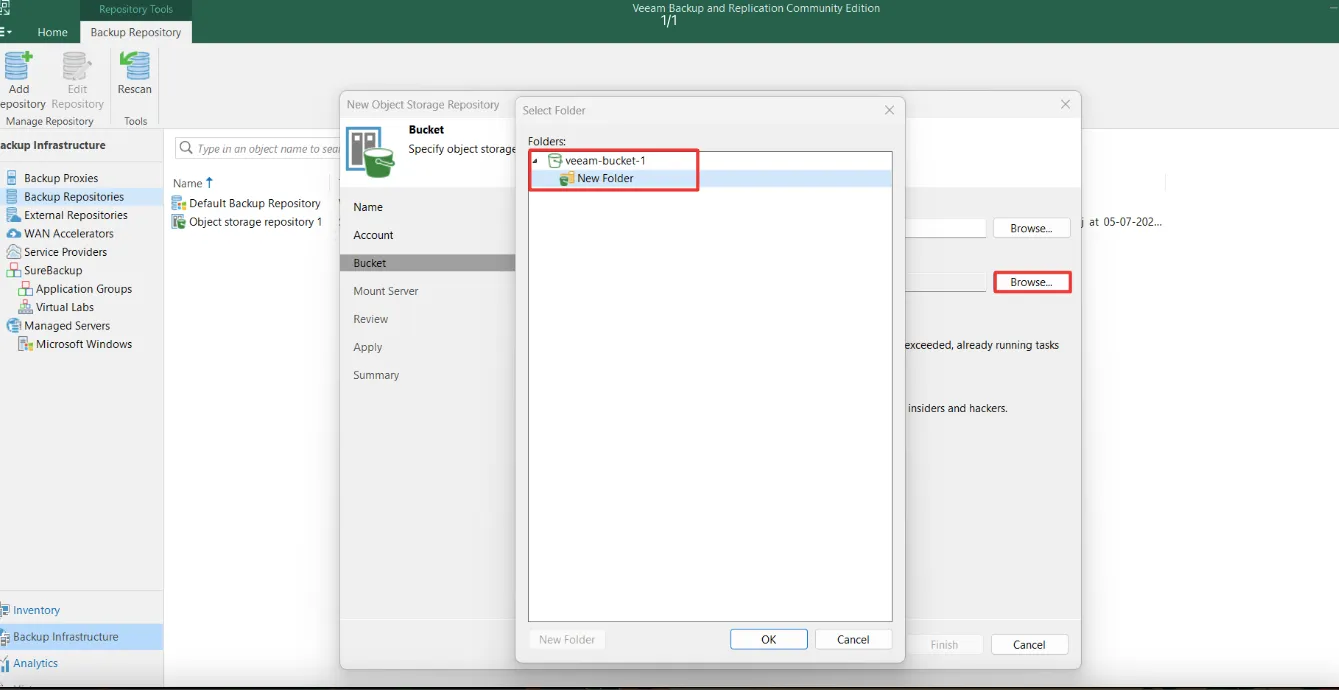
Bucket step with the bucket name and an empty Folder field
Select Folder window showing a new folder inside the bucket
6

Choose the mount server

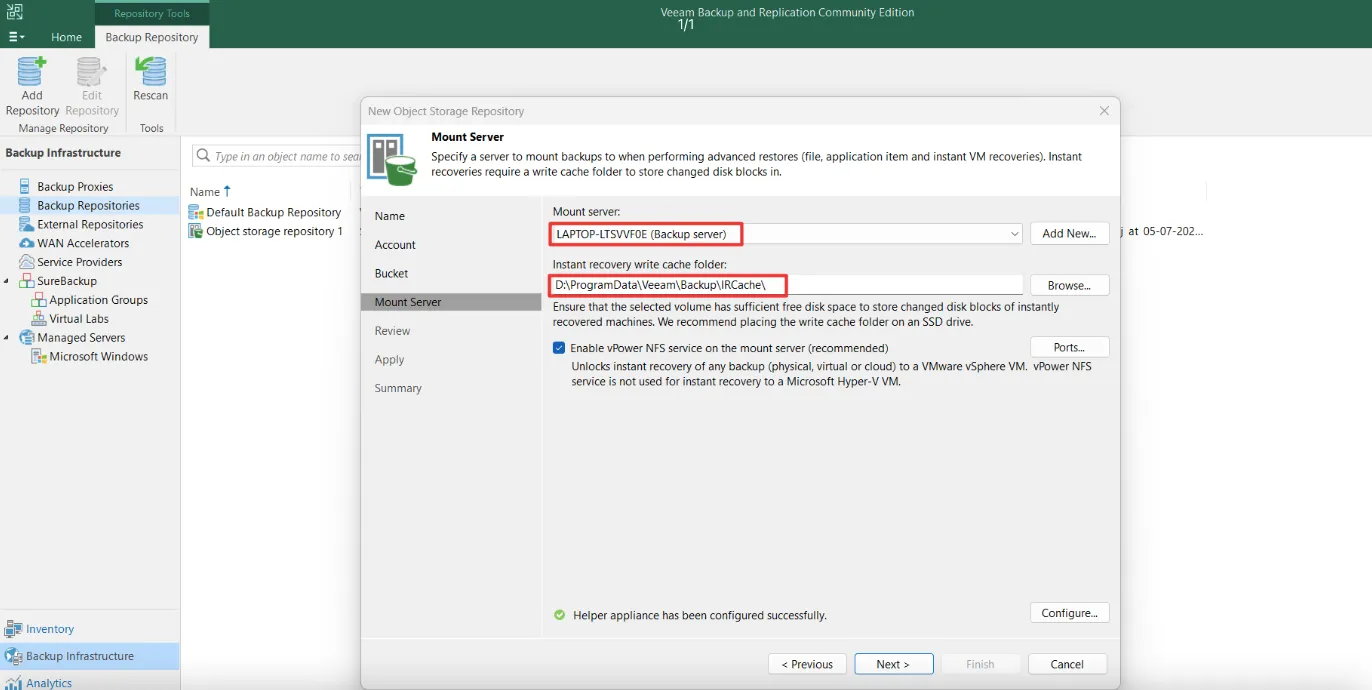
Keep the default mount server (or pick the one your jobs use) and click Next.

Mount Server step with the mount server and the instant recovery write cache folder
7

Finish

Click Next on Review, wait until Apply shows that the repository was saved, and click Finish.

Test it

Create a small backup job with the Zata repository as its target and run it. Then restore one file from that backup. A working connection alone does not prove that backup and restore work.

Troubleshooting

ProblemFix
Error about credentials or the signatureCopy the keys again from Access Keys. The key must be from the same region as the Service point.
The bucket is not found, or Browse… shows no bucketsCheck that the bucket is in the region of the Service point. A sub-user’s key cannot list buckets, so type the bucket name.
Access deniedThe key needs list, read, write and delete access to the bucket. See Access denied.

For other errors, see Signature errors and Endpoint and region.