Skip to navigation

GoodSync

Back up or sync a local folder to a Zata bucket with GoodSync.

GoodSync backs up or synchronises folders between your computer and cloud storage. It connects to Zata through its Amazon S3 account type with the Zata endpoint as the server address.

Before you start

Connection settings

SettingValue
Server Addressidr01.zata.ai for Indore, bom01.zata.ai for Mumbai
Initial Path/ and your bucket name, for example /my-bucket
AWS Access Key ID / AWS Secret Access KeyFrom Access Keys in the Zata console. The key must be from the same region as the bucket.

GoodSync uses host-based (virtual-host style) addressing by default. This works with Zata, except for bucket names that contain dots. Use a bucket name without dots.

Set up GoodSync

1

Create a job

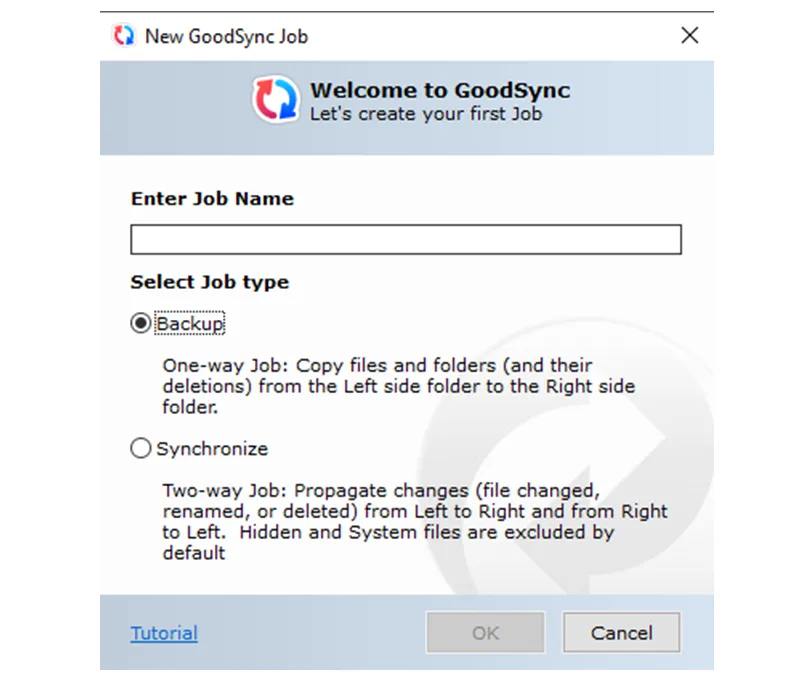
Click New Job. Enter a job name, choose Backup (one way) or Synchronize (two way), and click OK.
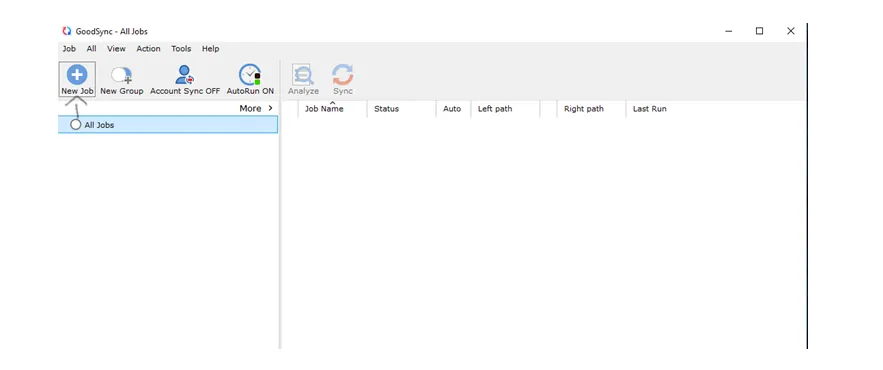
GoodSync main window with the New Job button
New GoodSync Job window with the job name and the Backup and Synchronize job types
2

Choose the local folder

On the left side, browse to the local folder you want to back up, for example D:\Projects.
3

Connect the right side to Zata

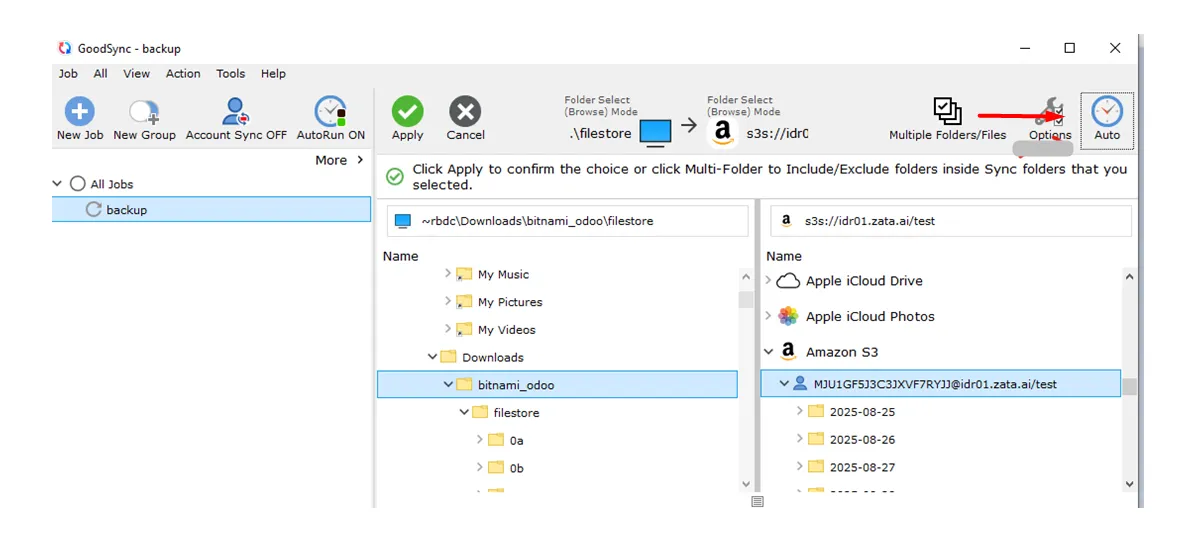
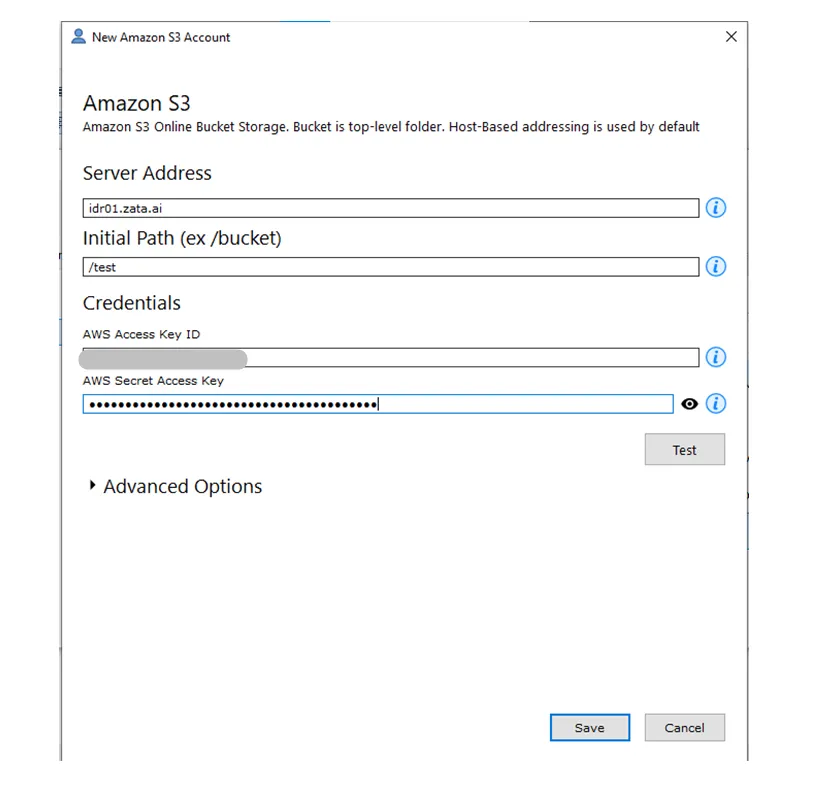
On the right side, choose Amazon S3 and add a new account. Fill in the fields from the table above, click Test, then click Save. Select your bucket or a folder in it and click Apply.

New Amazon S3 Account window with server address idr01.zata.ai, initial path, keys, and the Test and Save buttons
4

Run it on a schedule (optional)

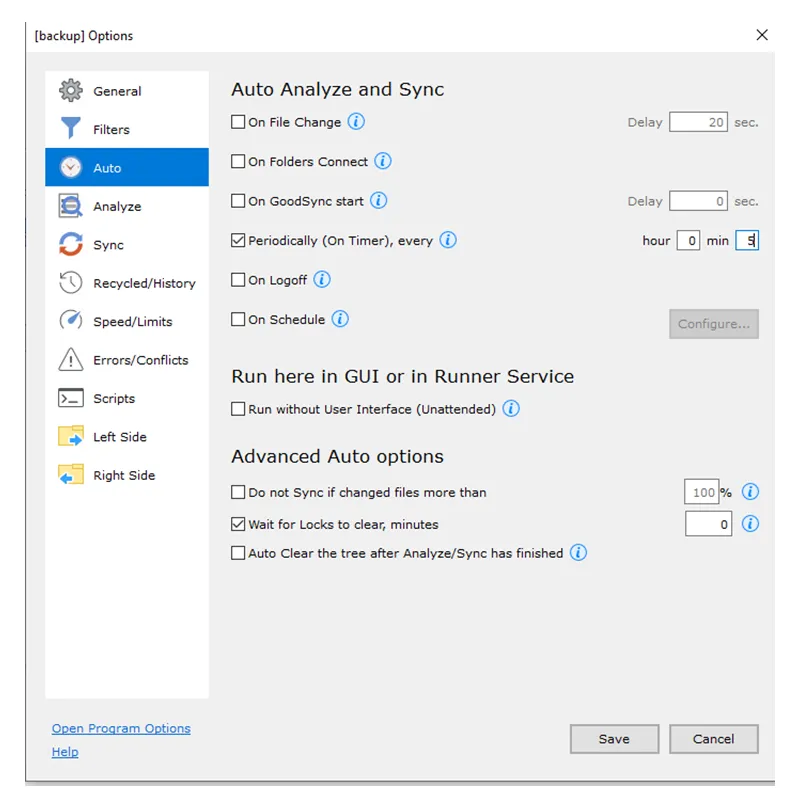
Check that AutoRun ON shows in the toolbar. Click Auto, tick Periodically (On Timer), every, set the interval, and click Save.

GoodSync job with the right side set to the Zata bucket and the Auto button
Auto options with Periodically (On Timer) set to every 5 minutes

Test it

Put a small file in the local folder and run the job once by hand. Check that the file appears in your bucket in the Zata console. Then restore or sync it back to a local folder to confirm it can be downloaded.

Troubleshooting

ProblemFix
Cannot connectCheck that Server Address is idr01.zata.ai or bom01.zata.ai and matches the bucket’s region.
Certificate error with a bucket name that has dotsUse a bucket name without dots. See Network and certificates.
Access denied or invalid credentialsCopy the keys again from Access Keys, without extra spaces.
Files do not upload on their ownMake sure AutoRun ON shows and set a Periodically schedule under Auto.