Skip to navigation

TntDrive

Mount a bucket as a drive letter on Windows.

TntDrive mounts a Zata bucket as a network drive on Windows. The bucket gets a drive letter in This PC, and you use it like a local disk.

Before you start

Connection settings

SettingValue
Account TypeAmazon S3 Compatible Storage
REST Endpointhttps://idr01.zata.ai for Indore, https://bom01.zata.ai for Mumbai
Access Key ID / Secret Access Keyfrom Access Keys in the Zata console — the key must be from the same region as the bucket
Use secure transfer (SSL/TLS)On
Signature version (advanced settings)Signature V4 (V2 also works)
Addressing model (advanced settings)Path style (virtual hosted style also works)

Set up TntDrive

1

Add an account

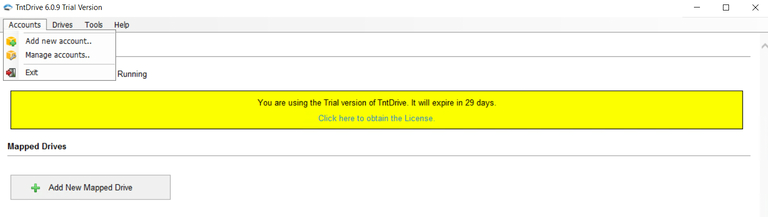
Open TntDrive and select Accounts → Add new account.

The TntDrive Accounts menu with Add new account
2

Fill in the account details

Enter any Account Name, for example Zata. Set Account Type to Amazon S3 Compatible Storage, then enter the REST Endpoint, Access Key ID and Secret Access Key. Keep Use secure transfer (SSL/TLS) ticked.
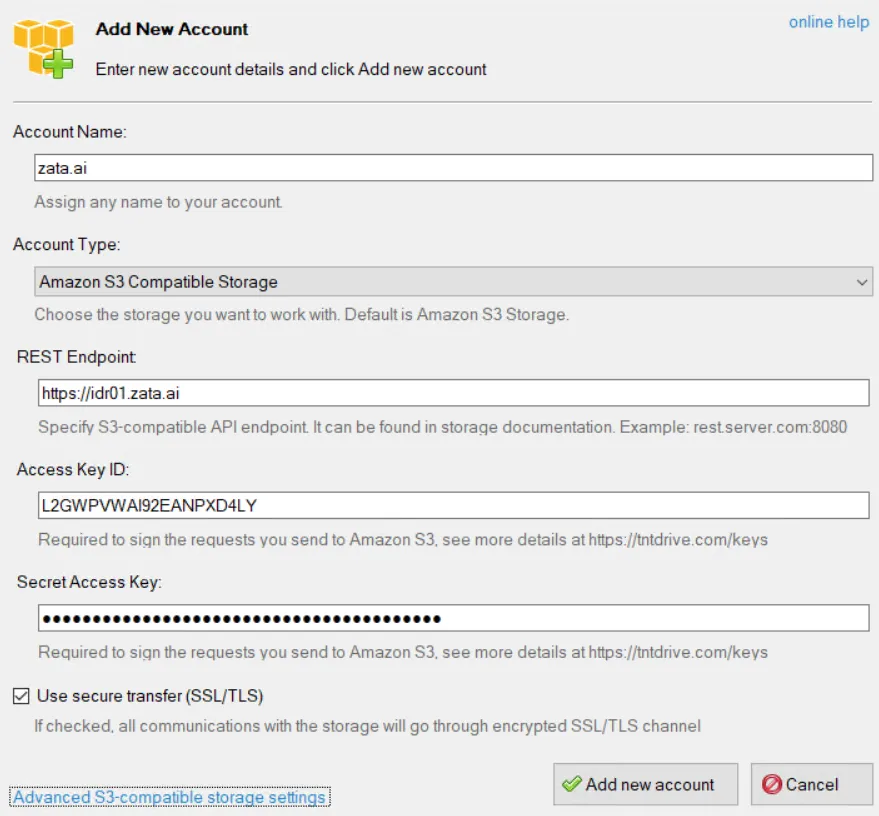
TntDrive Add New Account form with Amazon S3 Compatible Storage and the REST endpoint https://idr01.zata.ai
3

Set the advanced settings

Select Advanced S3-compatible storage settings. Set the signature version to Signature V4 and the addressing model to Path style, then select Close. Select Add new account.
4

Add a drive

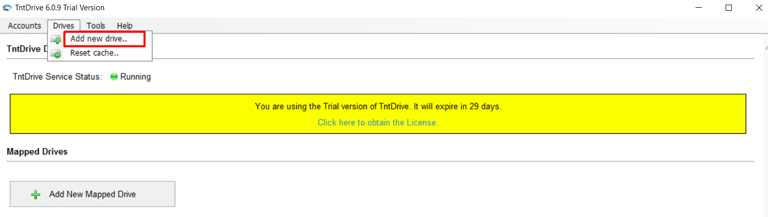
Select Drives → Add new drive (or Add New Mapped Drive on the dashboard).

The TntDrive Drives menu with Add new drive highlighted
5

Choose the bucket and drive letter

In Add New Mapped Drive, pick your Zata account under Storage account and choose a Mapped drive letter.
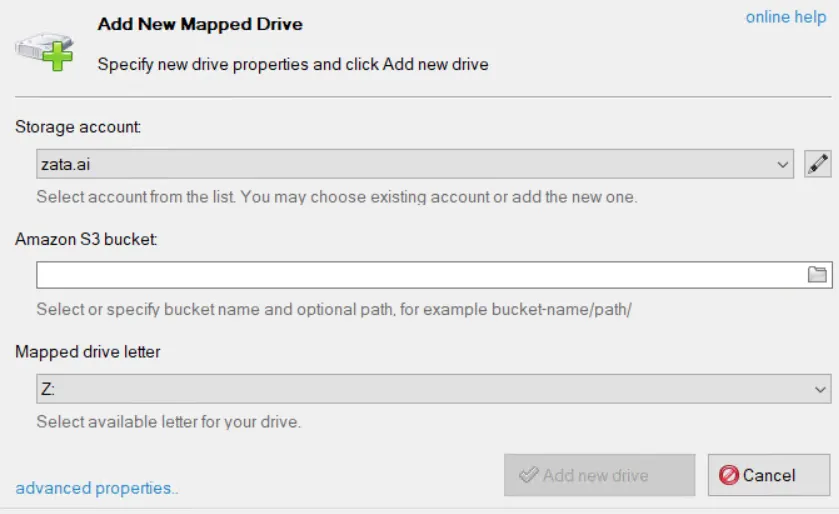
Add New Mapped Drive with the storage account, Amazon S3 bucket field and mapped drive letter Z

For Amazon S3 bucket, select the folder icon and pick a bucket from the list, then select OK. You can also type the bucket name, optionally with a folder: my-bucket/folder/.
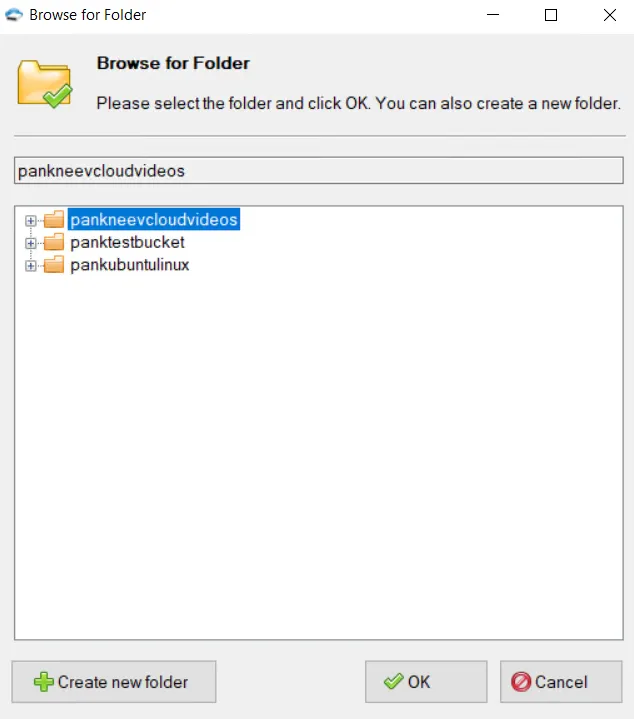
Browse for Folder dialog listing the Zata buckets

Select Add new drive.

6

Open the drive

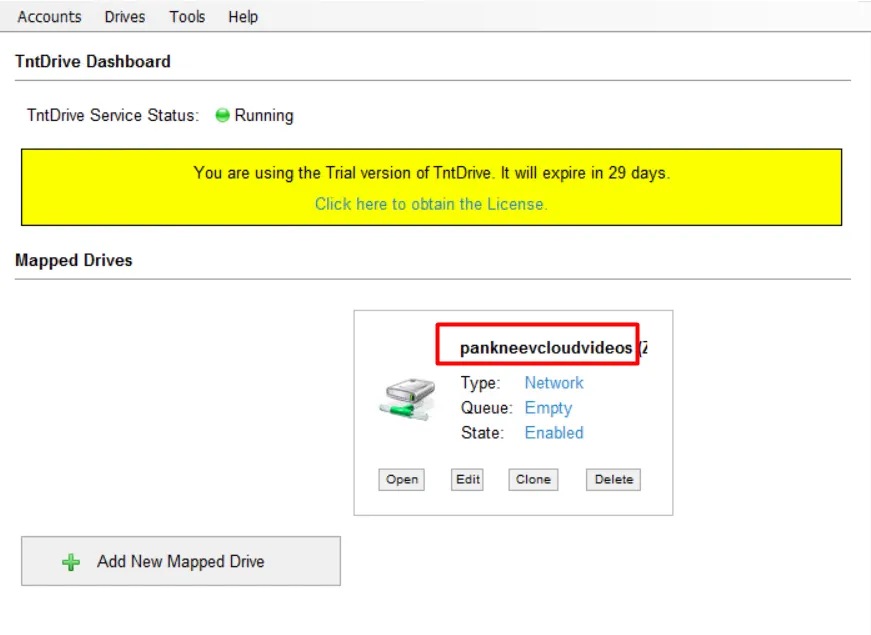
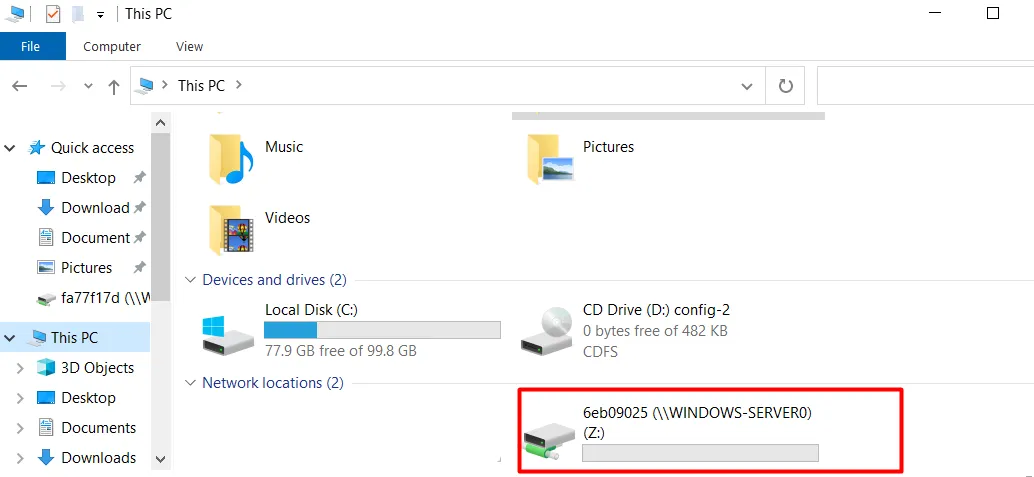
The drive appears under Mapped Drives in TntDrive and in This PC under Network locations.

TntDrive dashboard with the new mapped drive listed and enabled
Windows This PC showing the TntDrive drive Z under Network locations

Test it

Copy a small file onto the new drive. Check that it appears in the bucket in the Zata console under Buckets. Then copy it back to a local folder to check that downloads work.
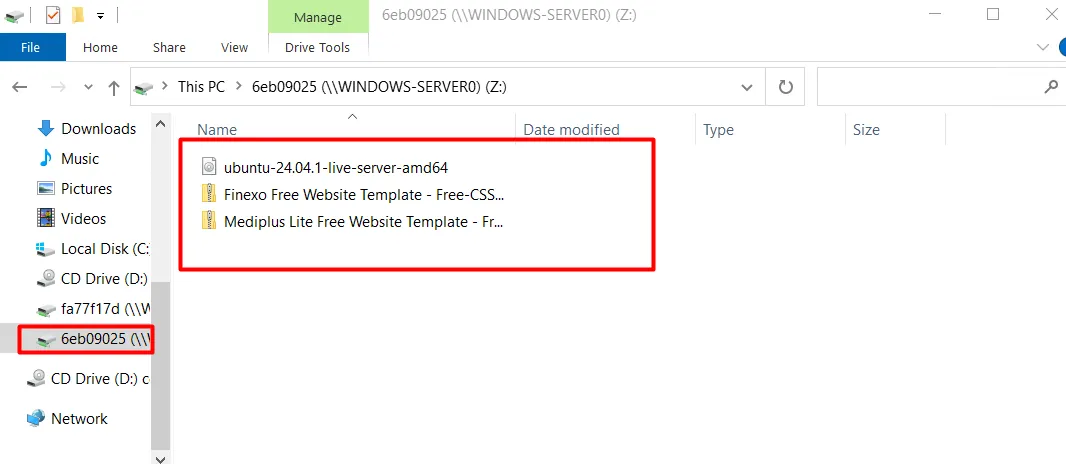
Files copied onto the mapped drive in Windows File Explorer

Troubleshooting

ProblemFix
The bucket list is emptyCheck that the REST Endpoint matches the region of your key. Sub-user keys never list buckets — type the bucket name in Amazon S3 bucket.
Access denied or invalid credentialsCopy the keys again from Access Keys, without extra spaces.
Connection errorsMake sure the REST Endpoint starts with https:// and Use secure transfer (SSL/TLS) is ticked.

For other errors, see Access denied and Endpoint and region.