

Upload and manage files
You can upload and manage files in a bucket straight from the Zata console. For many files, very large files or scheduled backups, an S3 tool is faster: see Connect your tools.
Open a bucket
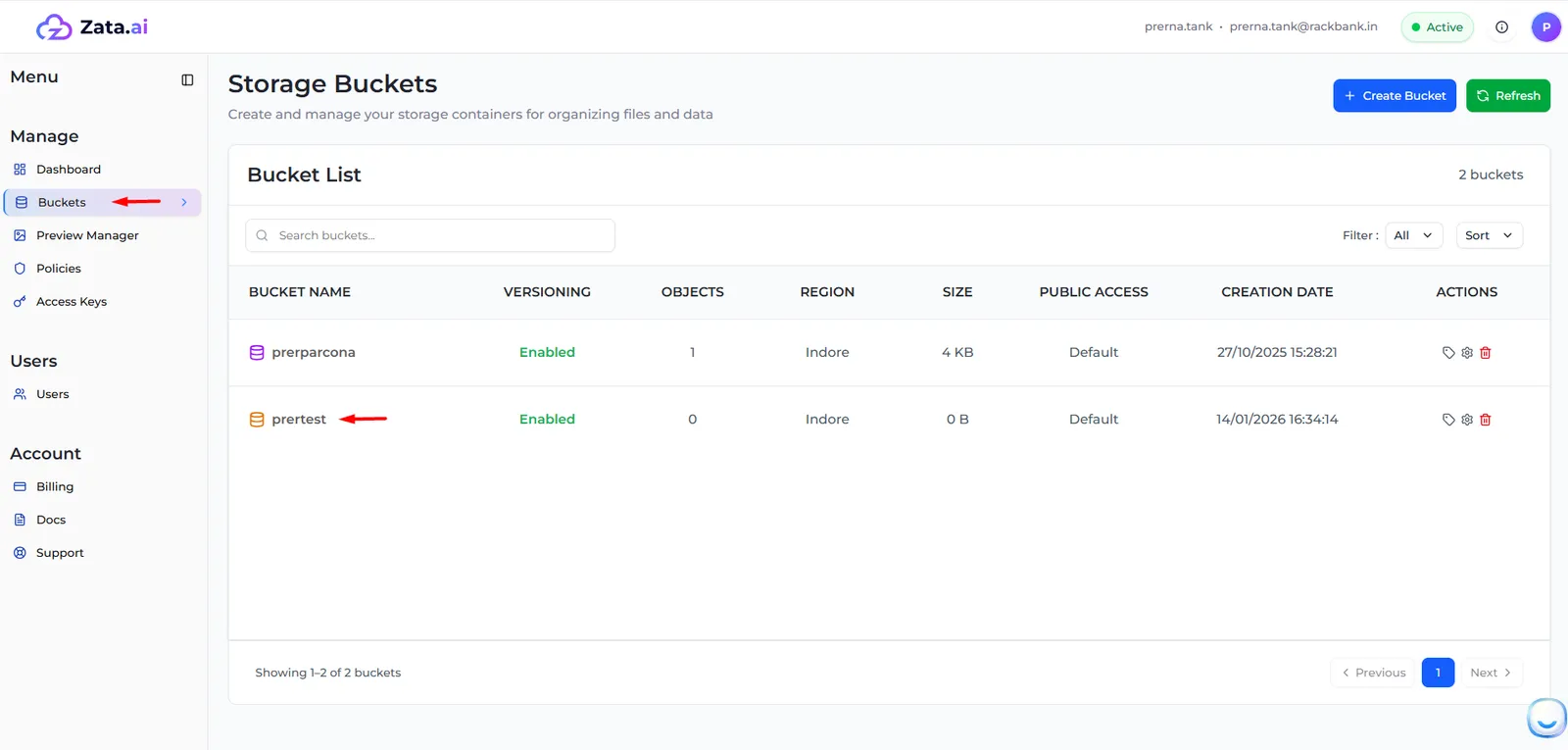
In the Zata console, open Buckets and select the bucket’s name. The bucket page lists its files and folders. The Bucket Details panel on the right shows the region, storage used and number of objects.
Upload files
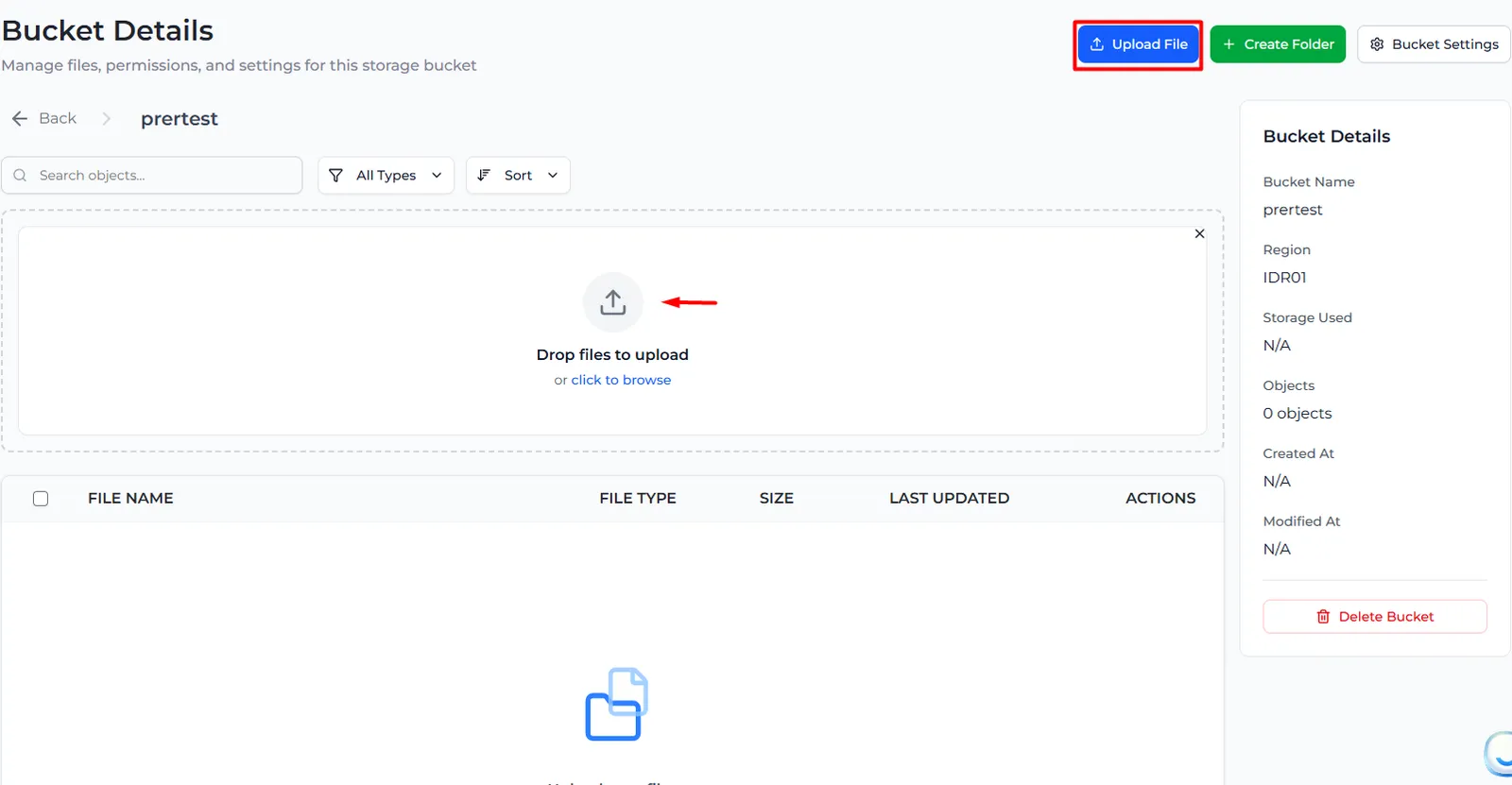
Open the upload area
Select Upload File at the top of the bucket page. If you are inside a folder, files go into that folder.
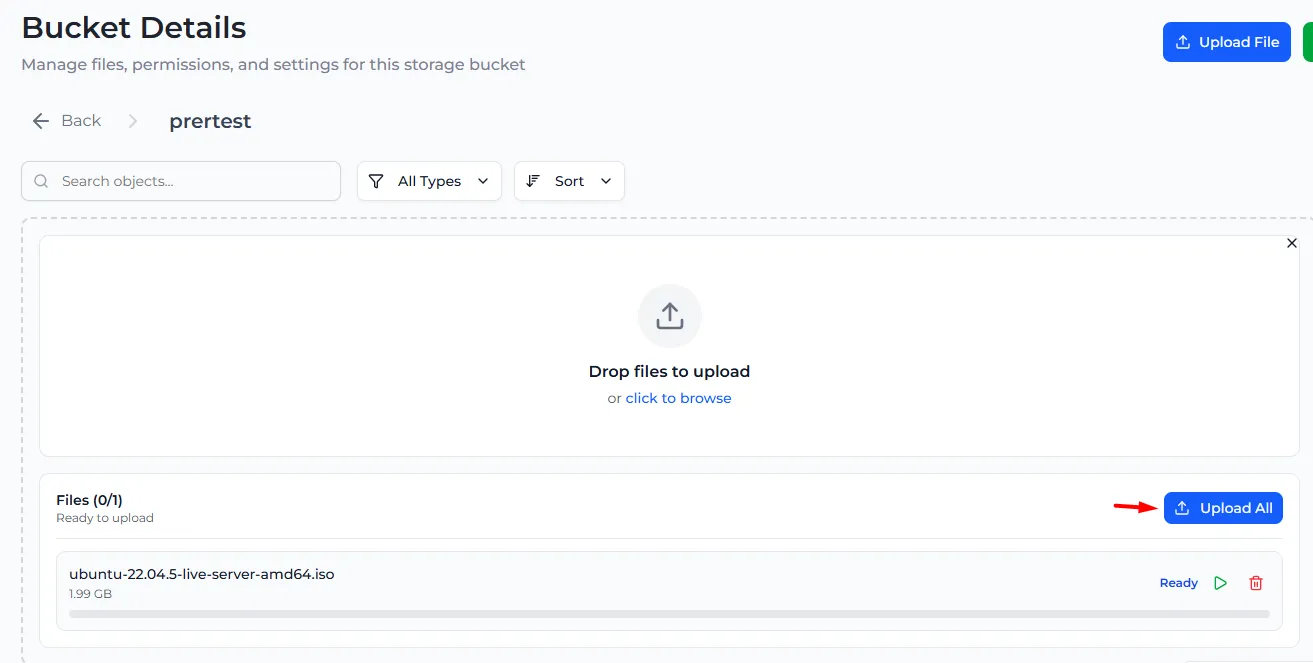
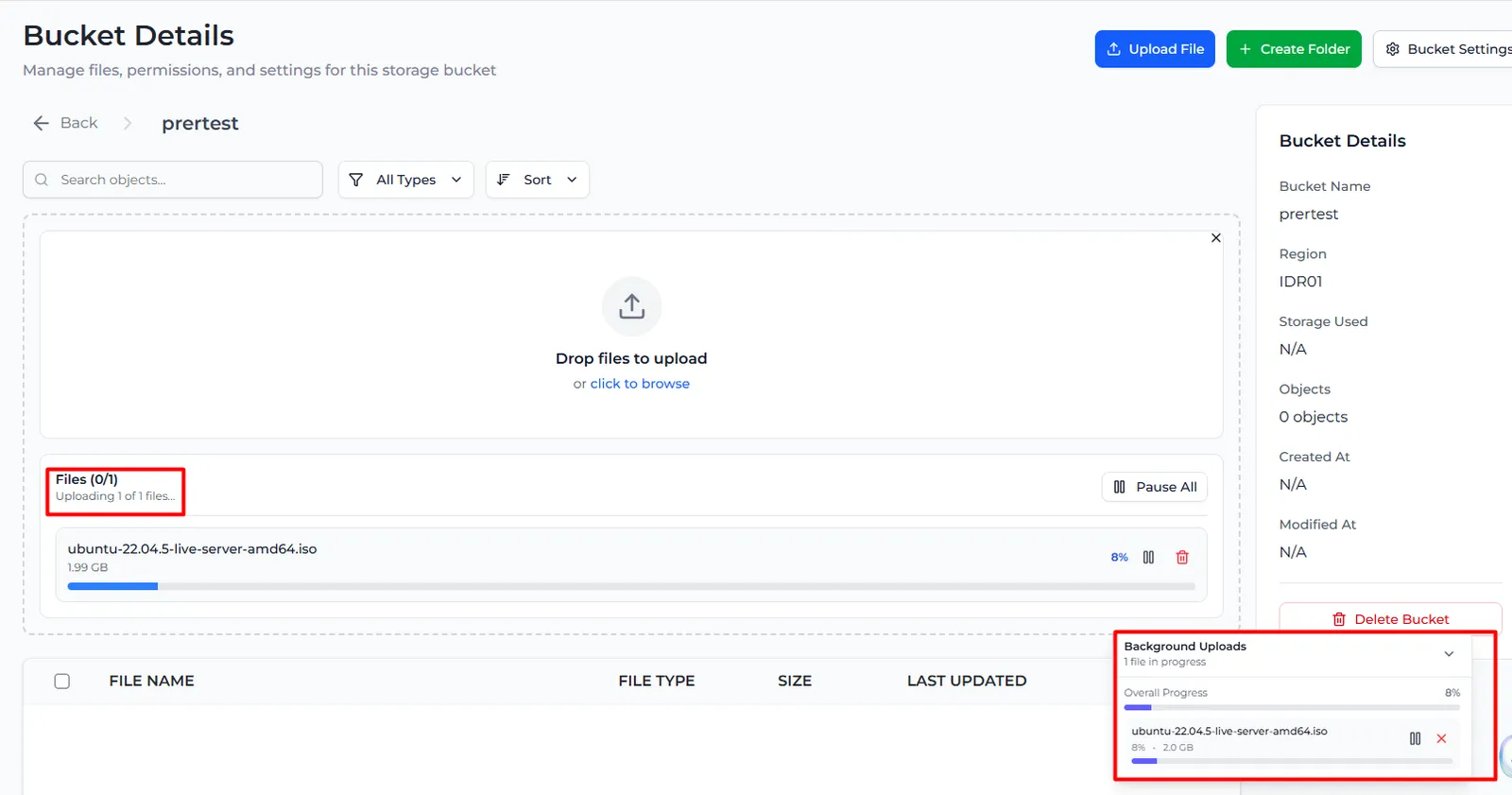
Each file shows its progress. You can pause, resume or remove a file, and use Pause All, Resume All or Retry Failed for all of them. Large files are uploaded in parts automatically. The Background Uploads panel keeps showing progress while you move around the console.
If the browser closes before an upload finishes, the console shows Incomplete Uploads Detected the next time you sign in. Select Resume Uploads to continue where it stopped, or Not Now to cancel those uploads.
The console does not upload empty (0-byte) files, or files whose names contain <, >, :, ", |, ? or *.
Create a folder
Select Create Folder, type a Folder Name and select Create Folder. Folder names can use letters, numbers, hyphens and underscores, up to 50 characters. Select a folder to open it, and use the path at the top to go back.
A folder is part of the file name: a file report.pdf in the folder invoices is stored as invoices/report.pdf. S3 tools show it the same way.
Work with files
Open the ⋮ menu in a file’s row:
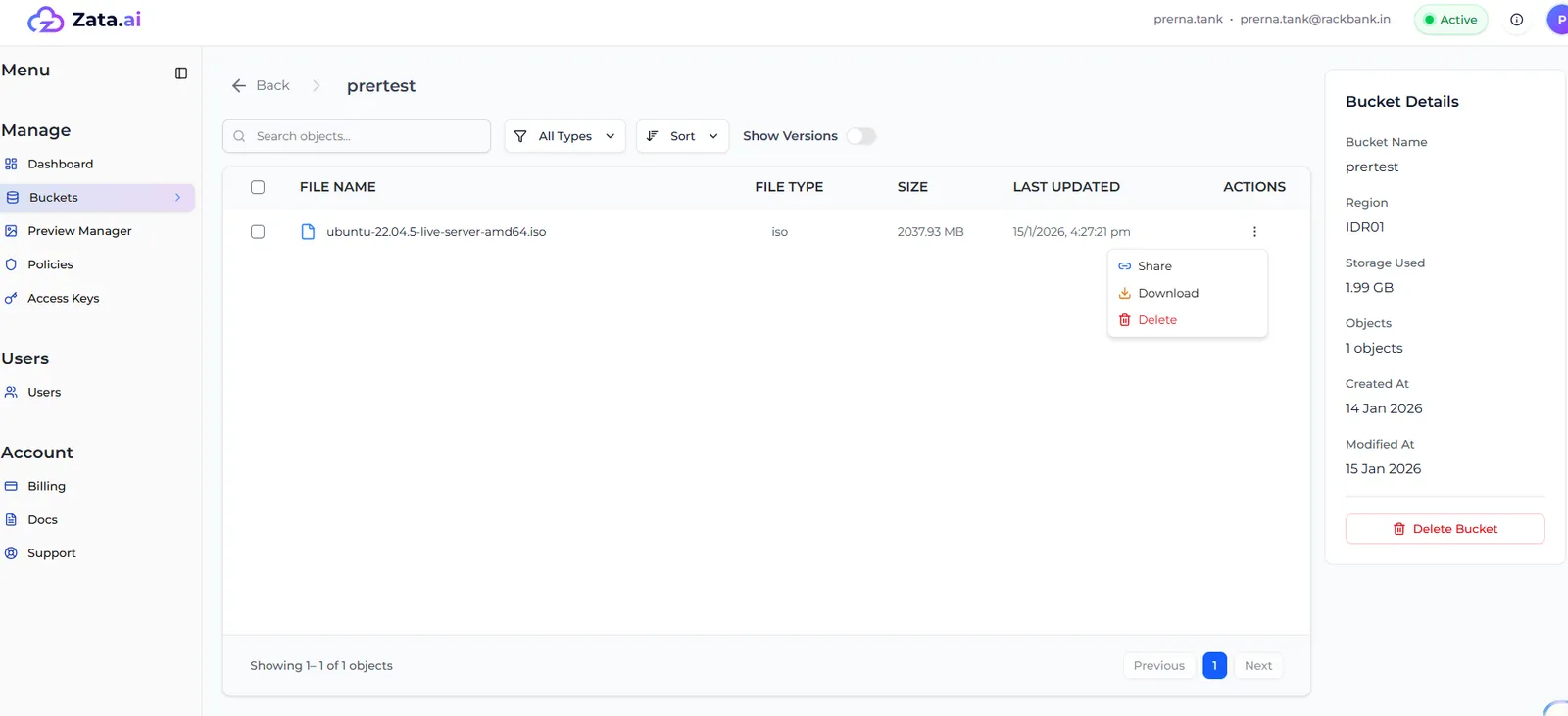
To work on several files at once, tick their boxes. A bar appears with buttons to download or delete everything you selected.
Use the search box, the All Types filter (Images, Documents, Videos) and Sort to find files. To view images, videos and documents without downloading them, use the Preview Manager.