

S3 Browser
A Windows app to browse buckets and move files.
S3 Browser is a Windows app for browsing buckets and uploading and downloading files. This page connects it with your account’s own access key. Using a sub-user’s key? See S3 Browser with a sub-user key. Prefer video? Watch the setup video.
Before you start
- A bucket — see Create a bucket.
- An access key from the same region as the bucket — see Access keys.
- S3 Browser installed — download S3 Browser.
Connection settings
Set up S3 Browser
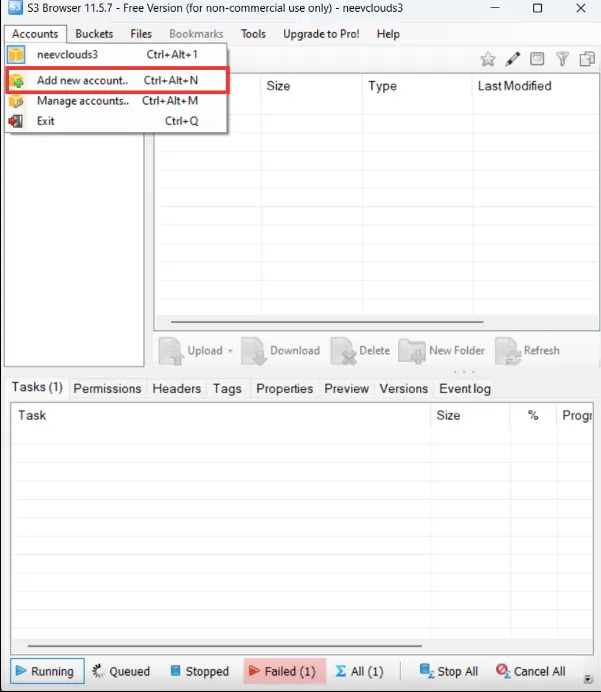
Fill in the account details
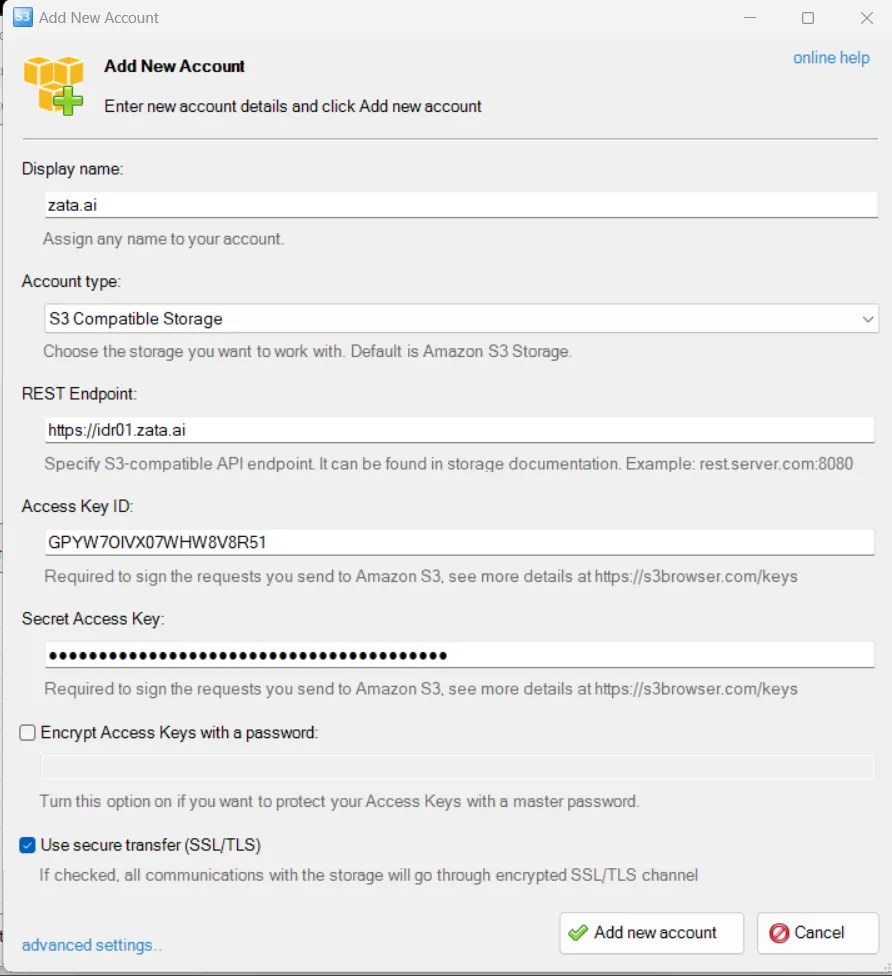
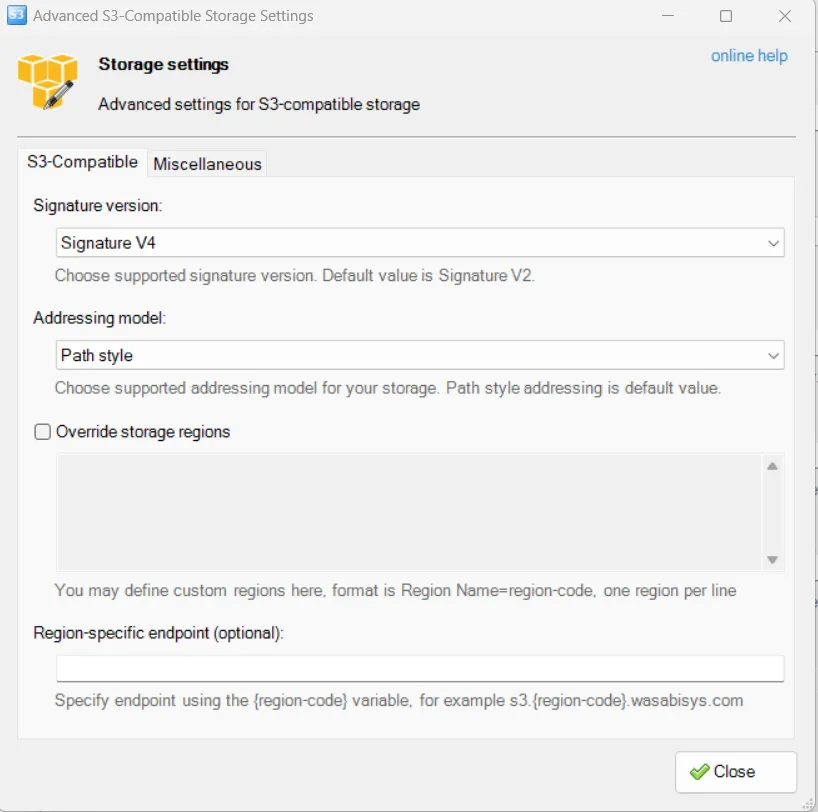
Enter any Display name, for example Zata. Set Account type to S3 Compatible Storage, then enter the REST Endpoint, Access Key ID and Secret Access Key. Keep Use secure transfer (SSL/TLS) ticked.
Test it
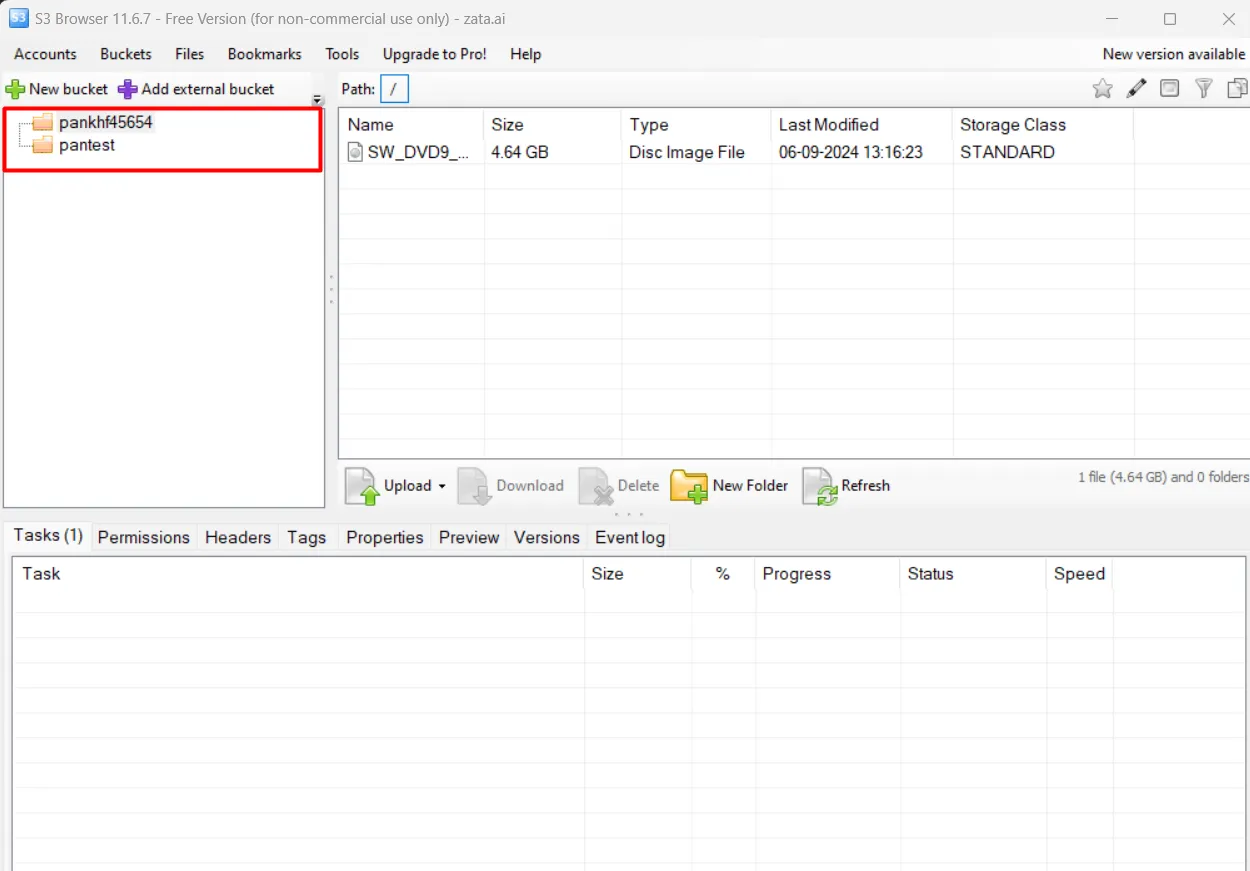
Select a bucket, then select Upload → Upload file(s) and pick a small file.
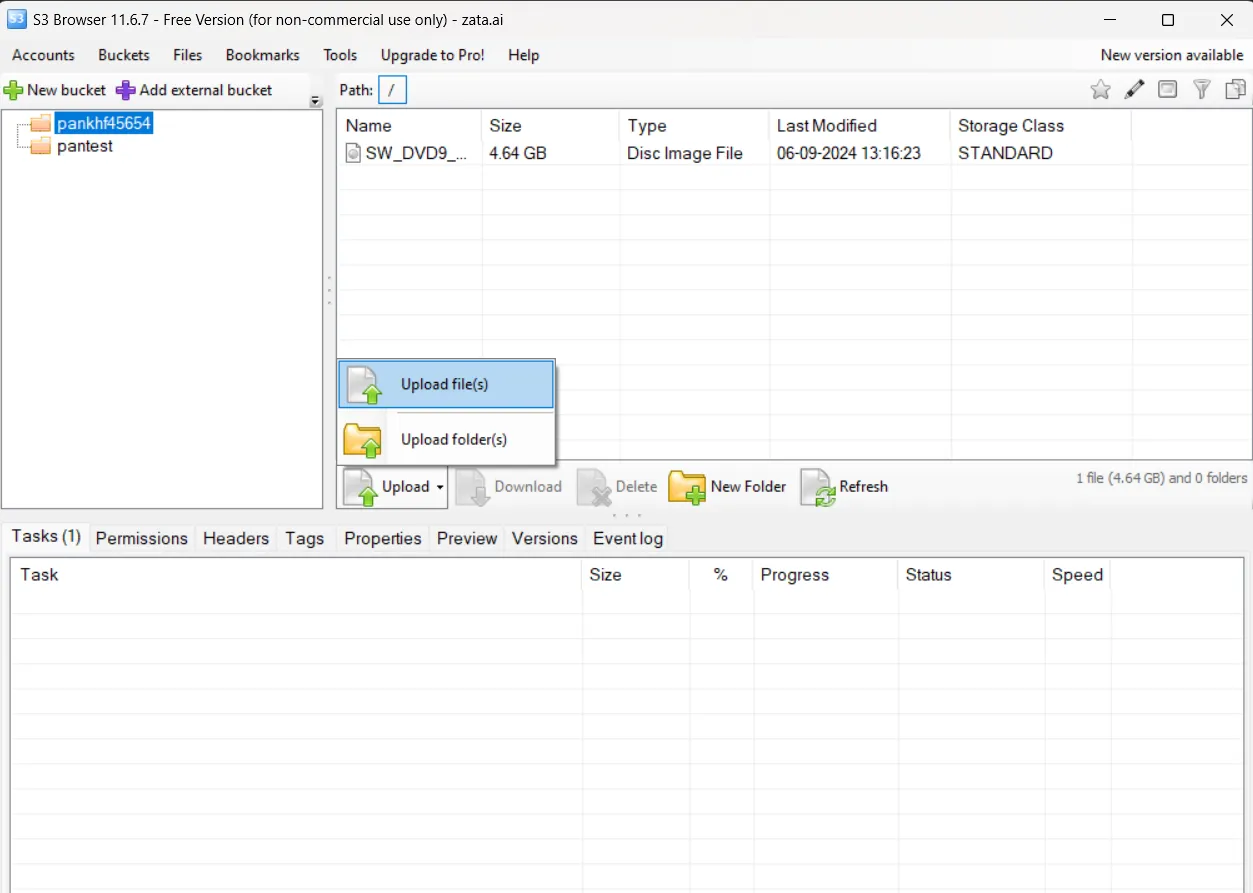
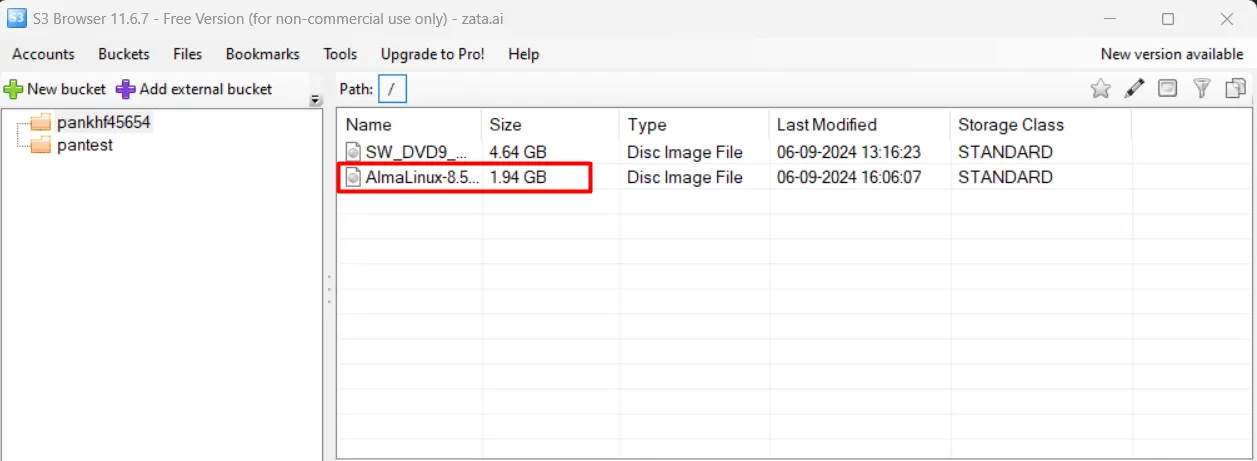
When the upload finishes, the file is listed in the bucket. You can also see it in the Zata console under Buckets.
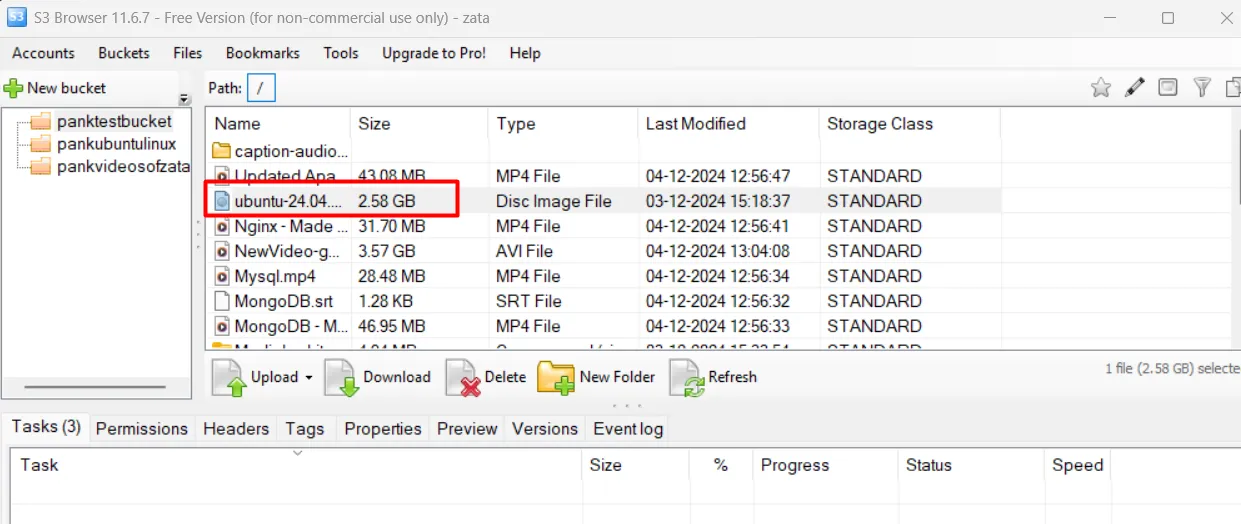
To download, select the file and select Download.
Troubleshooting
For other errors, see Access denied and Endpoint and region.