

Object Lock (WORM)
Object Lock keeps file versions in WORM mode (write once, read many): a locked version cannot be deleted or overwritten until its lock ends. Use it for backups that a mistake or ransomware must not wipe out, and for records you must keep for a set time.
You can only turn on Object Lock when you create a bucket. It can never be turned off, and versioning stays on for the life of the bucket. To protect files in an existing bucket, create a new bucket with Object Lock and copy the files into it.
Turn on Object Lock
When you create a bucket, on the Versioning step turn on Enable Versioning, then Enable Object Lock. You can set a default retention there too, or later in the bucket settings.
With the AWS CLI and the account owner’s key:
Choose a protection
Each file version can have a retention (in Governance or Compliance mode) and a legal hold, alone or together.
Start with Governance. You can change a version from Governance to Compliance later, but never back.
How long you can lock files
The console will not lock files past the date your data is guaranteed to be kept. That date depends on your account:
The console shows the limit next to the field, for example Retention is limited to 136 days by your billing lifecycle. A Compliance default retention can be at most 90 days (30 days on a trial), because it locks every future upload. Renewing your plan moves the limit forward. If your plan or trial has already ended, the console cannot set new locks.
Set a default retention
A default retention locks every new upload automatically, in the mode and for the number of days you choose. Files uploaded by any S3 tool are locked too. Without a default retention, new files are not locked.
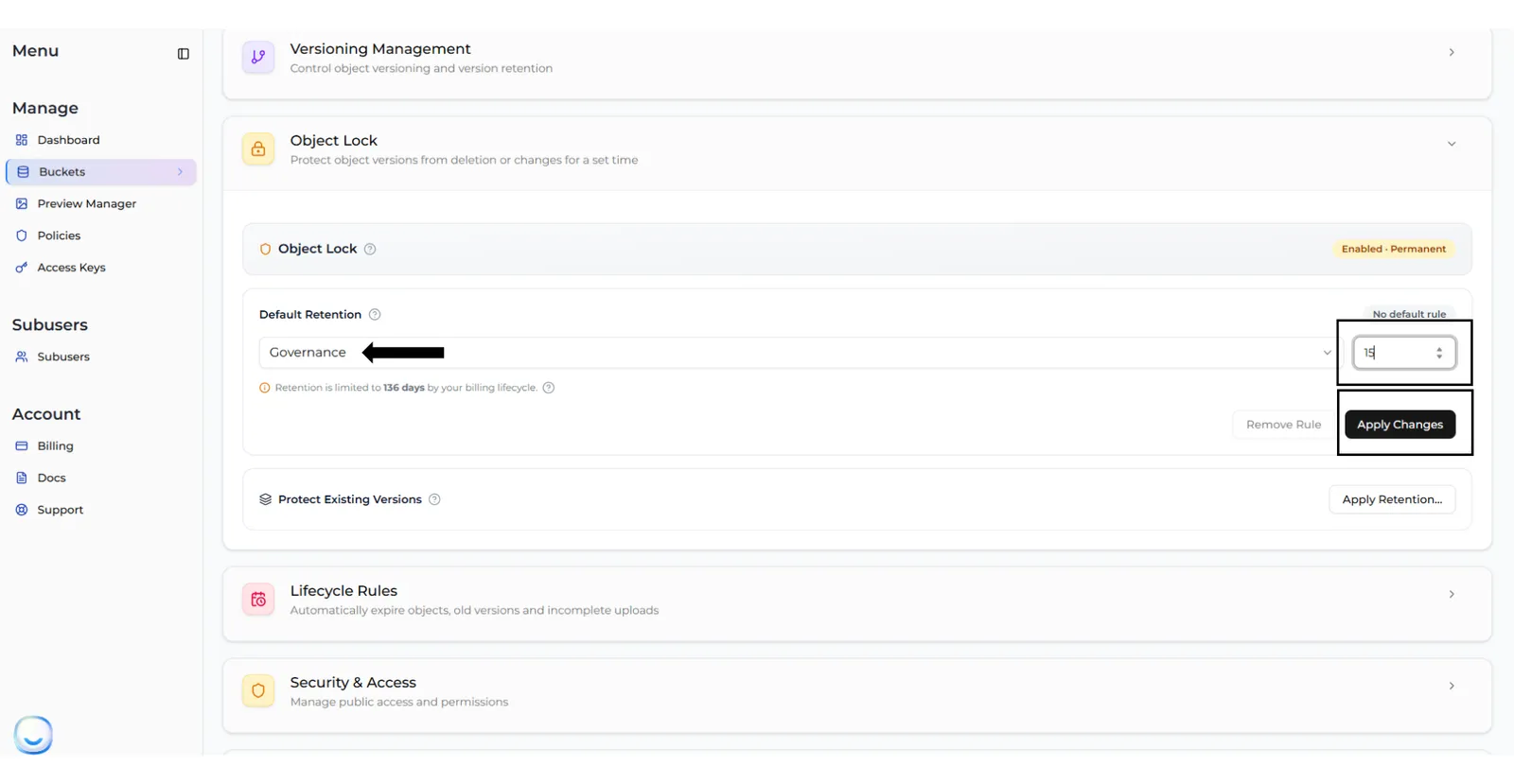
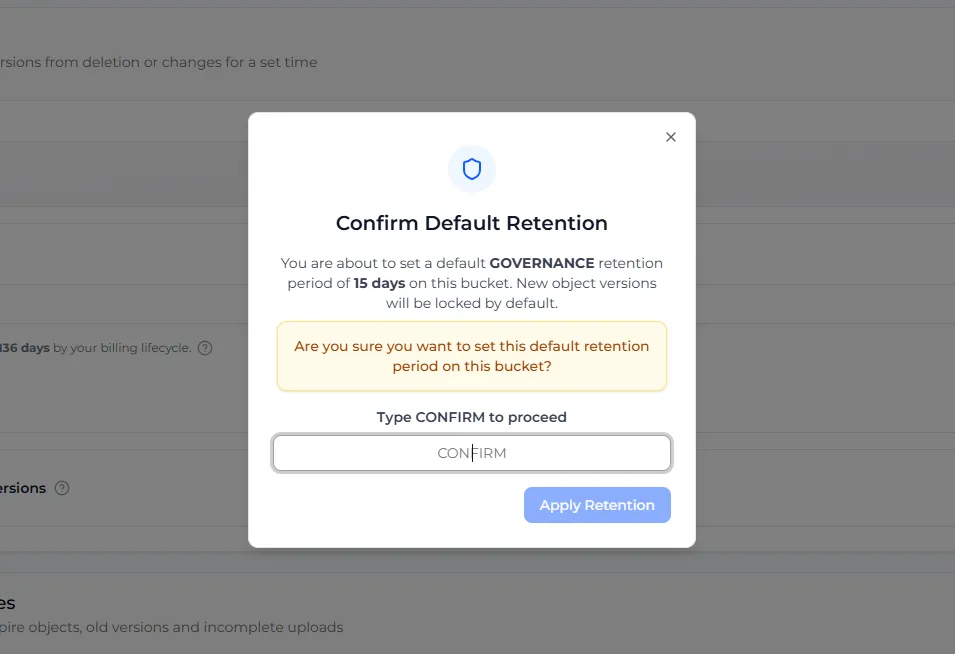
The default retention only applies to files uploaded after you set it. To lock files that are already in the bucket, see the next section.
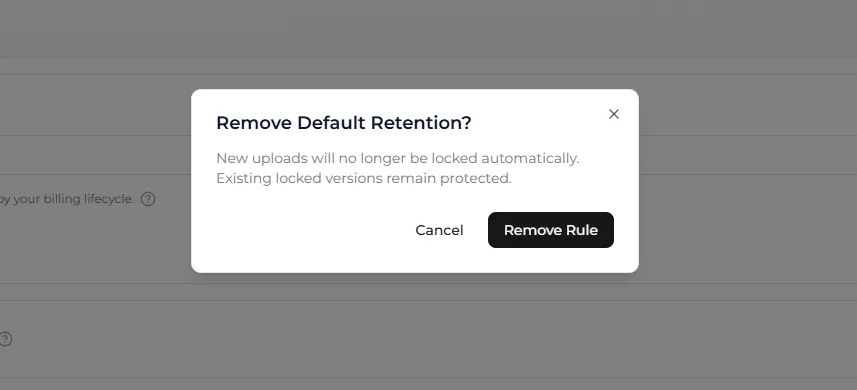
To stop locking new uploads, select Remove Rule and confirm with Remove Rule. Versions that are already locked stay locked.
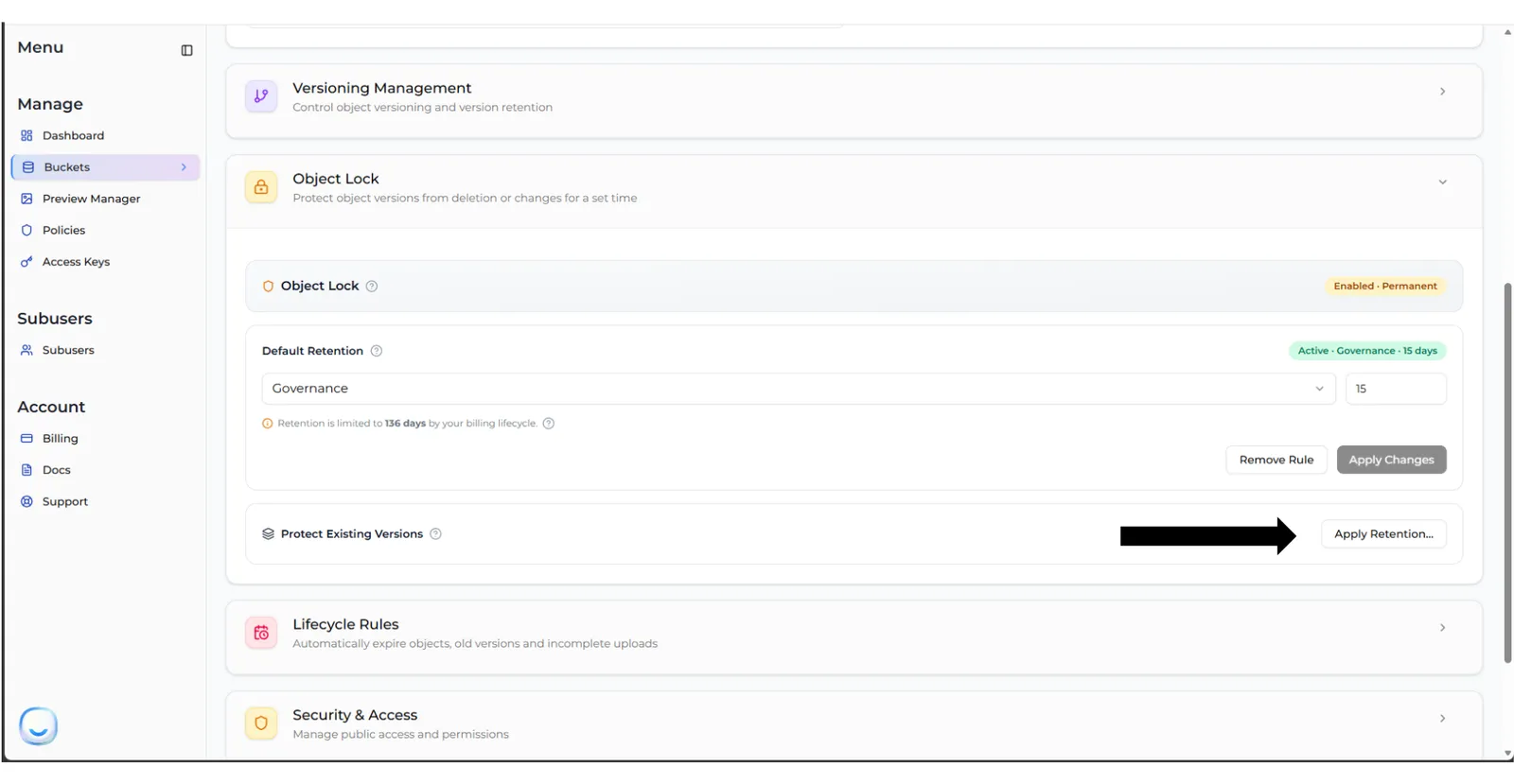
Lock existing versions
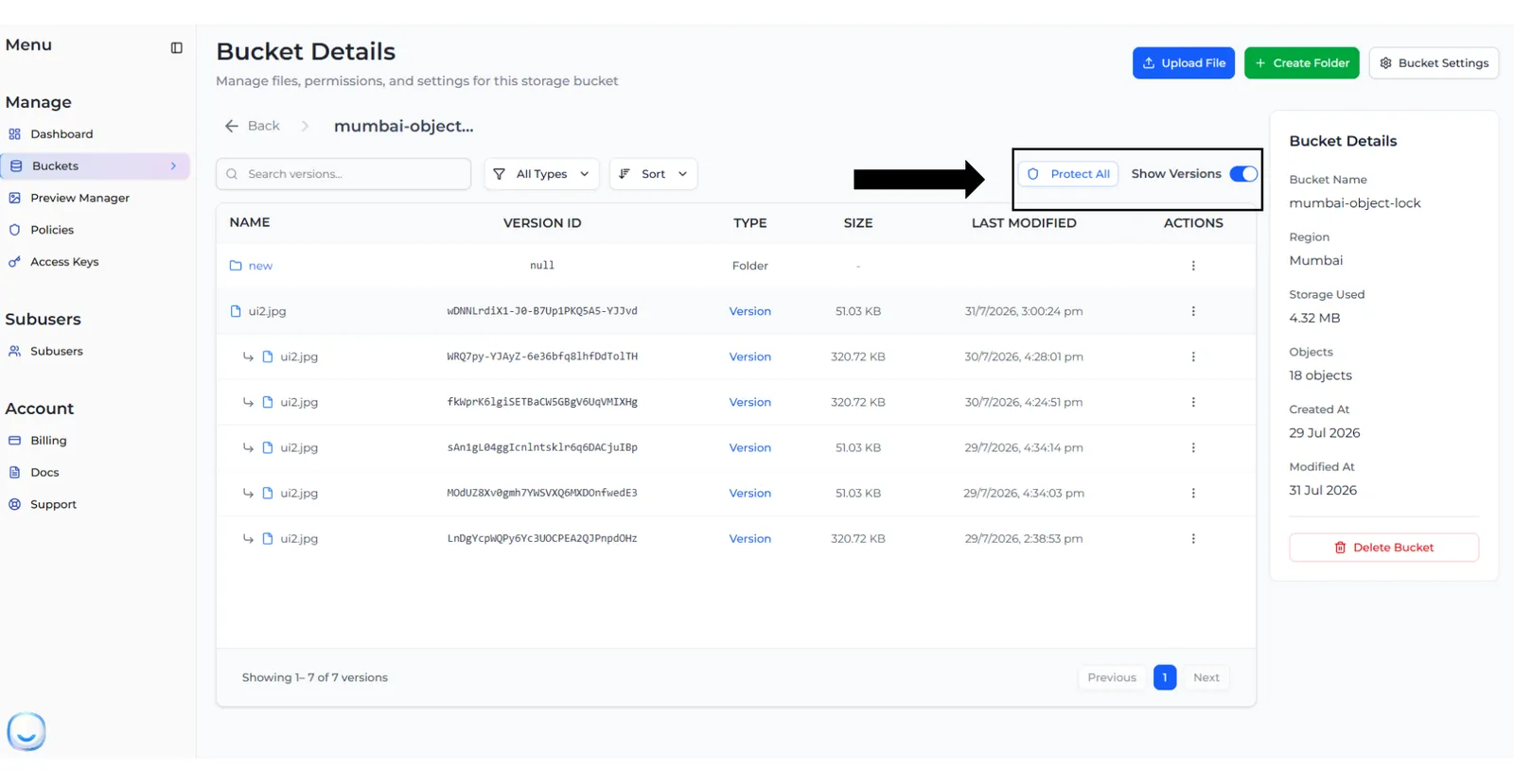
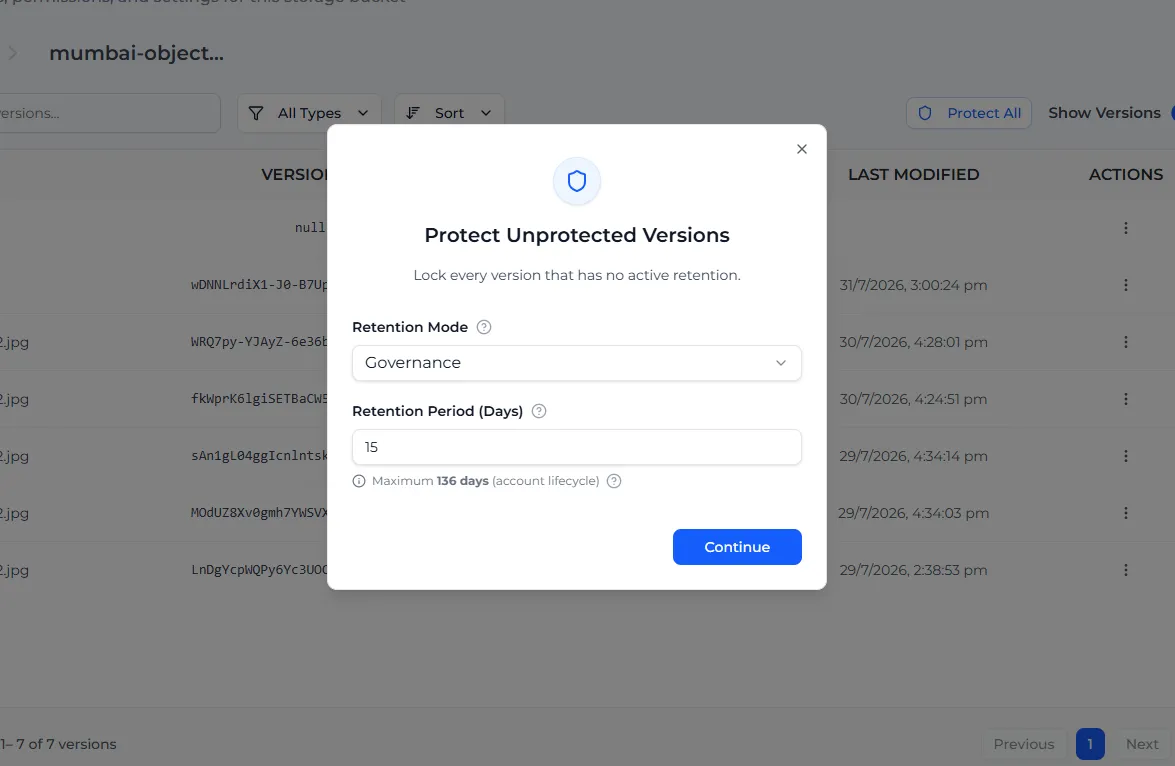
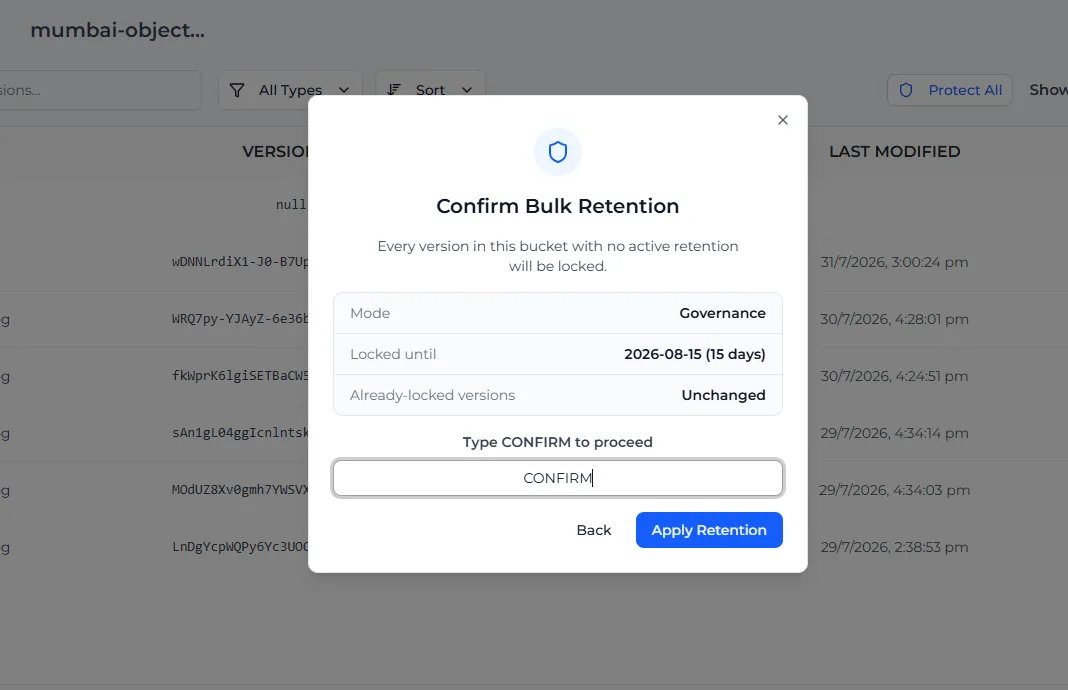
You can lock every version in the bucket that has no active lock in one go. Versions that are already locked are not changed.
Start from the settings or the file list
In the bucket’s settings, under Object Lock, select Apply Retention… next to Protect Existing Versions.
Or open the bucket, turn on Show Versions and select Protect All.
Lock or change one version
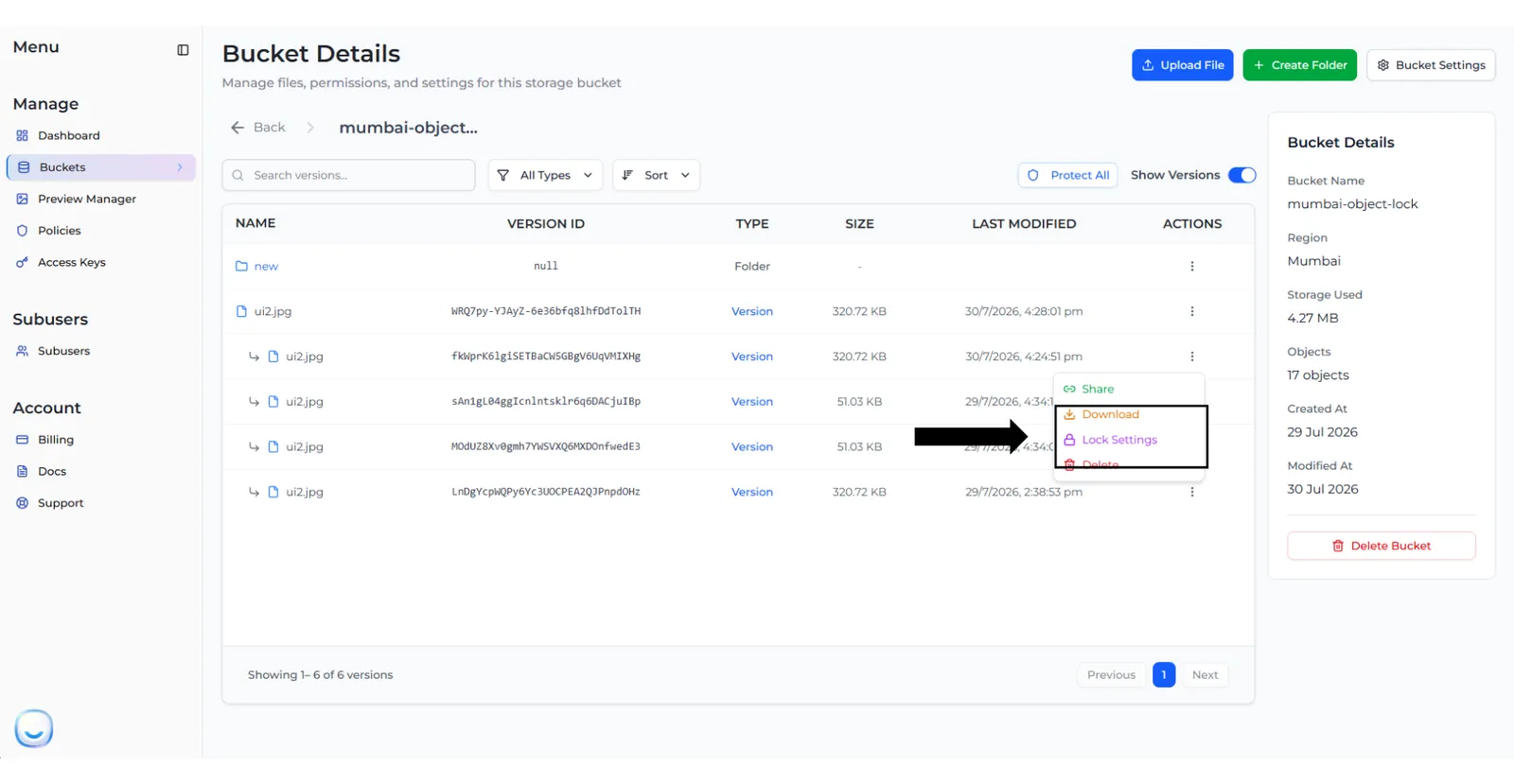
Open Lock Settings
Open the bucket and turn on Show Versions. Open the ⋮ menu of the version and select Lock Settings.
Edit the retention
The Version Details panel shows the version’s Retention and Legal Hold. Under Retention, select Apply (no lock yet) or Edit (already locked).
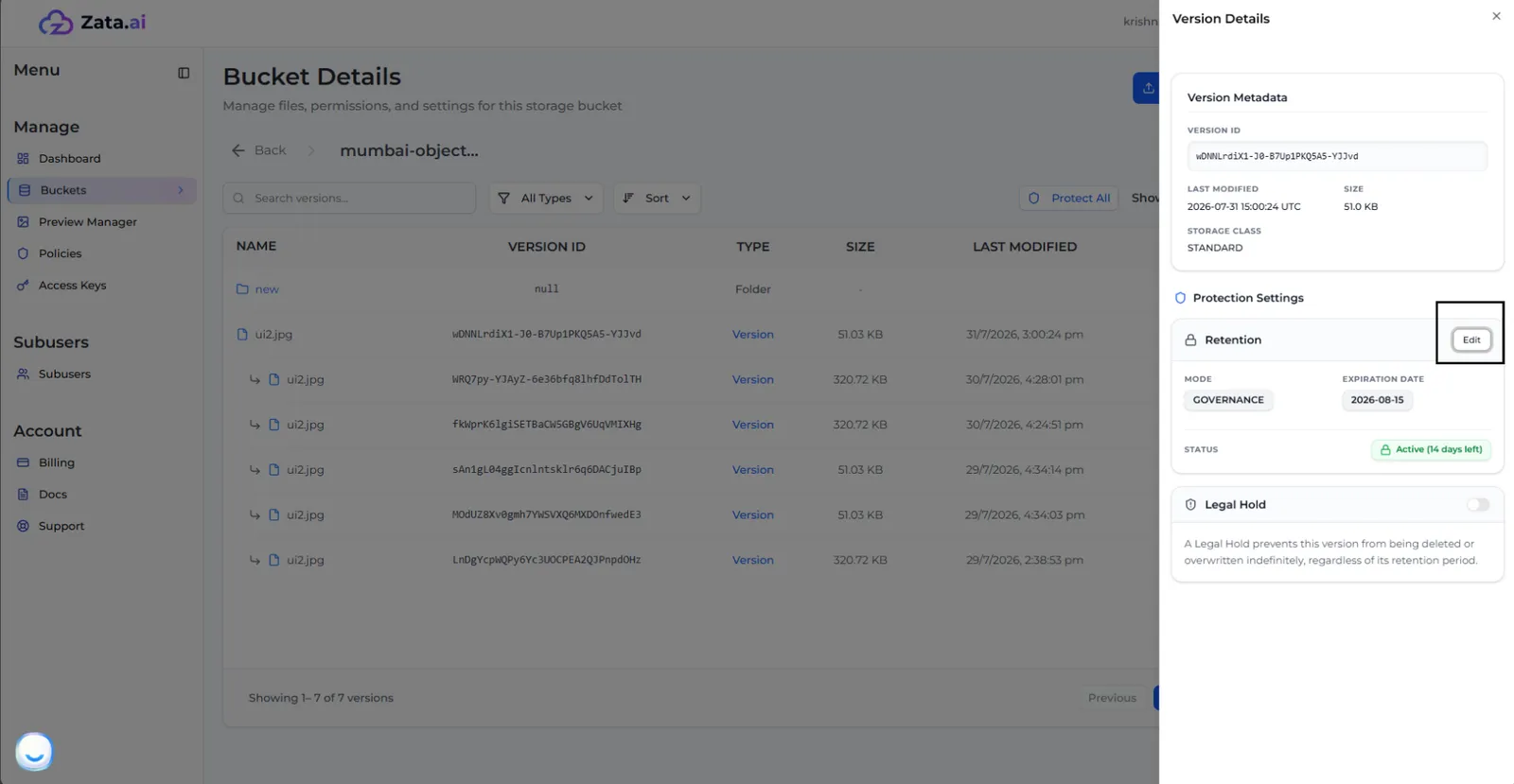
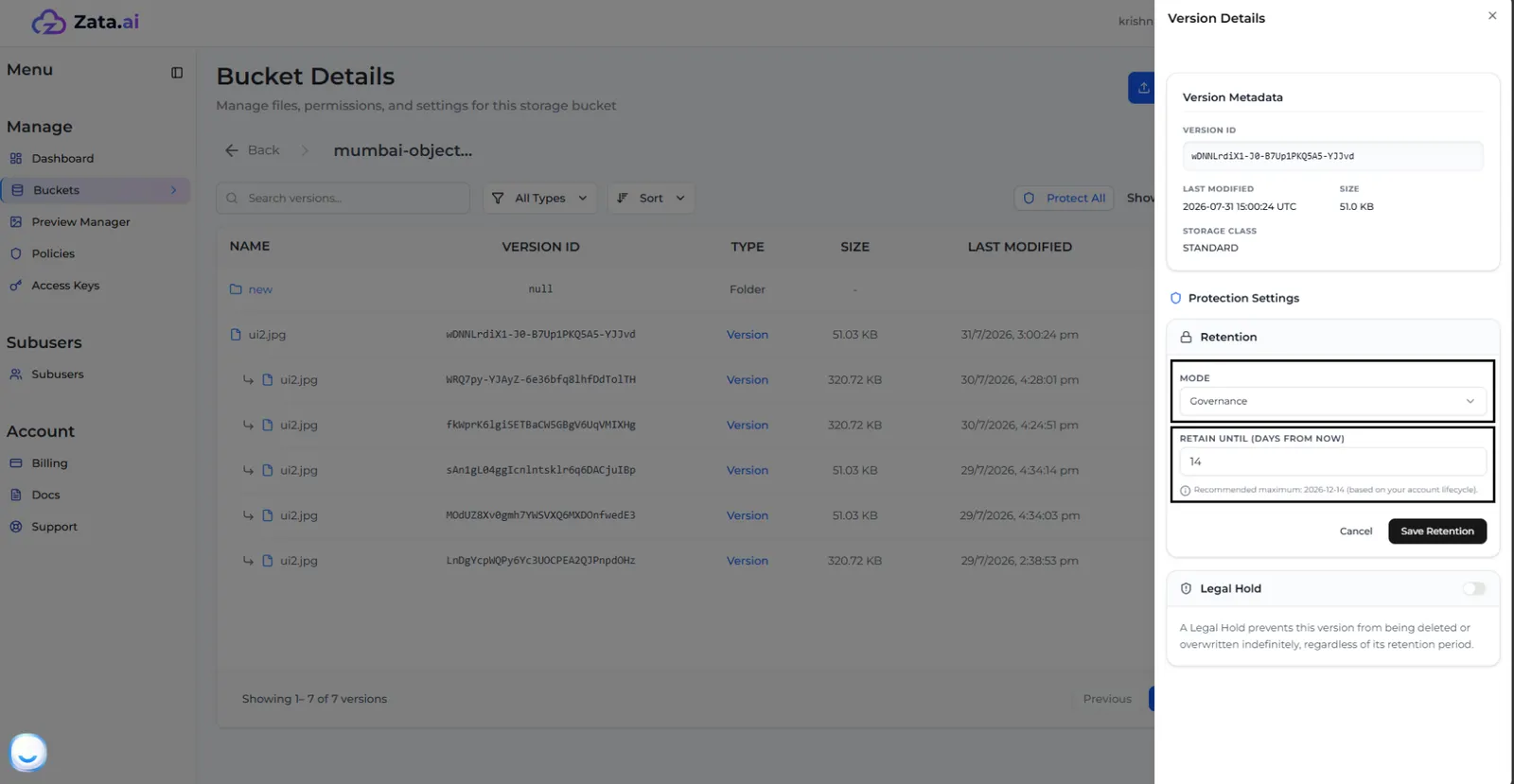
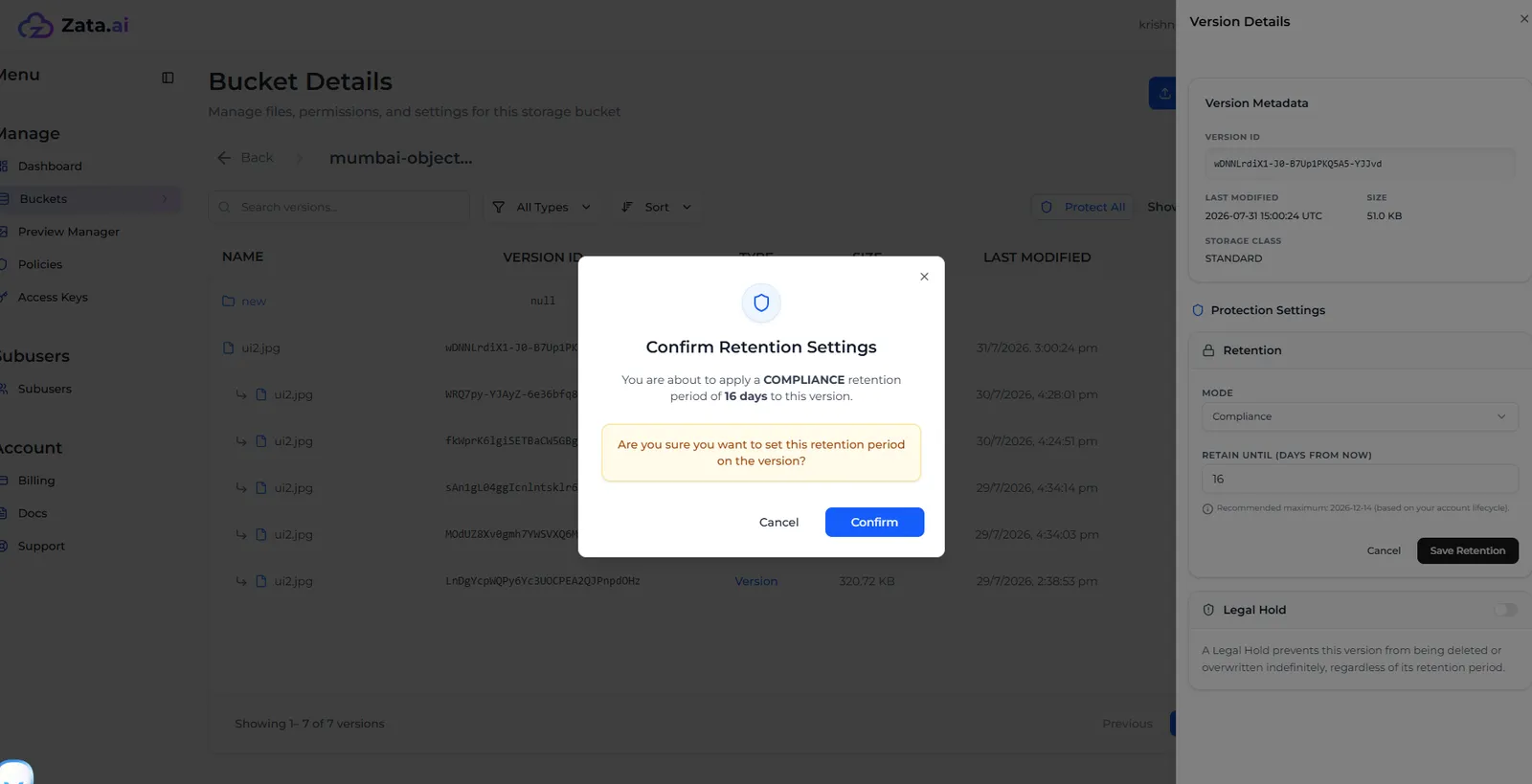
To put a legal hold on a version, see Legal hold.
What Object Lock changes in the bucket
- Deleting a file in the normal file list only adds a delete marker. The locked versions stay, and you can restore the file.
- Overwriting a file creates a new version. The locked version stays.
- Versioning cannot be turned off.
- Lifecycle rules skip locked versions until their lock ends.
- Delete All Contents is not available when you delete the bucket. Delete the files once their locks have ended, then delete the empty bucket.
- Sub-users cannot change Object Lock settings unless the owner has given them those permissions.
Check locks with the AWS CLI
ObjectLockConfigurationNotFoundError from get-object-retention means the file has no lock, or the bucket was created without Object Lock.
To check that a backup tool works with Object Lock, use a new test bucket, never one with real data. Lock a test file for a short time in Governance mode, then try to delete that version with the tool: it must be refused.