Skip to navigation

WinSCP

Move files between Windows and Zata with WinSCP.

WinSCP is a free file transfer app for Windows. Its Amazon S3 protocol connects to Zata, so you can drag and drop files between your PC and your buckets.

Before you start

Connection settings

SettingValue
File protocolAmazon S3
EncryptionTLS/SSL Implicit encryption (the default)
Host nameidr01.zata.ai for Indore, bom01.zata.ai for Mumbai — no https://
Port number443
Access key ID / Secret access keyfrom Access Keys in the Zata console — the key must be from the same region as the bucket

Set up WinSCP

1

Create a new site

Open WinSCP. In the Login window, select New Site and set File protocol to Amazon S3.
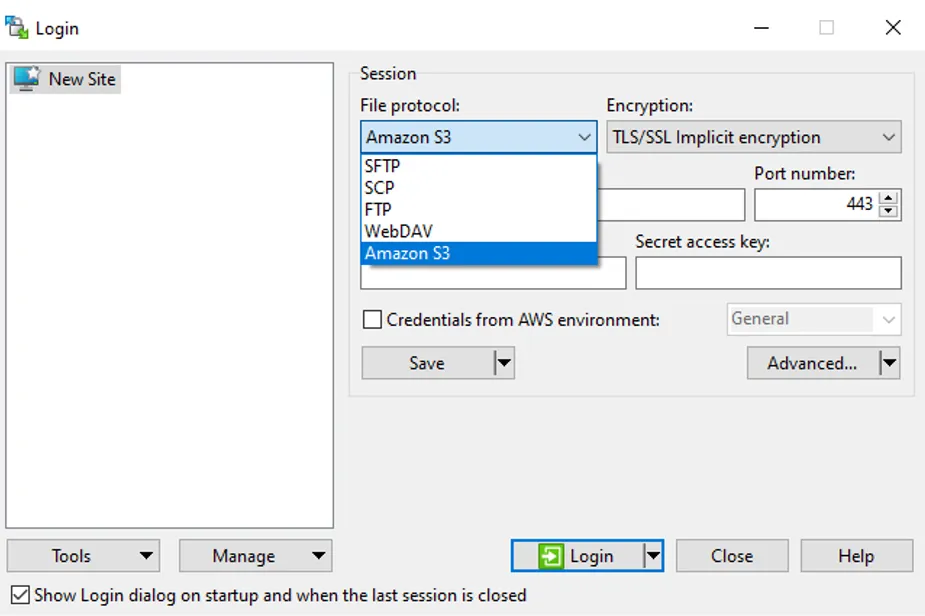
WinSCP Login window with Amazon S3 selected in the File protocol list
2

Enter the Zata details

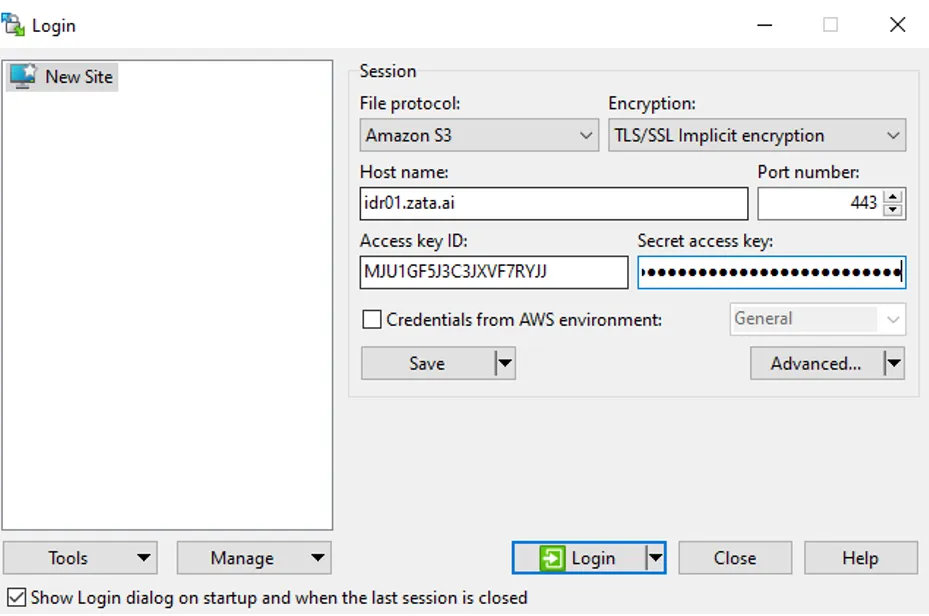
Enter the Host name, Port number, Access key ID and Secret access key from the table above.

WinSCP Login window with host name idr01.zata.ai, port 443 and an access key entered
3

Save and log in

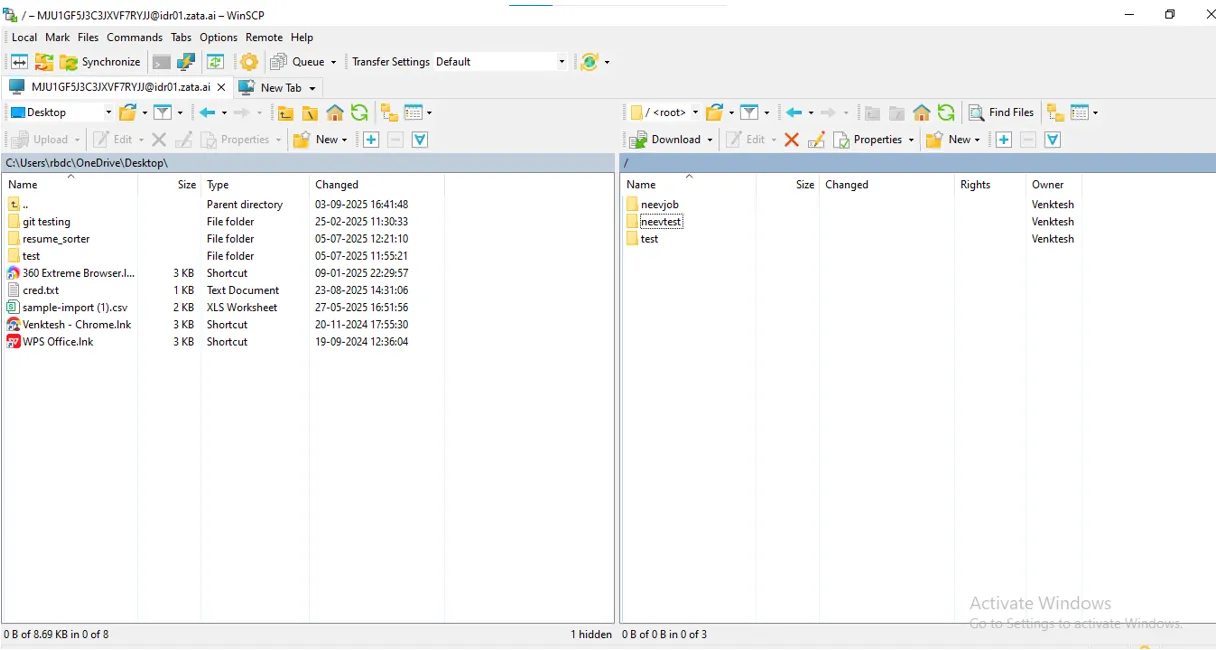
Select Save to keep the site for next time. Then select Login. Your buckets appear as folders in the right-hand pane.

WinSCP connected to idr01.zata.ai, with three buckets in the right-hand pane

Test it

Open a bucket in the right-hand pane and drag a small file into it from the left-hand pane. Check that the file appears in the same bucket in the Zata console under Buckets. Then drag it back to your PC to check that downloads work.

Troubleshooting

ProblemFix
Cannot connectCheck that Host name has no https://, Port number is 443, and the host matches the region of your key.
Access denied or invalid credentialsCopy the keys again from Access Keys, without extra spaces.
A bucket is missingThe bucket is in the other region, or the key has no access to it. Sub-user keys never list buckets.

For other errors, see Access denied and Endpoint and region.