Skip to navigation

Syncovery

Back up and sync folders to Zata on Windows, macOS or Linux.

Syncovery backs up and synchronises folders on Windows, macOS and Linux. It connects to Zata with its S3 protocol. You put the Zata endpoint in the bucket field, as bucketname@host.

Before you start

Connection settings

SettingValue
ProtocolS3
Access ID / Secret KeyFrom Access Keys in the Zata console. The key must be from the same region as the bucket.
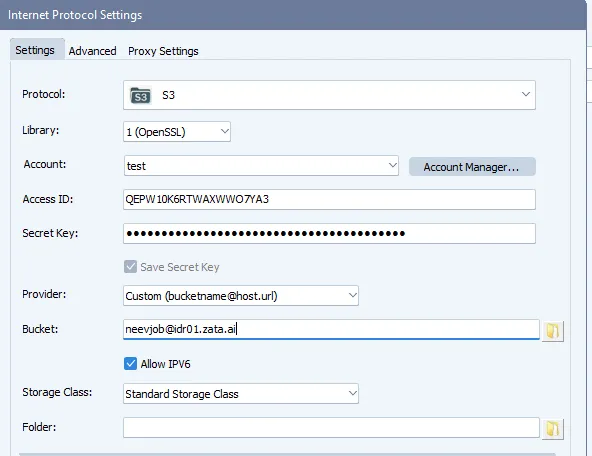
ProviderCustom (bucketname@host.url)
Bucketmy-bucket@idr01.zata.ai for Indore, my-bucket@bom01.zata.ai for Mumbai
Storage ClassStandard Storage Class (Zata has one storage class)

Set up Syncovery

1

Start a new profile

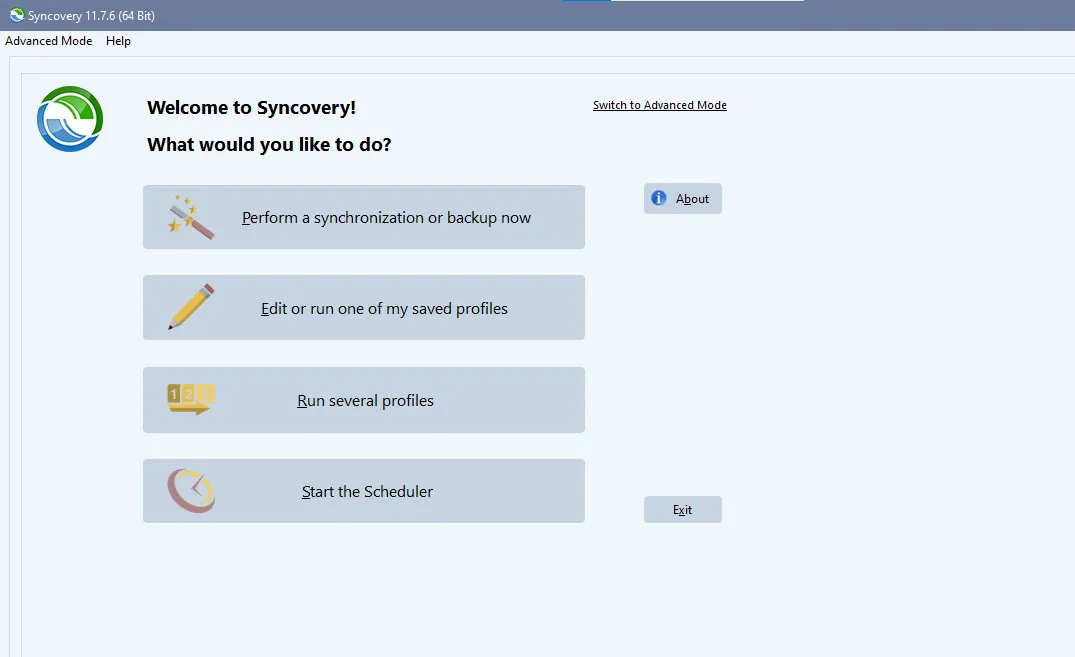
On the welcome screen, click Perform a synchronization or backup now.

Syncovery welcome screen with Perform a synchronization or backup now
2

Choose the local folder

In Specify Folders, set Left-Hand Side to the local folder you want to back up or sync.
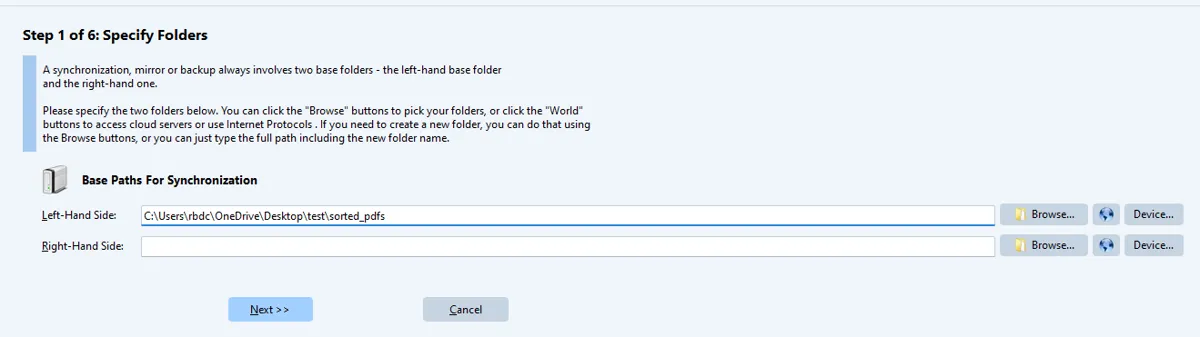
Specify Folders step with the left-hand and right-hand side paths and the globe buttons
3

Set Zata as the right-hand side

Next to Right-Hand Side, click the globe button to open Internet Protocol Settings. Set Protocol to S3 and fill in the fields from the table above. Optionally enter a Folder inside the bucket. Click OK.

Internet Protocol Settings with protocol S3, the Custom provider and the bucket written as bucketname@idr01.zata.ai
4

Set a schedule

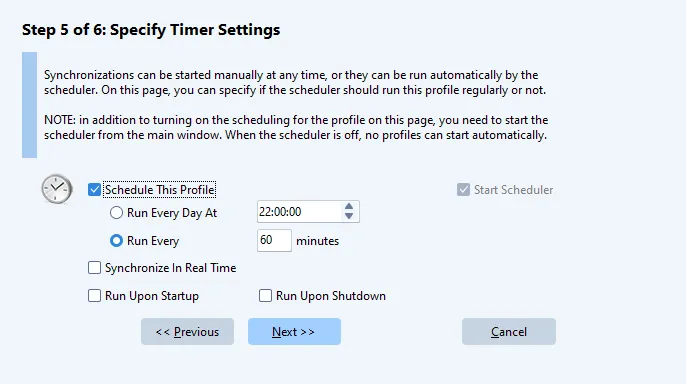
Go through the next steps. In Specify Timer Settings, tick Schedule This Profile and choose when it runs. Save the profile at the end of the wizard.

Specify Timer Settings step with Schedule This Profile ticked and a run interval

Test it

Put a small file in the local folder. On the welcome screen, click Edit or run one of my saved profiles, select your profile and click Run Profile. Check the job log, then check that the file is in your bucket in the Zata console. Use Restore Files to confirm you can get it back.
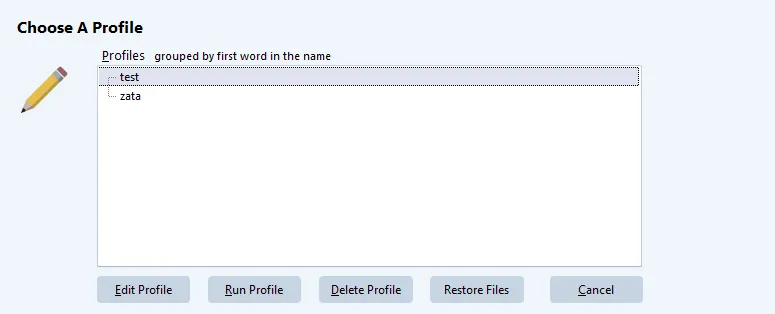
Choose A Profile window with the Run Profile and Restore Files buttons

Troubleshooting

ProblemFix
Cannot connect, or the bucket is not foundWrite Bucket as my-bucket@idr01.zata.ai (or @bom01.zata.ai) with Provider set to Custom (bucketname@host.url). Without the host, Syncovery connects to AWS.
Access denied or invalid credentialsCopy the keys again from Access Keys and check that the key can use the bucket.
Error about the storage classChoose Standard Storage Class. Zata has one storage class.
Files do not appearOpen the job log for the profile and look for the failed file.