

Create a sub-user
Create a sub-user for each person or app that needs its own access. You can create up to 5 sub-users by default (see Limits).
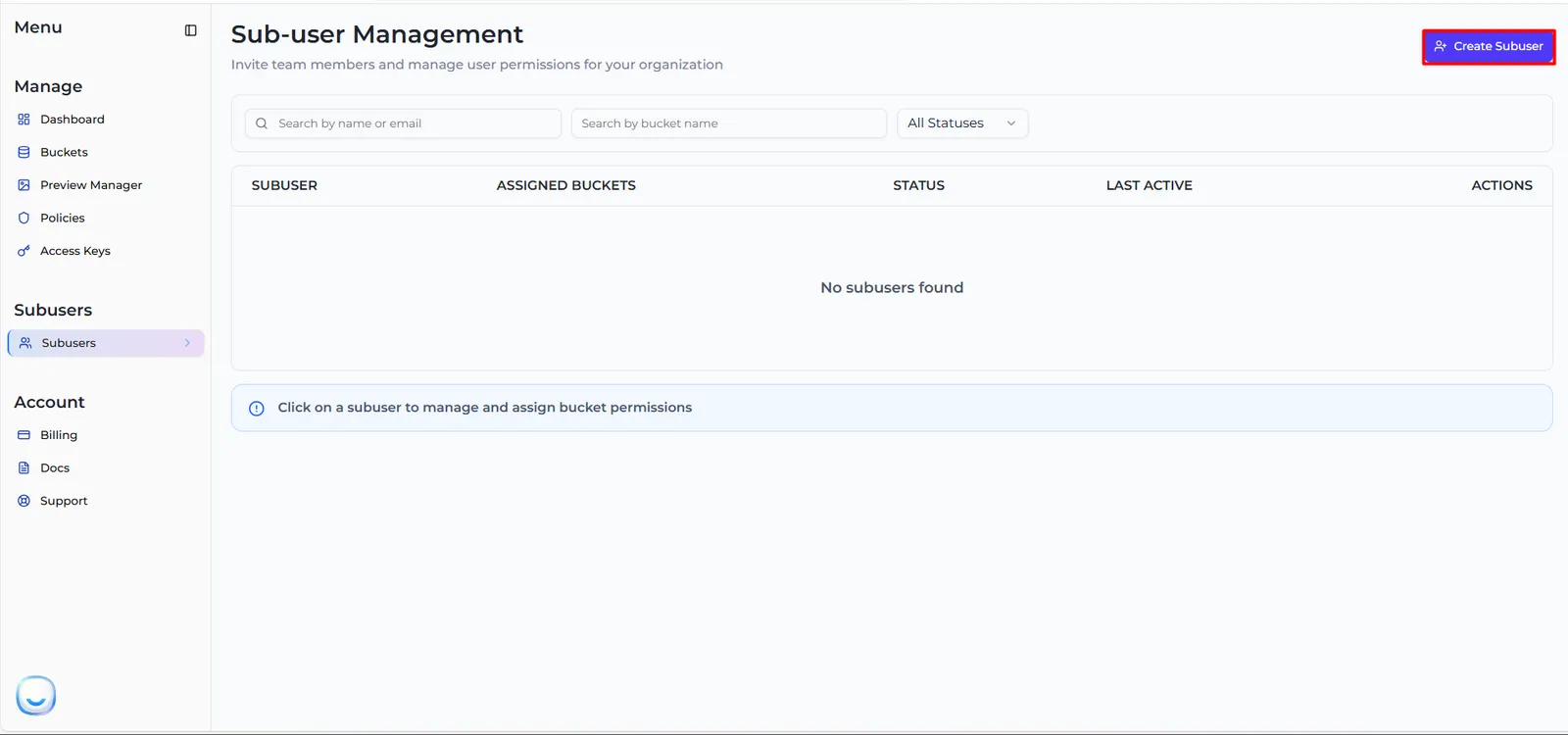
Choose the access type
Under Access Type, choose:
- Programmatic access only — access keys for S3 tools and apps. No dashboard login, no email needed.
- Programmatic + Dashboard access — access keys plus a login to the sub-user dashboard. Needs an email address for the invitation.
See Access types and permissions for the difference. You can give a programmatic sub-user dashboard access later.
Enter a username
The username starts with a fixed prefix made from your account (for example sub1a2b-). Type the rest: letters, numbers, dot (.), underscore (_) and dash (-) only. The whole username can be up to 64 characters and must be unique across Zata.
Enter an email (dashboard access only)
For Programmatic + Dashboard access, enter the person’s email address under Email. The invitation goes there.
Choose regions
Under Regions, tick Mumbai, Indore or both. The sub-user gets a separate key pair in each region, and can only be given buckets in its regions. You can change regions later.
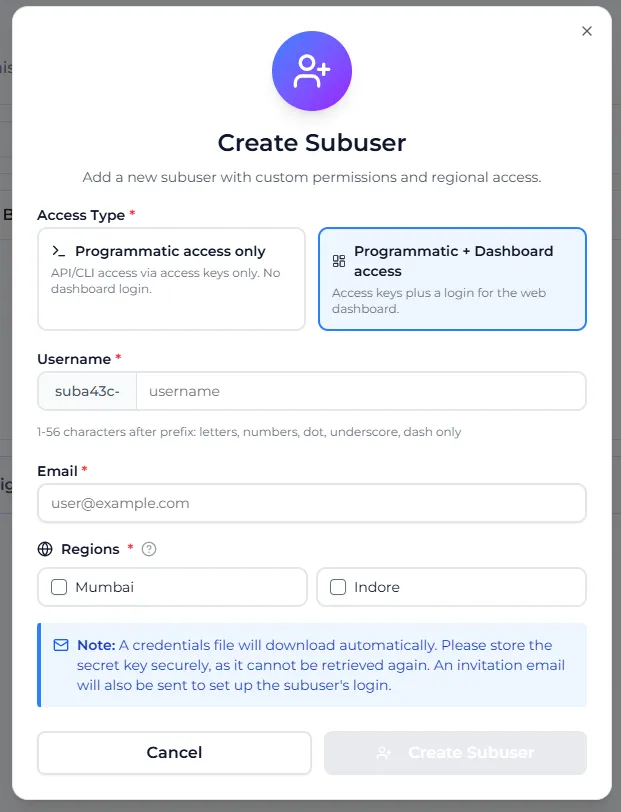
Save the credentials file now. Zata never shows the secret keys again. If a secret key is lost, rotate that key.
The credentials file contains the sign-in URL, the username, and for each region the service URL (https://idr01.zata.ai or https://bom01.zata.ai), access key and secret key.
After you create it
The new sub-user appears in the Sub-user Management list.
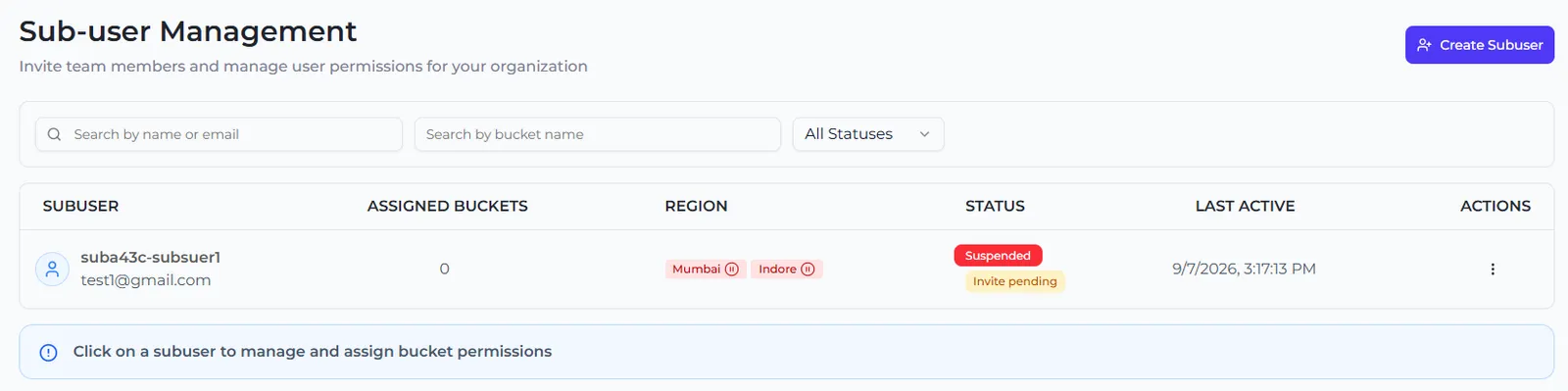
- A Programmatic access only sub-user is Active straight away. Its keys work at once.
- A Programmatic + Dashboard access sub-user gets an invitation email and shows Suspended with Invite pending until it accepts. Until then, its keys do not work either. See Invitations.
Either way, the sub-user cannot reach any bucket yet. Next, assign a bucket.
If you see “Subuser limit reached”, delete a sub-user you no longer need or contact support.