

Make files public
A public file has a permanent link that anyone can open without signing in, for example to embed an image on a website. You can make one file public, or the whole bucket.
For a link that stops working after a while, share a temporary link instead.
Anyone with a public link can view and download the file, and the link does not expire. Downloads by anyone count towards your egress. Check that nothing personal or sensitive becomes public.
Make one file public
The other files in the bucket stay private.
If the bucket has a bucket policy that blocks public access, making the file public has no effect until that policy is changed. The console warns you about this in the confirmation window.
To make the file private again, open its ⋮ menu, select Make private and confirm with Make private. The link stops working at once: anyone who saved it gets an access-denied error.
Make the whole bucket public
Anyone on the internet can then list all the bucket’s files and download any of them.
Open the bucket's settings
Go to Buckets and select the gear icon (Bucket Settings) in the bucket’s row.
Copy the public URL
The Public URL box shows the bucket’s address. Add a file’s name at the end to open that file. See The public link.
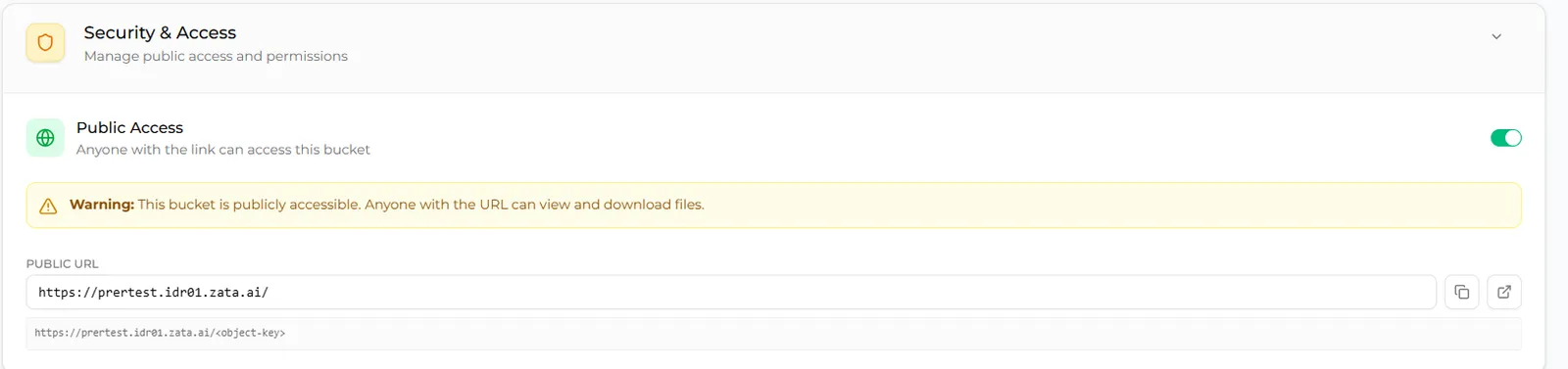
To make the bucket private again, turn Public Access off. Public links to its files then stop working.
The public link
A public link ends with the file’s full name (its key):
For a bucket in Mumbai, the link starts with https://bom01.zata.ai. The form https://my-bucket.idr01.zata.ai/myfile.txt works too. Public links stop working if your account is suspended.
Sub-users can copy the public link of a file that is already public, but cannot make files or buckets public or private. More on file permissions: Object ACL.