

Skip to navigation

The dashboard

What the storage dashboard shows: usage, plan, regions and capacity.

The Dashboard is the first page you see after you sign in to the Zata console. It shows how much you store, your plan, the state of each region and how your storage grows.
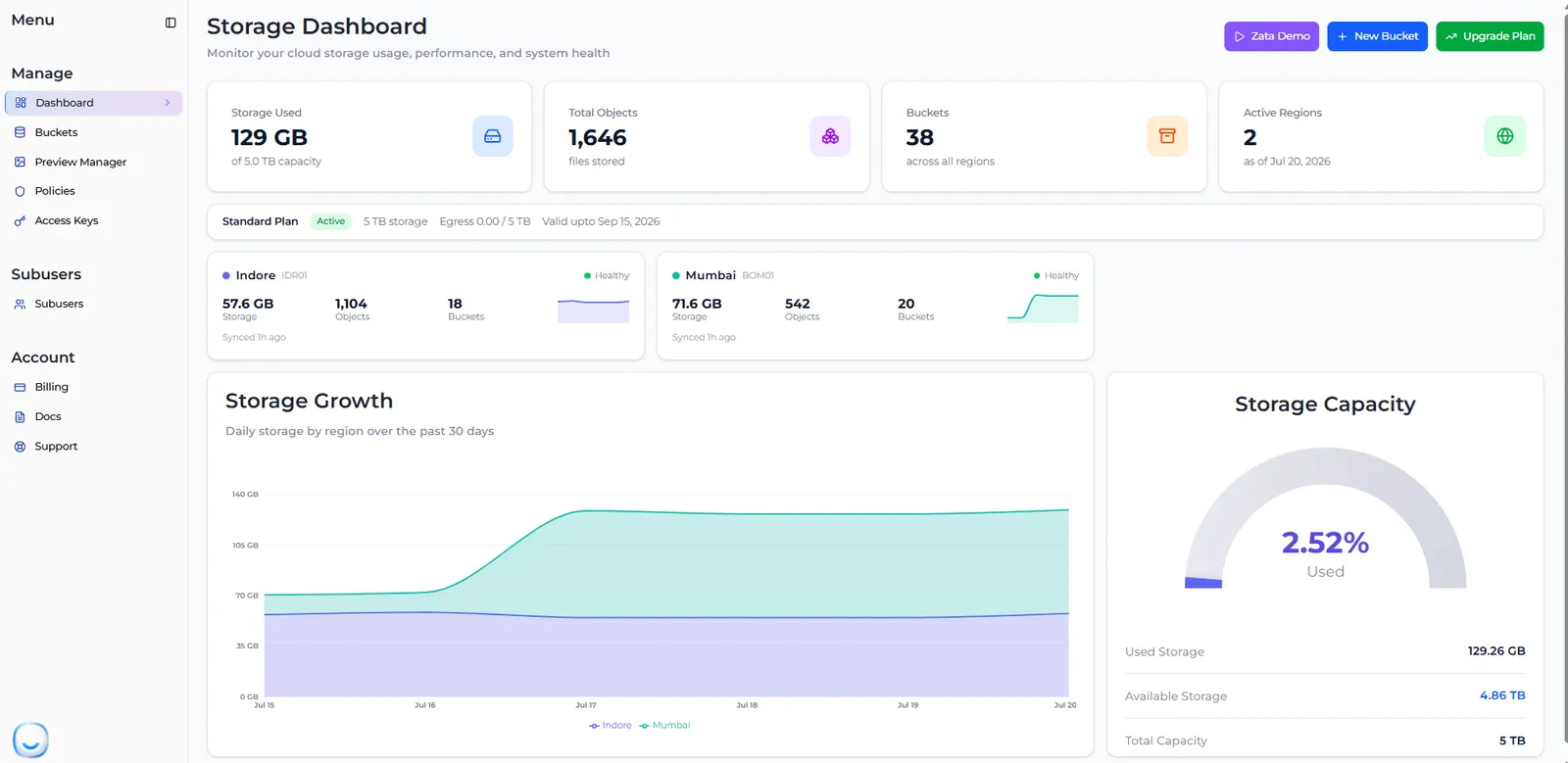
The Storage Dashboard with summary tiles, the plan bar, region cards for Indore and Mumbai, the Storage Growth chart and the Storage Capacity gauge

What the dashboard shows

PartWhat it shows
Storage UsedStorage in use across all regions, out of your plan’s capacity.
Total ObjectsNumber of files in all your buckets.
BucketsNumber of buckets across all regions.
Active RegionsNumber of Zata regions you can use.
Plan barYour plan, its status, its storage size, egress used out of your allowance, and the date the plan is valid until.
Region cardsFor Indore and Mumbai: storage, objects and buckets in that region, the region’s status (Healthy, Unreachable or Unknown) and when the numbers were last synced.
Storage GrowthDaily storage per region over the past 30 days. Download CSV saves the data.
Storage CapacityUsed Storage, Available Storage and Total Capacity, with the percentage used.

Usage numbers are collected regularly, not live, so a new upload can take a while to show. A new account sees a short “Collecting your usage data” message at first.

When something needs your attention, such as storage almost full, egress almost used up or a plan about to expire, a message appears under the summary tiles. Select Manage plan in the message to open Billing.

Buttons

ButtonWhat it does
Zata DemoPlays a short demo video.
New BucketOpens Buckets, where you can create a bucket.
Upgrade PlanOpens Billing, where you can buy or upgrade a plan.

The menu

The menu on the left opens the rest of the console.

Menu itemWhat you do there
DashboardThis page.
BucketsCreate buckets, upload and manage files. See Create a bucket.
Preview ManagerPreview images, videos and documents without downloading them. See Preview Manager.
PoliciesControl who can do what in a bucket. See Bucket policies.
Access KeysCreate keys for S3 tools. See Access keys.
SubusersGive team members or apps their own limited access. See Sub-users.
BillingBuy, renew or upgrade your plan and see invoices. See Billing.
DocsOpens this documentation.
SupportRaise a support ticket. See Get support.
Feature RequestSuggest a new feature.

Your profile and Sign out are in the menu under your profile icon in the top-right corner. See Profile settings.

Sub-users see a smaller dashboard with only the buckets and regions they were given. See What sub-users see.