

Iperius Backup
Iperius Backup is Windows backup software. It can send backup jobs to a Zata bucket through its Amazon S3 cloud destination, which works with S3-compatible storage.
Before you start
- A bucket for the backups. See Create a bucket.
- An access key from the same region as the bucket. See Access keys.
- Iperius Backup installed.
Connection settings
Set up Iperius Backup
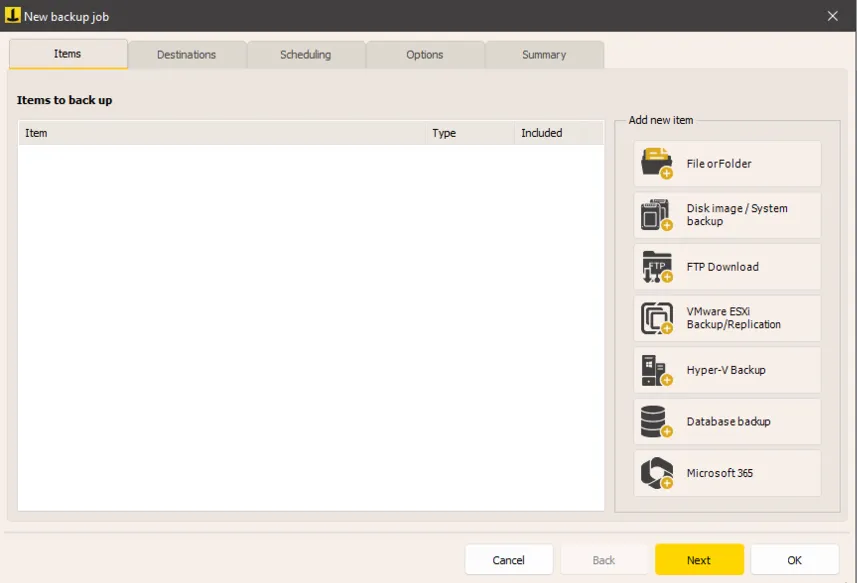
Add what to back up
On the Items tab, use File or Folder to add the files and folders you want to back up. Filters and exclusions are optional.
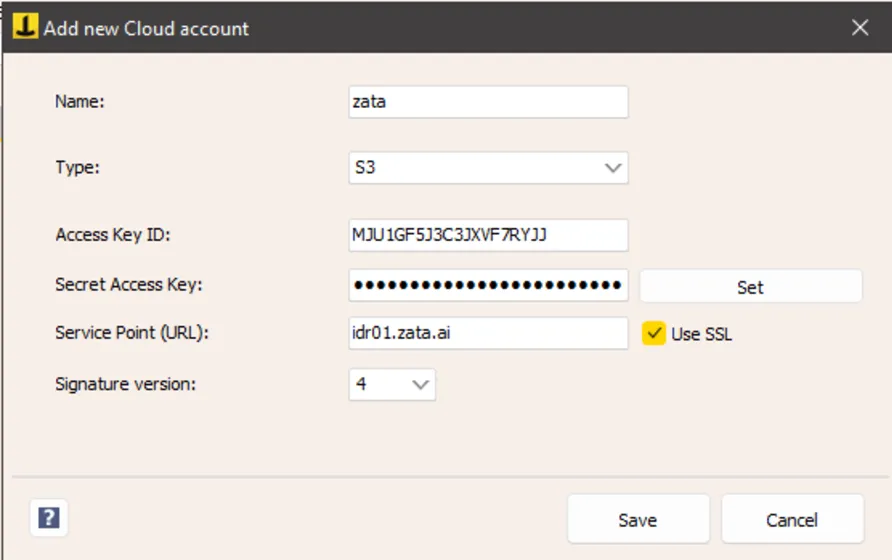
Add a Zata cloud account
On the Destinations tab, add a Cloud destination, choose Amazon S3, and click New Account. Enter a Name (for example zata), fill in the fields from the table above, and click Save.
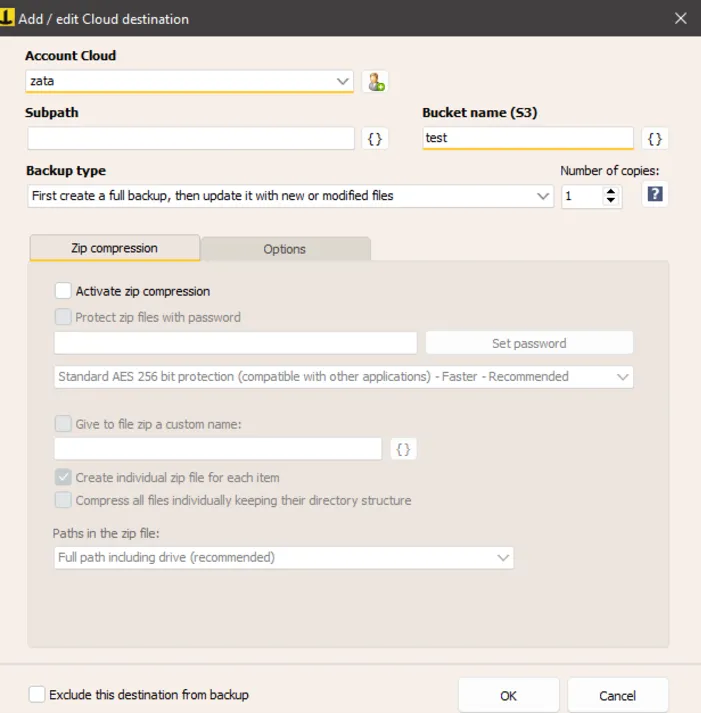
Choose the bucket and options
Select the new account under Account Cloud and enter your Bucket name (S3). Optionally add a Subpath. Choose the Backup type and Number of copies, and turn on zip compression and a zip password if you want them. Click OK.
For immutable backups, create the bucket with Object Lock turned on before you set up the job. Object Lock can only be turned on when you create a bucket. See Object Lock.
Test it
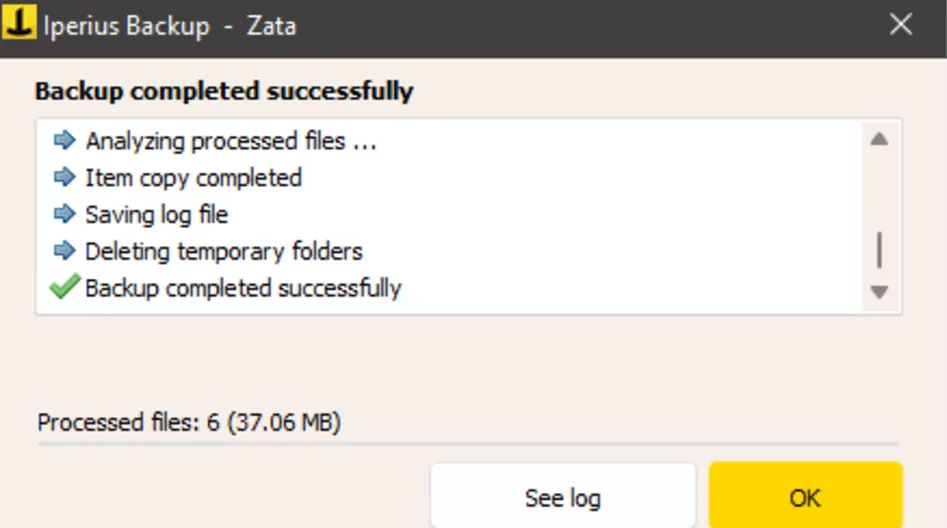
Run the job once by hand with a small file. When it reports Backup completed successfully, check that the file is in your bucket in the Zata console. Then restore it with Iperius to confirm it can be recovered.
Troubleshooting
For other errors, see Signature errors.