

Regions
A sub-user can work in Indore, Mumbai or both. In each region it has its own key pair, and it can only be given buckets in its regions. An Indore key does not work on the Mumbai endpoint, and the other way round.
To change a sub-user’s regions, select Manage Regions in its row menu (⋮) in the sub-user list, or Manage in the Region card on its page.
Add a region
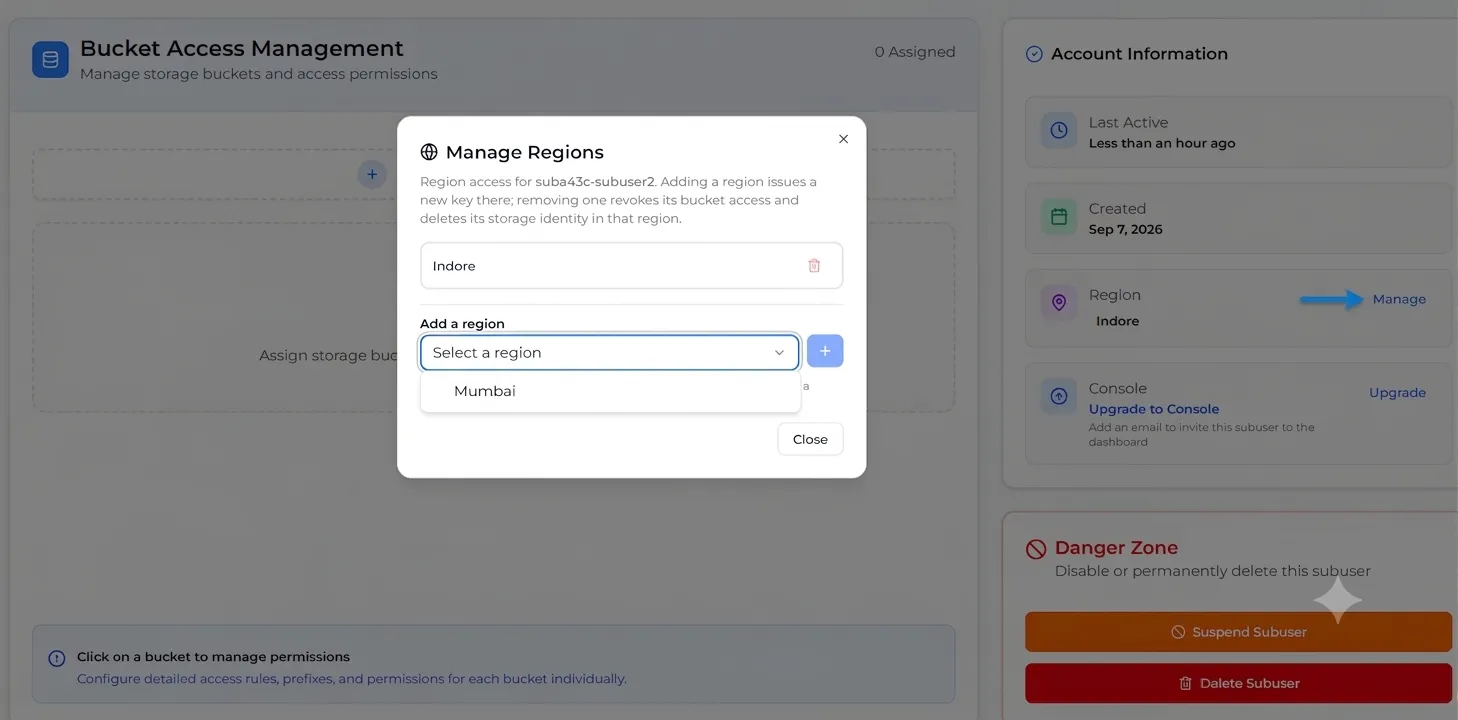
Then assign buckets in the new region. If the sub-user has not accepted its invitation yet, the new region stays suspended too until it does.
Remove a region
Select the bin icon next to the region, then Remove Region to confirm.
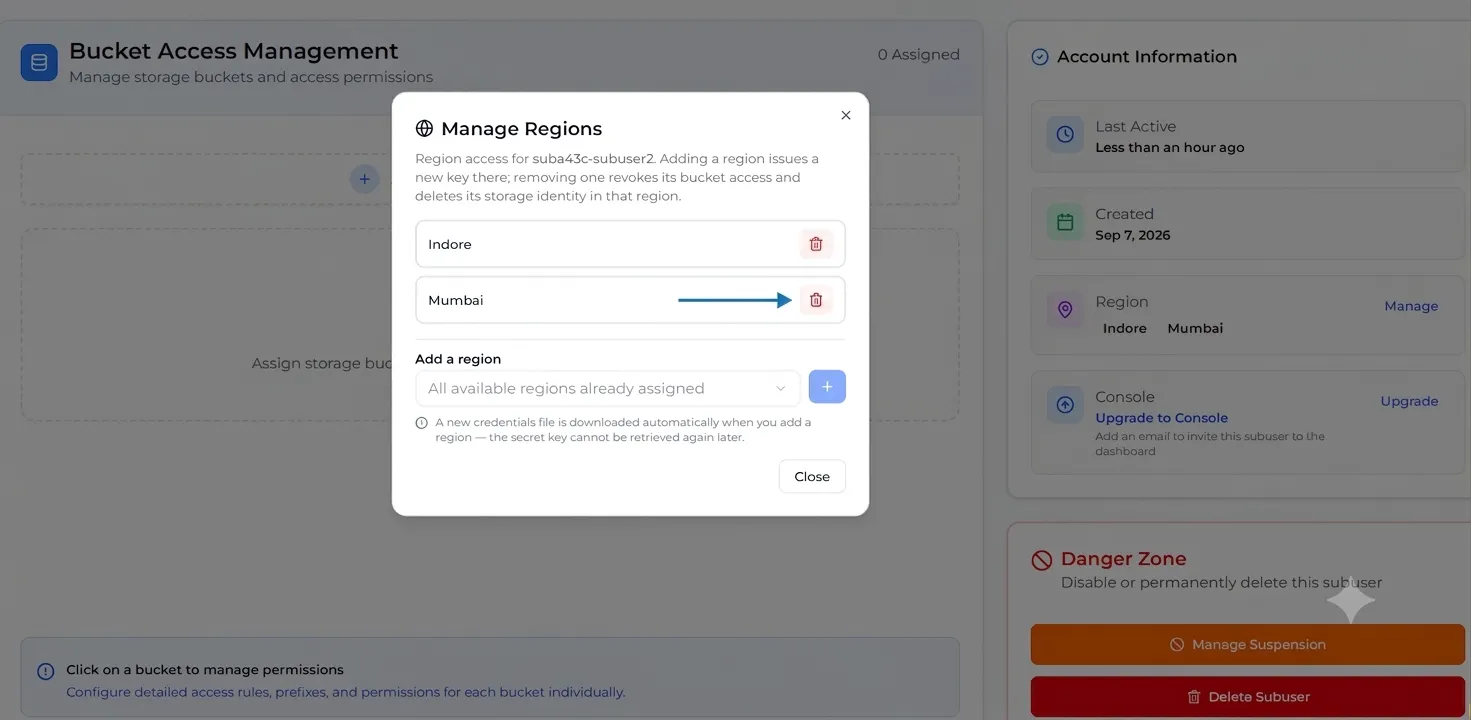
Removing a region deletes the sub-user’s keys there and removes all its bucket access in that region. This cannot be undone.
You cannot remove a sub-user’s last region. To remove all its access, delete the sub-user instead.