Skip to navigation

CloudBerry Explorer

Browse buckets and copy files to Zata with CloudBerry Explorer.

CloudBerry Explorer is a Windows file manager for cloud storage from MSP360 (formerly CloudBerry Lab). It shows your computer and your Zata buckets side by side, so you can copy files between them.

For scheduled, managed backups of servers and workstations, use MSP360 Managed Backup instead.

Before you start

Connection settings

SettingValue
Display nameAny name, for example Zata
Service pointidr01.zata.ai for Indore, bom01.zata.ai for Mumbai
Access key / Secret keyFrom Access Keys in the Zata console. The key must be from the same region as the bucket.
Use SSLTicked
Signature version4

Set up CloudBerry Explorer

1

Add a new account

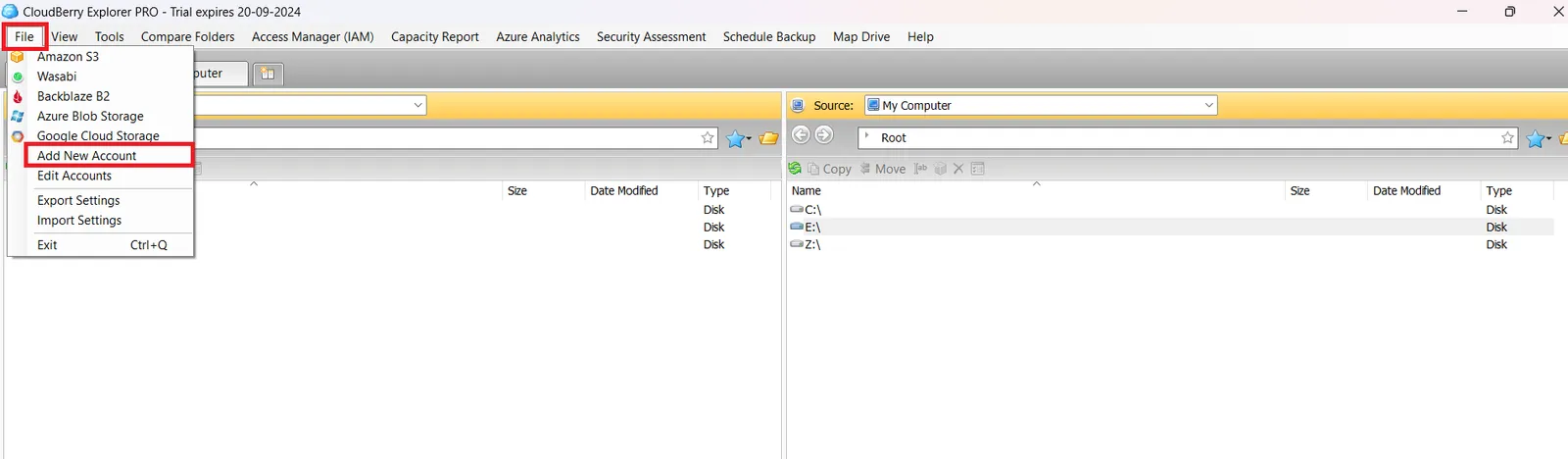
Open the File menu and select Add New Account.

File menu of CloudBerry Explorer with Add New Account highlighted
2

Choose S3 Compatible

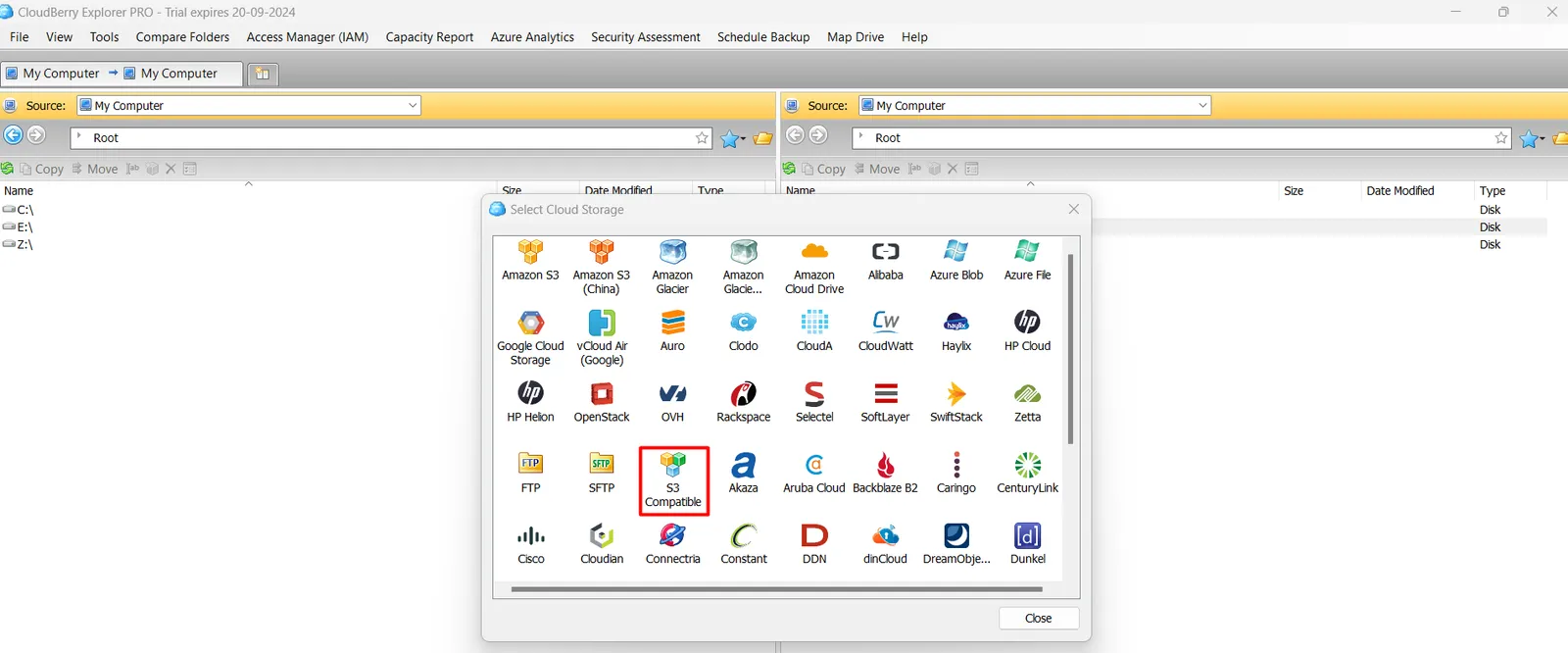
In Select Cloud Storage, select S3 Compatible.

Select Cloud Storage window with S3 Compatible highlighted
3

Enter the connection details

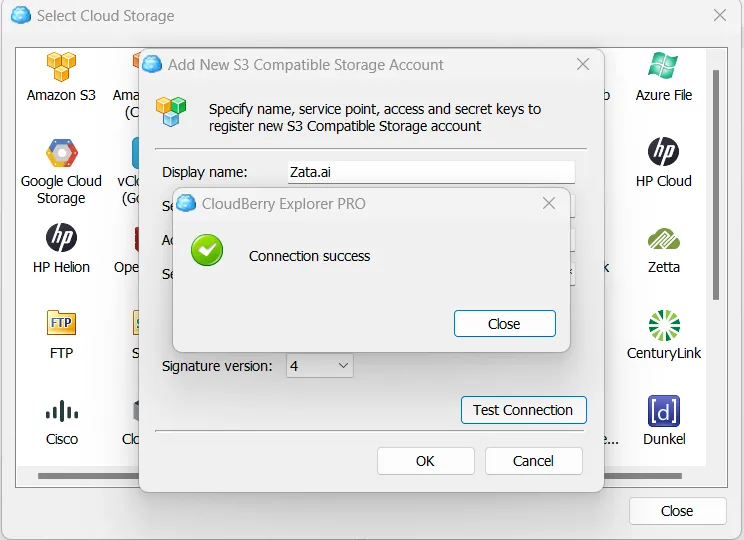
Fill in the fields from the table above and click Test Connection. When you see Connection success, close the message and click OK.
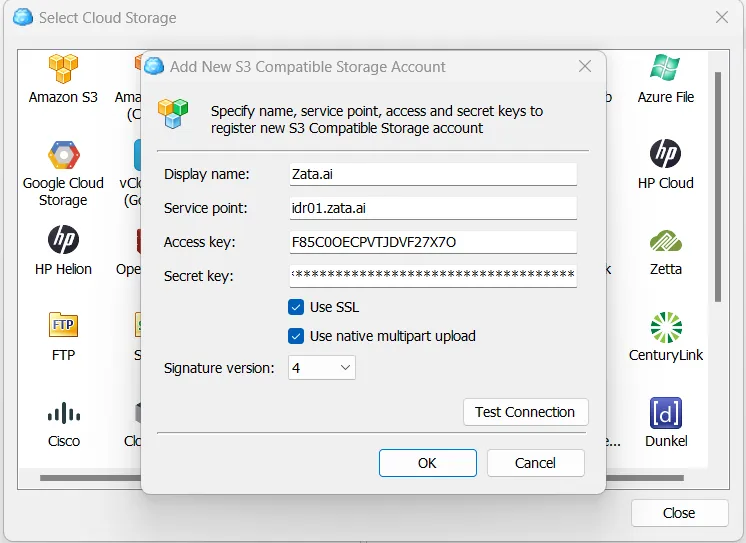
Add New S3 Compatible Storage Account window with display name, service point idr01.zata.ai, keys, Use SSL and signature version 4
Connection success message after Test Connection
4

Open your buckets

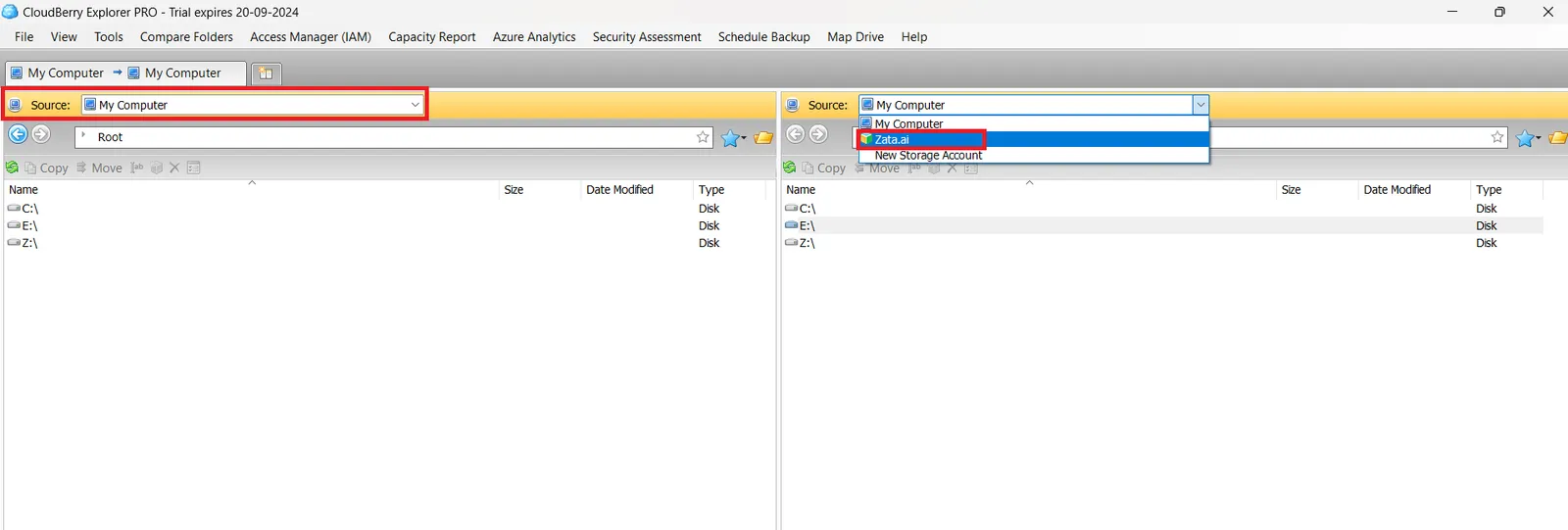
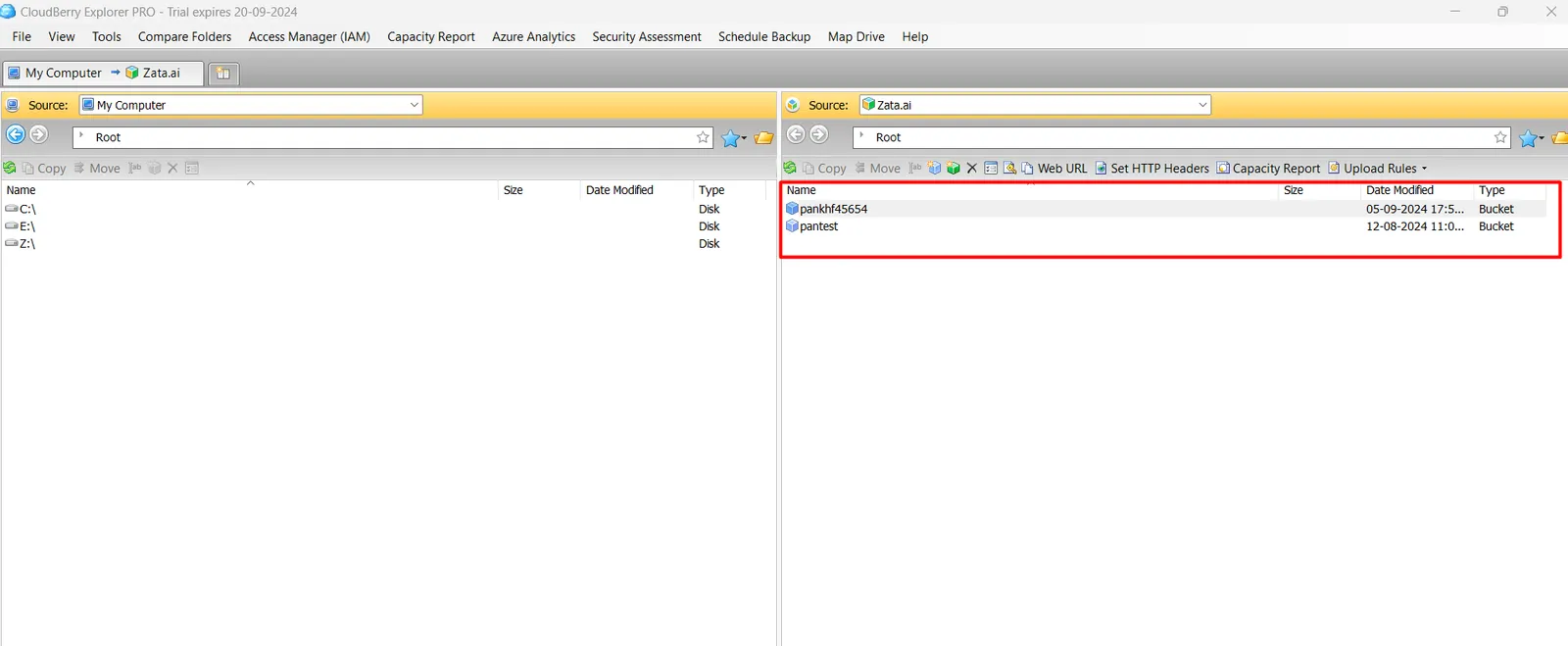
The left pane shows your computer. In the right pane, open the Source list and choose your Zata account. Your buckets appear.

Source list in the right pane with the Zata account selected
Right pane listing the buckets of the Zata account
5

Copy files

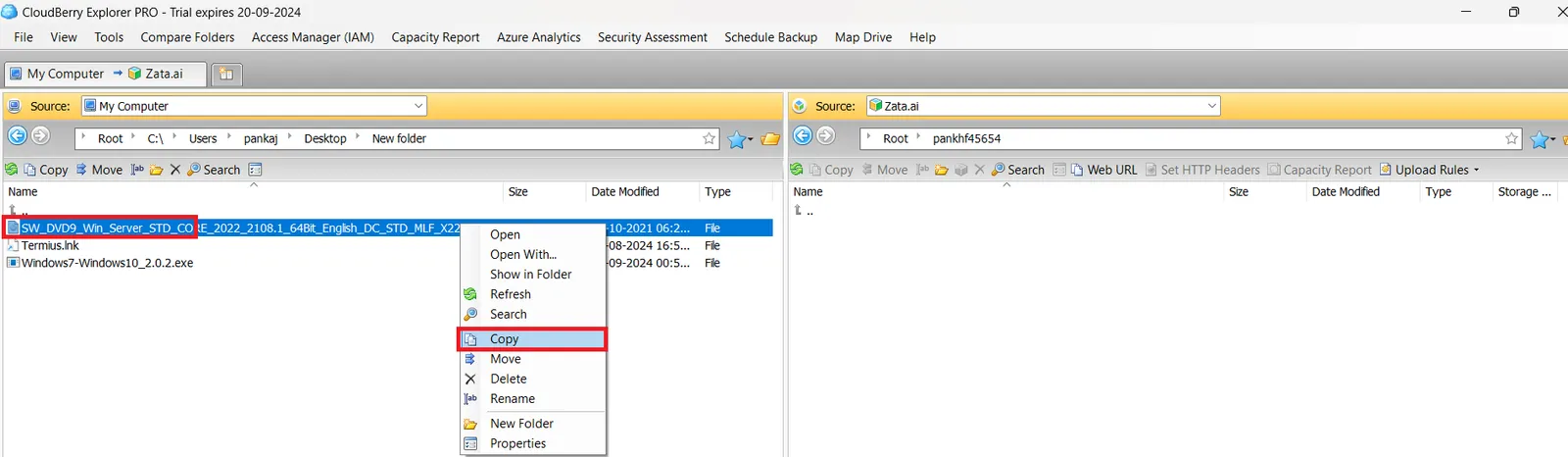
Open a local folder on the left and a bucket (or folder in it) on the right. Right-click a file and select Copy or Move.

Right-click menu on a local file with Copy highlighted

Test it

Copy a small file to a bucket and check that it appears in the right pane and in the Zata console. Then copy it back to a local folder to confirm the download works.
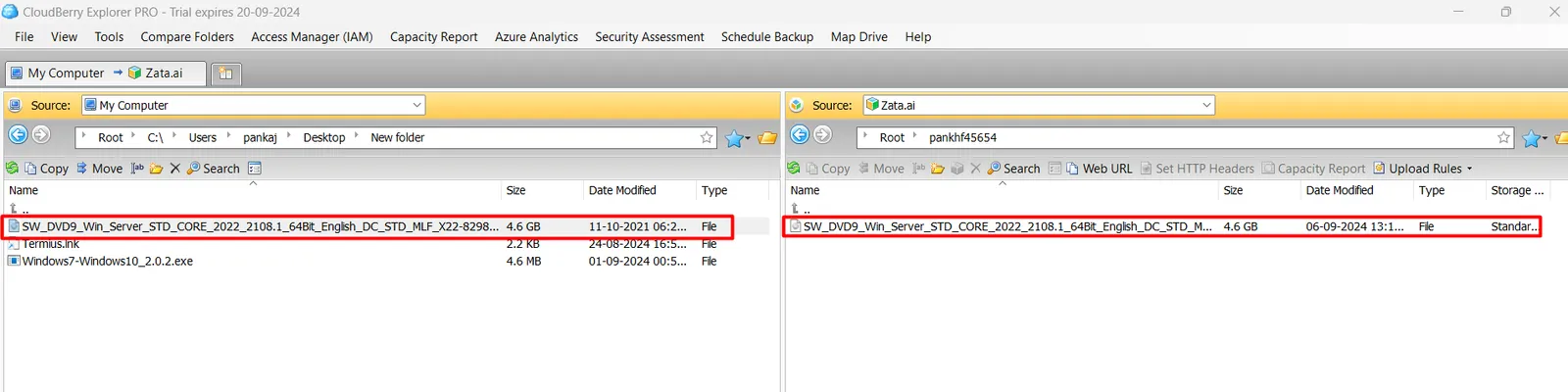
The copied file shown in both the local folder and the bucket

Troubleshooting

ProblemFix
Test Connection failsCheck that Service point is only the host name (idr01.zata.ai or bom01.zata.ai), Use SSL is ticked, and the key is from the same region.
Access denied or invalid credentialsCopy the keys again from Access Keys, without extra spaces.

For other errors, see Signature errors and Endpoint and region.