

Bucket settings
Every setting of a bucket: versioning, Object Lock, lifecycle rules, tags, public access, ACL and storage limits.
The Bucket Settings page shows a bucket’s details and holds the settings you can change after you create it.
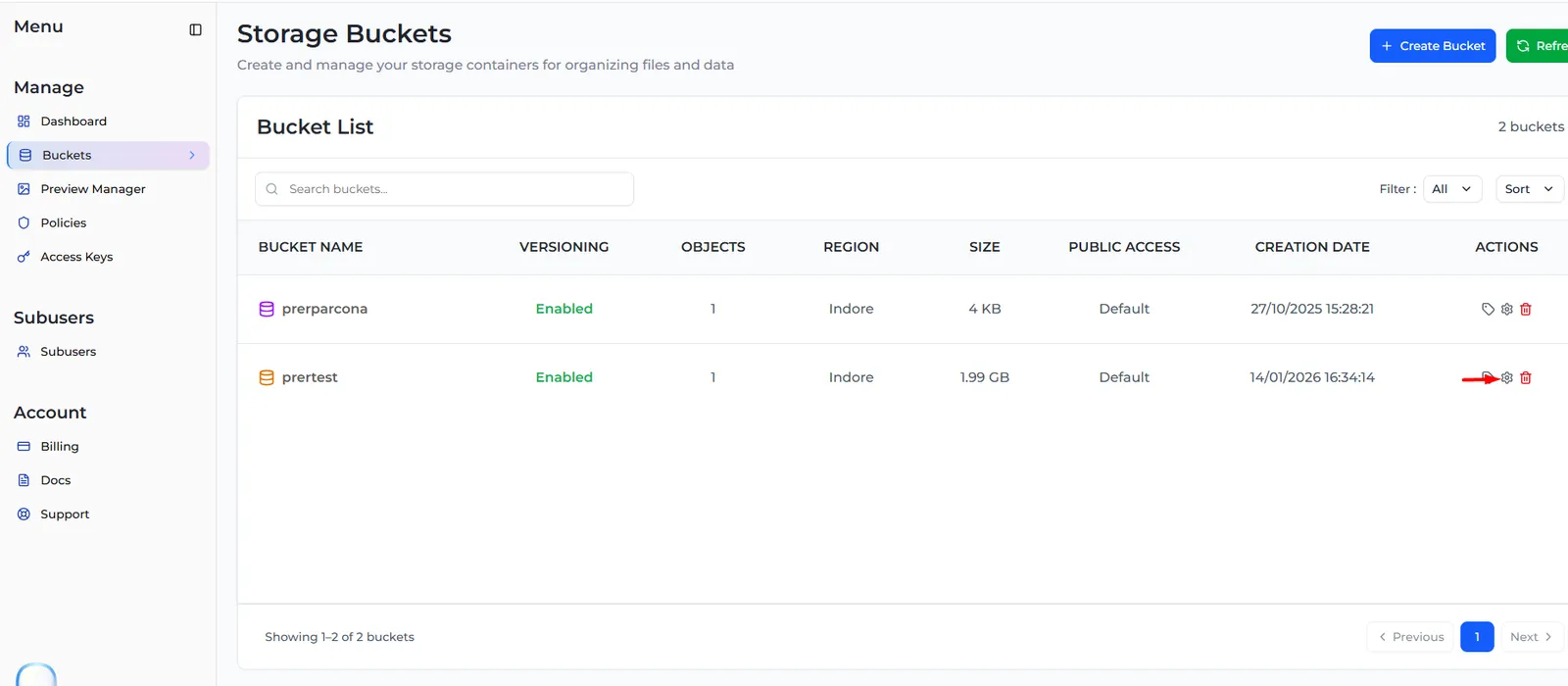
To open it, go to Buckets and select the gear icon (Bucket Settings) in the bucket’s row. Inside a bucket, the Bucket Settings button at the top does the same.
What is on the page
The page has one section for each setting, in this order. Each section opens and closes when you select its title.
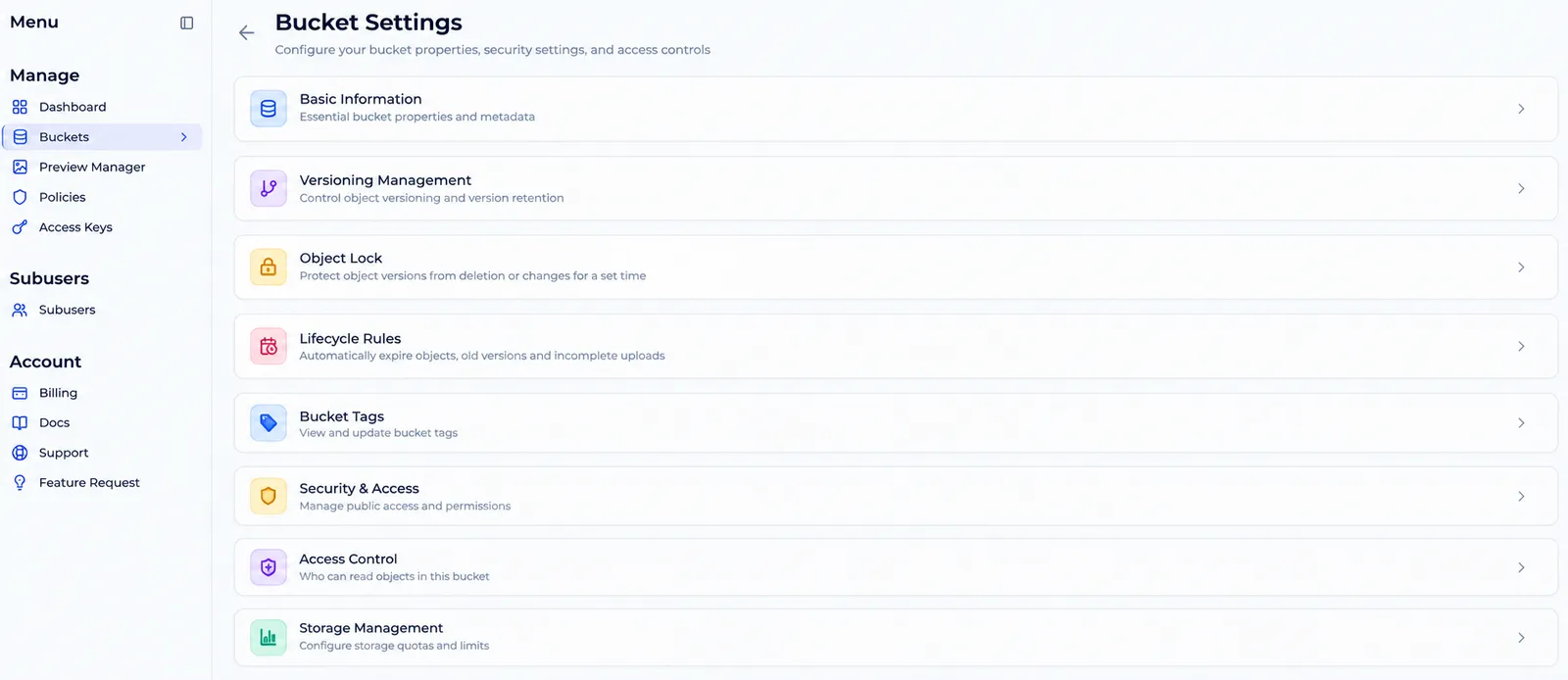
Sub-users see a smaller page: Basic Information, Versioning Management and Access & Permissions, which lists what they are allowed to do in the bucket. See Sub-user portal: Buckets.
Basic Information
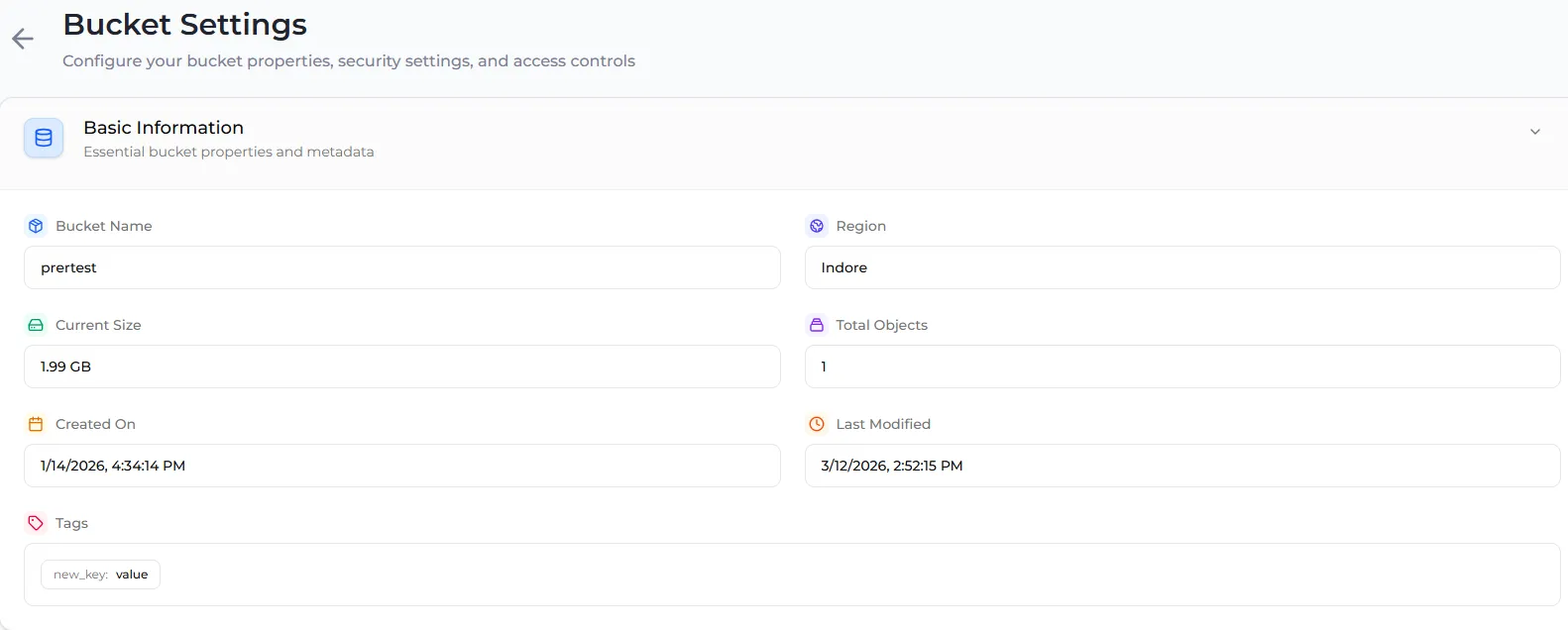
This section is read-only. It shows Bucket Name, Region, Current Size, Total Objects, Created On, Last Modified, Encryption and the bucket’s Tags.
Encryption always shows SSE-S3 (Default). There is nothing to set here, and Zata does not accept server-side encryption options from S3 tools.
Versioning Management
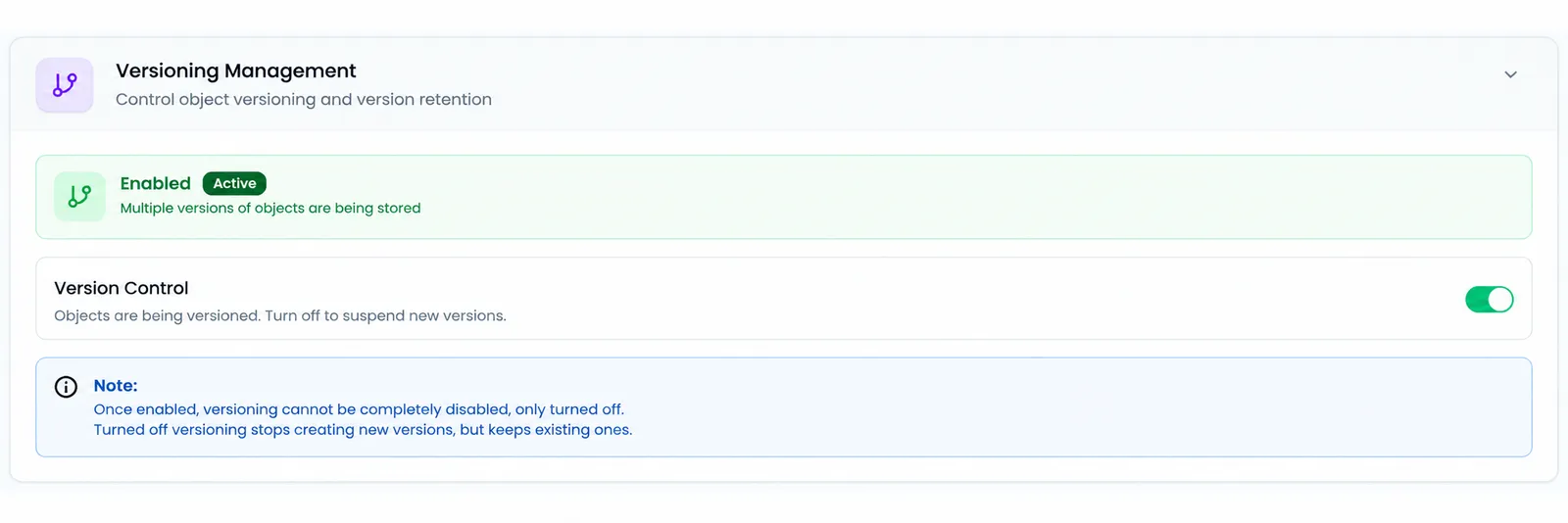
With versioning on, Zata keeps the old version of a file each time you overwrite or delete it, so you can restore it. Old versions use storage until you delete them, for example with a lifecycle rule.
Use the Version Control switch to turn versioning on or off. The status shows one of three states:
Once versioning has been on, it can only be turned off, never fully removed. On a bucket with Object Lock, versioning cannot be turned off at all.
Object Lock
This section appears only for buckets that were created with Object Lock turned on. You cannot add Object Lock to an existing bucket, and you cannot turn it off.
For the step-by-step guide, see Set a default retention and Lock existing versions. To learn how the modes differ, see Object Lock.
Lifecycle Rules
Lifecycle rules delete files for you on a schedule: files older than a number of days, old versions, and unfinished uploads. Use them to keep storage, and your bill, under control.
On a bucket with Object Lock, rules skip locked versions until their lock ends.
To add, edit or delete a rule, see Lifecycle rules.
Bucket Tags
This section shows how many tags the bucket has and lists them. Select Edit tags to add, change or remove tags.
For the tag rules (key length, allowed characters, at most 10 tags), see Tags.
Security & Access
This section has one switch, Public Access. Turning it on makes the whole bucket public: anyone on the internet can list all its files and download any of them without signing in. The console writes the bucket policy for you, so you don’t need to write JSON.
For the steps, the public link format and what to check first, see Make the whole bucket public. To share only one file, see Make one file public.
Access Control
Access Control sets the bucket’s ACL: who can list the files in the bucket and who can upload to it. You can choose Private (only you), Public read, Public read + write, Authenticated User (any signed-in Zata user) or Authenticated User read + write. Settings that open the bucket to others ask you to confirm first.
This is separate from Security & Access: that section writes a bucket policy, while this one sets an ACL. To learn what each setting allows and which one to use, see Bucket ACL and Access control.
Storage Management
A bucket quota caps how much data and how many objects a bucket can hold. Uploads that would go over a limit are refused.
Set the limits
Turn on Enable Quota, then fill in one or both fields:
- Storage Limit (GB): the most data the bucket may hold. It cannot be higher than your plan’s storage (1 TB on a trial). Leave it empty to use your plan’s limit.
- Object Limit: the most objects the bucket may hold. Leave it empty for no limit.
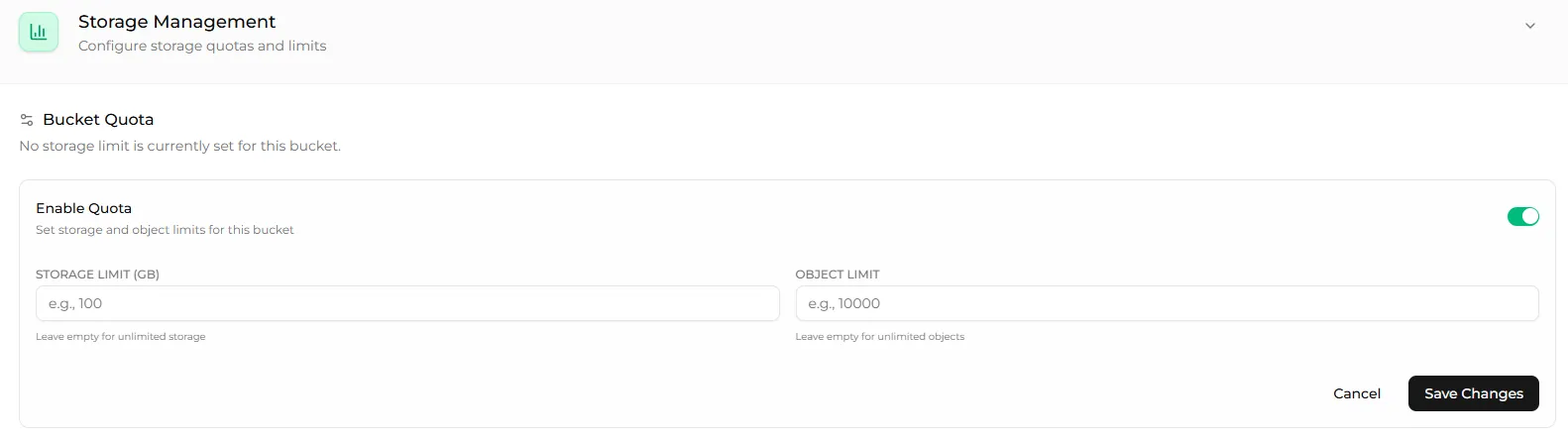
To remove the limits, turn off Enable Quota and select Save Changes.