Skip to navigation

Your first bucket

Create a bucket, make an access key and upload your first file.

This quickstart takes you from a new account to a file stored in Zata. You create a bucket in the Zata console, create an access key for the same region, and upload a file with the AWS CLI.

1. Create a bucket

1

Open Buckets

In the Zata console, open Buckets and select Create Bucket.

2

Name the bucket and choose a region

Enter a Bucket Name and choose a Region: Indore or Mumbai. Then select Next.

The console puts the first four letters of your username in front of the name. For example, shiv + image makes the bucket shivimage. Use this full name in your tools.
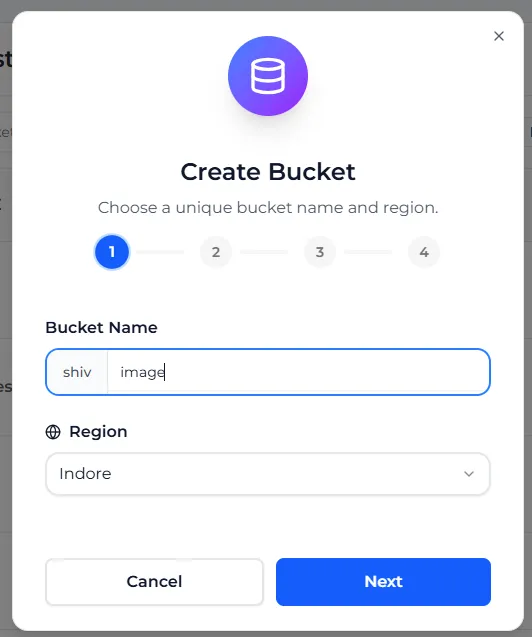
Step 1 of Create Bucket: the username prefix shiv, the name image and the Region drop-down set to Indore
3

Versioning (optional)

Turn on Enable Versioning if you want Zata to keep old versions of a file when you change or delete it. Enable Object Lock works only when versioning is on. Leave both off for a simple first bucket, then select Next.
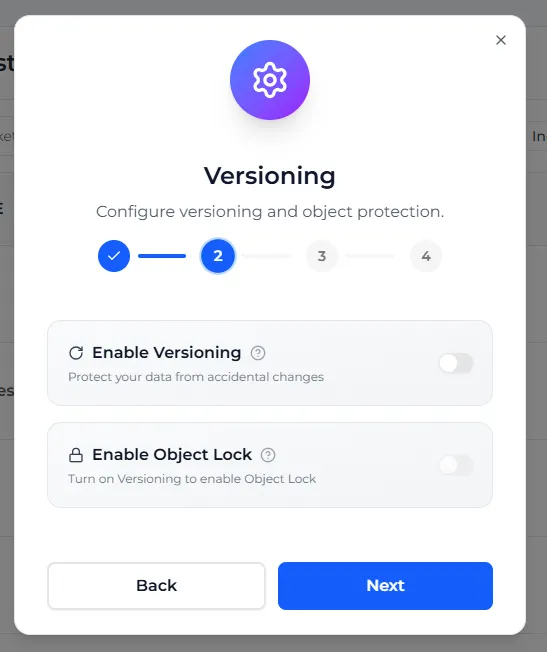
Step 2 of Create Bucket: the Enable Versioning and Enable Object Lock switches, both off
4

Tagging (optional)

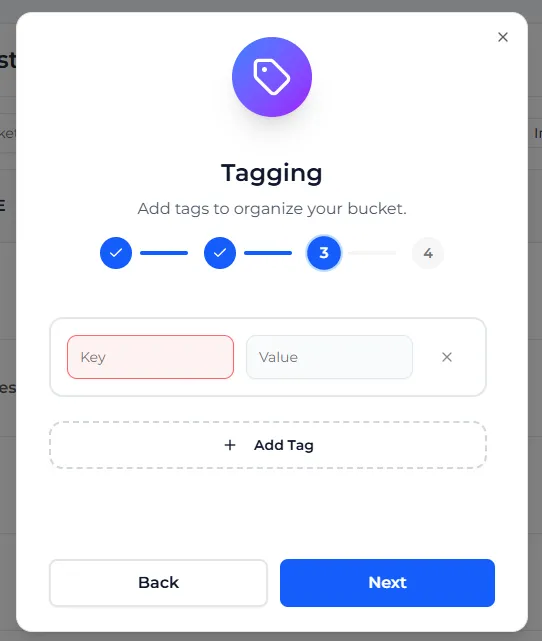
Tags are key and value labels that help you sort buckets. Type a Key and a Value, or select Add Tag for more. To skip, leave the row empty and select Next.

Step 3 of Create Bucket: an empty Key and Value row and the Add Tag button
5

Review and create

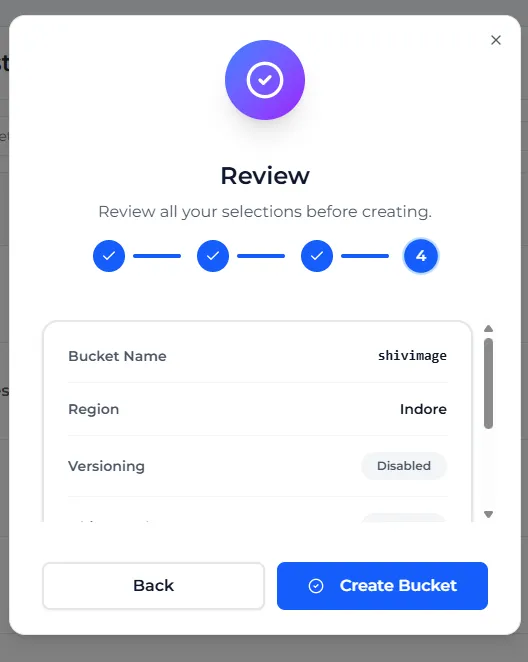
Check the bucket name, region and settings, then select Create Bucket. The new bucket appears in your bucket list.

Step 4 of Create Bucket: the Review list with the bucket name shivimage, region Indore and versioning disabled, and the Create Bucket button

You can turn on Object Lock only while you create a bucket, in the Versioning step. See Object Lock. For naming rules and all options, see Create a bucket.

2. Create an access key

An access key works in one region only, so create it in the region of your bucket.
1

Open Access Keys

Open Access Keys and select Generate Key.

2

Choose the user and region

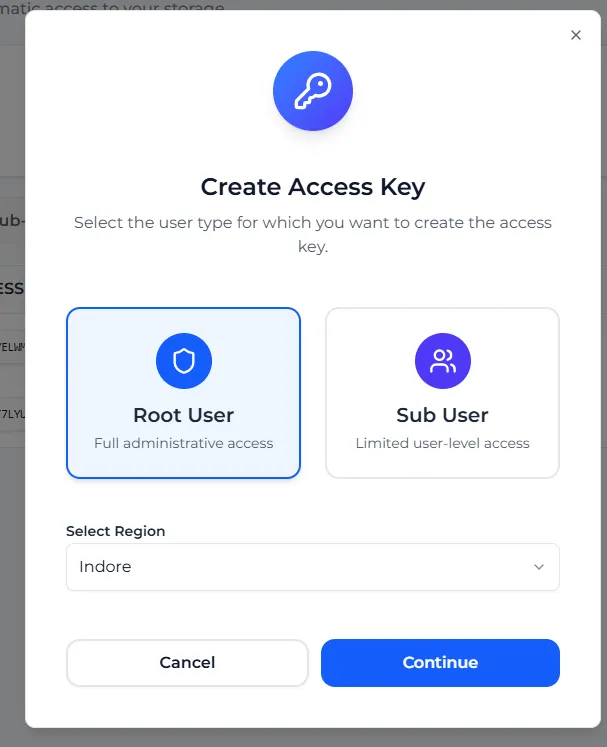
Select Root User. Under Select Region, choose the region of your bucket, then select Continue.

The Create Access Key dialog with Root User selected and the region set to Indore
3

Download the key file

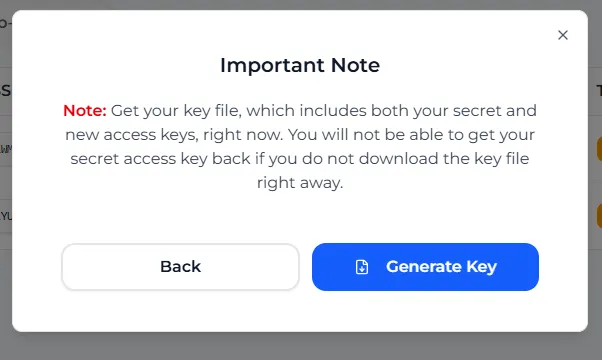
Select Generate Key. A .txt file downloads with the service URL, your access key and your secret key.

The Important Note dialog asking you to download the key file, with the Generate Key button

Keep the key file safe. You can’t see the secret key again. If you lose it, delete the key and create a new one. See Access keys.

3. Upload a file

These steps use the AWS CLI. If you don’t have it yet, see AWS CLI for how to install it.

1

Create a Zata profile

aws configure --profile zata
When it asksType
AWS Access Key IDyour access key
AWS Secret Access Keyyour secret key
Default region nameus-east-1
Default output formatjson
2

Point the profile at Zata

For a bucket in Mumbai, use https://bom01.zata.ai instead.

aws configure set endpoint_url https://idr01.zata.ai --profile zata
aws configure set s3.addressing_style path --profile zata
aws configure set request_checksum_calculation when_required --profile zata
aws configure set response_checksum_validation when_required --profile zata

The last two lines stop large uploads from failing on new AWS CLI versions.

3

Upload and list

Replace my-bucket with your full bucket name.

aws s3 cp myfile.txt s3://my-bucket/ --profile zata
aws s3 ls s3://my-bucket --profile zata

The file also shows in the console when you open the bucket under Buckets.

If a command fails, see Wrong endpoint or region and Access denied.

Use another tool

Every S3 tool needs the same four things: the endpoint of your bucket’s region, the region name us-east-1, and your access key and secret key. See Settings for any S3 tool for step-by-step guides for rclone, Cyberduck, S3 Browser, backup software and more.

Next steps