Skip to navigation

Cyberduck

Browse and transfer files on Windows and macOS.

Cyberduck is a free file transfer app for Windows and macOS. Connect it to Zata to browse your buckets and upload or download files. Prefer video? Watch the setup video.

Before you start

Connection settings

SettingValue
Connection typeS3 (Deprecated path style requests)
Serveridr01.zata.ai for Indore, bom01.zata.ai for Mumbai — host name only, no https://
Port443
Access Key ID / Secret Access Keyfrom Access Keys in the Zata console — the key must be from the same region as the bucket

The S3 (Deprecated path style requests) profile makes Cyberduck use path-style addresses (https://idr01.zata.ai/my-bucket), which is the recommended way to reach Zata.

Set up Cyberduck

1

Turn on the path-style S3 profile

Select Open Connection. Open the connection type list at the top of the window and choose More Options. Cyberduck opens Preferences on the Profiles tab.
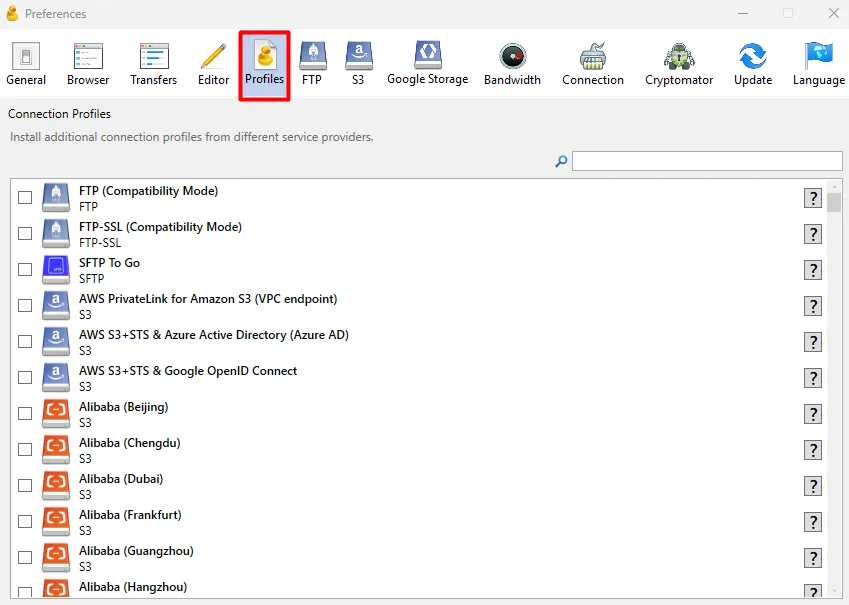
Cyberduck Preferences window with the Profiles tab selected

Search for S3 depre and tick S3 (Deprecated path style requests). Close Preferences.
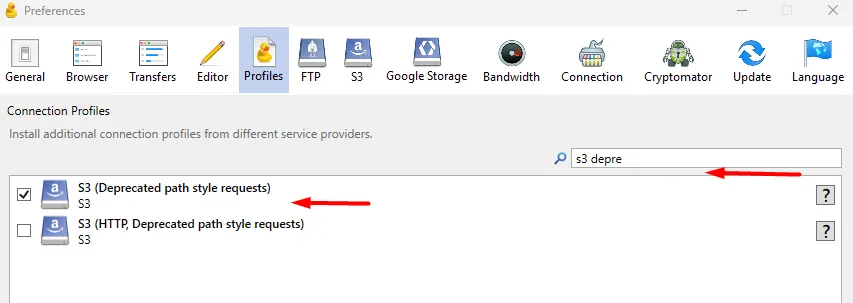
The S3 (Deprecated path style requests) profile ticked in the Profiles search results
2

Fill in the connection

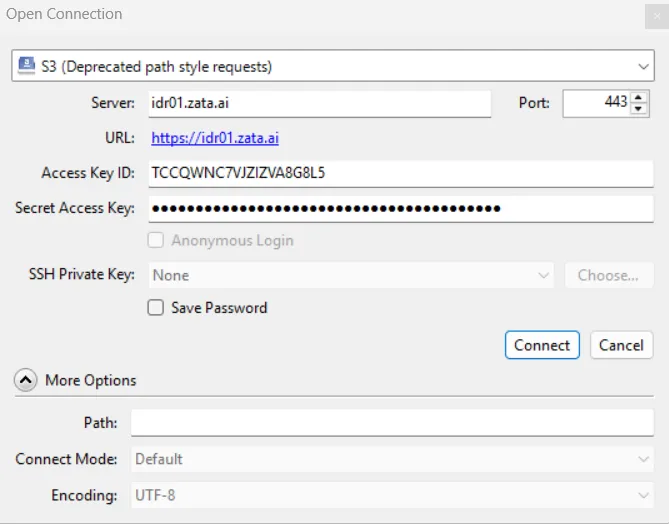
Back in Open Connection, select S3 (Deprecated path style requests) in the list. Enter the Server, Port, Access Key ID and Secret Access Key from the table above, then select Connect.

Open Connection dialog with the path-style S3 profile, server idr01.zata.ai and port 443
3

Open a bucket

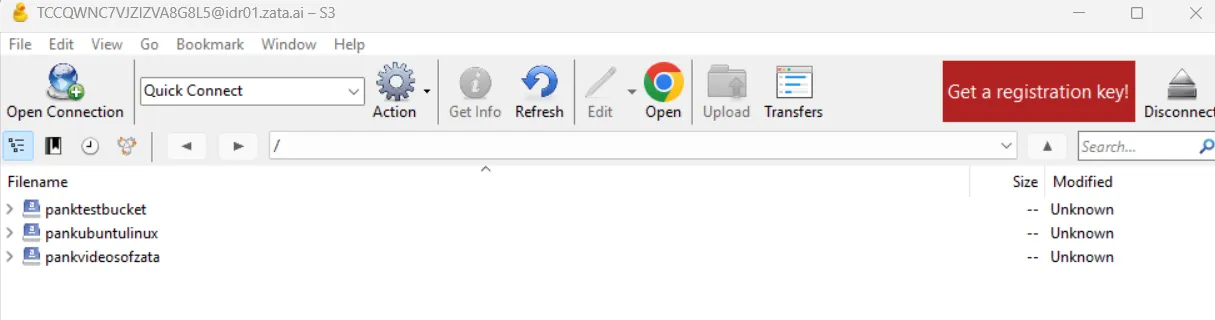
Your Zata buckets appear in the file list. Double-click a bucket to open it.

Cyberduck connected to idr01.zata.ai, showing a list of buckets

Test it

Open a bucket and select Upload, or drag a small file into the window. The file appears in the bucket. In the Zata console, open Buckets and the same bucket to see it there too. Then drag the file back to your computer to check that downloads work.
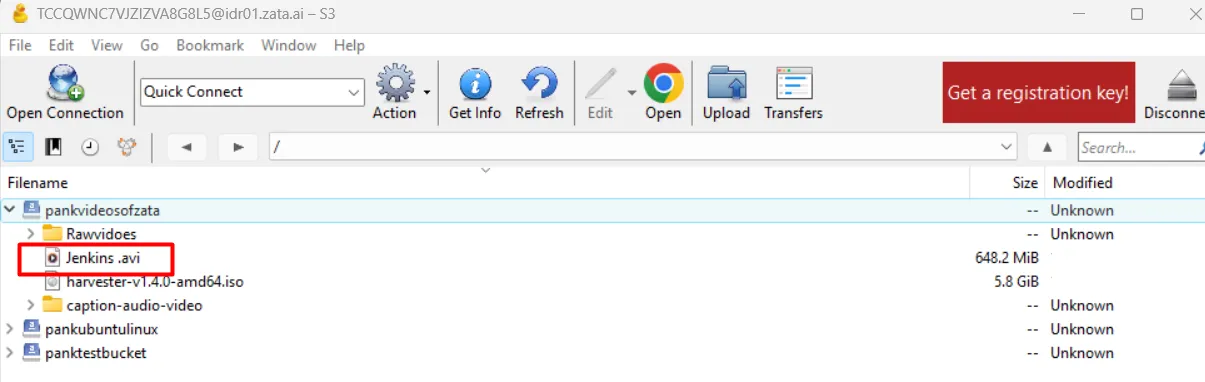
An uploaded file highlighted inside a bucket in Cyberduck

Troubleshooting

ProblemFix
S3 (Deprecated path style requests) is not in the connection type listTurn it on first in Preferences → Profiles (step 1).
Login failed or access deniedCopy the keys again from Access Keys, without extra spaces. Check that the key is from the same region as the server you entered.
The bucket list is emptyCheck that the server matches the region of your key. Sub-user keys always show an empty list: open More Options in Open Connection and enter /my-bucket in Path.

For other errors, see Access denied and Endpoint and region.