Skip to navigation

ForkLift

Use Zata from the ForkLift file manager on macOS.

ForkLift is a two-pane file manager for macOS. Its Amazon S3 protocol connects to Zata, so you can copy files between your Mac and your buckets.

Before you start

Connection settings

SettingValue
ProtocolAmazon S3
Serveridr01.zata.ai for Indore, bom01.zata.ai for Mumbai
Usernameyour access key, from Access Keys in the Zata console
Passwordyour secret key — the key must be from the same region as the bucket

Set up ForkLift

1

Open the Connect window

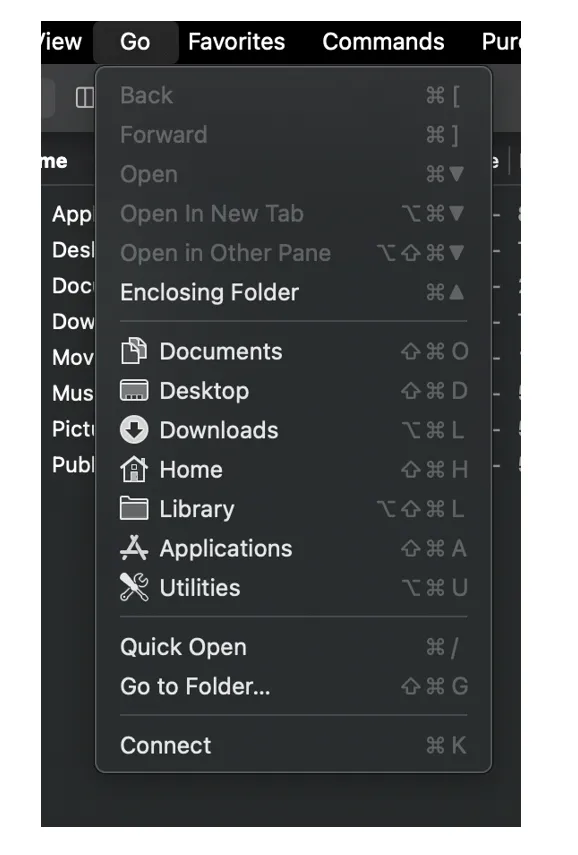
In the menu bar, select Go → Connect (or press ⌘K).

The ForkLift Go menu with Connect at the bottom
2

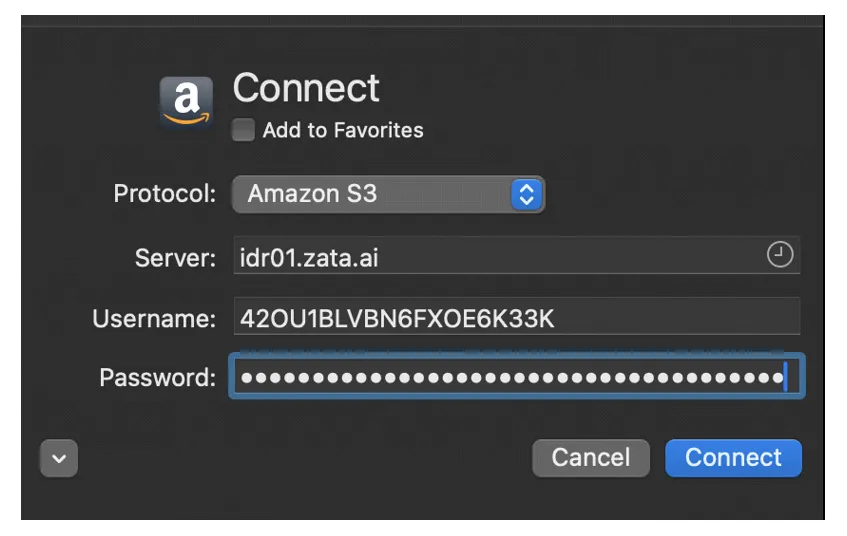
Enter the Zata details

Set Protocol to Amazon S3, then enter the Server, Username and Password from the table above. Tick Add to Favorites if you want to keep the connection. Select Connect.

ForkLift Connect window with protocol Amazon S3 and server idr01.zata.ai
3

Browse your buckets

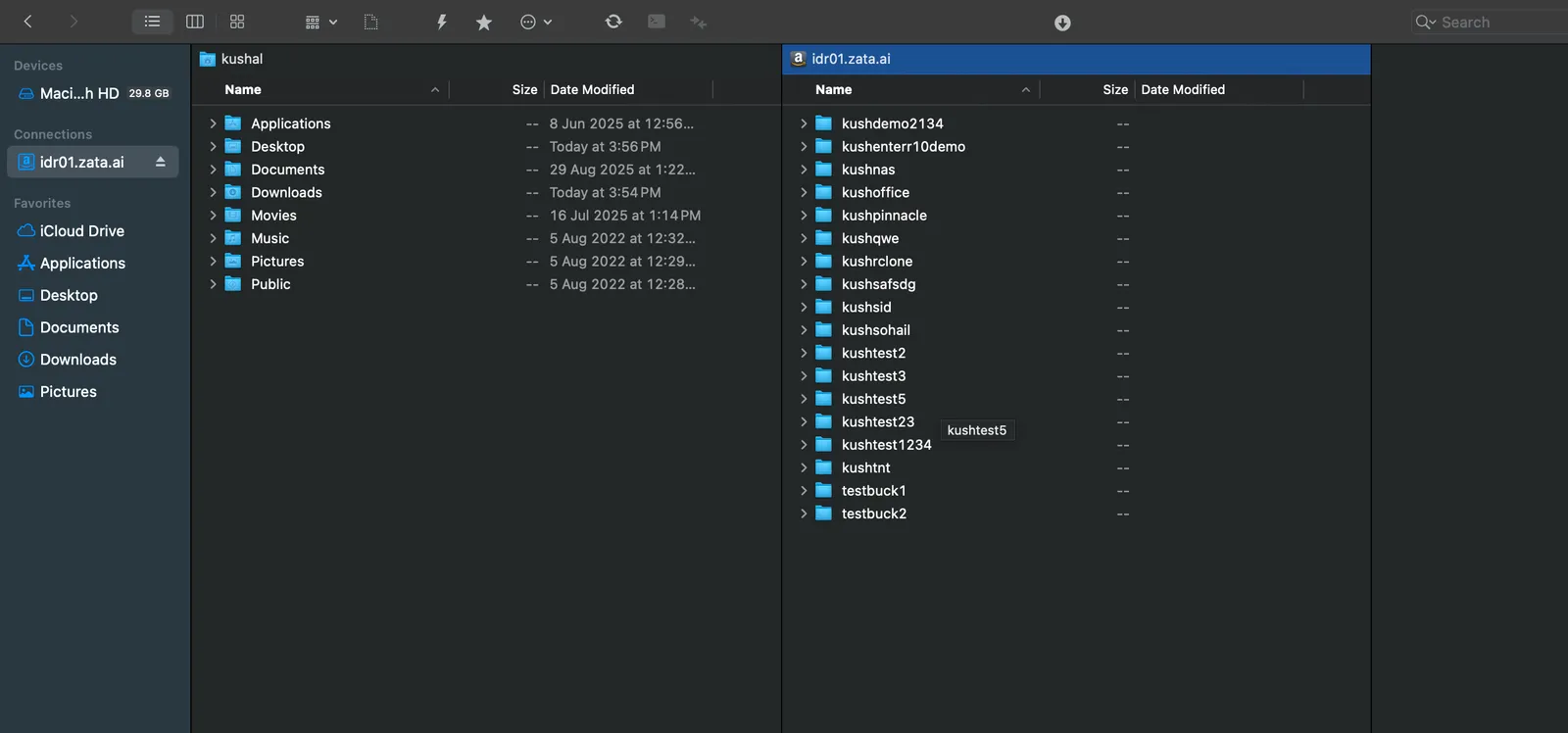
Your buckets appear in one pane, and the connection is listed under Connections in the sidebar.

ForkLift with local folders on the left and Zata buckets from idr01.zata.ai on the right

Test it

Drag a small file from Finder, or from the other ForkLift pane, into a bucket. Check that it appears in the same bucket in the Zata console under Buckets. Then drag it back to a local folder to check that downloads work.

Troubleshooting

ProblemFix
Cannot connectCheck that Server is idr01.zata.ai or bom01.zata.ai and matches the region of your key.
Access denied or invalid credentialsUsername is the access key and Password is the secret key. Copy them again, without extra spaces.
No buckets shownCreate a bucket in the Zata console, or check that the key can use it. Sub-user keys never list buckets.

For other errors, see Access denied and Endpoint and region.