

cPanel
WHM can send cPanel account and system backups to a Zata bucket. You add Zata as an S3 Compatible additional destination in Backup Configuration.
Before you start
- A bucket for the backups, with a name without dots, for example
cpanel-backups. With virtual-host style addressing (my-bucket.idr01.zata.ai), a dot in the name breaks the certificate check. See Create a bucket. - An access key from the same region as the bucket. See Access keys.
- Root access to WHM.
Connection settings
Set up WHM
Open Additional Destinations
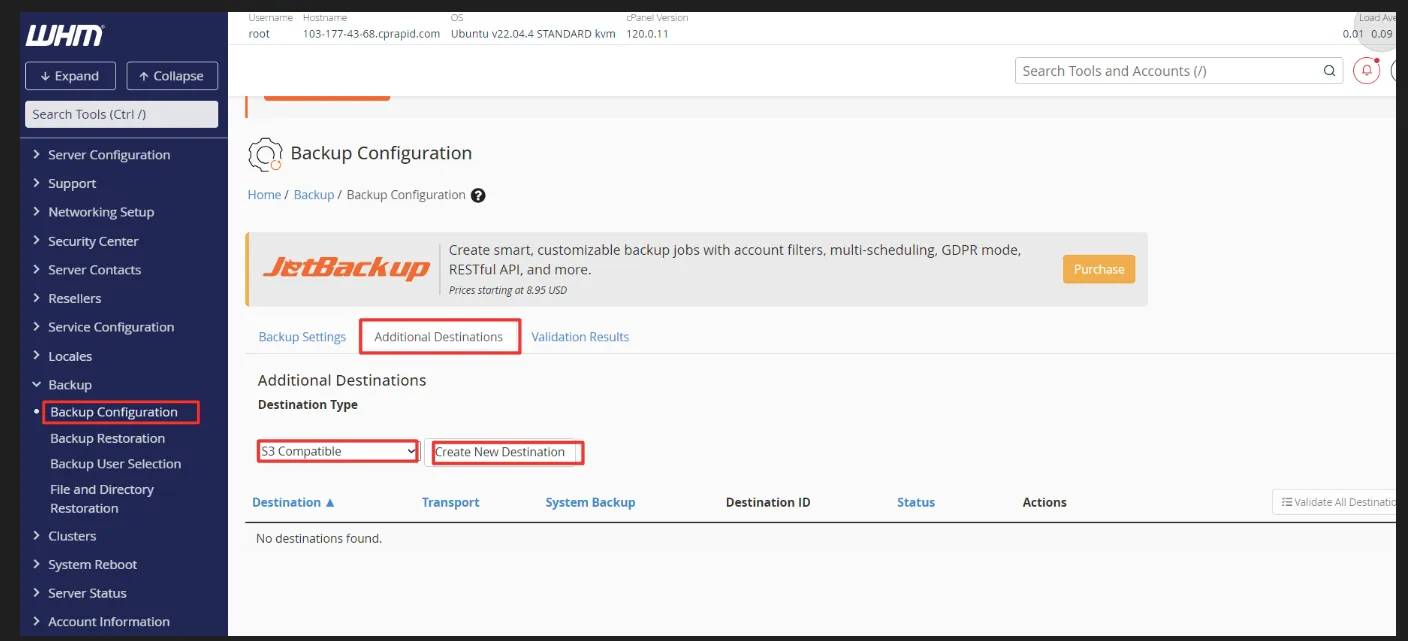
In WHM, open Backup → Backup Configuration and select the Additional Destinations tab. Set Destination Type to S3 Compatible and click Create New Destination.
Name the destination
Enter a Destination Name, for example zata-backup. Tick Transfer System Backups to this Destination if you also want system backups sent to Zata.
Leave Only use this destination for log file transfers unticked. When it is ticked, account and system backups are not sent to this destination.
Enter the Zata details
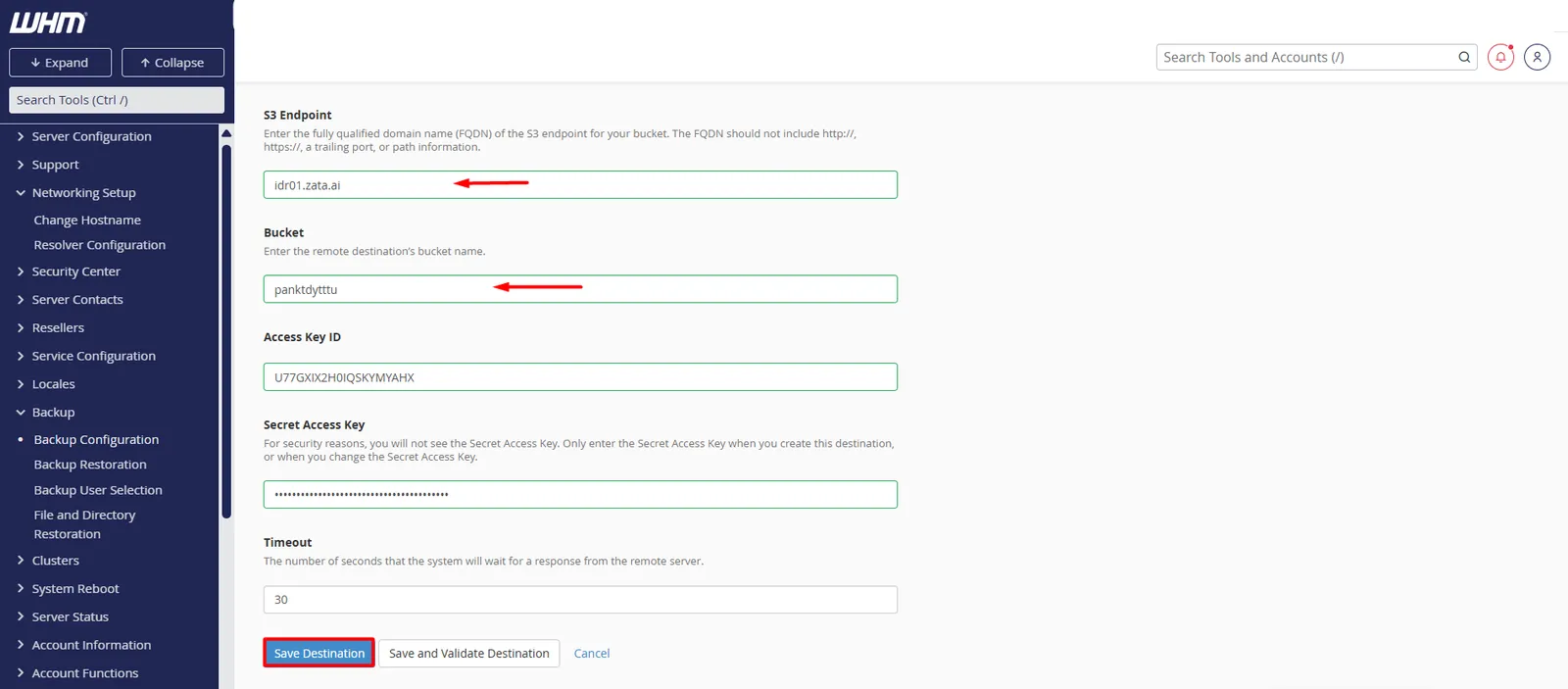
Fill in S3 Endpoint, Bucket, Access Key ID, Secret Access Key and Timeout from the table above. Click Save and Validate Destination (or Save Destination).
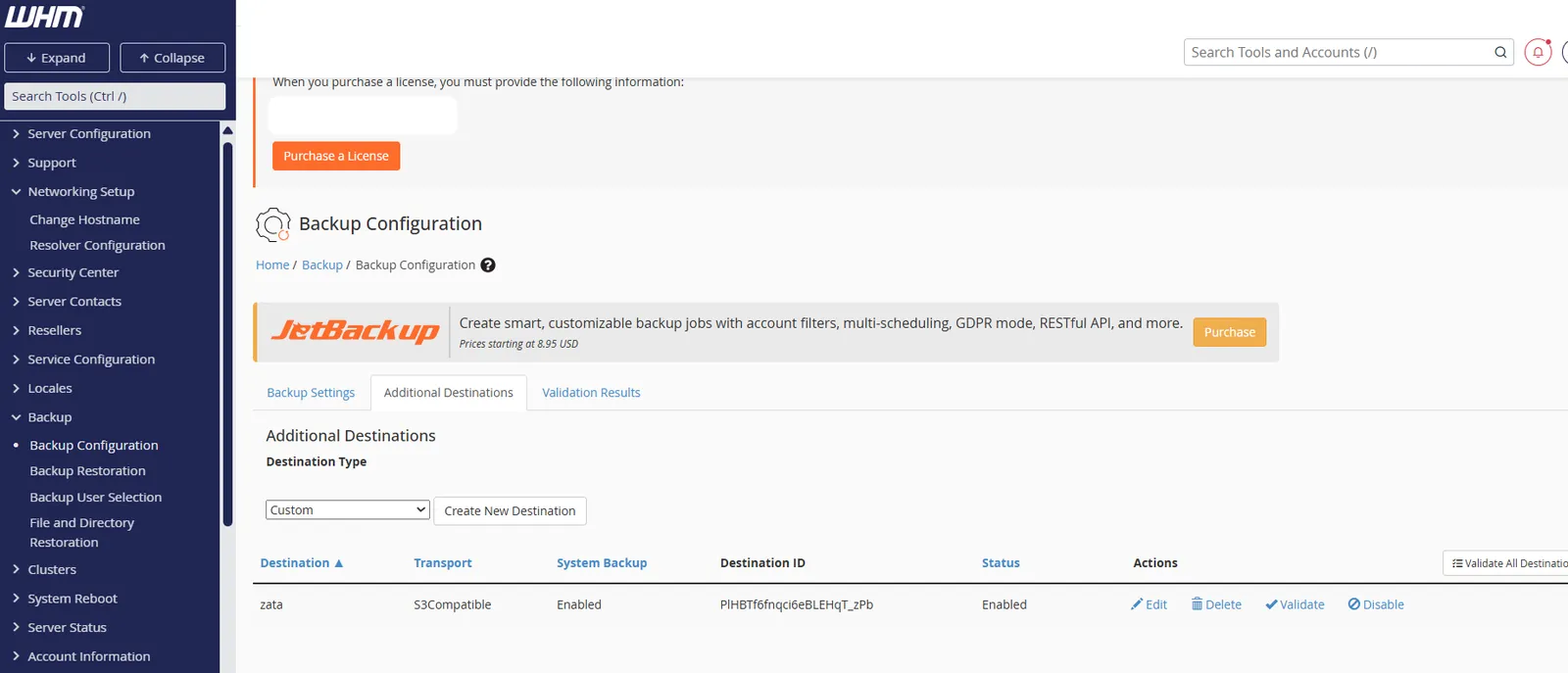
The destination appears in the list with the transport S3Compatible. Click Validate to test the connection again at any time.
Test it
Let a backup run to the new destination. Open your bucket in the Zata console and check that the backup files are there, then download one to confirm it can be retrieved.
Troubleshooting
For other errors, see Access denied and Network and certificates.