Skip to navigation

CrossFTP

Upload, download and manage files with CrossFTP.

CrossFTP is an FTP and cloud storage client for Windows, macOS and Linux. Its S3/HTTPS protocol connects to Zata, so you can manage bucket files the same way as files on an FTP server.

Before you start

Connection settings

SettingValue
ProtocolS3/HTTPS
Hostidr01.zata.ai for Indore, bom01.zata.ai for Mumbai — no https://
Port443
Access Key / Secretfrom Access Keys in the Zata console — the key must be from the same region as the bucket

Set up CrossFTP

1

Create a site

Open CrossFTP and select Sites → Site Manager. Select New Site, then set Protocol to S3/HTTPS.
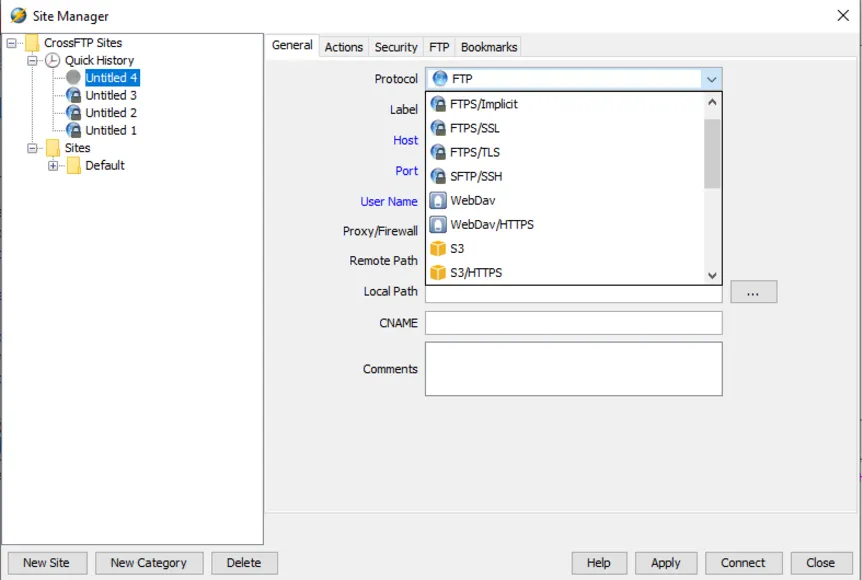
CrossFTP Site Manager with the Protocol list open and S3/HTTPS shown
2

Enter the Zata details

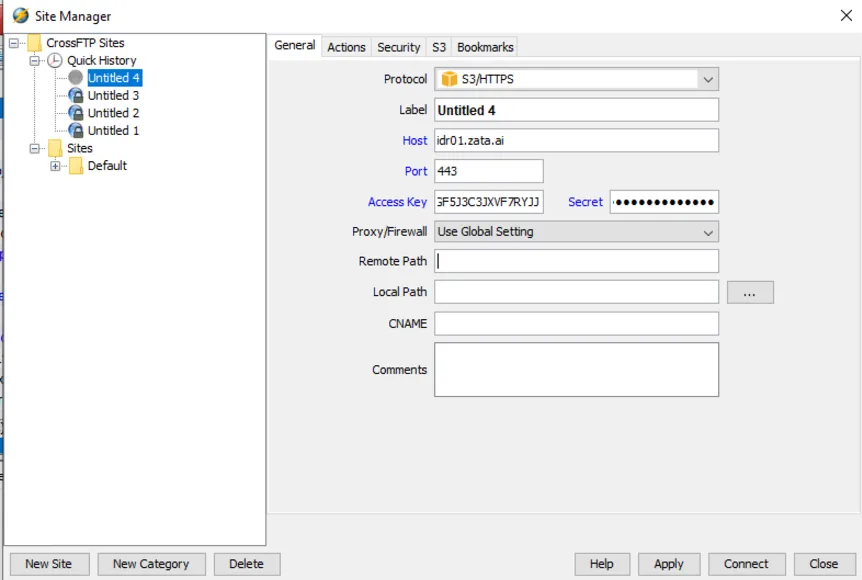
Enter the Host, Port, Access Key and Secret from the table above. You can also give the site a Label. Select Apply, then Connect.

Site Manager with protocol S3/HTTPS, host idr01.zata.ai and port 443
3

Browse your buckets

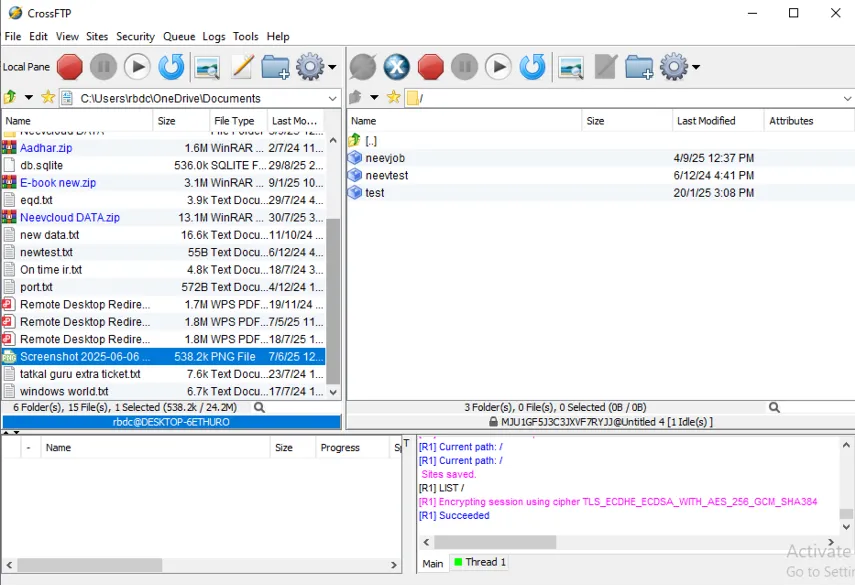
Your buckets appear in the right-hand pane. Your local files are on the left.

CrossFTP connected to Zata, with three buckets in the right-hand pane

Test it

Drag a small file from the left pane into a bucket. Check that it appears in the same bucket in the Zata console under Buckets. Then drag it back, or use the right-click menu, to download it.

Troubleshooting

ProblemFix
Cannot connectCheck that Host matches the region of your key, Port is 443 and Protocol is S3/HTTPS.
Access denied or invalid credentialsCopy the keys again from Access Keys, without extra spaces.
CrossFTP asks for a regionUse us-east-1. Zata does not check the region name.
Not sure what went wrongRead the log at the bottom of the CrossFTP window.

For other errors, see Access denied and Endpoint and region.