Skip to navigation

rclone GUI

Browse, create and upload to Zata buckets from rclone's web interface.

rclone has a built-in web interface that runs on your own computer. Use it to connect Zata once, then browse your buckets, create buckets and upload files in the browser.

Before you start

Connection settings

FieldValue
types3
providerOther
access_key_id / secret_access_keyfrom Access Keys in the Zata console. The key must be from the same region as the bucket.
regionus-east-1
endpointidr01.zata.ai for Indore, bom01.zata.ai for Mumbai
force_path_styleon
no_check_bucketon
sign_accept_encodingfalse

Start the GUI

Open PowerShell (Windows) or a terminal (Linux, macOS) and run:

rclone gui

rclone starts the web interface on your computer and opens it in your browser, already logged in. Keep the terminal open while you use it; press Ctrl+C there to stop it.
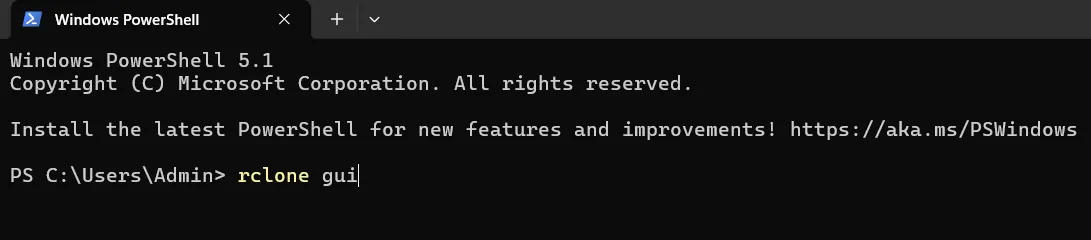
Windows PowerShell with the command rclone gui typed in

The rclone gui command exists in recent rclone versions. If your rclone does not know it, update rclone, or start the older web interface with rclone rcd --rc-web-gui.

Add Zata as a remote
1

Open Remotes

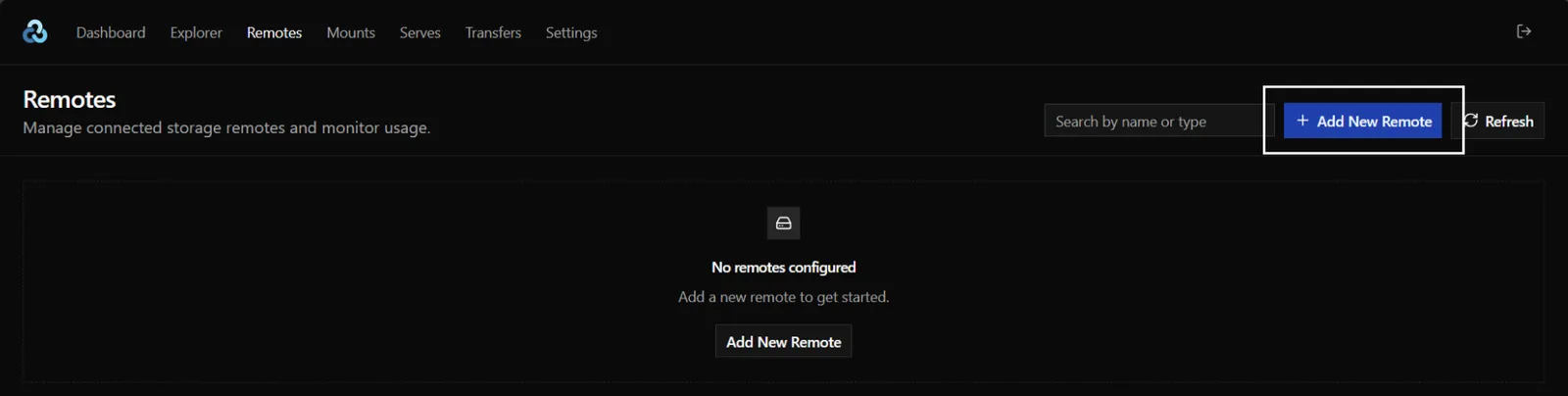
Select Remotes in the top menu, then Add New Remote.

The Remotes page of the rclone web GUI with the Add New Remote button highlighted
2

Name the remote and pick the type

Enter a name, for example zata. In type, choose s3 (Amazon S3 Compliant Storage Providers).
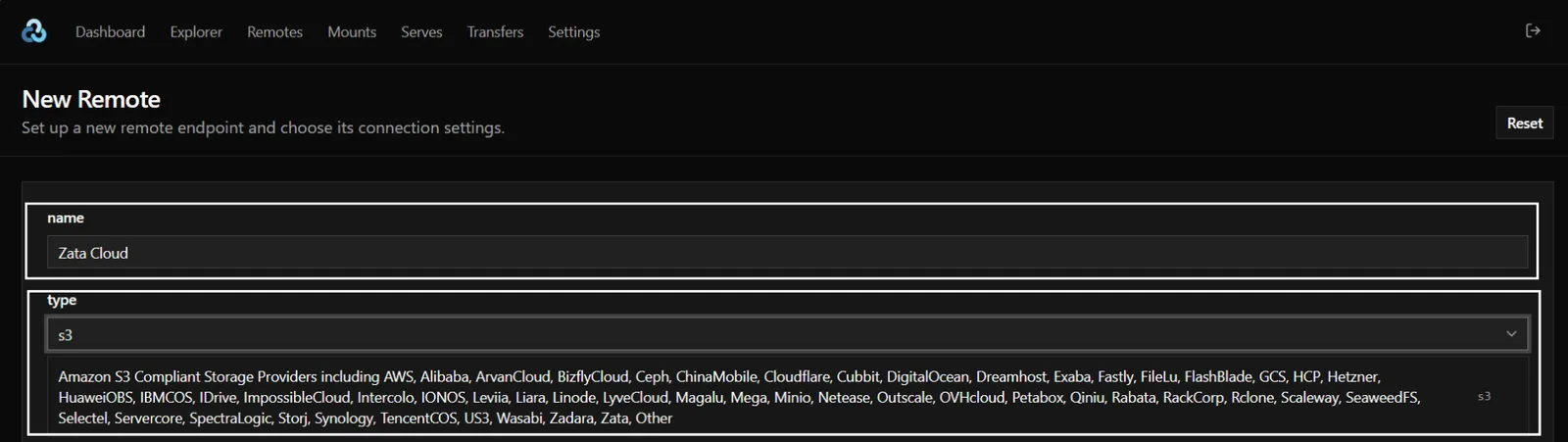
New Remote form with the name filled in and type set to s3
3

Enter the Zata settings

Fill in the fields:

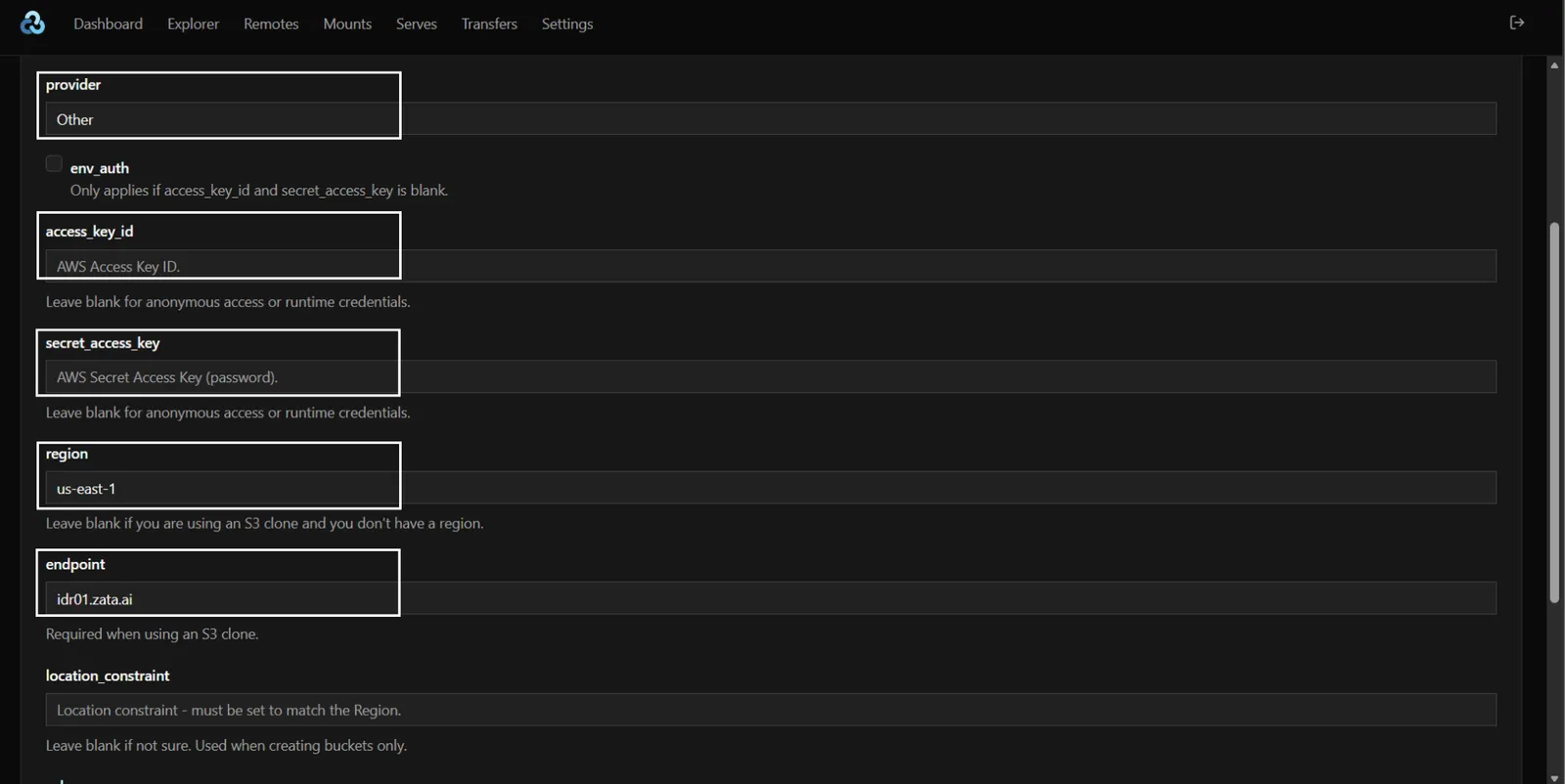
  • provider: Other
  • env_auth: leave it off
  • access_key_id and secret_access_key: your keys
  • region: us-east-1
  • endpoint: idr01.zata.ai (Mumbai: bom01.zata.ai)
New Remote form with provider Other, region us-east-1 and endpoint idr01.zata.ai
4

Set the advanced options

Scroll down and open the advanced options (More Options). Then:

  • Turn force_path_style on.
  • Turn no_check_bucket on.
  • Set sign_accept_encoding to false.

Without sign_accept_encoding set to false, rclone v1.66 and newer get SignatureDoesNotMatch on every request.

5

Create the remote

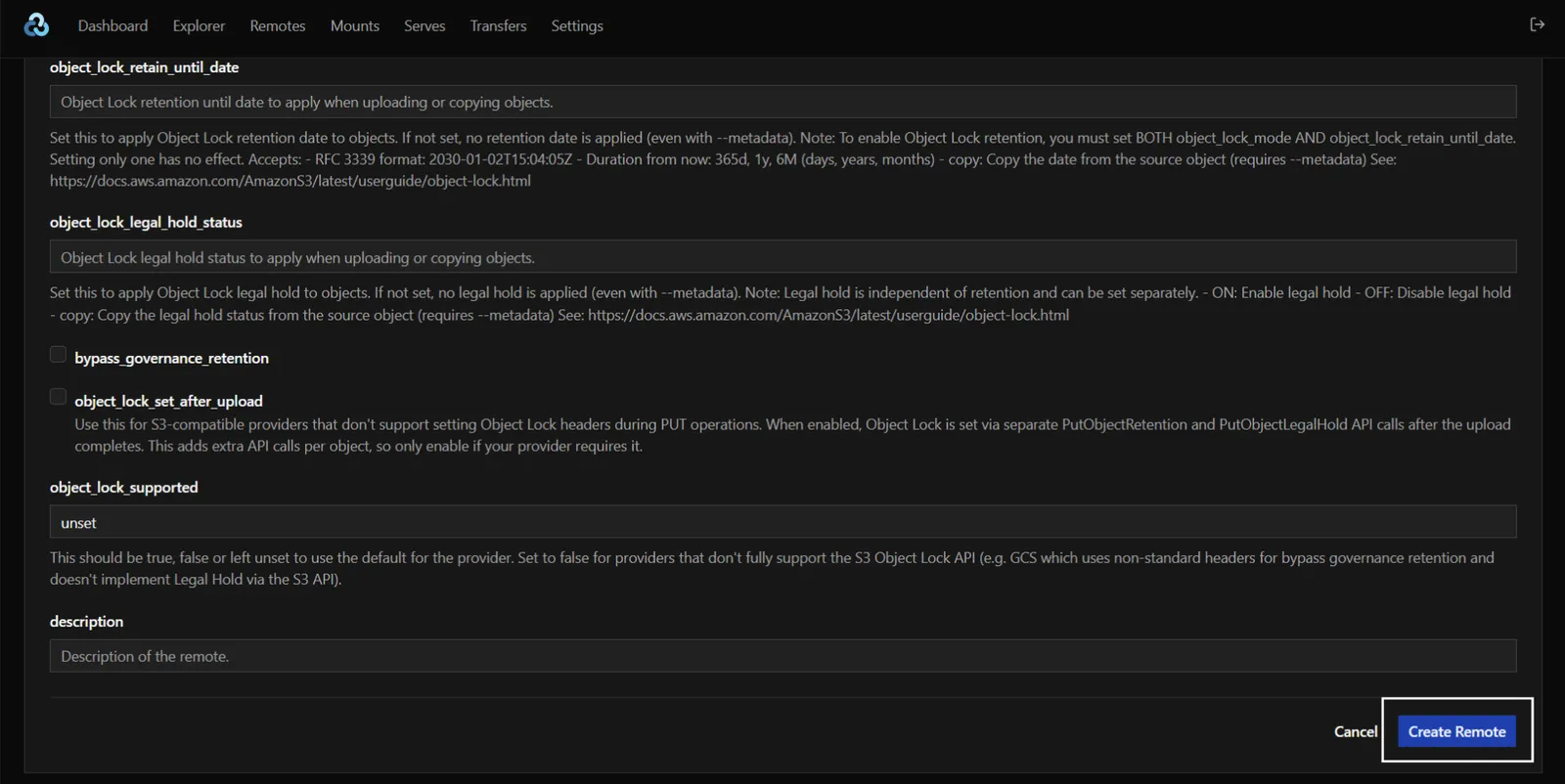
Scroll to the bottom and select Create Remote.

Bottom of the New Remote form with the Create Remote button highlighted

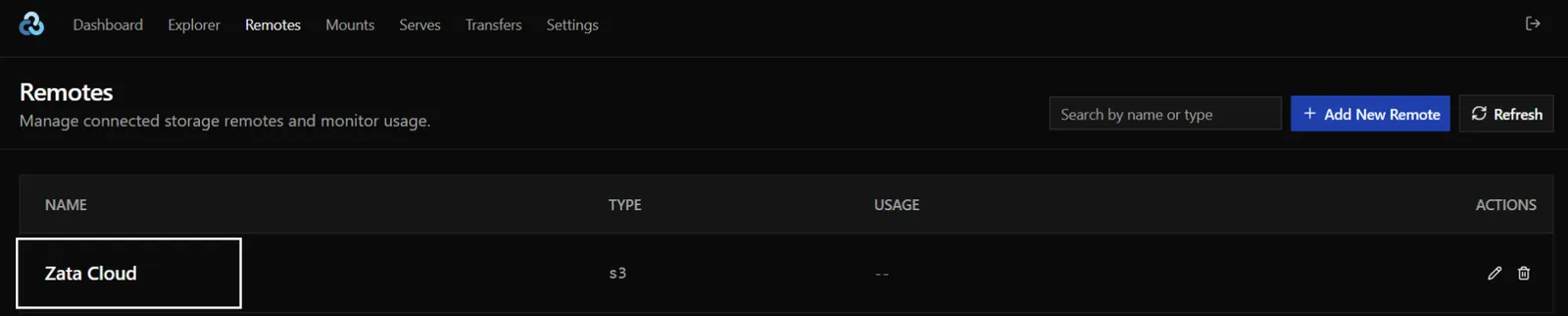
The new remote appears in the Remotes list.

Remotes list showing the new Zata remote of type s3

Create a bucket and upload files

1

Open the remote

Select Explorer in the top menu, then your Zata remote under REMOTES. Your buckets are shown as folders.
2

Create a bucket

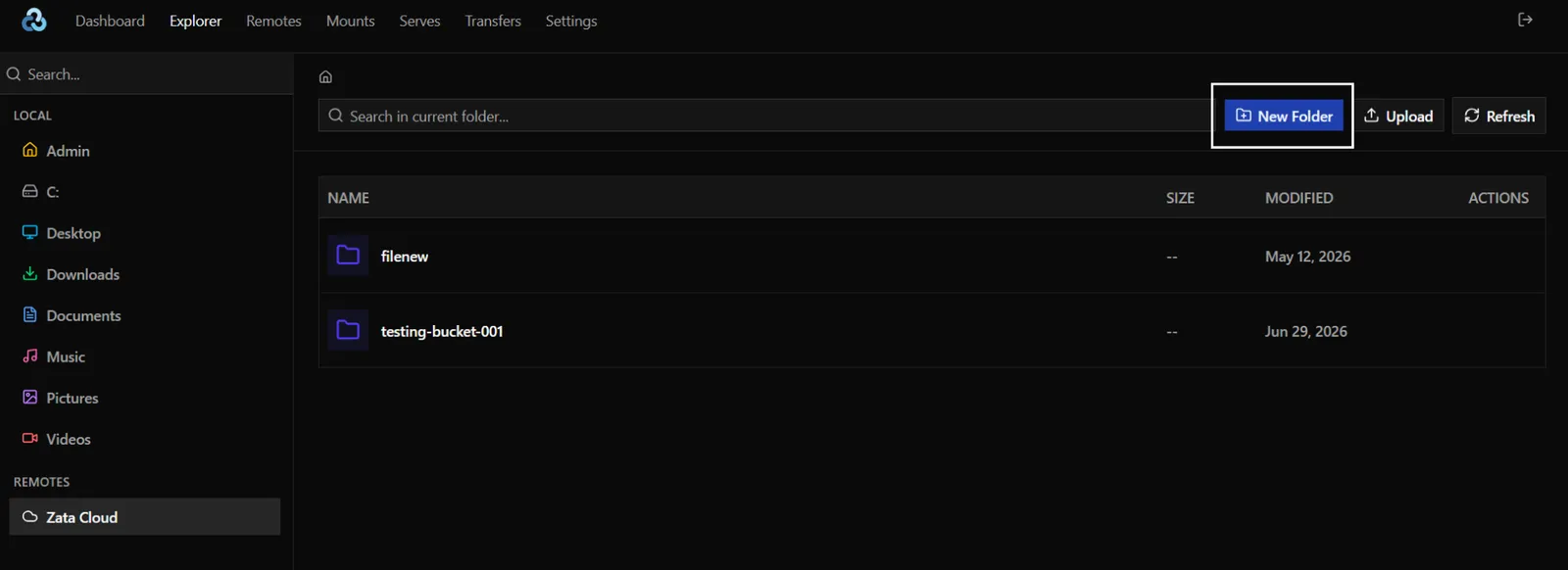
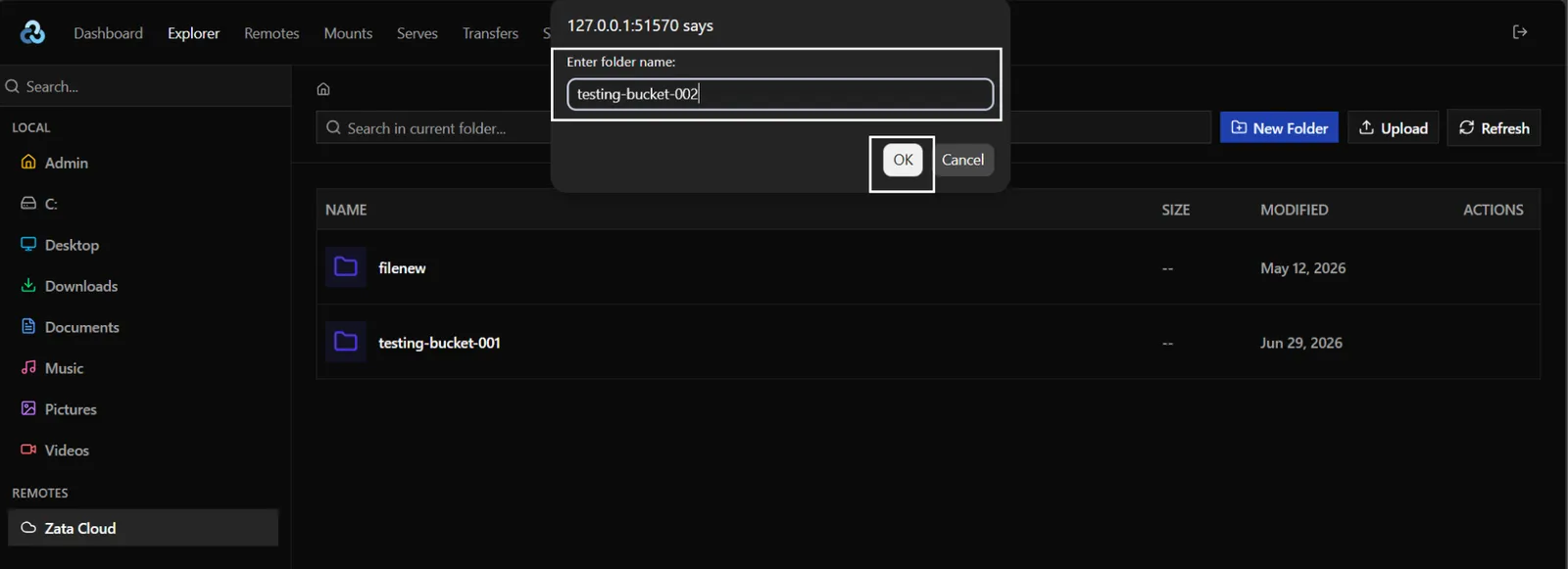
At the top level of the remote, select New Folder, enter a bucket name and select OK. The new bucket is created in the region of the endpoint.

Explorer showing the buckets of the Zata remote with the New Folder button highlighted
Prompt asking for the folder name, with a new bucket name entered

Only the account owner’s key can create buckets. With a sub-user’s key, create the bucket in the Zata console instead.

3

Upload files

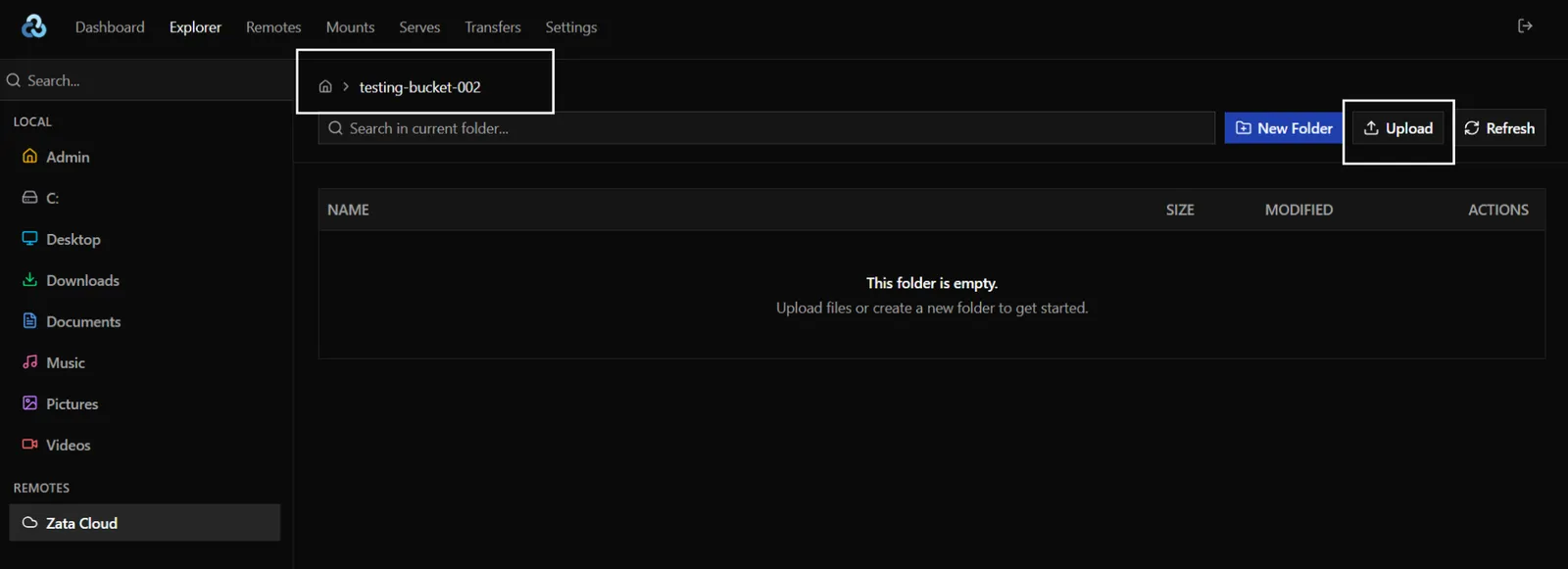
Open the bucket, select Upload, and choose the files on your computer.

An empty bucket in the Explorer with the Upload button highlighted

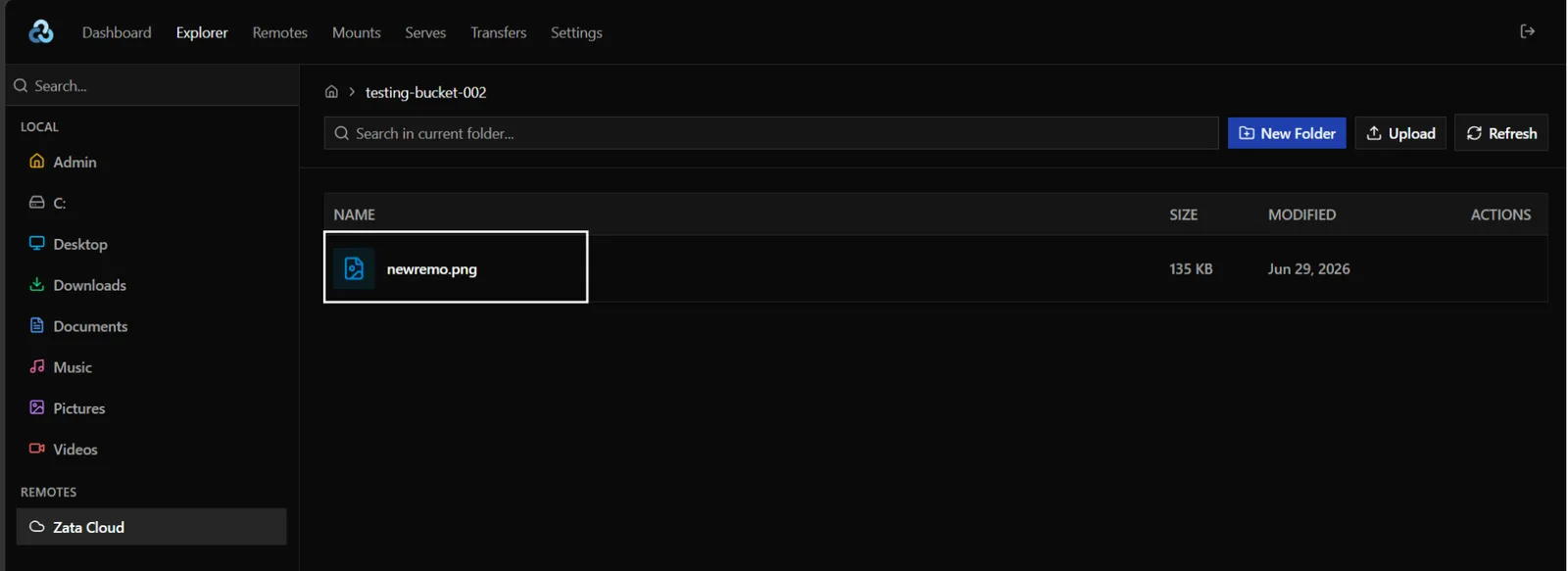
When the upload is done, the file is listed in the bucket. You also see it in the Zata console under Buckets.

The uploaded file listed in the bucket in the rclone Explorer

Troubleshooting

ProblemFix
SignatureDoesNotMatch or 403 Forbidden when you open the remoteEdit the remote and set sign_accept_encoding to false.
AccessDenied when you uploadTurn no_check_bucket on. If it still fails, the key may not be allowed to upload to this bucket.
No buckets are shownA sub-user’s key cannot list buckets. Use the command line with the bucket name, or ask the owner for access.

For other errors, see Signature errors and Access denied.