

Invitations
How dashboard sub-users accept their invite, set a password and sign in.
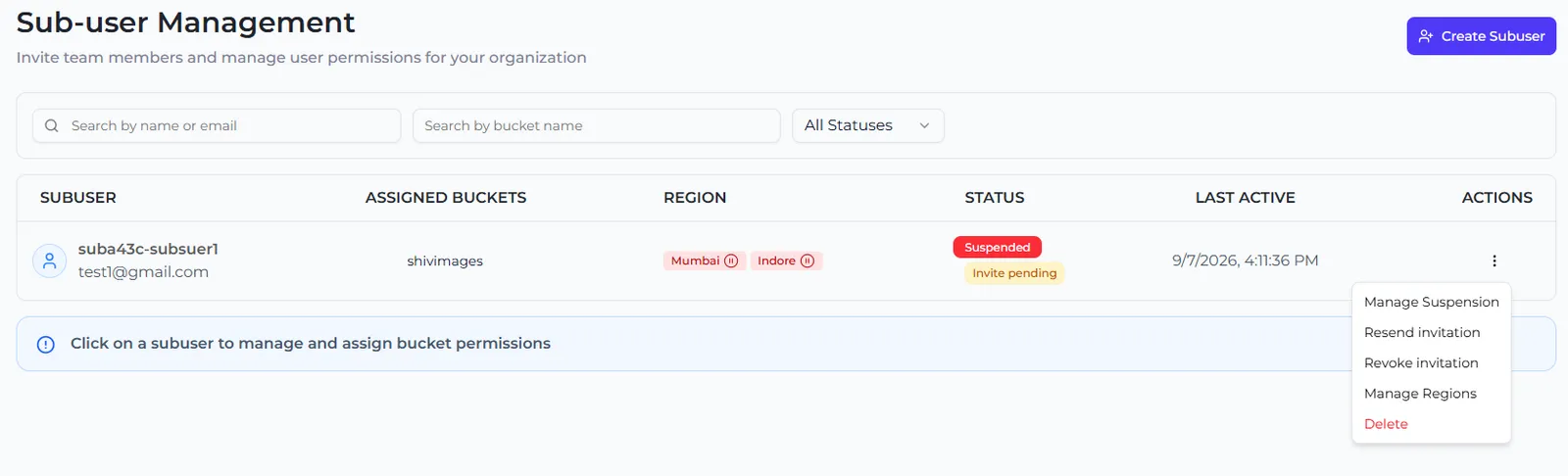
A sub-user with Programmatic + Dashboard access gets an invitation email when you create it. Until it accepts, it cannot sign in, and its access keys do not work either — the sub-user shows Suspended with Invite pending. Programmatic-only sub-users never get an invitation.
What the sub-user does
- Open the invitation email and select the link. It is valid for 7 days.
- On the Set your password page, enter a password twice: 8–128 characters, with at least one lowercase letter, one uppercase letter, one number and one special character.
- Select Accept invitation & set password.
- Sign in to the Zata console with the Sub-user tab on the sign-in page. See What sub-users see.
If the link no longer works, the page says why: This invitation has expired, Already accepted (sign in with the existing password), Invitation revoked, or Invalid invitation link. Ask the account owner to resend it.
If the sub-user only needs its keys for now, you can select Activate in its row menu without waiting for the invitation. The keys then work. Sign-in still needs a password from the invitation.
Invitation status
The status shows as a badge in the sub-user list and on the sub-user’s page:
Resend or revoke
Open the sub-user’s row menu (⋮) in the list, or the Invitation card on its page:
- Resend invitation sends a new link. The old link stops working.
- Revoke invitation cancels a pending invitation. The link stops working at once.
Limits:
- Wait about 2 minutes between resends.
- Each sub-user can get at most 3 invitation emails in total. The first invitation, resends and email changes all count. After that, delete and recreate the sub-user, or contact support.
- Once a sub-user has accepted, these options disappear.
Give dashboard access later
A Programmatic access only sub-user can get a dashboard login without being recreated. Its keys keep working.
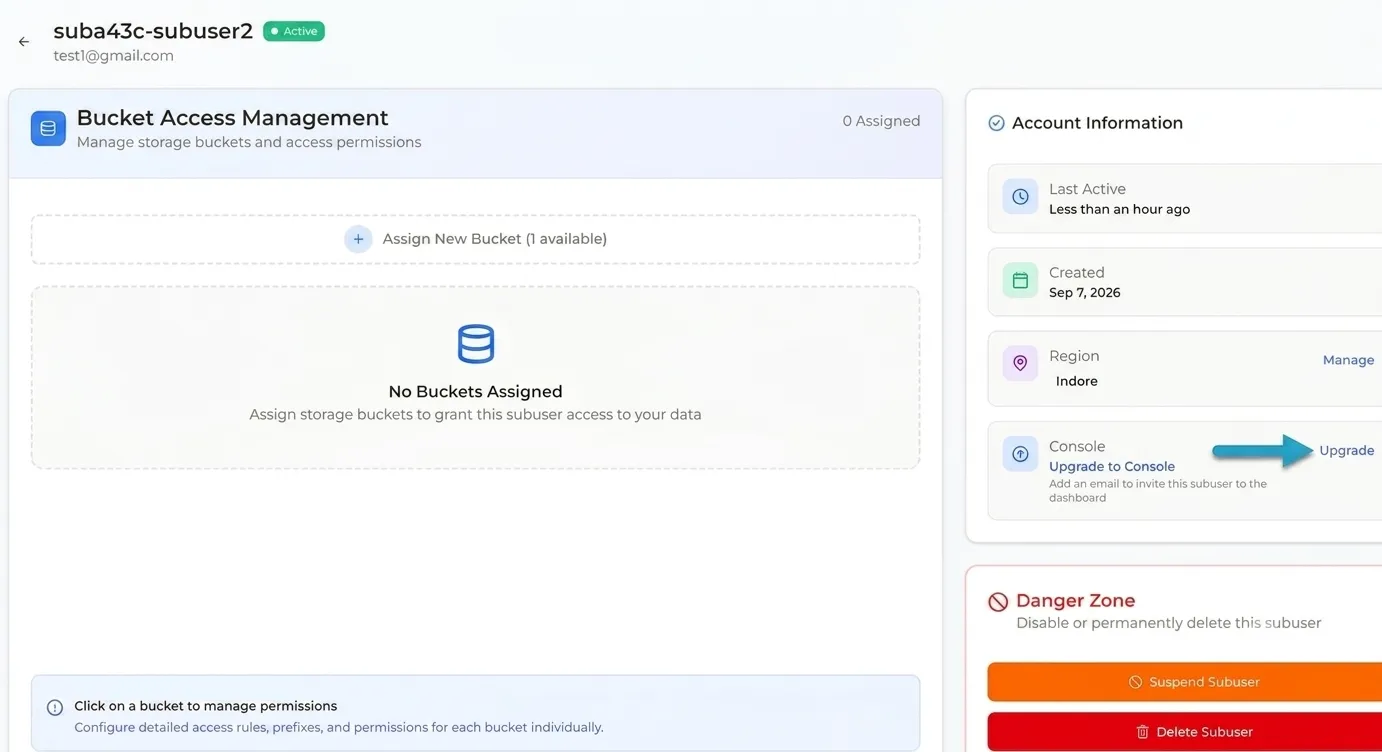
Send the invitation
Enter the person’s email and select Send Invitation. The sub-user then follows the steps in What the sub-user does.
Change a sub-user’s email
For a sub-user with dashboard access, open its page, select Manage in the Console card, enter the new email and select Update Changes.
- A new invitation goes to the new address, and the old invitation link stops working.
- If the sub-user had already accepted, its current password keeps working until it uses the new link.
- Keys, regions and bucket access do not change.
- This uses one of the 3 invitation emails.
Forgotten password
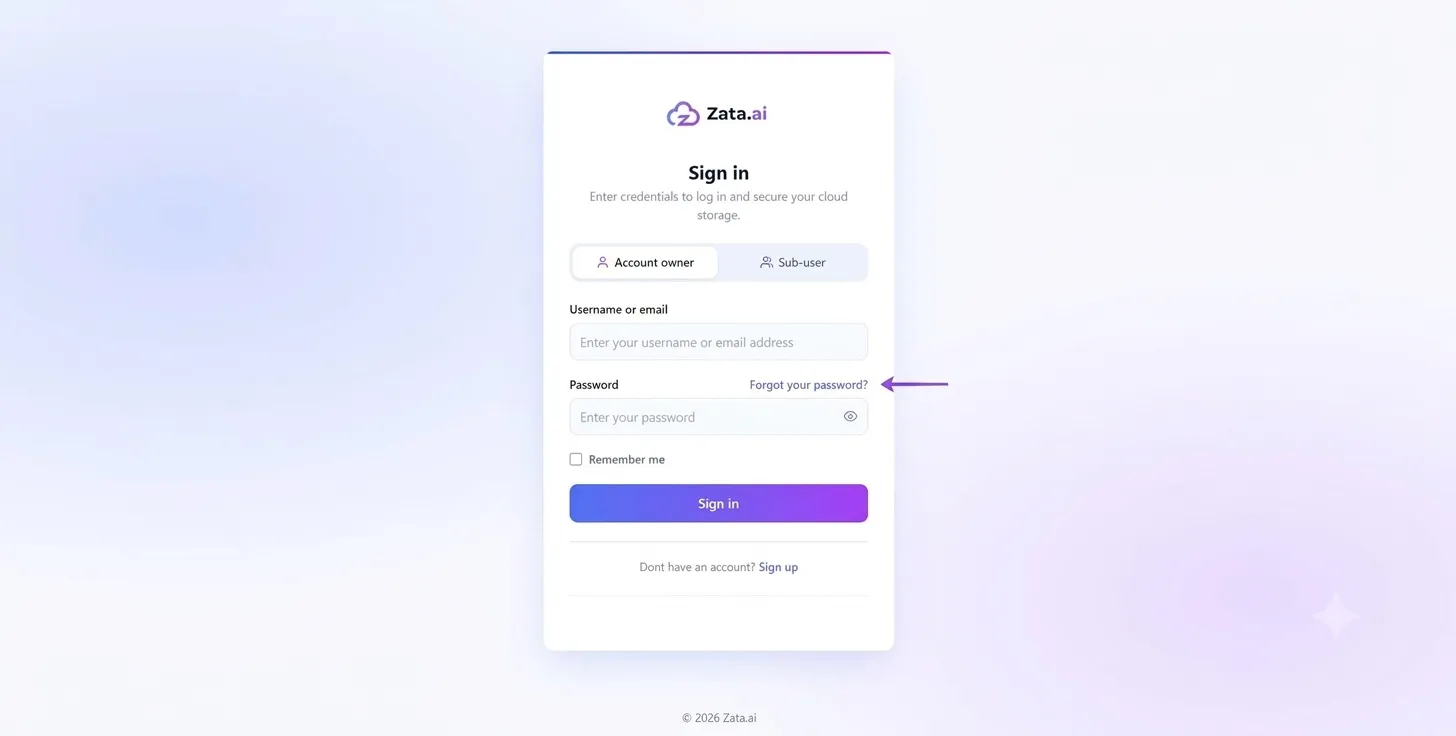
A sub-user who forgets its password can reset it without a new invitation:
- On the sign-in page, select the Sub-user tab, then Forgot your password?.
- Enter the username or email address and select Submit.
- Open the reset email and set a new password.
If the email address on the sub-user is wrong or no longer used, the reset email cannot arrive. In that case, the account owner changes the sub-user’s email, which sends a new invitation to set a password.