QNAP NAS
A QNAP NAS backs up to Zata with the HBS 3 Hybrid Backup Sync app. You add Zata as an S3 Compatible storage space, then create a backup job that uses it.
Before you start
- A bucket for the backups. See Create a bucket.
- An access key from the same region as the bucket. See Access keys.
- Admin access to the QNAP NAS.
Connection settings
Set up HBS 3
Install HBS 3
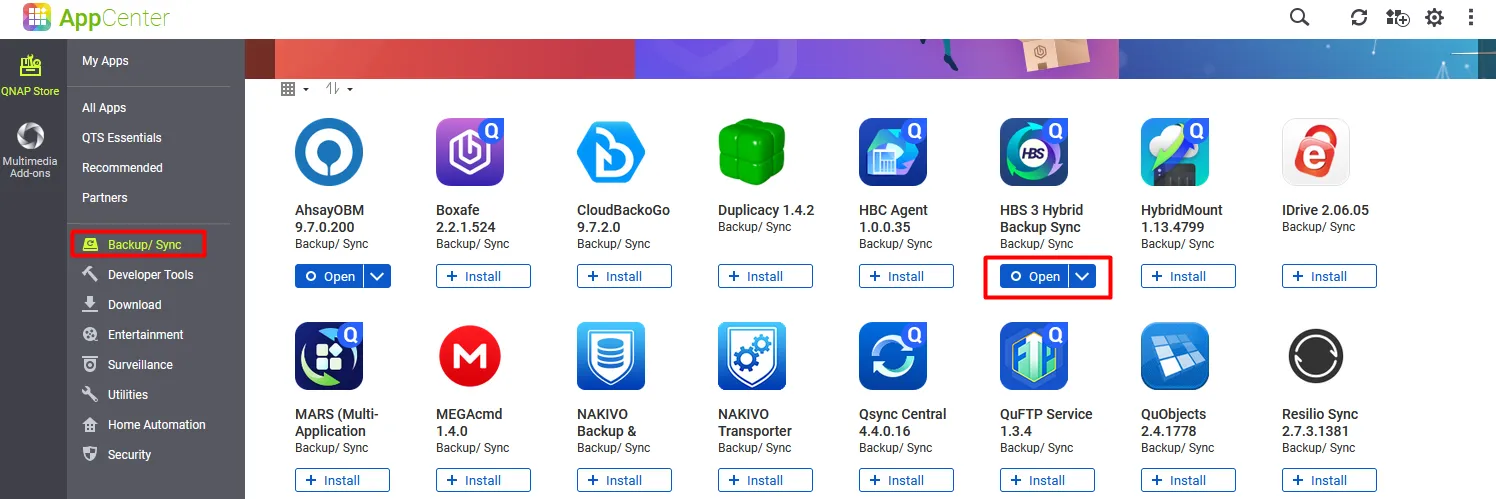
Open App Center, go to Backup/ Sync, and install HBS 3 Hybrid Backup Sync. Then click Open.
Create a storage space
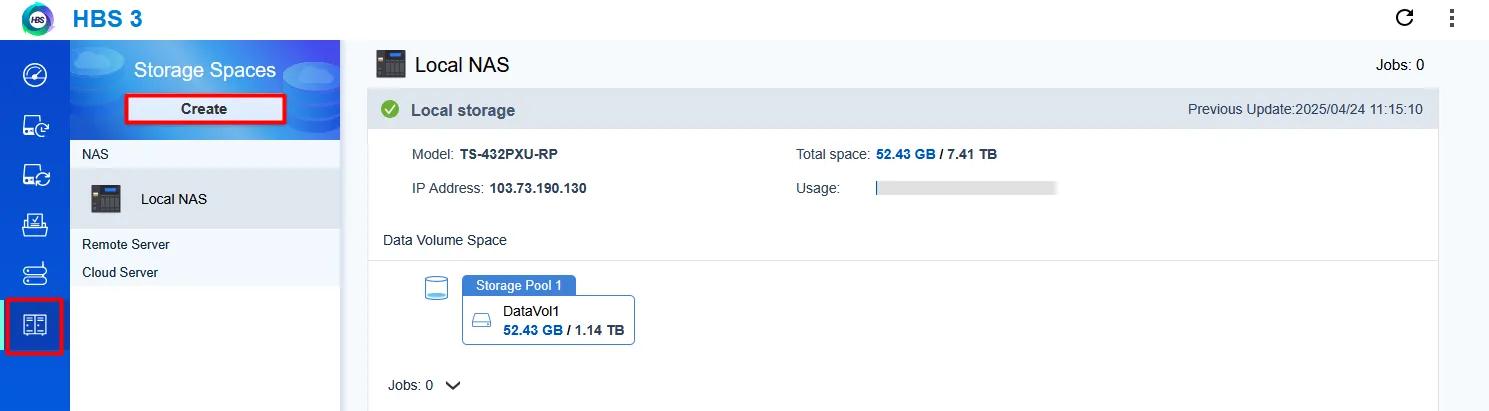
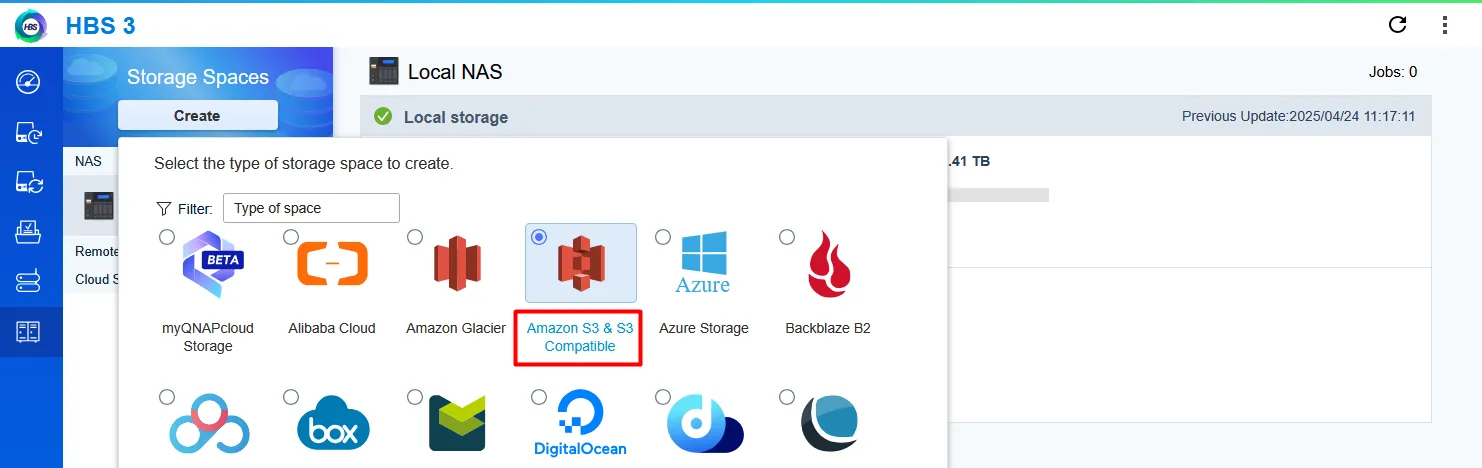
In HBS 3, open Storage Spaces and click Create. Select Amazon S3 & S3 Compatible.
Enter the Zata details
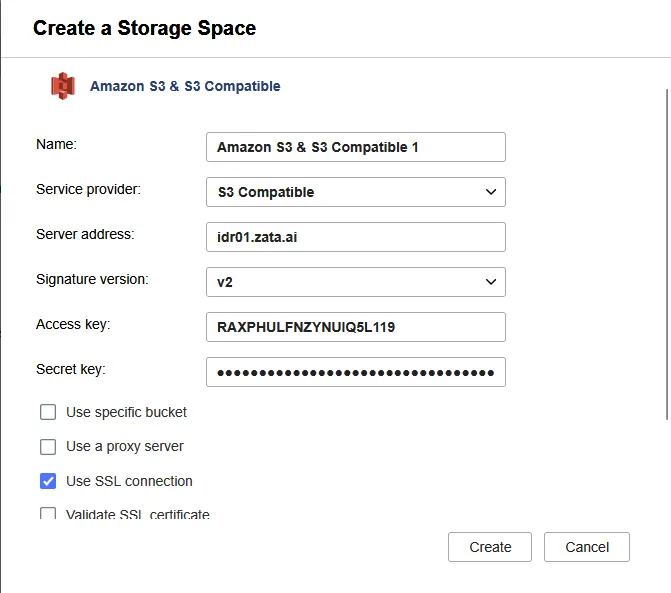
In Create a Storage Space, enter a Name and fill in the fields from the table above. Click Create.
Start a backup job
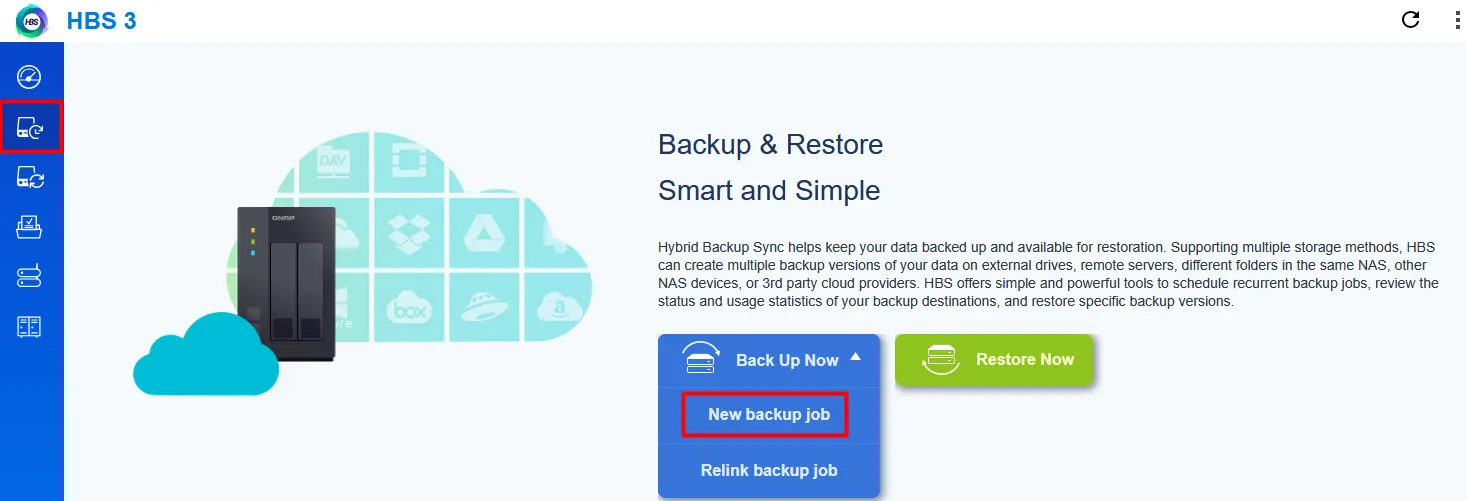
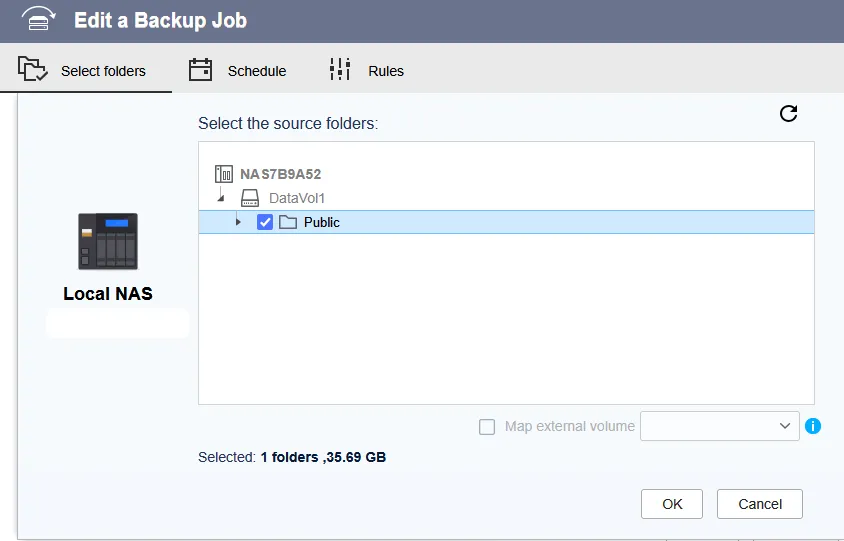
Open Backup & Restore, click Back Up Now, and select New backup job. Select the source folders and click OK.
Choose Zata as the destination
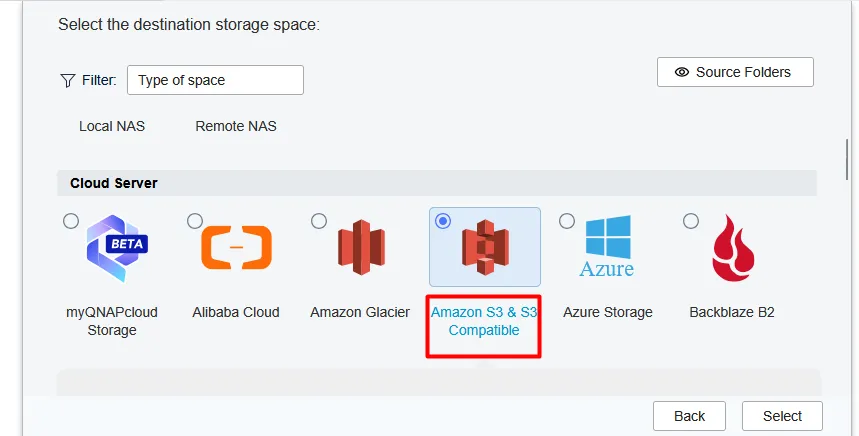
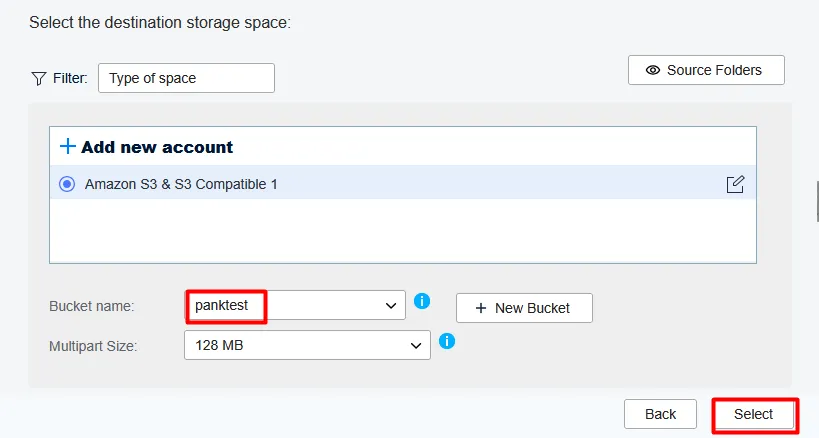
Under Cloud Server, select Amazon S3 & S3 Compatible and click Select. Choose your Zata storage space and your bucket under Bucket name, then click Select.
Choose the destination folder
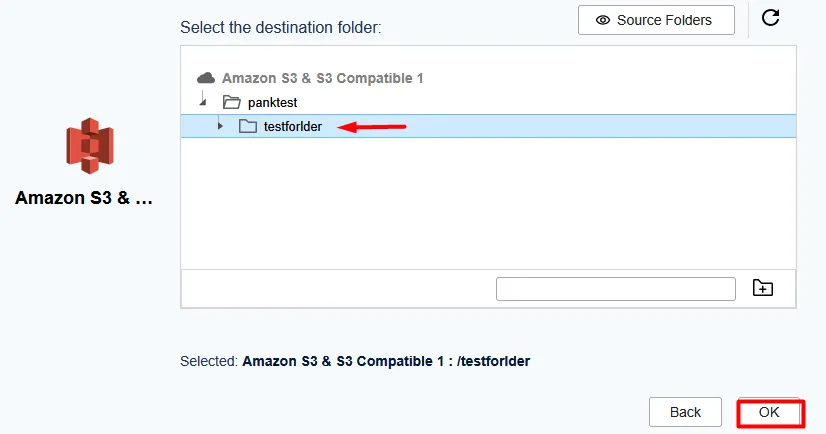
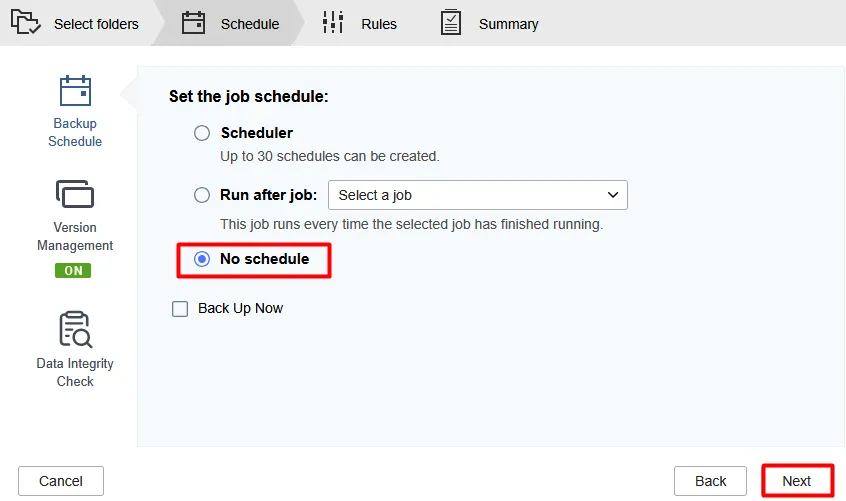
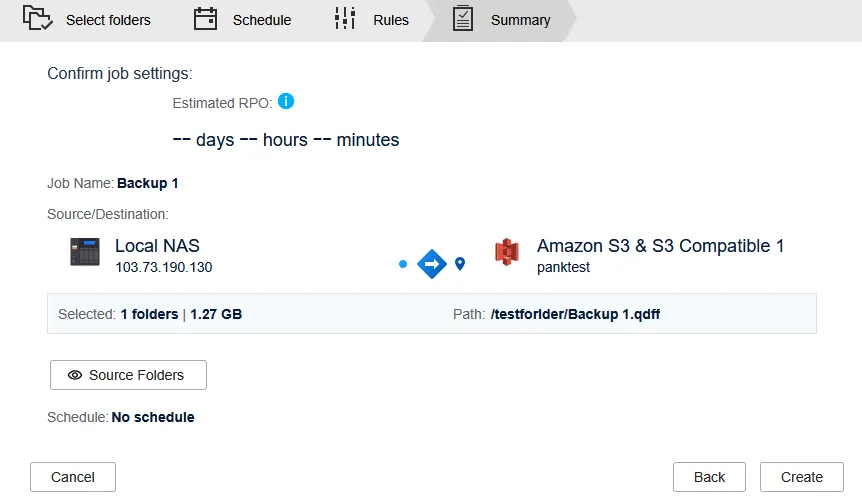
Select or create a folder in the bucket and click OK. Check the job name and click Next.
Test it
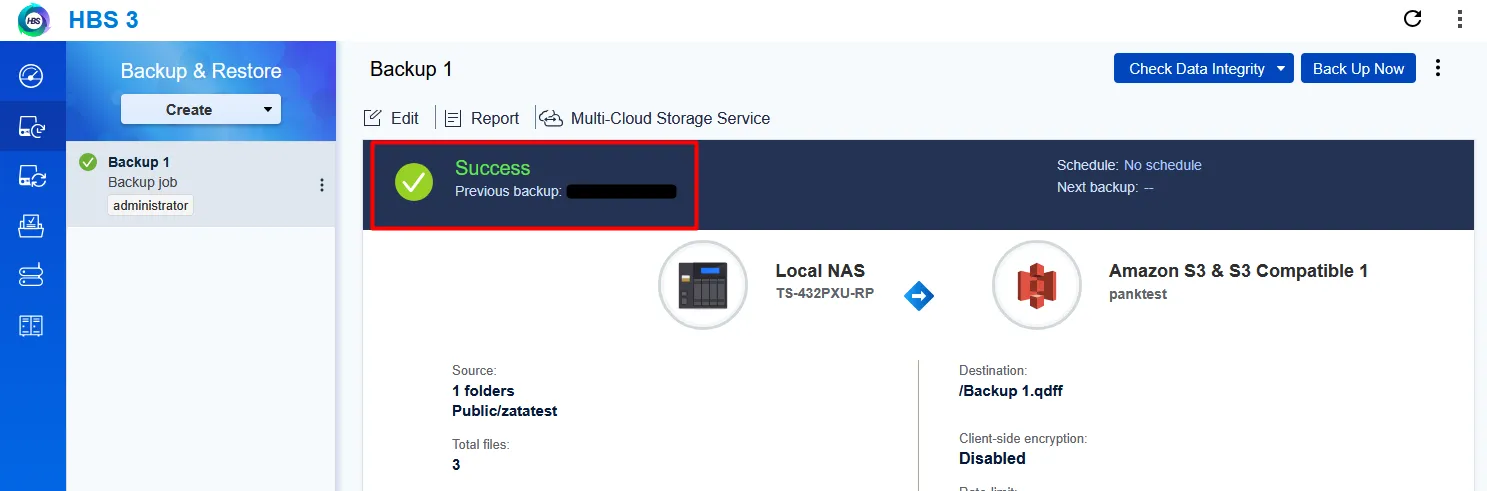
Run the job on a folder with a small file. When it shows Success, check that backup data appears in your bucket in the Zata console. Then use Restore Now in Backup & Restore to restore the file. An upload alone does not prove that the backup can be recovered.