

Lifecycle rules
A lifecycle rule deletes things in a bucket automatically after a number of days: files, old versions, leftover delete markers and unfinished uploads. Use rules to keep storage, and your bill, under control without deleting files by hand.
You manage rules in the console under Buckets > the bucket’s Bucket Settings (gear icon) > Lifecycle Rules. From there you can add rules, edit them, turn them on or off, and delete them.
Rules run once a day on the storage cluster. A new or changed rule takes effect within 24 to 48 hours, and it also applies to files that already exist and match.
What a rule can do
A rule has one or more cleanup actions, and each action has its own number of days.
Needs versioning means versioning is on for the bucket, or was on and is now turned off. If versioning was never turned on, the console doesn’t show those two actions. See Versioning.
Expire objects
Deletes files a set number of days after they were uploaded.
- Versioning never turned on: the file is deleted for good.
- Versioning on (or turned off later): the file is not deleted. Zata adds a delete marker on top of it, so the file disappears from the file list, but its data stays as an old version and still uses storage. To free that space, add Clear old versions too. See How versioning changes what a rule does.
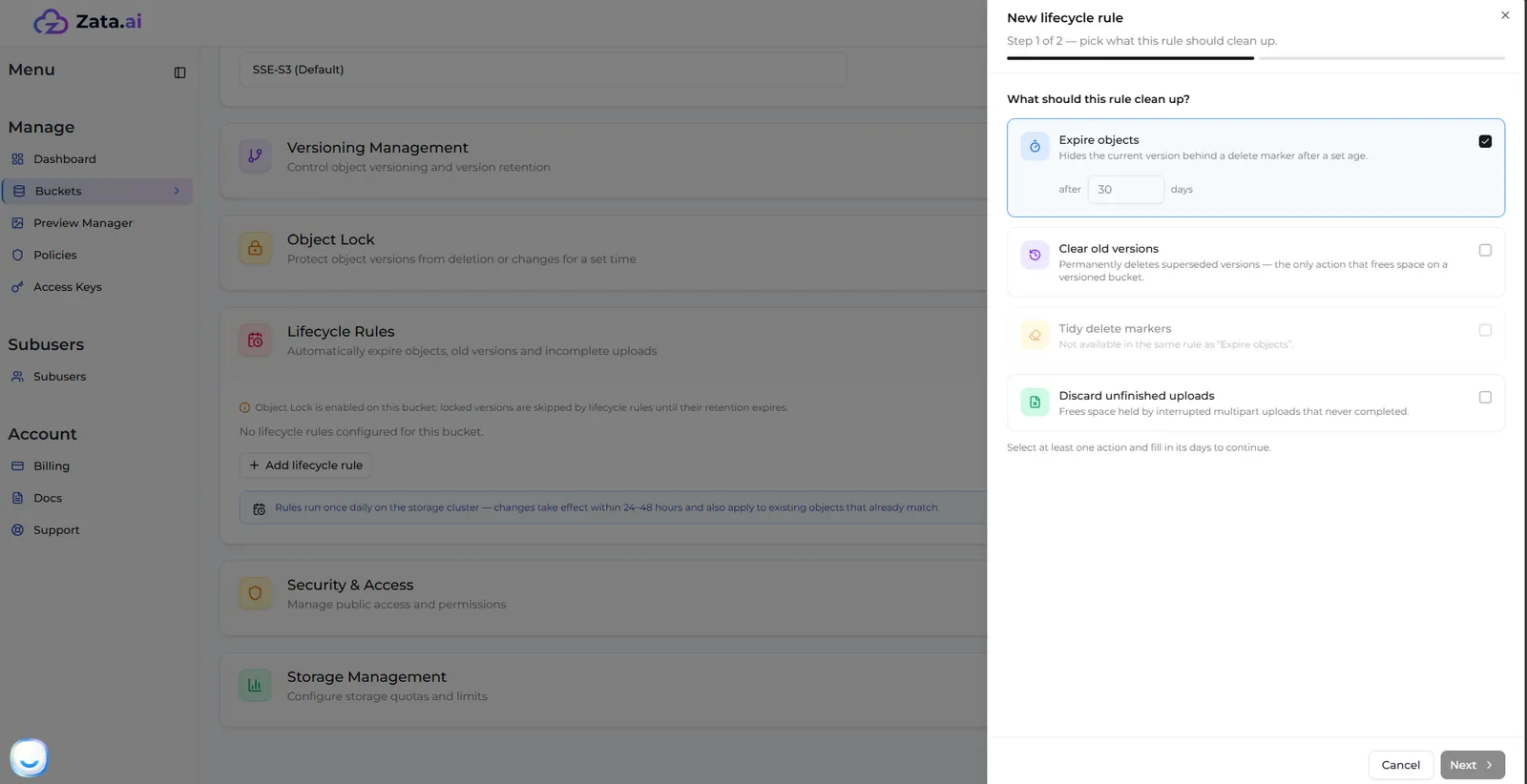
While Expire objects is ticked, Tidy delete markers is greyed out: the two can’t be in the same rule. Put them in two rules instead.
Clear old versions
Deletes old versions for good, a set number of days after a newer version replaced them or the file was deleted. This is the only action that frees space in a versioned bucket. The days count from the moment a version became old, not from its upload.
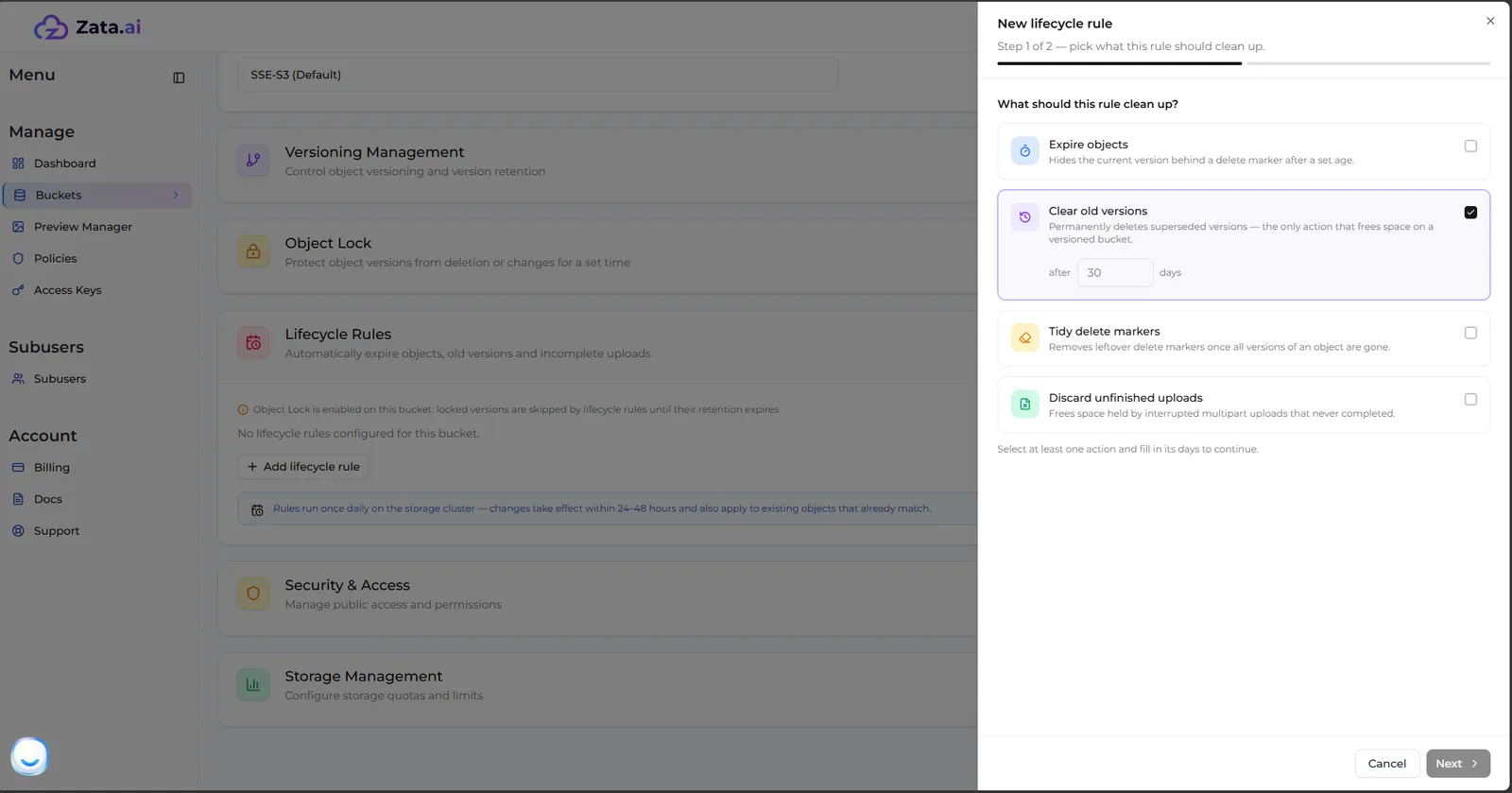
Keep newest (Mumbai only): in Mumbai buckets, Clear old versions also has a keep newest box. Enter a number from 1 to 100 to always keep that many of the most recent old versions of each file. For example, 10 days and keep newest 3 deletes old versions after 10 days but always keeps the 3 most recent ones. Leave it empty to delete every old version after the days. Buckets in Indore don’t have this option.
Tidy delete markers
When a file is deleted in a versioned bucket, Zata leaves a delete marker. Once all the file’s old versions are gone, for example after Clear old versions removed them, the marker is all that is left. This action removes those leftover markers, so the file is gone from the bucket completely. It has no number of days.
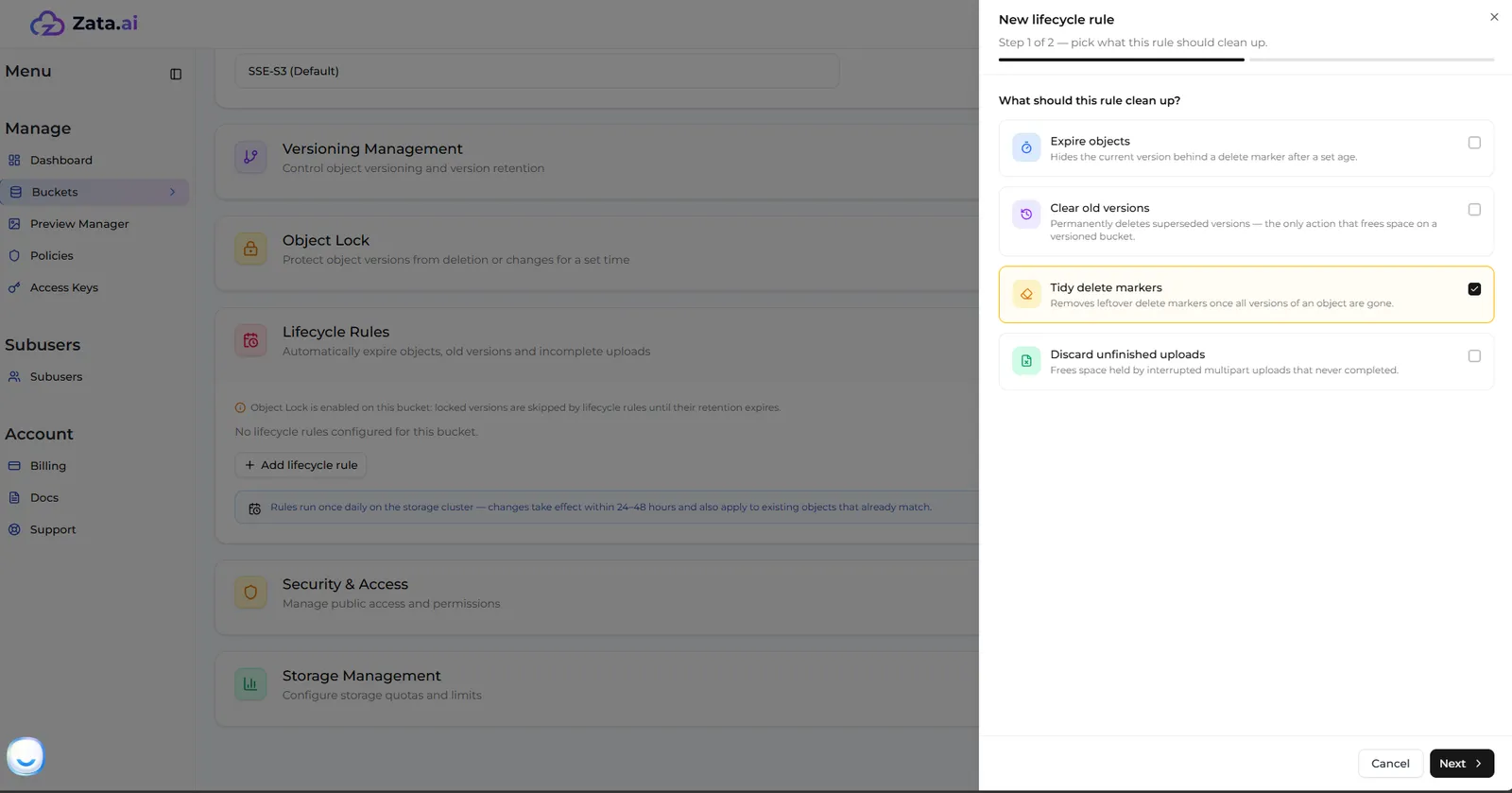
It can’t be in the same rule as Expire objects, and it can’t be used with tag or size filters. A key prefix is fine.
Discard unfinished uploads
Large files are uploaded in parts (a multipart upload). If an upload is interrupted, for example by a network failure, and never finished or cancelled, its parts stay in the bucket. They use storage but don’t show in the file list, and they stop you from deleting the bucket. This action removes them a set number of days after the upload started.
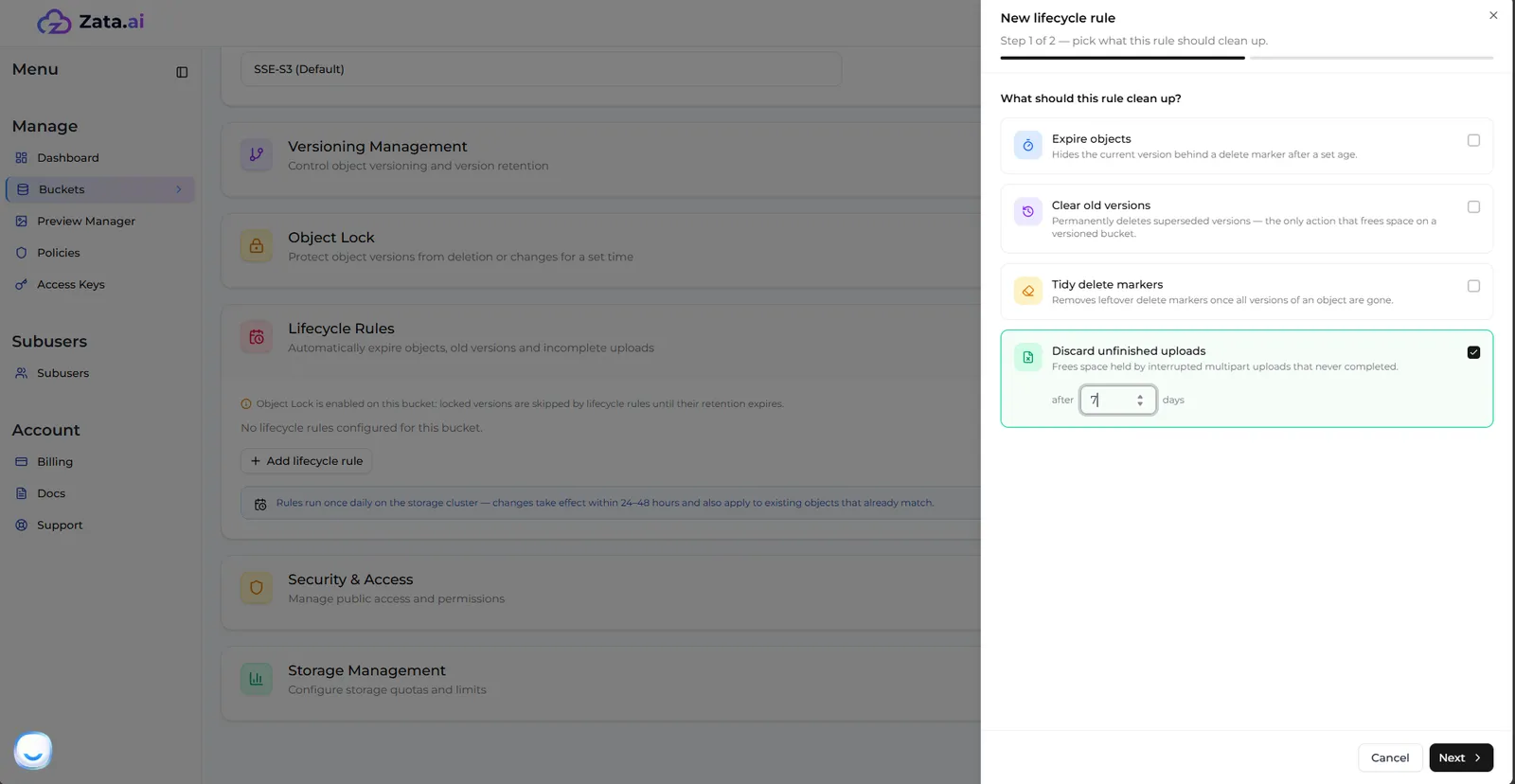
A Discard unfinished uploads rule of 7 days on the entire bucket is a good idea for every bucket that receives large uploads. It can’t be used with tag or size filters.
How versioning changes what a rule does
In a versioned bucket, nothing is deleted for good by Expire objects alone. This is the most common reason storage doesn’t go down after adding a rule.
To delete files after 30 days in a versioned bucket and free the space, use two rules:
- Expire objects 30 days and Clear old versions 7 days.
- Tidy delete markers, on its own (it can’t share a rule with Expire objects).
What happens to a file uploaded on day 0:
- Day 30: the file is hidden behind a delete marker. It can still be restored from its old version.
- Day 37: the old version is deleted for good and its space is freed.
- A later daily run: the leftover delete marker is removed.
The 7 days in step 1 are your safety window: until then you can still restore the file. Use fewer days to free space sooner, or more to keep a longer window.
Add a rule
Open Lifecycle Rules
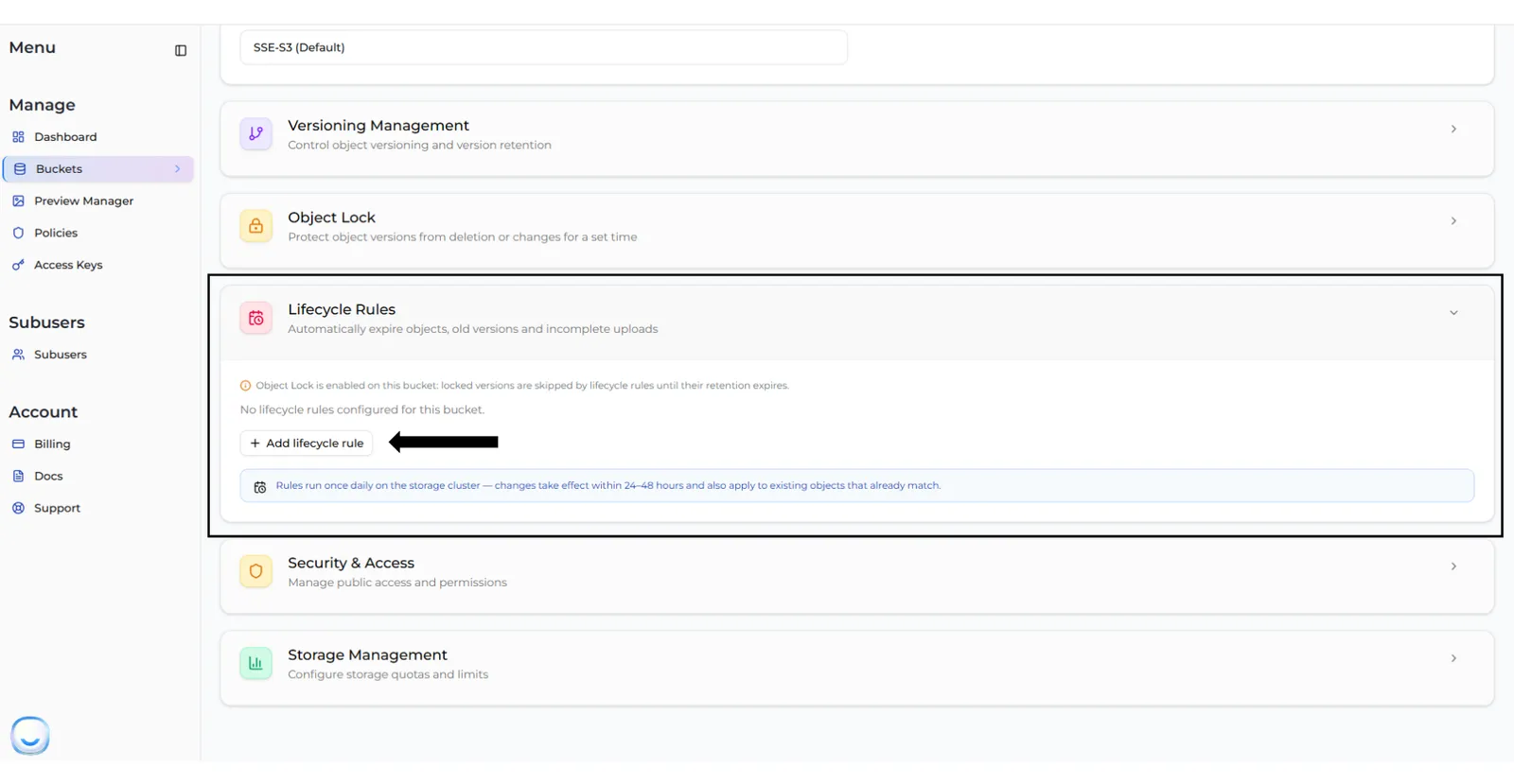
Go to Buckets, select the gear icon (Bucket Settings) of the bucket, expand Lifecycle Rules and select Add lifecycle rule.
Choose what to clean up
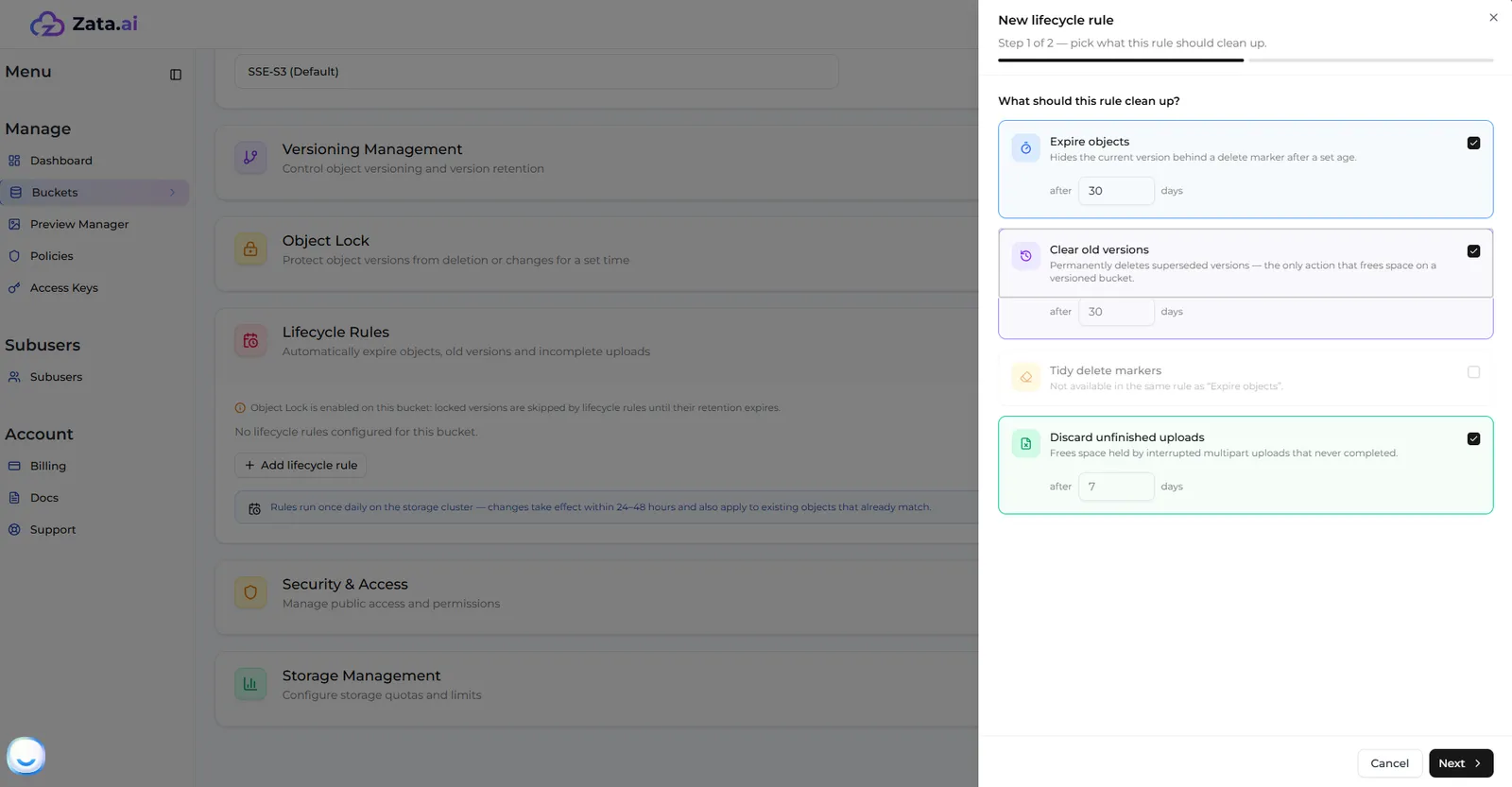
A panel opens: New lifecycle rule, Step 1 of 2. Under What should this rule clean up?, tick one or more actions and enter the number of days for each (a whole number from 1 to 36,500). You can tick several actions in one rule. Select Next.
Next stays greyed out until at least one action is ticked and has its days filled in.
Choose which files it applies to
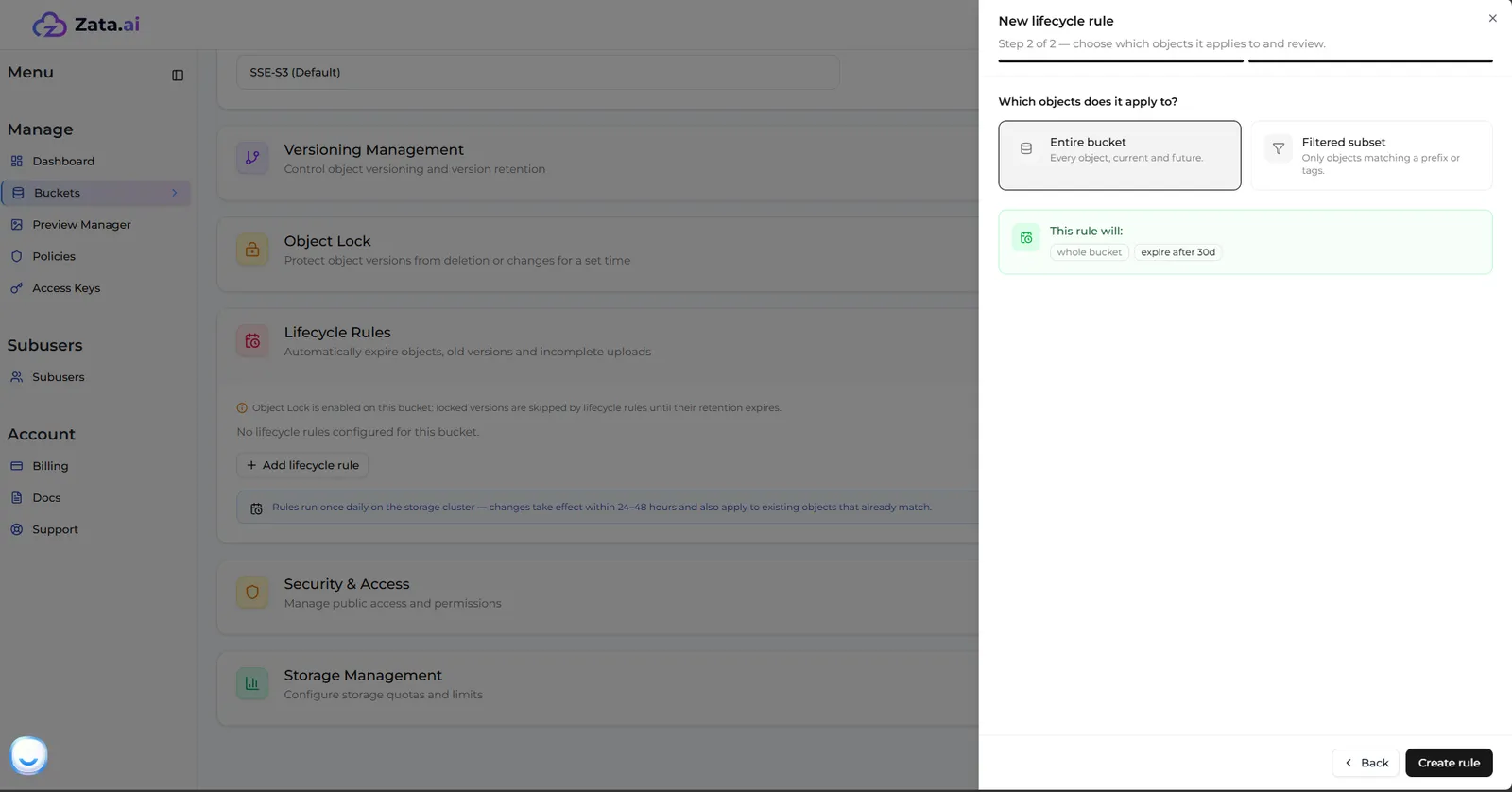
Under Which objects does it apply to?, choose:
- Entire bucket: every file, now and in the future.
- Filtered subset: only files that match the filters you set. See Which files a rule applies to.
Check the summary and create the rule
The summary under This rule will: lists what the rule will do. Check it and select Create rule. Select Back to change the actions.
The console names the rule for you from what it does, for example expire-3f9a1c, versions-…, markers-…, uploads-…, or cleanup-… for a rule with several actions.
Only Cancel or the ✕ closes the panel, and closing it discards what you entered.
Which files a rule applies to
With Filtered subset, a file must match every filter you set.
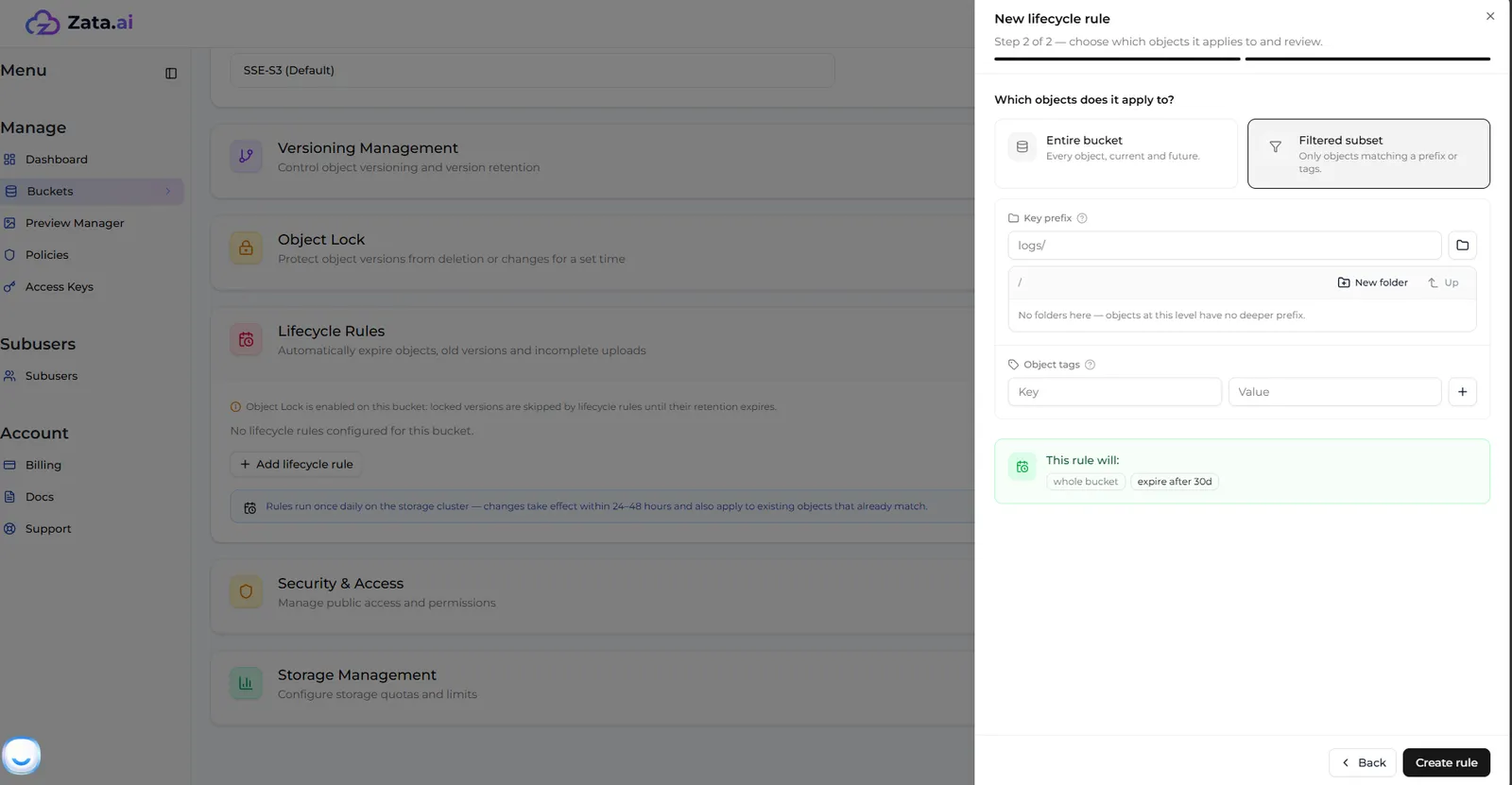
Tag and size filters can’t be combined with Tidy delete markers or Discard unfinished uploads. If you ticked one of those in step 1 and then add a tag or size filter, it is left out of the rule. Check the This rule will: summary before you create the rule. A key prefix works with every action.
Edit, turn off or delete a rule
Each rule in the list shows its name, whether it is Enabled or Disabled, which files it applies to (for example prefix: logs/ or whole bucket) and what it does (for example expire after 30d or old versions after 30d (keep 3)).
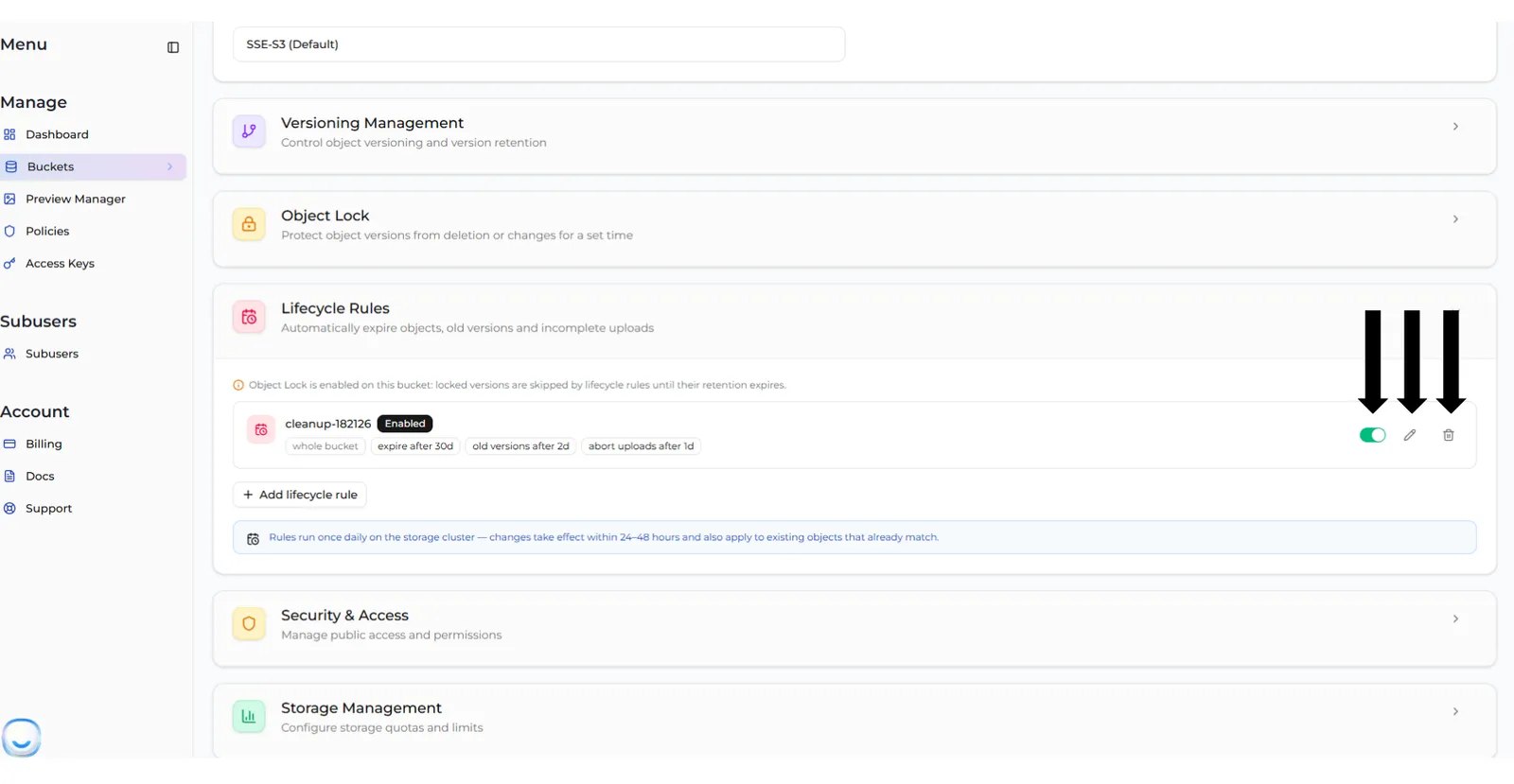
- Turn off or on: use the switch. A turned-off rule stays in the list and does nothing until you turn it back on.
- Edit: select the pencil. The same panel opens with the rule’s settings. Change them and select Save changes. The rule keeps its name.
- Delete: select the bin, then Delete rule.
Turning off or deleting a rule stops its cleanup straight away. Files it has already deleted don’t come back.
Examples
When files are actually deleted
- The days count from the file’s upload, from the moment a version became old (Clear old versions), or from the start of the upload (Discard unfinished uploads).
- Deleting happens in the daily run after the days have passed, so a file can stay up to a day or two longer than the number of days you entered.
- A new rule also applies to files that already exist. A 30-day rule added to a bucket with year-old files deletes those files in its first run.
- Space is freed when the run deletes the data, not when you save the rule.
- In a bucket with Object Lock, versions under a retention period or legal hold are skipped until the lock ends. The Lifecycle Rules section shows a note about this on such buckets.
Set rules with S3 tools
You can also manage rules through the S3 API, for example with the AWS CLI. Use the account owner’s access key: a sub-user’s key gets Access Denied.
Save the rules to a file, for example lifecycle.json:
Then apply, read or remove them:
- Applying replaces all rules. Include the bucket’s existing rules in the file, or they are removed. The console works the same way behind the scenes.
- Supported:
ExpirationwithDaysorExpiredObjectDeleteMarker,NoncurrentVersionExpiration,AbortIncompleteMultipartUpload, and filters byPrefix,TagandAnd. - Mumbai only:
NewerNoncurrentVersions(keep newest) andObjectSizeGreaterThan/ObjectSizeLessThan. - Not supported:
Transitions(Zata has one storage class).
In Indore, don’t send ObjectSizeGreaterThan, ObjectSizeLessThan or NewerNoncurrentVersions from an S3 tool. Indore’s storage ignores them without an error. A size-filtered rule then applies to every file that matches the rest of its filter, and “keep newest” keeps nothing. The console doesn’t offer these options in Indore for this reason.
A rule that uses options the console doesn’t support, such as an expiry on a fixed Date, is marked External in the console. See Troubleshooting.
Ask Zata Assistant
Zata Assistant can set up simple rules for you. Ask, for example, “delete files in the logs folder of my-bucket after 30 days”. It opens a card with the rule filled in, and nothing is saved until you select Save rule.
The assistant’s card covers the whole bucket or one folder, with Delete files after, Delete old versions after (versioned buckets) and Cancel unfinished uploads after. For Tidy delete markers, keep newest, and tag or size filters, use Lifecycle Rules in Bucket Settings. Only the account owner can change rules, and changes need a paid plan.
Troubleshooting
I added a rule, but the files are still there
- Wait 24 to 48 hours. Rules run once a day.
- Check the days: they count from the upload, or from when a version became old.
- Check the filter: the key prefix must match the start of the path exactly, capital letters included, and a file must carry all the listed tags.
- In a versioned bucket, Expire objects only hides files. They still appear when you show versions.
- In a bucket with Object Lock, locked versions are skipped until their lock ends.
My storage used didn't go down
The bucket is probably versioned. Expire objects keeps the data as old versions, so add Clear old versions as shown in How versioning changes what a rule does. Unfinished uploads also use storage without showing in the file list: add Discard unfinished uploads.
I don't see Clear old versions or Tidy delete markers
Versioning was never turned on for this bucket. These actions only appear for buckets where versioning is on, or was on.
Tidy delete markers or Discard unfinished uploads is greyed out
- Tidy delete markers is greyed out while Expire objects is ticked. Create a separate rule for it.
- In step 2, tag and size filters remove Tidy delete markers and Discard unfinished uploads from the rule. Use a key prefix or Entire bucket for those actions.
I don't see keep newest or Object size
The bucket is in Indore. These options are available in Mumbai only.
The rules show External and I can't edit them
At least one rule on the bucket was added with an S3 tool and uses options the console doesn’t support, such as a storage-class transition or an expiry on a fixed date. To avoid overwriting it, the console then shows all the bucket’s rules read-only and hides Add lifecycle rule. Manage the rules with the tool you used, or remove them all with aws s3api delete-bucket-lifecycle and create them again in the console.
Lifecycle rules changed outside this page
Someone changed the bucket’s rules elsewhere, for example with an S3 tool or in another browser tab, while you had the page open. The list has been refreshed: check it and make your change again.
Maximum 20 lifecycle rules allowed
A bucket can have up to 20 rules. Delete rules you don’t need, or combine several actions into one rule.
A sub-user doesn't see Lifecycle Rules
Only the account owner can manage lifecycle rules. The section is hidden for sub-users, and a sub-user’s access key gets Access Denied.