

Assign a bucket
A new sub-user sees no buckets until you assign them.
A new sub-user cannot reach any bucket. You give it access with an access rule: a bucket (or one folder in it) plus a permission level. You can add rules from the sub-user’s page or from the Policies page — both create the same kind of rule, and every rule shows up in both places.
You can only assign buckets that are in one of the sub-user’s regions.
From the sub-user’s page
Pick a bucket
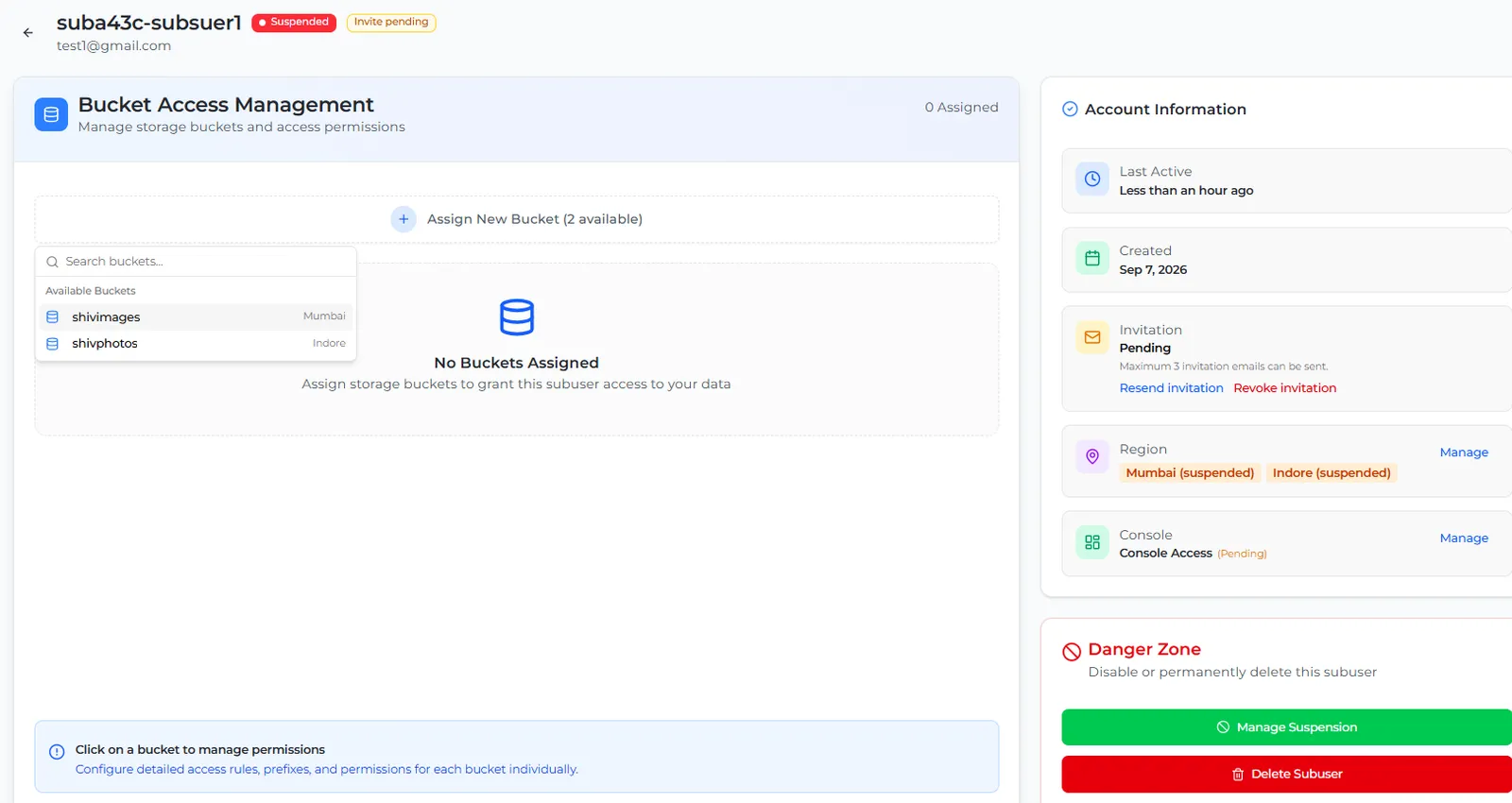
Under Bucket Access Management, select Assign New Bucket and choose a bucket from Available Buckets.
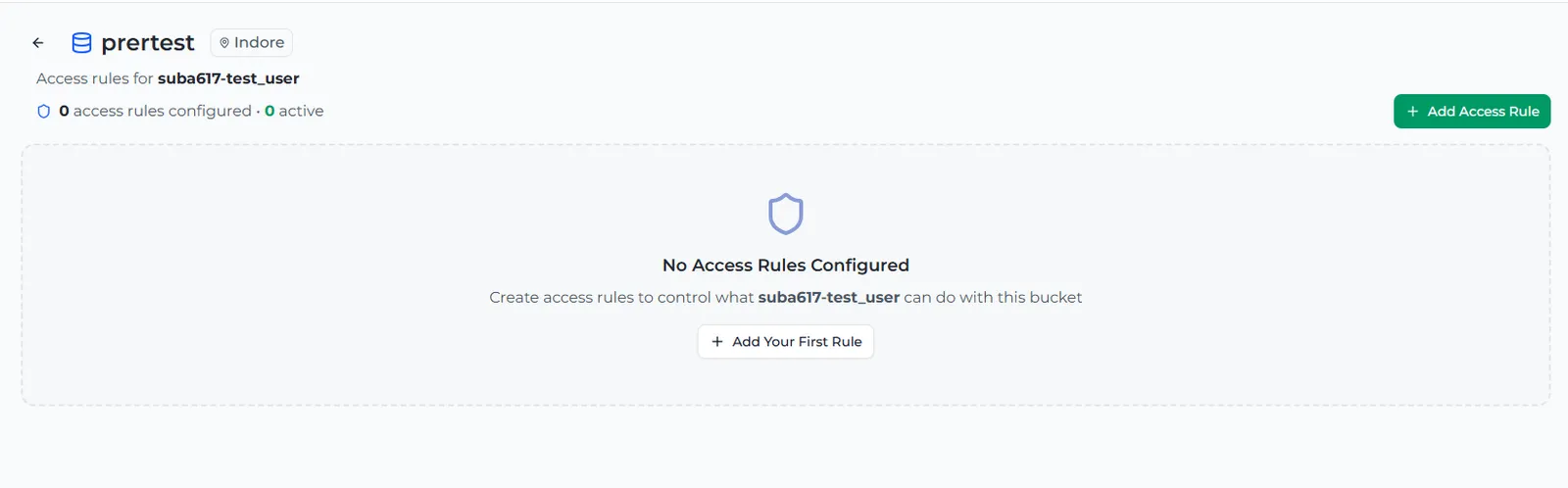
Set the permission
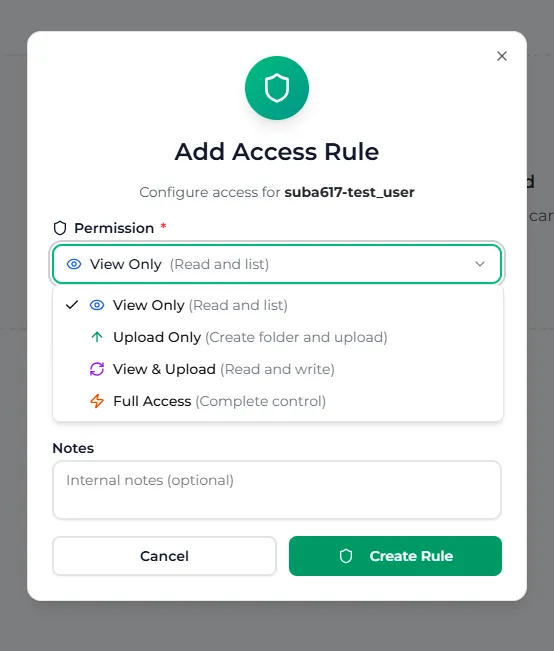
In the Add Access Rule dialog:
- Permission — choose View Only, Upload Only, View & Upload or Full Access. See Permission levels.
- Scope — leave it empty for the whole bucket, or enter a folder such as
photos/2026to limit the rule to that folder. If the folder does not exist yet, Zata offers to create it. - Notes — an optional name for the rule.
Select Create Rule.
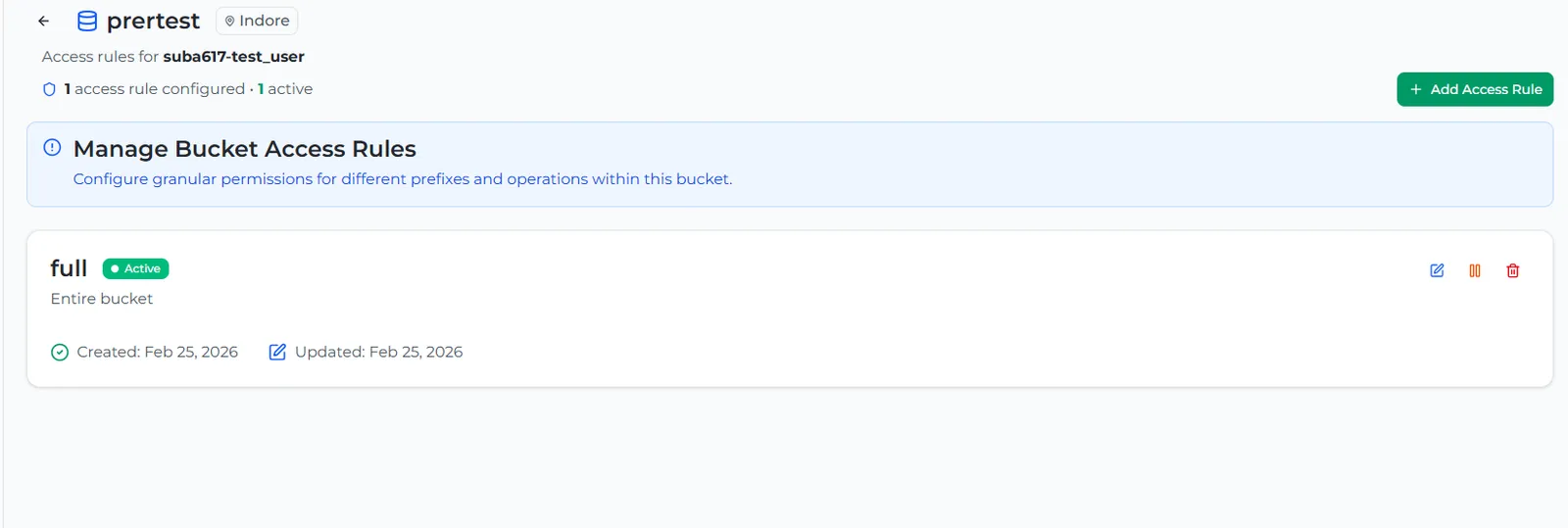
The rule appears on the page with the status Active, and the bucket now counts as assigned on the sub-user’s page. Add more rules to the same bucket if you need different permissions for different folders.
From the Policies page
Use the Policies page when you want to pick single actions instead of a permission level. Select Create Policy, choose Subuser as the grantee and select the sub-user, then follow the wizard. See Create a policy.
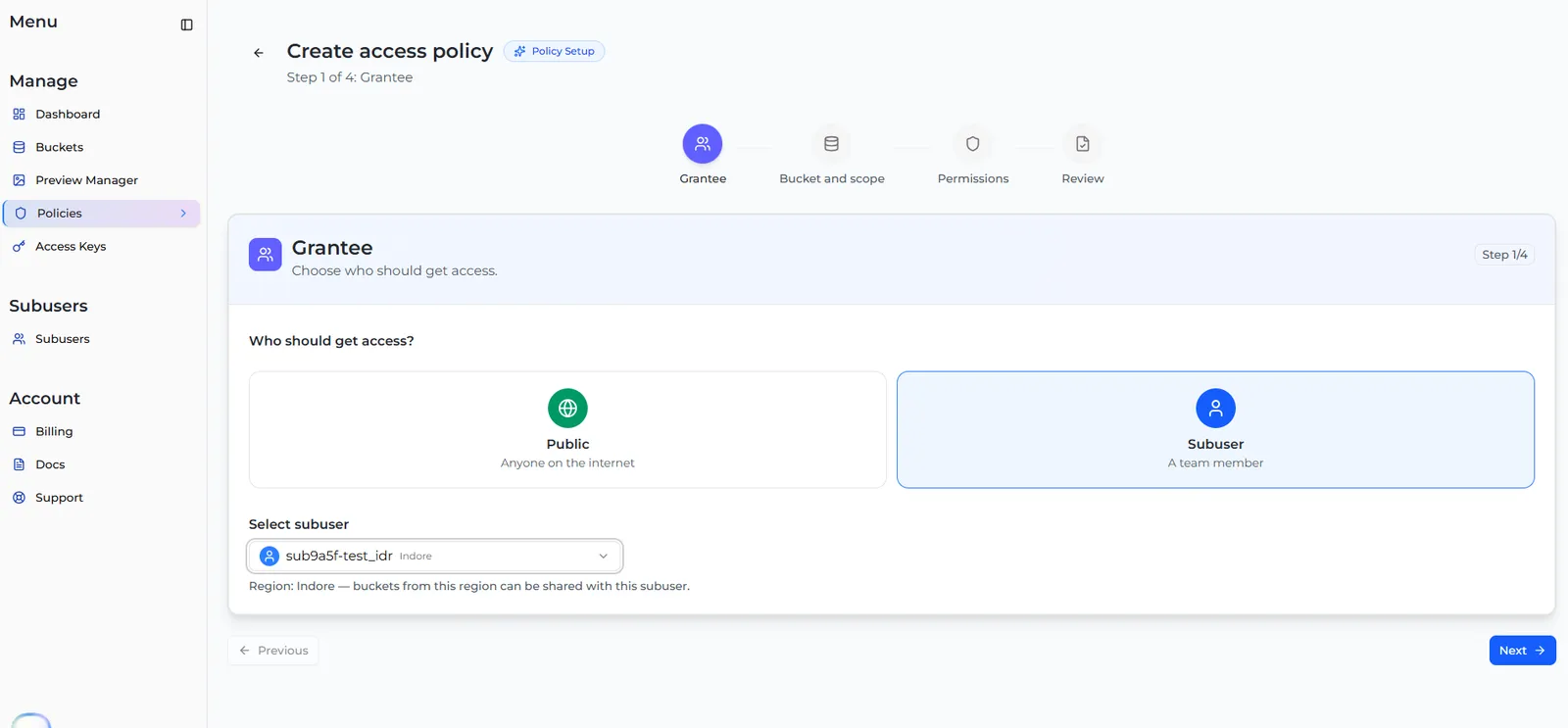
Only active sub-users can be picked here. For a sub-user whose invitation is still pending, use the sub-user’s page.
Change or remove access
On the sub-user’s page, select the bucket to open its rules. Each rule has four buttons:
You can also edit, suspend or delete the same rules from their cards on the Policies page.