Skip to navigation

S3Drive

Sync local folders to a Zata bucket with S3Drive.

S3Drive is a desktop app that browses cloud storage and syncs local folders to it. It connects to Zata through an Rclone account. This page sets up the account and a folder sync on Windows.

Before you start

Connection settings

S3Drive takes the connection as an rclone config in JSON form:

SettingValue
type / providers3 / Other
endpointhttps://idr01.zata.ai for Indore, https://bom01.zata.ai for Mumbai
regionus-east-1
access_key_id / secret_access_keyfrom Access Keys in the Zata console — the key must be from the same region as the bucket
no_check_buckettrue — needed for sub-user keys
sign_accept_encodingfalse — newer rclone versions get SignatureDoesNotMatch on Zata without it

Set up S3Drive

1

Open Manage account

In S3Drive, select the Manage account button at the top right of the Files screen.
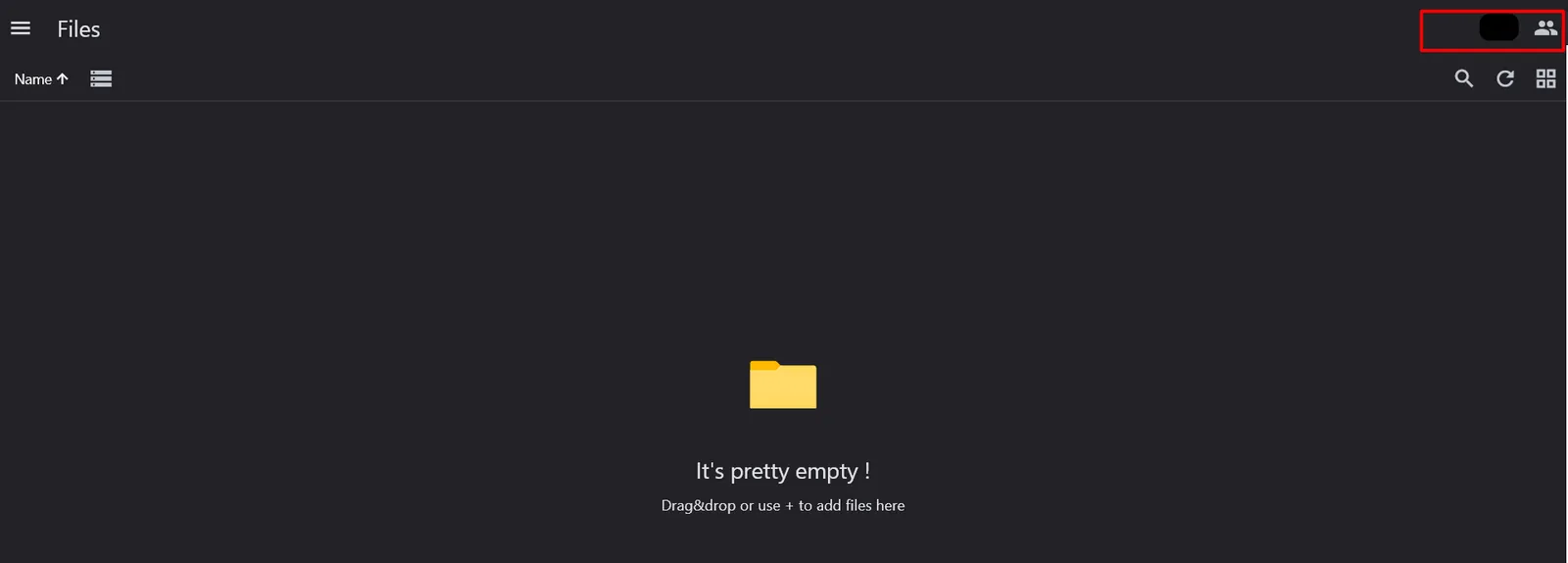
The S3Drive Files screen with the Manage account button highlighted at the top right
2

Add an Rclone account

On Accounts, open the Rclone tab and select +.

The Accounts screen with the Rclone tab and the plus button highlighted

Paste this config with your own keys, then add it. For Mumbai, use https://bom01.zata.ai as the endpoint.

Rclone config
"zata": {
"type": "s3",
"provider": "Other",
"access_key_id": "YOUR_ACCESS_KEY",
"secret_access_key": "YOUR_SECRET_KEY",
"endpoint": "https://idr01.zata.ai",
"region": "us-east-1",
"no_check_bucket": "true",
"sign_accept_encoding": "false"
},
3

Open the account

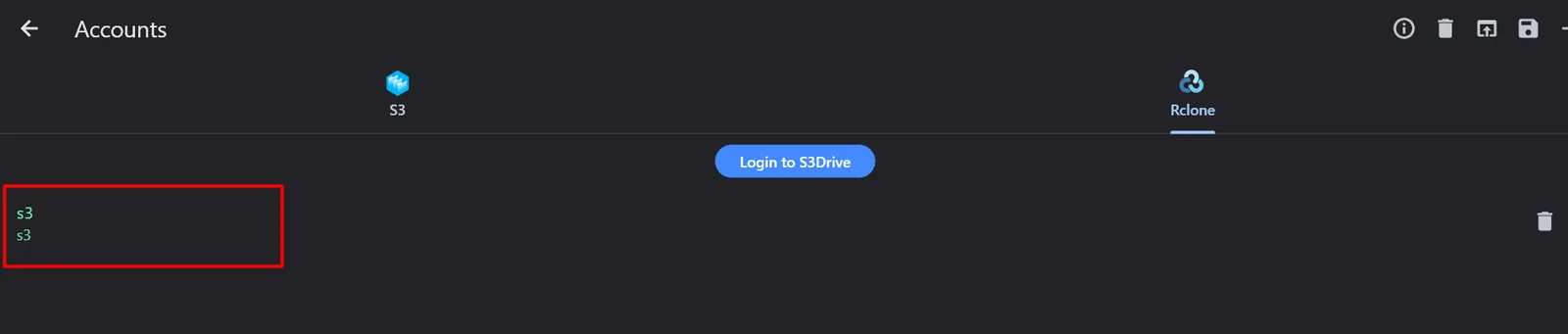
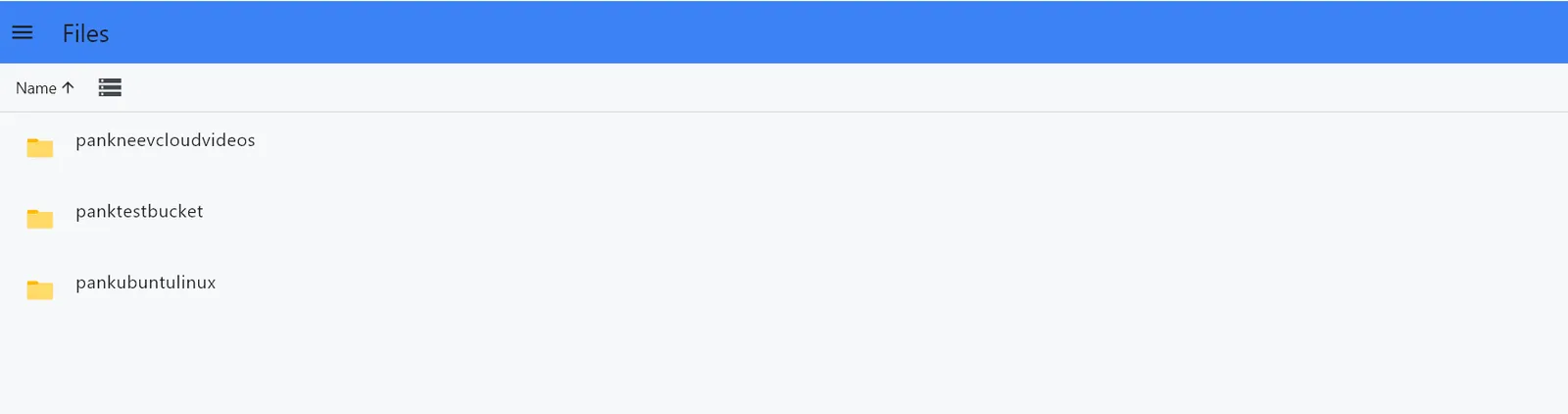
The new account appears on the Rclone tab. Select it to see your Zata buckets.

The new Rclone account listed on the Rclone tab
The S3Drive Files screen listing three Zata buckets
4

Add a sync

Open the menu, select Sync, then select +.

The Sync screen with the plus button highlighted
5

Configure the sync

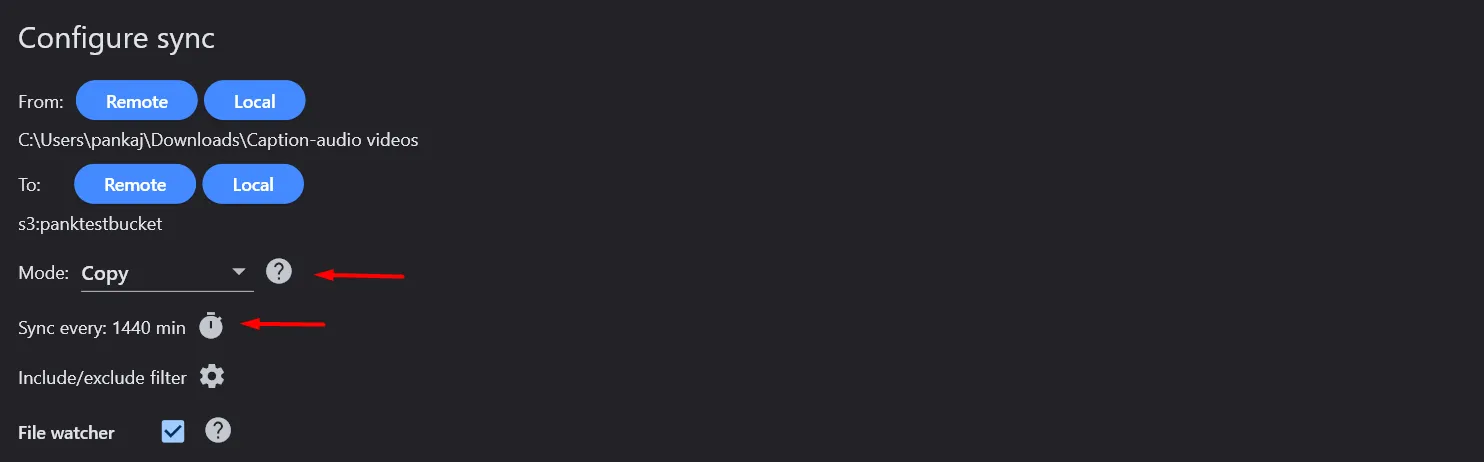
In Configure sync:

FieldValue
FromLocal → pick the folder to back up
ToRemote → choose your Zata account and bucket (shown as zata:my-bucket)
Modefor example Copy
Sync everyhow often to run, in minutes — 1440 is once a day

Select Save.

Configure sync with a local folder as source, a Zata bucket as destination, mode Copy and Sync every 1440 min

The sync now shows on the Sync screen with its source, destination, mode and schedule.

A saved sync job from a local folder to a Zata bucket, mode Copy

Test it

Put a small file in the local folder and wait for the sync to run. Open the bucket in the Zata console under Buckets and check that the file is there. Then open the bucket in S3Drive and download the file.

Troubleshooting

ProblemFix
No buckets under the accountCheck that the endpoint matches the region of your key. Sub-user keys never list buckets.
SignatureDoesNotMatchMake sure "sign_accept_encoding": "false" is in the config. See Signature errors.
AccessDenied on upload with a sub-user keyMake sure "no_check_bucket": "true" is in the config.
Access denied or invalid keyCopy the keys again from Access Keys, without extra spaces.
Files do not reach the bucketCheck that To points to the right bucket and that the sync has run.