

Access keys
Your own key for each region, and how to rotate it.
Access Keys shows your own keys: one for each of your regions. Use the key for the same region as the bucket — an Indore key does not work on the Mumbai endpoint (https://bom01.zata.ai), and a Mumbai key does not work on Indore (https://idr01.zata.ai).
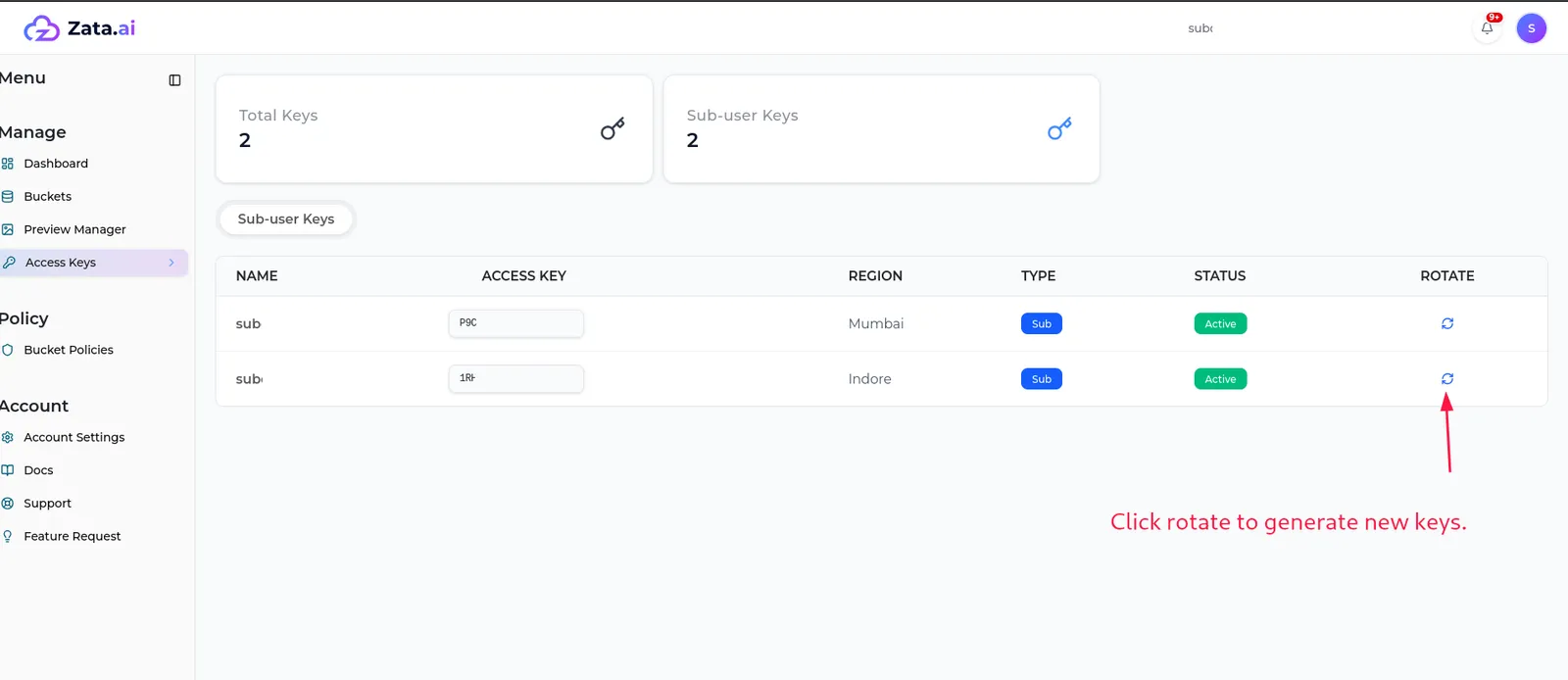
Your secret key is not shown here. It is in the credentials file you received from your account owner.
Rotate a key
Rotate a key when you think someone else may know it, or when you lost the secret key.
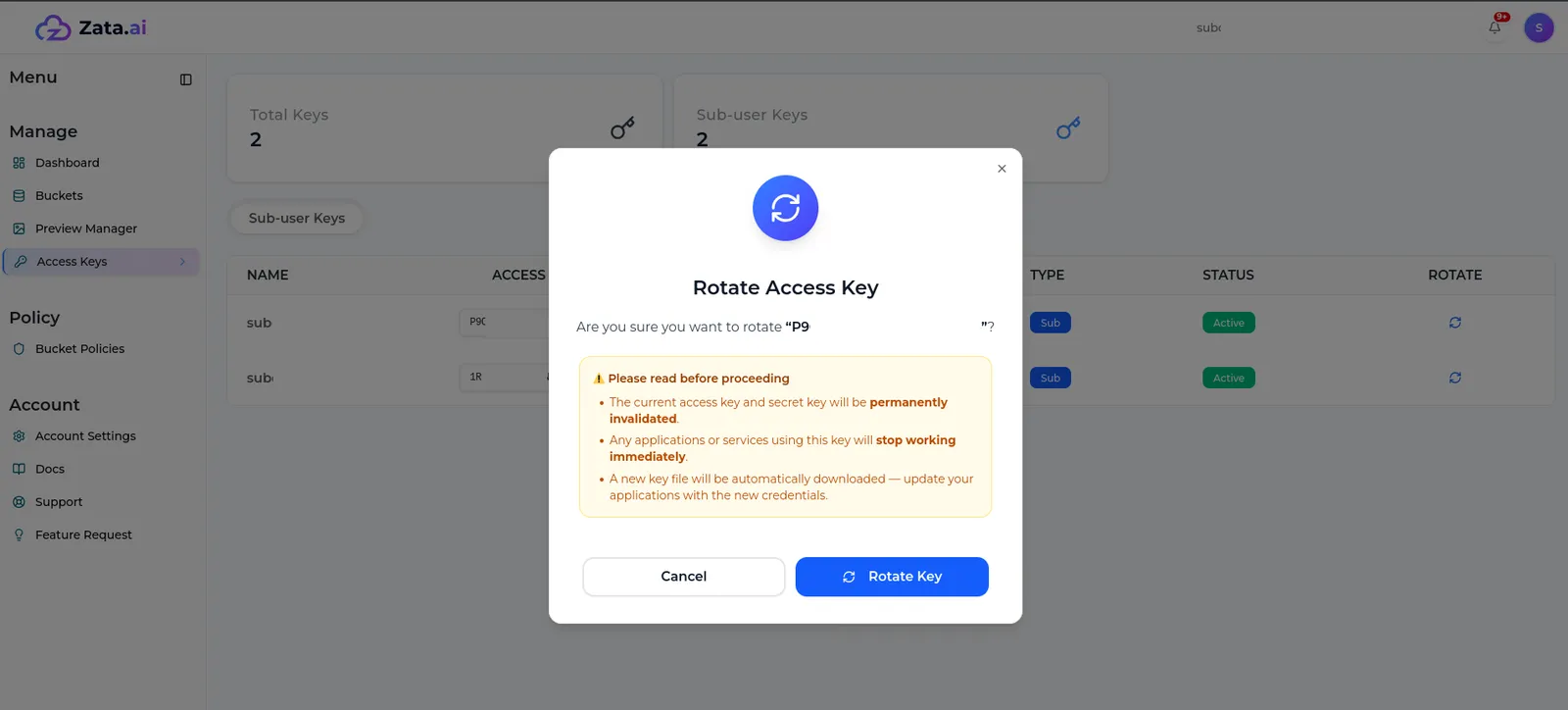
Your account owner gets a notification when you rotate a key. You cannot create, deactivate or delete keys yourself — ask your account owner.