Skip to navigation

Acronis

Store Acronis Cyber Protect backups in a Zata bucket through an Acronis Backup Gateway.

Acronis Cyber Protect can keep backups in a Zata bucket. You add the bucket as Public cloud backup storage on an Acronis Backup Gateway, then register the gateway with your Acronis Cyber Protect Cloud partner account.
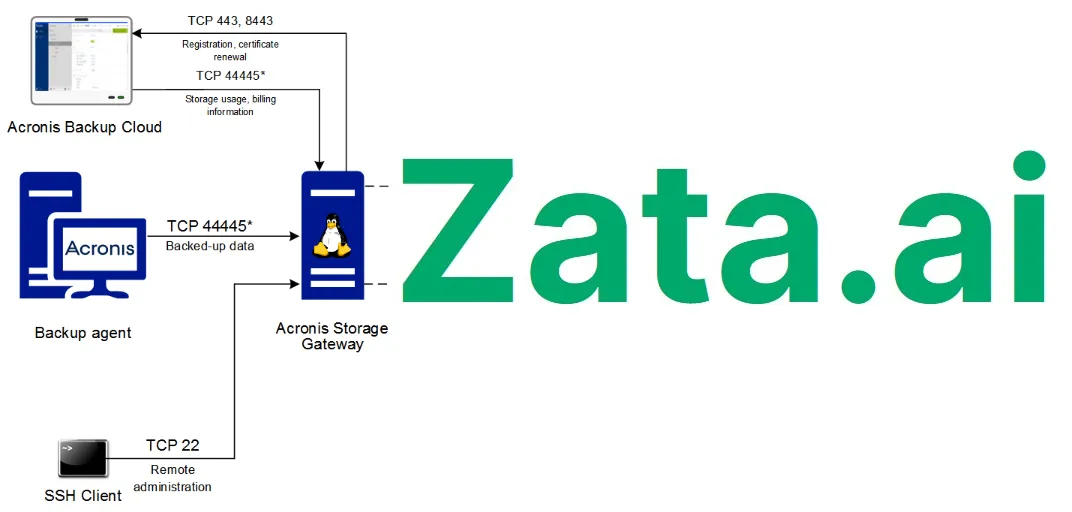
Diagram of the backup agent, the Acronis Storage Gateway, Acronis Backup Cloud and Zata with the ports between them
Backup agents send data to the gateway on port 44445. The gateway stores it in your Zata bucket.

Before you start

Connection settings

SettingValue
Object storage typeAuthV2 compatible (S3)
Endpoint URLhttps://idr01.zata.ai for Indore, https://bom01.zata.ai for Mumbai
BucketYour bucket name, for example my-bucket
Access key ID / Secret key IDFrom Access Keys in the Zata console. The key must be from the same region as the bucket.
Allow using a self-signed certificate of the endpointLeave unticked. Zata uses a public certificate.

Set up the gateway

1

Start the wizard

In the Acronis Cyber Infrastructure console of the gateway, open Storage Services → Backup storage and click Create backup storage.
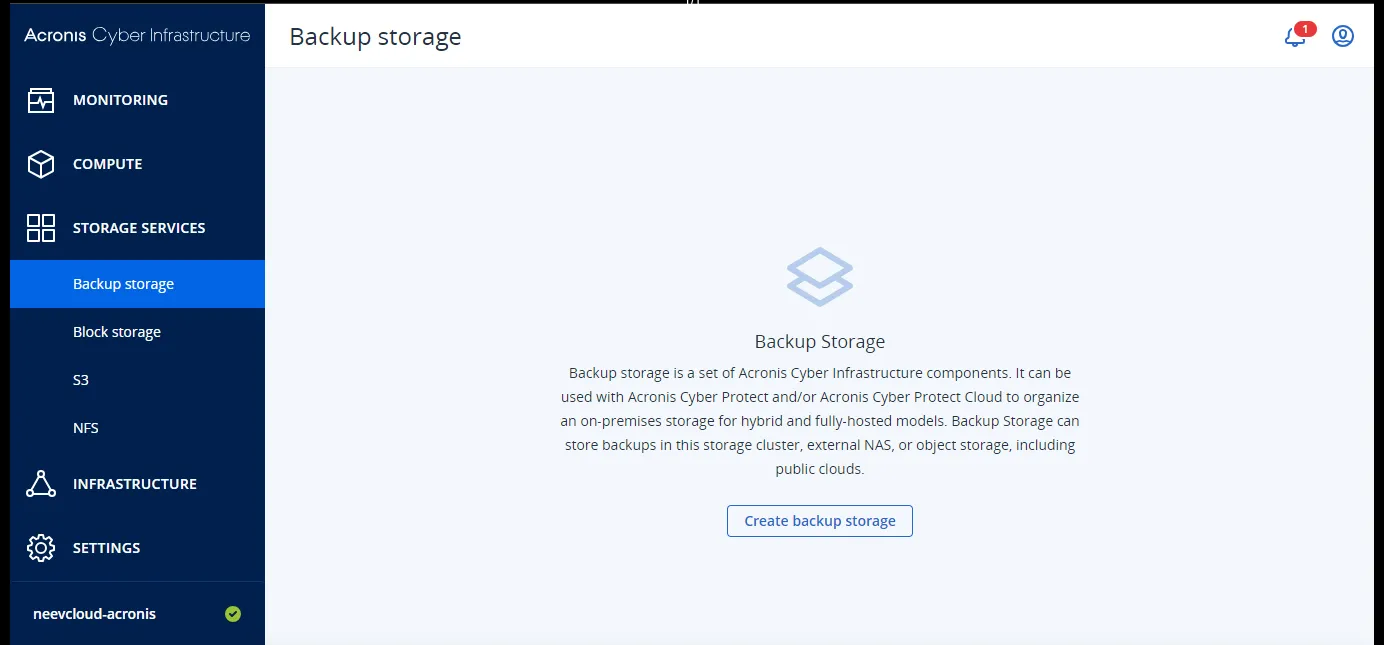
Backup storage page with the Create backup storage button
2

Choose Public cloud

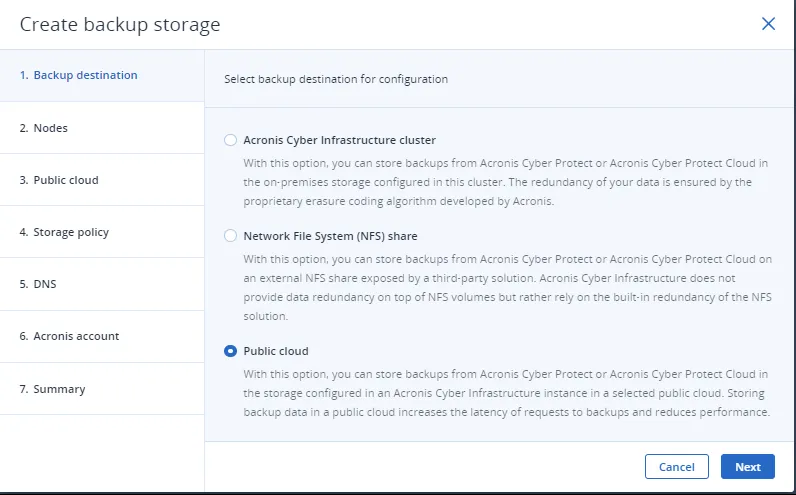
Under Backup destination, choose Public cloud and click Next.

Backup destination step with Public cloud selected
3

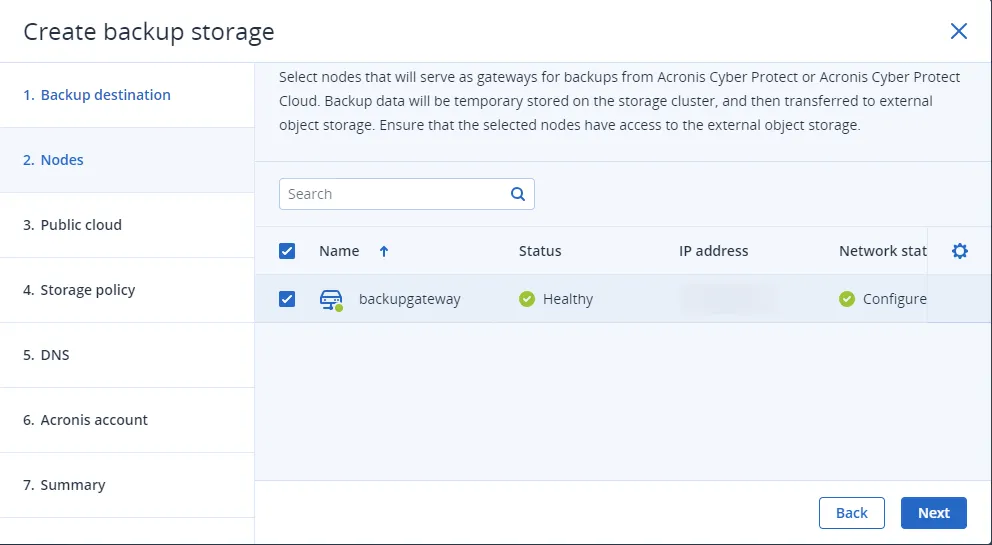
Select the gateway nodes

Tick the node or nodes that will act as the gateway and click Next.

Nodes step with the backup gateway node ticked
4

Connect to Zata

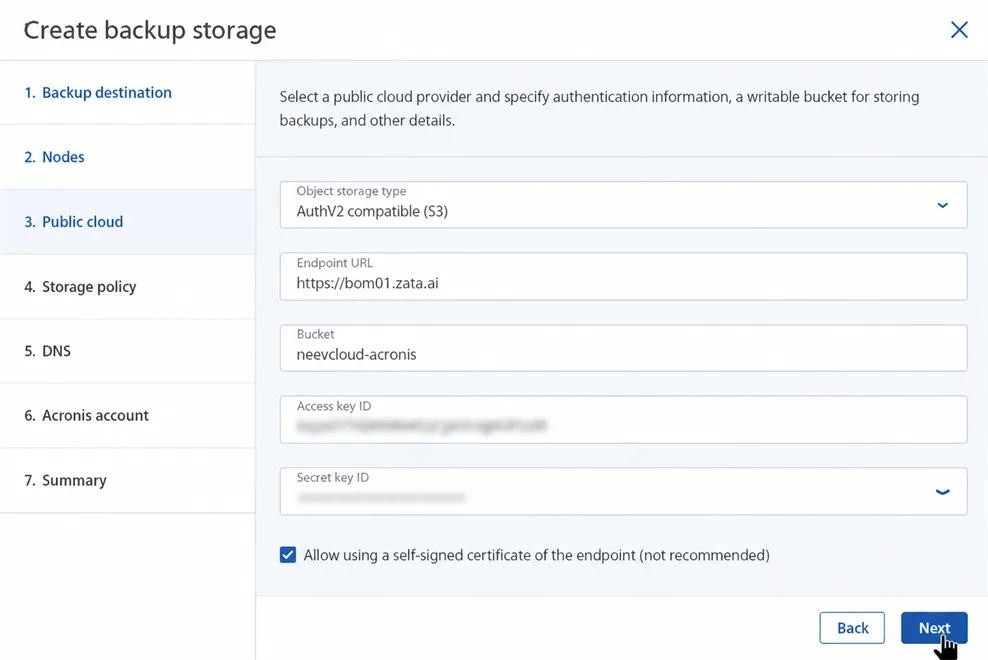
Set Object storage type to AuthV2 compatible (S3). Fill in Endpoint URL, Bucket, Access key ID and Secret key ID from the table above. Leave Allow using a self-signed certificate of the endpoint unticked, then click Next.
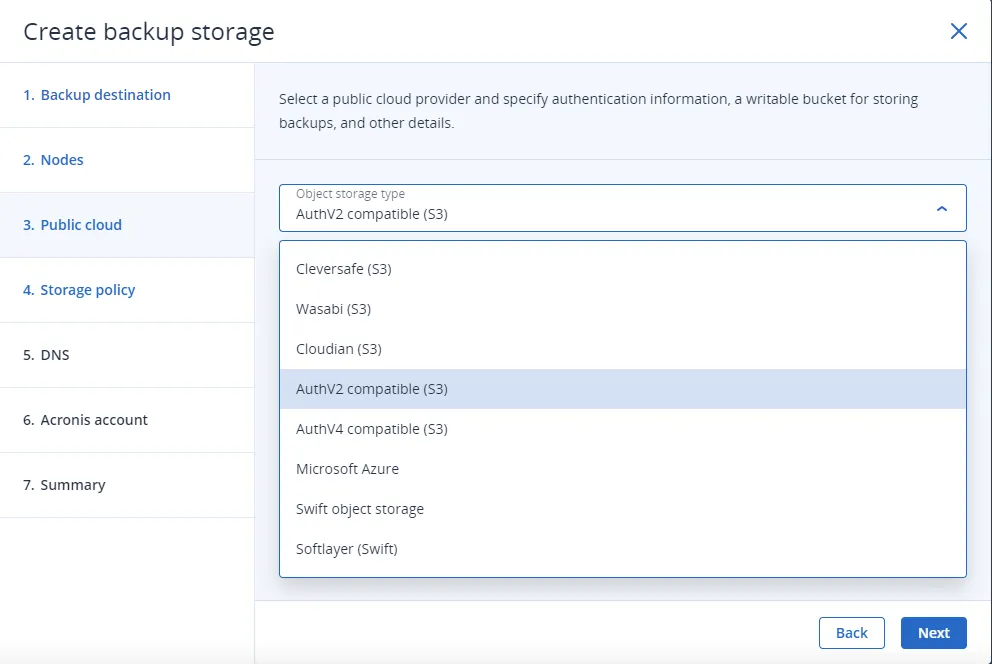
Object storage type list with AuthV2 compatible (S3) highlighted
Public cloud step with the endpoint URL, bucket and blurred access keys
Example with the Mumbai endpoint. Leave the self-signed certificate option unticked.
5

Choose a storage policy

Choose the Tier, Failure domain and Redundancy that fit your policy, then click Next. Ask your Acronis representative which redundancy level suits your setup.
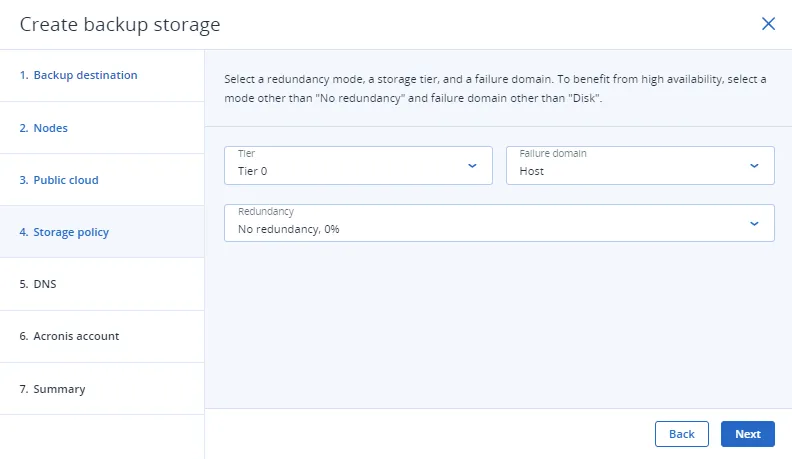
Storage policy step with tier, failure domain and redundancy
6

Enter the domain name

Enter the Domain name of the gateway and click Next. It must be a real DNS name that resolves to the gateway’s IP address, and the gateway must accept inbound connections on port 44445.
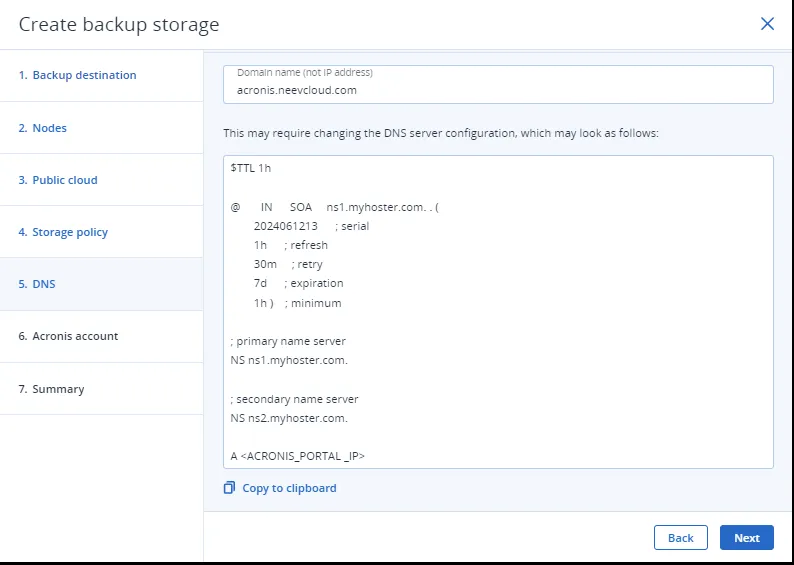
DNS step with the domain name field and an example DNS zone
7

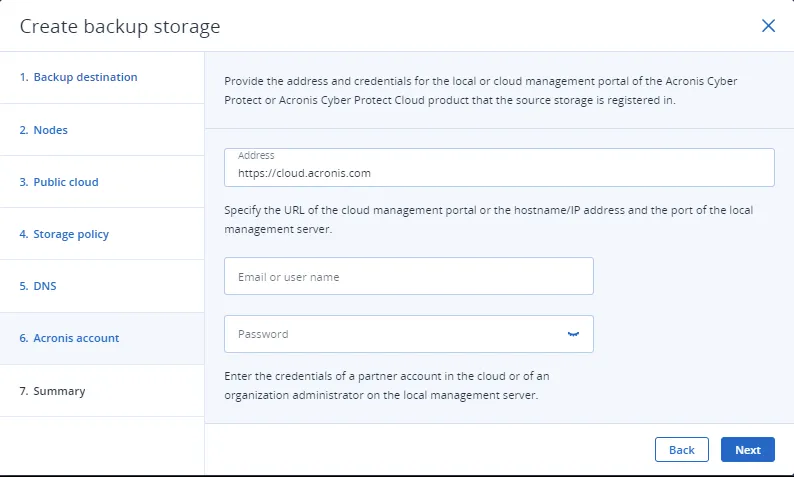
Register with your Acronis account

Enter the address and the credentials of your Acronis partner account and click Next.

Acronis account step with the portal address, user name and password
8

Create the storage

Review the Summary and click Create.

9

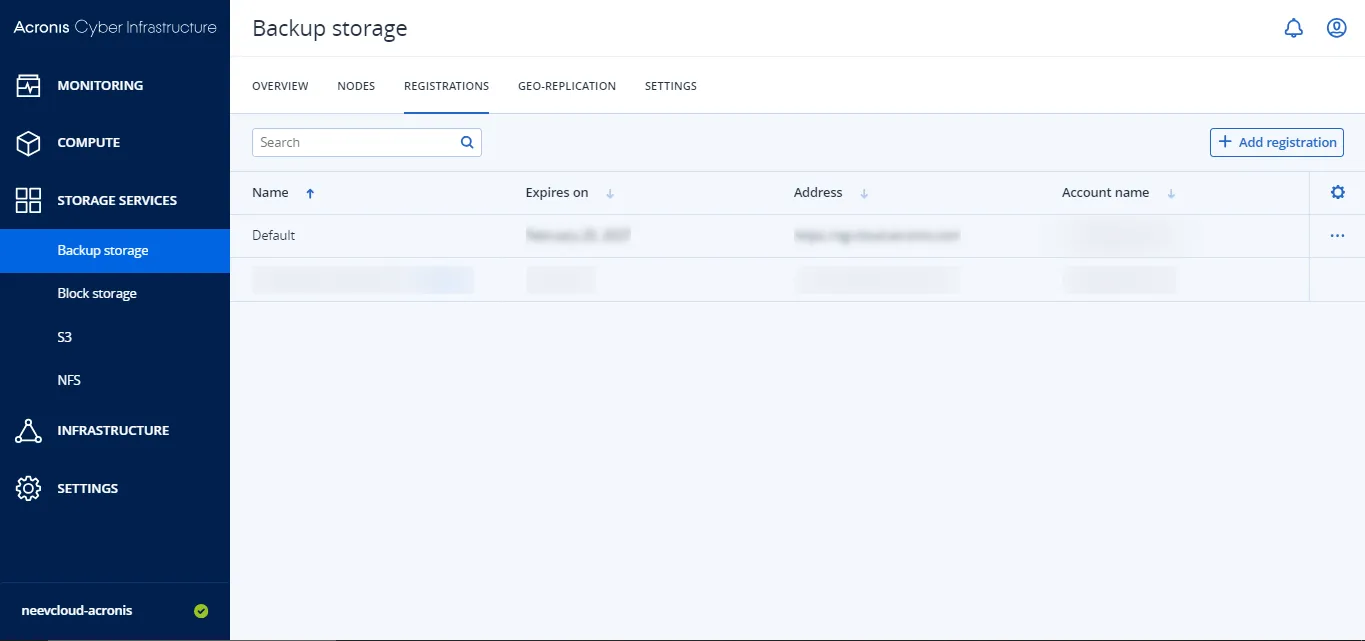
Check the registration

On the Backup storage page, open the Registrations tab and check that the registration is listed.

Registrations tab of the backup storage with one registration

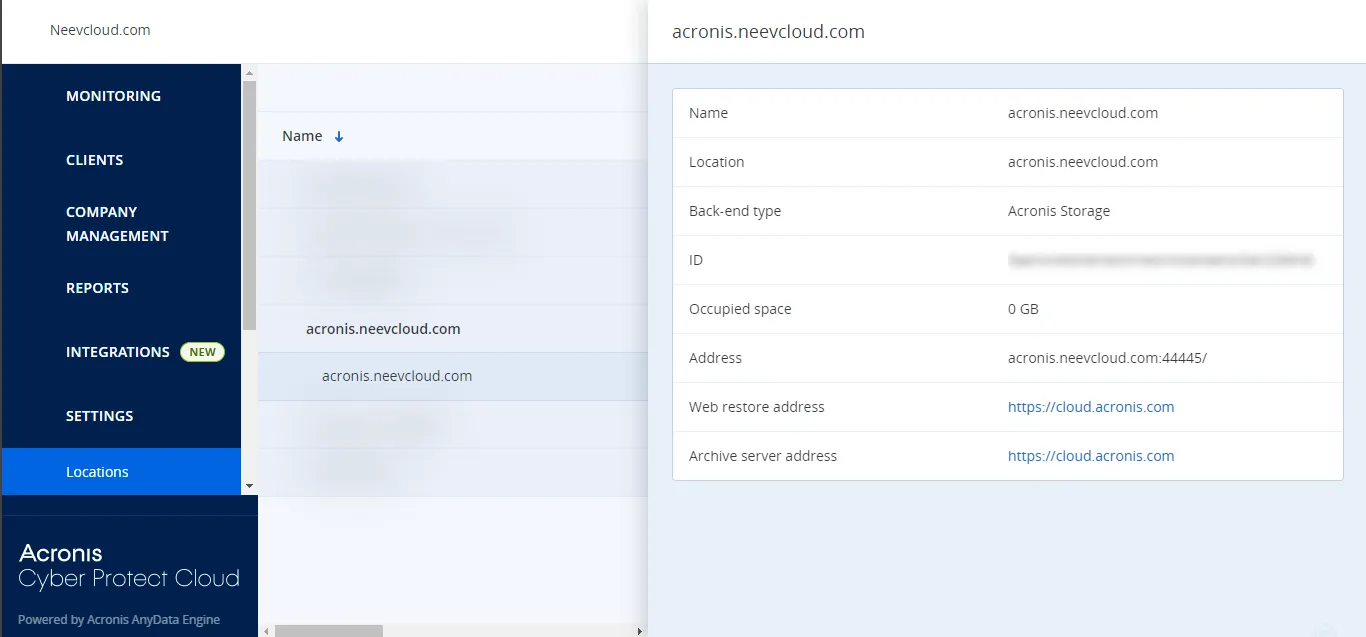
Then sign in to your Acronis Cyber Protect Cloud partner account, open Settings → Locations, and check that the new location is there.

Locations page of the Acronis partner portal with the new gateway location

Test it

Assign the new storage to a customer, back up a small folder, and check that backup data appears in your bucket in the Zata console. Then restore the folder to confirm the backup can be recovered.

Troubleshooting

ProblemFix
Access denied or invalid credentialsCopy the keys again from Access Keys, without extra spaces. The key must be from the same region as the Endpoint URL.
Cannot connect to the endpointCheck that the Endpoint URL matches the bucket’s region and that the gateway allows outbound HTTPS (port 443).
Certificate errorDo not tick the self-signed certificate option. Check the gateway’s date and time, and that no proxy intercepts HTTPS. See Network and certificates.
Registration failsThe domain name must resolve to the gateway’s IP address, and inbound port 44445 must be open.
The location is missing in the partner accountOpen the Registrations tab on the gateway and check that registration finished.