

rclone on Windows
rclone is a free command-line tool that copies and syncs files between your computer and cloud storage. This page shows how to install it on Windows and connect it to Zata. The Zata settings are the same as on Linux.
Before you start
- A bucket. See Create a bucket.
- An access key and secret key from the same region as the bucket. See Access keys.
Connection settings
Without sign_accept_encoding = false, every command fails with SignatureDoesNotMatch.
Install rclone
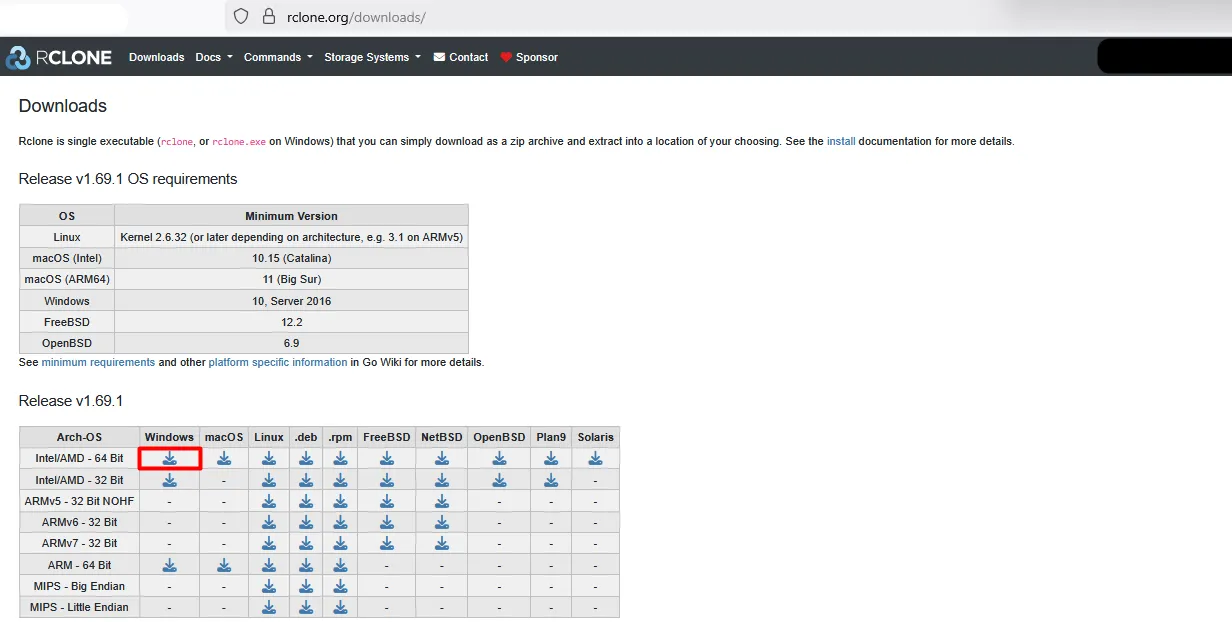
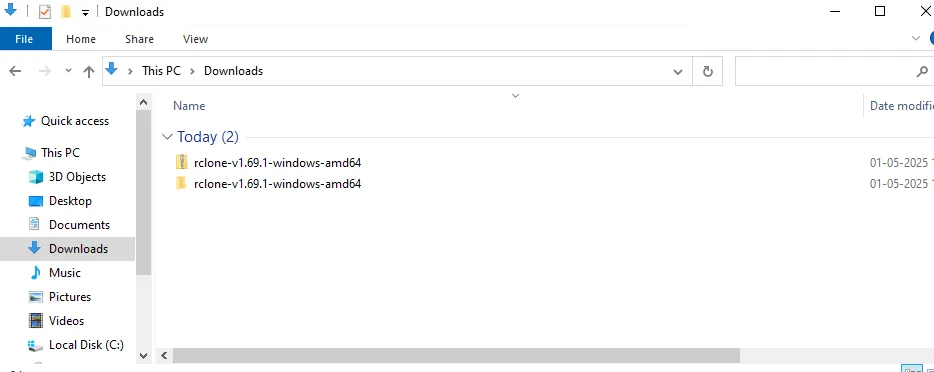
Move rclone to C:\rclone
Create a folder C:\rclone and move the extracted files into it, including rclone.exe.
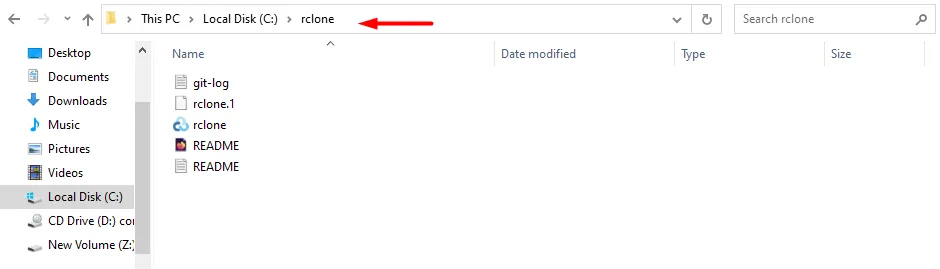
Add C:\rclone to the PATH
So that you can run rclone from any folder:
- Right-click This PC and select Properties, then Advanced system settings.
- Select Environment Variables.
- Under System variables, select Path and then Edit.
- Select New, enter
C:\rclone(the folder, not the.exefile), and select OK in each window.
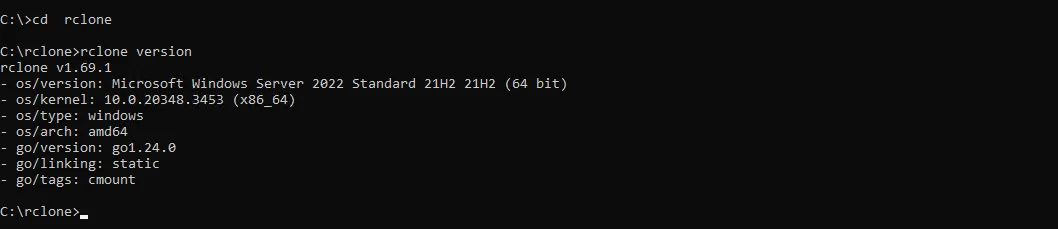
Create the Zata remote
A remote is rclone’s name for a saved connection. Create one called zata, either with one command or with the wizard.
One command
Wizard
Replace the keys with yours. For Mumbai, use https://bom01.zata.ai.
Check the saved settings:
The remote looks like this in rclone.conf. rclone config file shows where the file is (usually %APPDATA%\rclone\rclone.conf).
To fix an existing remote without the wizard:
Test it
Replace my-bucket with your bucket name:
rclone lsd zata: lists your buckets. A sub-user’s key may show none; use the bucket name directly.
Copy, sync or move
Put Windows paths with spaces in double quotes.
All three skip files that are already the same in the bucket. Before a sync, add --dry-run to see what it would delete.

To download, swap the two sides:

For very large files, checking a backup, and copying between regions, the commands are the same as on Linux. See rclone on Linux.
Mount a bucket as a drive
Install WinFsp first, then mount the bucket to a free drive letter:
Download links
rclone link does not work with Zata (it fails with not found: FixupRequest). Make a temporary download link with the AWS CLI (aws s3 presign), or share the file from the console (Share a file).
Troubleshooting
For other errors, see Signature errors and Access denied.